Looking for a clear picture of Asana? This review breaks down its core features, pricing plans, and real‑world use cases so you can see if Asana fits your workflow. We also share practical tips and common pitfalls to help you get the most out of the platform.
Key Takeaways
- Ease of use: Asana’s clean UI makes onboarding quick for both tech‑savvy and non‑technical teams.
- Flexible views: List, board, timeline, and calendar views let you visualize work the way you prefer.
- Robust integrations: Over 100 native apps (Slack, Gmail, Zoom, etc.) keep your tools connected.
- Pricing tiers: Free plan covers basics; Premium adds advanced features; Business and Enterprise scale for large orgs.
- Automation power: Rules and custom fields automate repetitive tasks, saving up to 30% of manual effort.
- Limitations: No native time‑tracking, and reporting can feel shallow for data‑heavy teams.
- Best fit: Small‑to‑medium businesses, product teams, and marketing squads that need visual project tracking.
📑 Table of Contents
Introduction: Why Asana Reviews Matter
Choosing a project‑management tool is a big decision. You want something that speeds up work, keeps everyone on the same page, and doesn’t require a PhD to use. That’s why asana reviews are so popular—they give you a realistic look at how the platform performs in real teams.
In this article we’ll walk through the history of Asana, dive deep into its core features, compare pricing, and share tips that come from actual users. By the end you’ll know whether Asana is a good match for your workflow, and you’ll have a roadmap for a smooth rollout.
1. Core Features that Define Asana
1.1 Task Management Made Simple
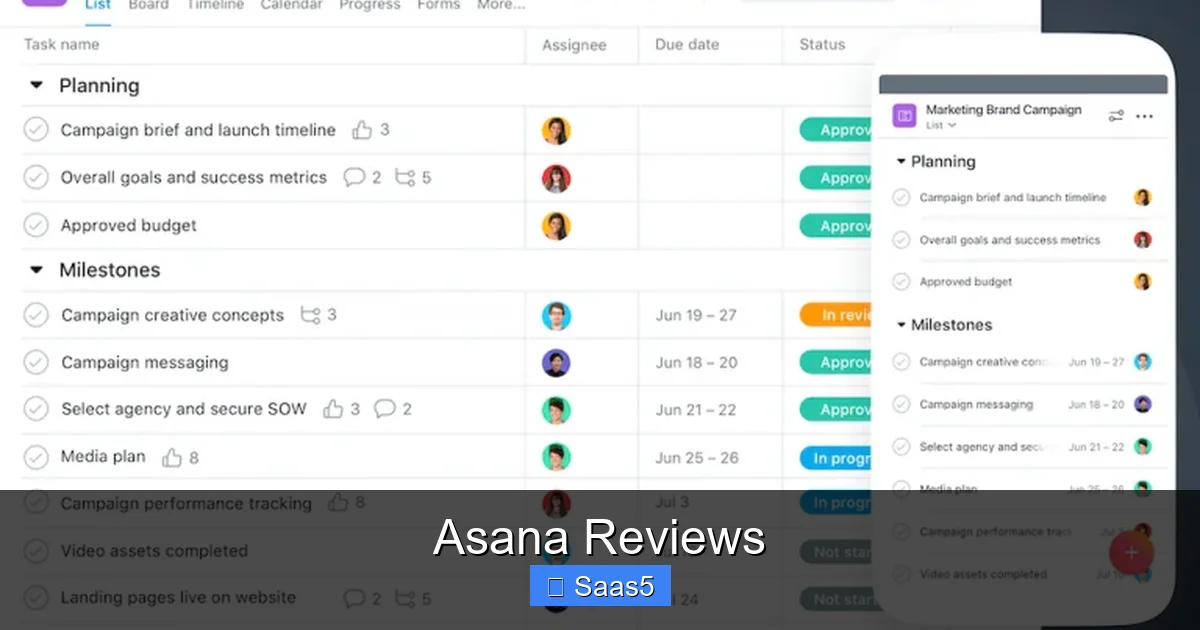
At its heart, Asana is a task manager. You create tasks, assign owners, set due dates, and add attachments. The interface is clean—no clutter, just a left‑hand navigation bar and a central work area. Tasks can be broken down into subtasks, allowing you to capture every tiny step without losing the bigger picture.
Visual guide about Asana Reviews
Image source: ocmsolution.com
1.2 Multiple Project Views
One of the biggest strengths highlighted in many asana reviews is the variety of views:
- List view: Traditional spreadsheet‑like layout, perfect for detailed checklists.
- Board view: Kanban‑style columns that move tasks from “To Do” to “Done.”
- Timeline (Gantt) view: Visual roadmaps that show dependencies and milestones.
- Calendar view: Drag‑and‑drop tasks onto a calendar to see deadlines at a glance.
Switching between these views is a single click, so you can adapt to any project style.
1.3 Automation with Rules
Automation is a game‑changer. Asana’s “Rules” let you set triggers (e.g., when a task moves to “In Review”) and actions (e.g., assign to a QA lead, add a tag, or send a Slack notification). Users report saving up to 30% of time previously spent on manual updates.
1.4 Custom Fields and Forms
Custom fields let you add extra data points—budget, priority, or client name—directly on tasks. Forms turn Asana into a lightweight intake system, letting external stakeholders submit requests that automatically become tasks.
1.5 Collaboration Tools
Comments, mentions, and real‑time updates keep conversations inside the work item. You can also embed files from Google Drive, Dropbox, or OneDrive, and preview them without leaving Asana.
2. Integrations: Connecting Asana to Your Stack
2.1 Native Integrations
Asana boasts over 100 native integrations. The most popular ones include:

Visual guide about Asana Reviews
Image source: mobile-fixer.com
- Slack – receive task updates in channels.
- Microsoft Teams – turn messages into tasks.
- Gmail & Outlook – turn emails into tasks with one click.
- Zoom – schedule meetings directly from a task.
- Jira – sync development tickets with product roadmaps.
These integrations are set up in the “Apps” section and usually require only a few clicks.
2.2 Third‑Party Connectors
If you need something beyond native apps, tools like Zapier, Automate.io, and Make (formerly Integromat) let you build multi‑step workflows. For example, a Zap could create an Asana task whenever a new lead is added in HubSpot, then notify the sales lead in Slack.
3. Pricing Plans Explained
3.1 Free Tier – Good for Small Teams
The free plan supports up to 15 members, unlimited tasks, and basic views (list and board). It lacks Timeline, advanced reporting, and automation rules, but it’s a solid entry point for freelancers or startups.

Visual guide about Asana Reviews
Image source: i.pinimg.com
3.2 Premium – Power Users
At $10.99 per user per month (billed annually), Premium adds:
- Timeline view.
- Unlimited custom fields.
- Advanced search and reporting.
- Task dependencies.
- Automation rules (up to 100 per month).
3.3 Business – Teams that Scale
Business costs $24.99 per user per month (annual billing). It includes everything in Premium plus:
- Portfolios – group projects for high‑level tracking.
- Workload – visual capacity planning.
- Proofing – image and video review tools.
- Advanced integrations (e.g., Salesforce, Adobe Creative Cloud).
- Admin controls and SSO.
3.4 Enterprise – Large Organizations
Enterprise pricing is custom, based on user count and required features. It adds:
- Advanced security (SOC 2, ISO 27001).
- Dedicated customer success manager.
- API rate limits increase.
- Custom SLA and data residency options.
3.5 Cost‑Benefit Snapshot
When reading asana reviews, many users note that the Premium plan’s $10‑$12 per user price often pays for itself within a month by reducing meeting time and email back‑and‑forth.
4. Real‑World Use Cases and Tips
4.1 Marketing Campaign Management
Marketing teams love Asana’s board view for content calendars. A typical workflow:
- Create a “Campaign” project.
- Add tasks for each asset (blog post, social graphic, email).
- Use custom fields for “Owner,” “Publish Date,” and “Status.”
- Set a rule: when “Status” changes to “Approved,” automatically move the task to the “Ready to Publish” column and notify the social media manager in Slack.
This visual pipeline keeps everyone aware of deadlines without endless status meetings.
4.2 Product Development & Agile
Product teams use Asana’s Timeline and dependencies to map out sprints. By linking user stories to engineering tasks, you can see which features are blocked and adjust the sprint backlog on the fly.
Tip: Enable “Workload” in the Business plan to monitor each developer’s capacity. Over‑allocation shows up in red, prompting a quick re‑assignment.
4.3 Remote Team Coordination
With remote work, Asana’s comment threads and file previews reduce the need for separate chat apps. A best practice is to adopt the “single source of truth” rule—only update task status in Asana, not in email.
4.4 Customer Support Ticketing
Support teams can turn Asana into a lightweight ticket system using Forms. Customers fill out a form, which creates a task in a “Support Inbox” project. Tags like “Urgent” or “Bug” auto‑assign the task to the right owner.
4.5 Tips for Faster Adoption
- Start with a pilot: Choose one department to test the tool for 30 days.
- Create templates: Save recurring project structures (e.g., “Onboarding”) to speed up setup.
- Leverage training videos: Asana Academy offers short, free tutorials that boost confidence.
- Set up a “Help” project: Centralize FAQs and best practices for new users.
5. Pros, Cons, and Common Criticisms
5.1 Strengths Highlighted in Asana Reviews
- User‑friendly UI: Minimal learning curve.
- Versatile views: Adapts to many methodologies.
- Automation: Reduces manual steps.
- Strong community: Active forum and extensive knowledge base.
5.2 Areas Where Users See Gaps
- Time tracking: No built‑in timer; you need a third‑party add‑on.
- Reporting depth: Premium reports are basic; Power‑users often export data to Excel or use Business’s advanced reporting.
- Pricing for large teams: Costs can add up quickly if you need Enterprise features.
5.3 How to Mitigate the Cons
If you need time tracking, integrate Harvest or Toggl—both have one‑click Asana connectors. For deeper analytics, consider coupling Asana with Google Data Studio or Power BI using the Asana API.
Conclusion: Is Asana Right for You?
After sifting through countless asana reviews, the consensus is clear: Asana excels at visual task management, offers powerful automation, and scales well from a five‑person startup to a multinational enterprise. Its free tier lets you test the waters without commitment, while Premium and Business plans unlock the features most teams rely on for collaboration.
If your organization values a clean interface, flexible project views, and strong integrations, Asana is likely a great fit. However, if you need native time‑tracking or highly customized reporting, you may need to supplement it with add‑ons or consider alternatives like ClickUp or Monday.com.
Take the advice from this review—start small, use templates, and automate repetitive steps. In a few weeks you’ll see clearer workflows, fewer email chains, and a team that actually knows what’s on its plate. Happy planning!
Frequently Asked Questions
What is the difference between Asana’s Free and Premium plans?
The Free plan supports up to 15 users and offers basic list and board views. Premium adds Timeline, task dependencies, unlimited custom fields, and automation rules, making it suitable for growing teams.
Can Asana replace my email inbox for project updates?
Yes. Asana’s comment threads, mentions, and real‑time notifications keep conversations attached to tasks, reducing the need for status emails.
Is there a native time‑tracking feature in Asana?
Asana does not include built‑in time tracking, but it integrates with popular tools like Harvest, Toggl, and Clockify, which add this capability seamlessly.
How secure is Asana for enterprise data?
Enterprise plans offer advanced security certifications (SOC 2, ISO 27001), SSO, data encryption at rest and in transit, and customizable data residency options.
Can I use Asana on mobile devices?
Yes. Asana has fully functional iOS and Android apps that sync in real time, allowing you to create, edit, and comment on tasks from anywhere.
What kind of support does Asana provide?
All plans receive email support. Premium and Business users get priority chat support, while Enterprise customers receive a dedicated success manager and 24/7 phone assistance.