Connecting your wireless mouse to a laptop is simple—whether you’re using Bluetooth, a USB receiver, or a built-in dongle. Follow these steps to pair your device, resolve common issues, and enjoy seamless navigation. No complicated tech jargon here—just clear, actionable advice for hassle-free setup.
Key Takeaways
- Check compatibility: Ensure your wireless mouse supports Bluetooth or USB receivers and matches your laptop’s specs.
- Enable Bluetooth: Turn on Bluetooth on your laptop and put your mouse in pairing mode to initiate connection.
- Use the right receiver: Insert the USB dongle into a USB port and follow on-screen prompts for automatic pairing.
- Troubleshoot smartly: Fix issues like lag or disconnection by checking batteries, updating drivers, or re-pairing the device.
- Optimize performance: Position your mouse close to the laptop, avoid obstructions, and update firmware for smoother operation.
📑 Table of Contents
Why Connect a Wireless Mouse to Your Laptop?
Using a wireless mouse offers freedom from tangled cables, cleaner desk setups, and enhanced comfort during long work or gaming sessions. Unlike wired mice, wireless models let you move your hand freely across the desk without worrying about pulling on cords. For laptops, this is especially useful when docking stations or external monitors are involved—your mouse stays untethered while your laptop remains portable. Plus, modern wireless mice often feature advanced ergonomics, customizable buttons, and precision sensors that outperform basic wired models.
However, connecting a wireless mouse isn’t always intuitive, especially for first-time users. Some devices require Bluetooth pairing, while others need a USB receiver. Older laptops might lack Bluetooth, forcing you to use a dongle instead. And if your mouse doesn’t connect, you might face frustrations like lag, disconnections, or unresponsive buttons. This guide breaks down the process step-by-step, so you can avoid guesswork and get back to work or play quickly.
What You’ll Need to Connect Your Wireless Mouse
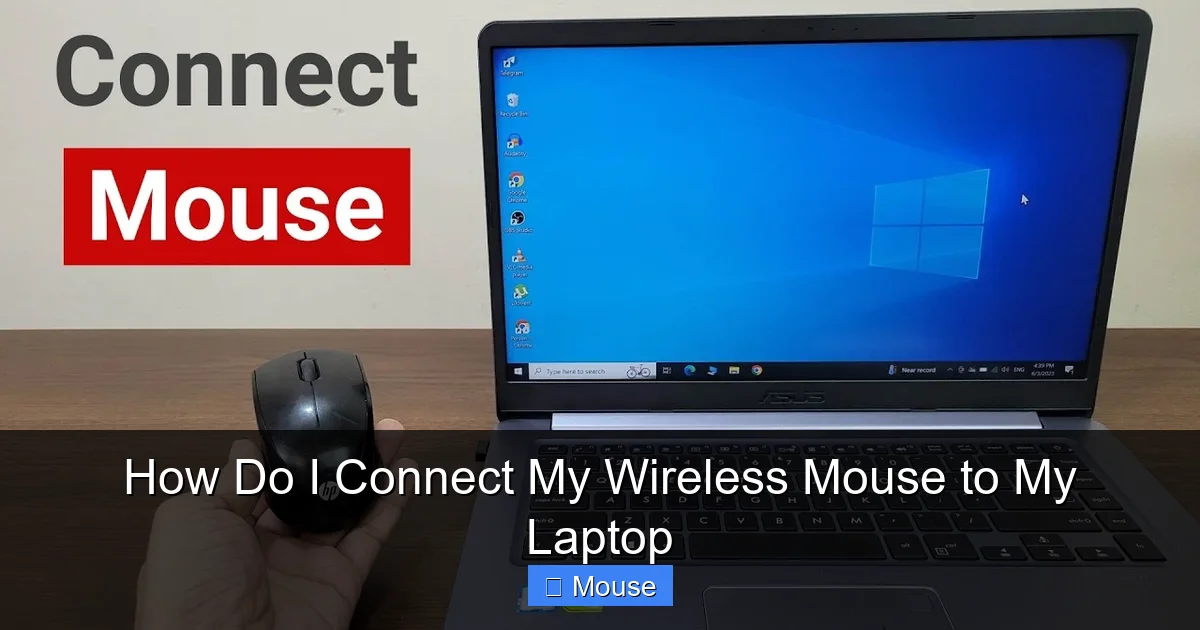
Before diving into the connection process, gather the essentials. First, confirm your laptop’s capabilities. Most modern laptops (Windows 10/11 or macOS) have Bluetooth built-in, but older models might require a USB Bluetooth adapter. Check your laptop’s specifications or look for the Bluetooth symbol on the keyboard or ports. If Bluetooth isn’t available, you’ll need a USB receiver (often included with the mouse) to act as a bridge between your mouse and laptop.
Visual guide about How Do I Connect My Wireless Mouse to My Laptop
Image source: i.ytimg.com
Next, ensure your wireless mouse is charged. Most models use AA, AAA, or rechargeable batteries. If your mouse has a power button, press it to activate the device. For Bluetooth mice, you’ll also need to put it into pairing mode—a step that varies by brand. Some mice require pressing and holding a button for 5–10 seconds, while others use a dedicated Bluetooth button. Always refer to your mouse’s manual for exact instructions.
Step-by-Step Guide to Connecting Your Wireless Mouse
Method 1: Connecting via Bluetooth
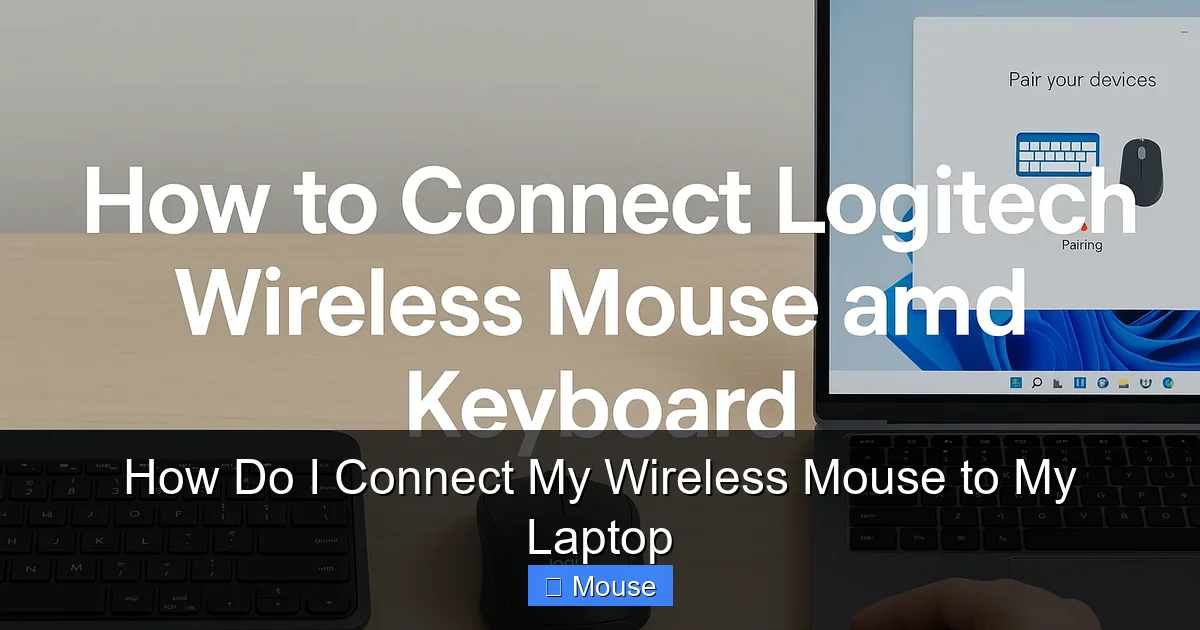
If your laptop has Bluetooth, this is the easiest method. Start by turning on your mouse and enabling Bluetooth on your laptop. On Windows, click the Start menu, select Settings > Devices > Bluetooth & other devices > Add Bluetooth or other device > Bluetooth. On macOS, go to System Preferences > Bluetooth and click “+” to add a device. Once your laptop’s Bluetooth is active, put your mouse into pairing mode (usually by pressing and holding a button until a light blinks).
Visual guide about How Do I Connect My Wireless Mouse to My Laptop
Image source: digitalcitizen.life
Your laptop should detect the mouse and display its name. Click to select it, then follow any on-screen prompts to complete pairing. Once connected, your mouse should work immediately. Test it by moving the cursor around. If it doesn’t respond, restart both devices and repeat the process.
Method 2: Using a USB Receiver
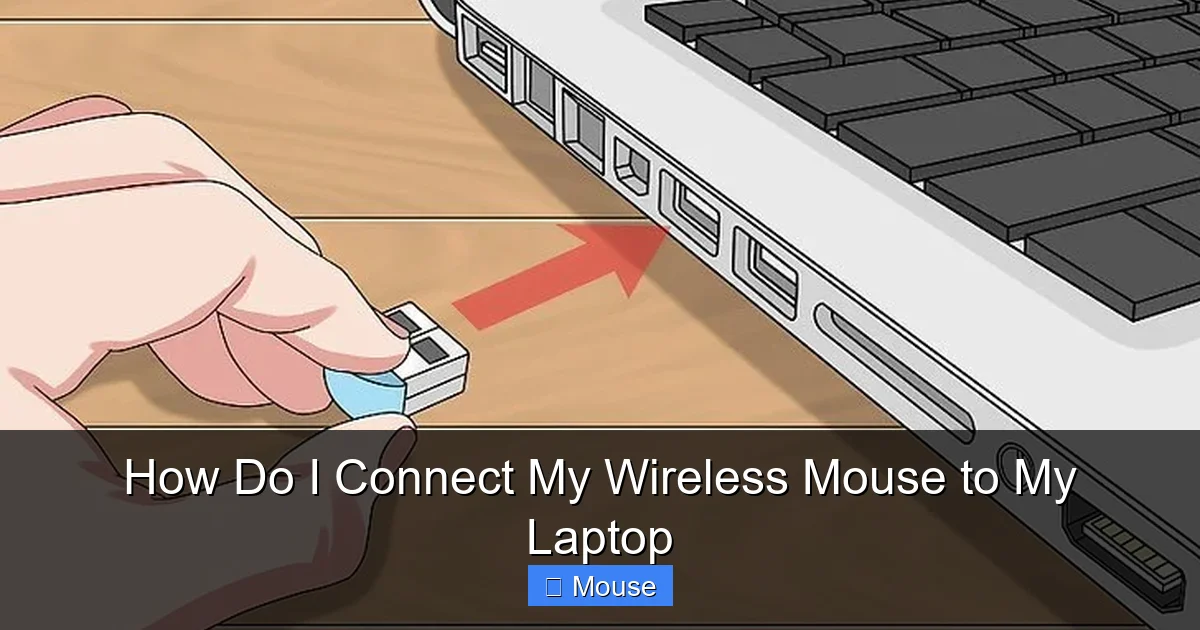
If your mouse came with a USB receiver (often called a dongle), plug it into your laptop’s USB port. Most modern mice automatically pair when the receiver is connected. You’ll see a notification on your screen confirming the connection. If not, open your laptop’s Bluetooth settings and search for the mouse manually. Select it and complete pairing as described earlier.
Some mice require manual pairing even with a USB receiver. In this case, press the pairing button on the mouse and the receiver simultaneously for 5 seconds. This syncs the two devices.
Method 3: Troubleshooting Connection Issues
If your mouse won’t connect, start with the basics: check the battery level, ensure Bluetooth is enabled, and restart your laptop. If you’re using a USB receiver, try a different USB port—some ports don’t supply enough power. For Bluetooth connections, forget the device in your laptop’s settings and re-pair it. Updating your Bluetooth drivers (via Device Manager on Windows or System Preferences on macOS) can also resolve compatibility problems.
Tips for a Smooth Wireless Mouse Experience
Once connected, optimize your mouse’s performance. Keep it within 10 feet of your laptop to maintain a strong signal. Avoid placing it near wireless routers or microwaves, which can cause interference. For gaming or graphic design, invest in a mouse with a high DPI sensor for precision. If your cursor moves erratically, clean the optical sensor with a microfiber cloth. Finally, store your mouse in a safe place when not in use to prevent damage.
Visual guide about How Do I Connect My Wireless Mouse to My Laptop
Image source: wikihow.com
Advanced Pairing Options
Some laptops allow you to connect multiple Bluetooth devices simultaneously. To switch between a mouse and headphones, for example, go to Bluetooth settings and disconnect the unused device. You can also prioritize connections by adjusting your laptop’s power settings—ensuring your mouse stays active even when the laptop is idle.
Visual guide about How Do I Connect My Wireless Mouse to My Laptop
Image source: i.ytimg.com
Final Thoughts
Connecting a wireless mouse to your laptop doesn’t have to be a headache. Whether you’re using Bluetooth, a USB receiver, or troubleshooting an existing setup, the process is straightforward with the right steps. By following this guide, you’ll eliminate frustration and enjoy a clutter-free, efficient workspace. Remember to keep your mouse charged, drivers updated, and workspace organized for the best results.
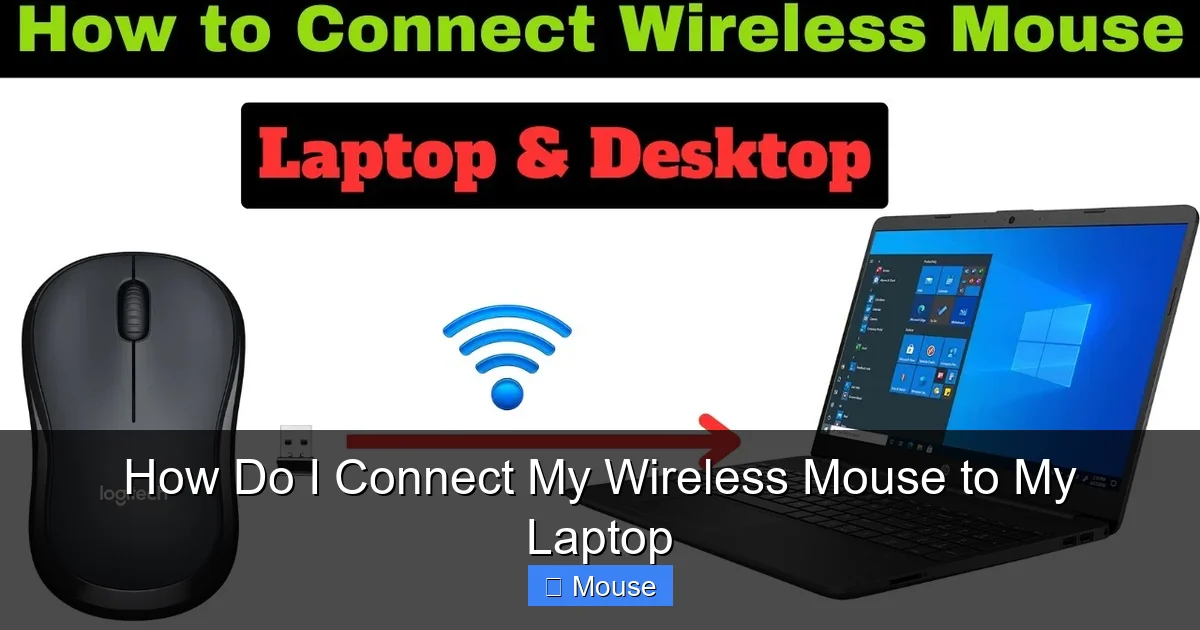
Visual guide about How Do I Connect My Wireless Mouse to My Laptop
Image source: i.ytimg.com
Frequently Asked Questions
1. How do I connect my wireless mouse to a laptop without Bluetooth?
If your laptop lacks Bluetooth, use the USB receiver that came with your mouse. Plug it into a USB port, and your mouse should pair automatically. If not, press the pairing button on both the mouse and receiver simultaneously for 5 seconds.
2. Why won’t my wireless mouse connect to my laptop?
Check the battery level, ensure Bluetooth is enabled, and restart both devices. If using a USB receiver, try a different USB port. Outdated drivers or interference from other devices could also disrupt the connection.
3. How do I pair a Logitech wireless mouse with my laptop?
Press the Logitech Easy-Switch button to enter pairing mode, then select the mouse in your laptop’s Bluetooth settings. For USB receivers, plug it into your laptop and press the pairing button on both devices.
4. Can I connect multiple wireless mice to one laptop?
Yes, but only if your laptop supports multi-device Bluetooth pairing. Go to Bluetooth settings, add each mouse, and switch between them as needed.
5. How do I fix a disconnected wireless mouse?
Re-pair the mouse via Bluetooth settings or reinsert the USB receiver. Check for firmware updates, and ensure there are no physical obstructions or low battery levels.
6. What should I do if my mouse isn’t responsive after connecting?
Clean the optical sensor, update drivers, or try a different USB port/receiver. If the issue persists, contact the manufacturer’s support team for further assistance.
—
**Internal Links:**
1. For troubleshooting USB receivers: [How to Connect a Mouse Using a USB Receiver](https://ugratechnology.com/how-do-i-connect-a-mouse-to-my-laptop/)
2. For Bluetooth pairing steps: [How to Pair a Wireless Mouse with a Laptop](https://ugratechnology.com/how-do-i-connect-wireless-mouse-to-laptop/)
3. For advanced Bluetooth settings: [How to Add a Mouse to a Laptop](https://ugratechnology.com/how-to-add-a-wireless-mouse-to-a-laptop/)