Dell Mouse Not Working on Laptop
Having trouble with a Dell mouse on your laptop? You’re not alone, and the solution is often simpler than you think. This guide walks you through the most common causes—from driver glitches to USB port issues—and provides step‑by‑step fixes you can try right now. Get your mouse back in action without a trip to the store.
Key Takeaways
- Check the basics first: Power, batteries, and USB connections are the most common culprits.
- Update or reinstall drivers: Out‑of‑date or corrupt drivers cause most Dell mouse problems.
- Test on another device: Knowing whether the mouse or the laptop is at fault saves time.
- Adjust Windows settings: Hidden pointer options or disabled touchpad settings can block the mouse.
- Hardware checks matter: Loose ports, dust, or a failing mouse need physical attention.
- Use Dell’s support tools: Dell Diagnostic and SupportAssist can pinpoint issues quickly.
- Know when to replace: If all else fails, a new mouse may be the most cost‑effective solution.
📑 Table of Contents
Introduction: Why Your Dell Mouse Might Be Acting Up
Imagine you’re in the middle of a video call, and suddenly the cursor freezes. You reach for your trusty Dell mouse, but nothing moves. Frustrating, right? The good news is that most mouse problems are fixable with a few simple steps.
In this article we’ll explore why a Dell mouse can stop working on a laptop, cover both wired and wireless models, and give you a clear, friendly roadmap to get things scrolling again. Think of it as a conversation with a tech‑savvy friend who’s already been through the same hiccups.
1. Start With the Simple Stuff
Power and Batteries
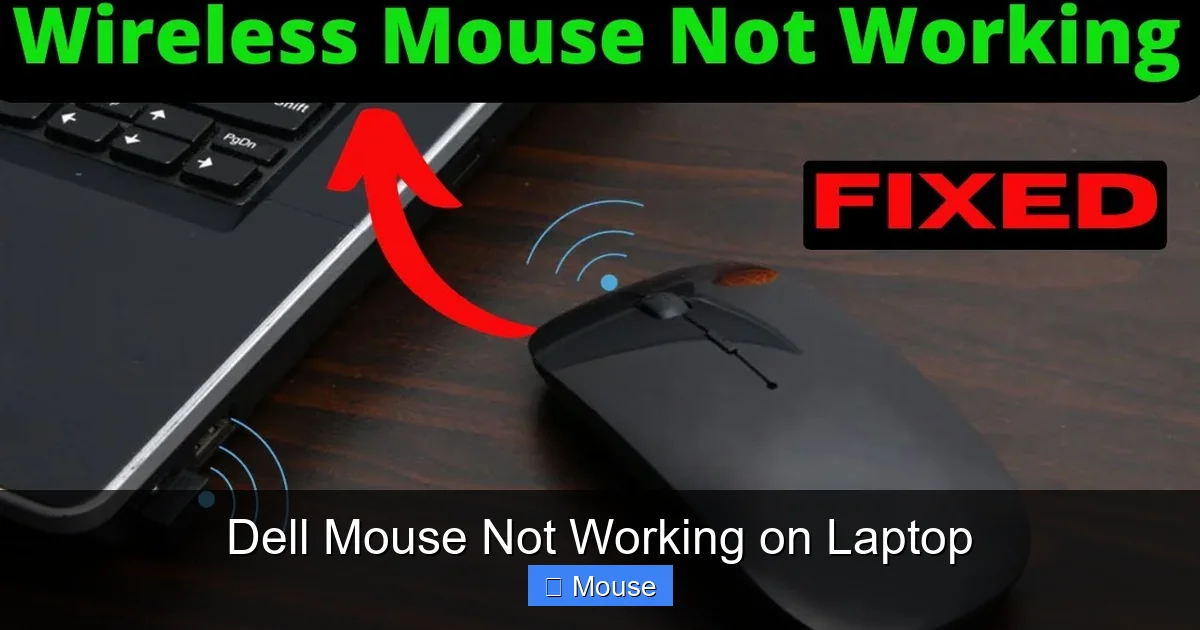
For wireless Dell mice, the first thing to verify is the battery. A low‑charge battery can cause intermittent or complete failure. Replace the AA or AAA cells with fresh ones, or if you have a rechargeable model, plug it in for at least 15 minutes.
Visual guide about Dell Mouse Not Working on Laptop
Image source: i.ytimg.com
USB Connection Checks
Wired mice rely on a solid USB connection. Try these quick actions:
- Unplug the mouse and plug it back in.
- Use a different USB port—preferably one directly on the laptop, not a hub.
- Inspect the USB connector for dust or bent pins.
If the cursor reappears, the issue was a loose connection.
Try Another Device
Plug the Dell mouse into a different computer (a friend’s PC, a desktop, or even a tablet with a USB‑OTG adapter). If it works there, the mouse hardware is fine and the problem lies with your laptop.
2. Driver Diagnosis and Updates
What Are Drivers and Why Do They Matter?
Drivers are tiny pieces of software that tell Windows how to talk to your mouse. Corrupt or outdated drivers can stop the cursor from moving, even if the hardware is perfect.
Visual guide about Dell Mouse Not Working on Laptop
Image source: i.ytimg.com
How to Check the Mouse Driver
1. Press Windows + X and select Device Manager.
2. Expand the Mice and other pointing devices section.
3. Right‑click the Dell mouse entry and choose Properties.
4. Go to the Driver tab and note the driver version and date.
Updating or Reinstalling the Driver
If the driver is older than a few months, update it:
- Click Update Driver > Search automatically for updated driver software.
- If Windows finds nothing, visit the Dell Support website, enter your mouse model, and download the latest driver.
To reinstall:
- Right‑click the mouse entry in Device Manager and choose Uninstall device.
- Restart the laptop; Windows will reinstall a generic driver automatically.
Using Dell SupportAssist
Dell’s free SupportAssist tool scans hardware and driver health. Running a quick diagnostic can reveal hidden conflicts and often fixes the issue with one click.
3. Windows Settings That Can Hide Your Cursor
Pointer Options
Sometimes the pointer is simply turned off:

Visual guide about Dell Mouse Not Working on Laptop
Image source: tinygrab.com
- Open Settings > Devices > Mouse > Additional mouse options.
- In the Pointer Options tab, make sure “Display pointer trails” is unchecked and “Hide pointer while typing” is not causing confusion.
Touchpad Interference
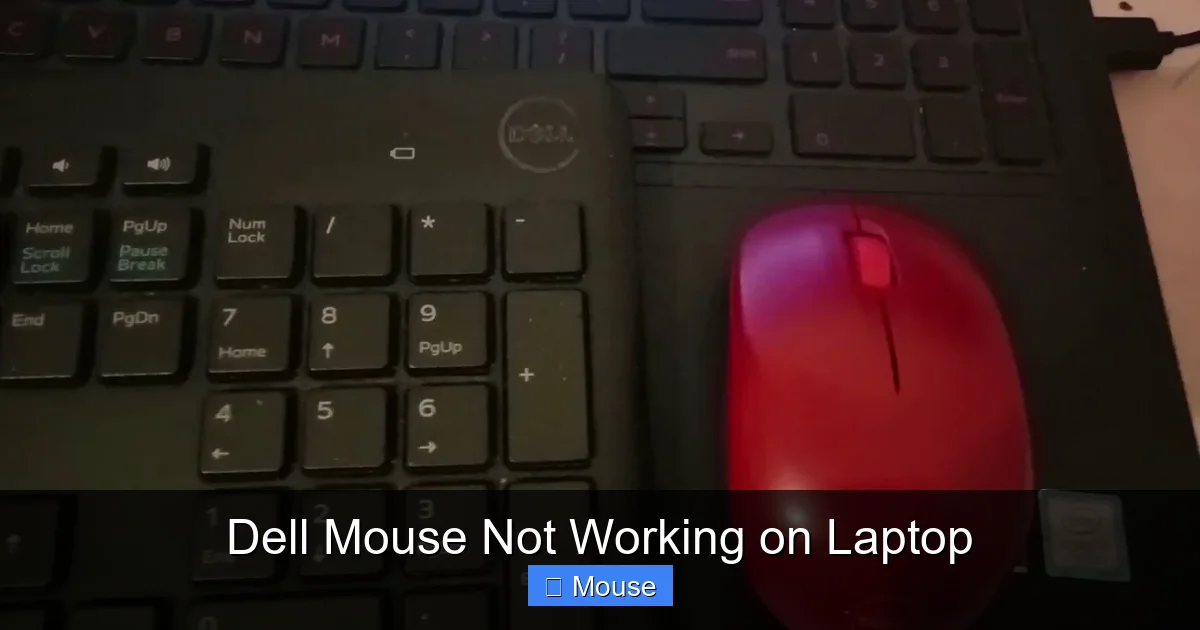
On many laptops, disabling the touchpad can also disable external mice. Check the touchpad settings:
- Go to Settings > Devices > Touchpad.
- Ensure the touchpad is enabled, or toggle “Leave touchpad on when a mouse is connected.”
If you’re using a Dell laptop, you might also have a function key (often Fn + F3) that toggles the touchpad on and off.
Disable Tablet Mode
Windows 10/11’s tablet mode can hide the cursor. Open the Action Center (Windows + A) and make sure “Tablet mode” is turned off.
4. Hardware Troubleshooting
Inspect the USB Port
Dust, lint, or a slightly bent pin can prevent proper contact. Use a can of compressed air to blow out debris, and gently wiggle the connector to feel for any resistance.
Visual guide about Dell Mouse Not Working on Laptop
Image source: i.ytimg.com
Test With a Different Mouse
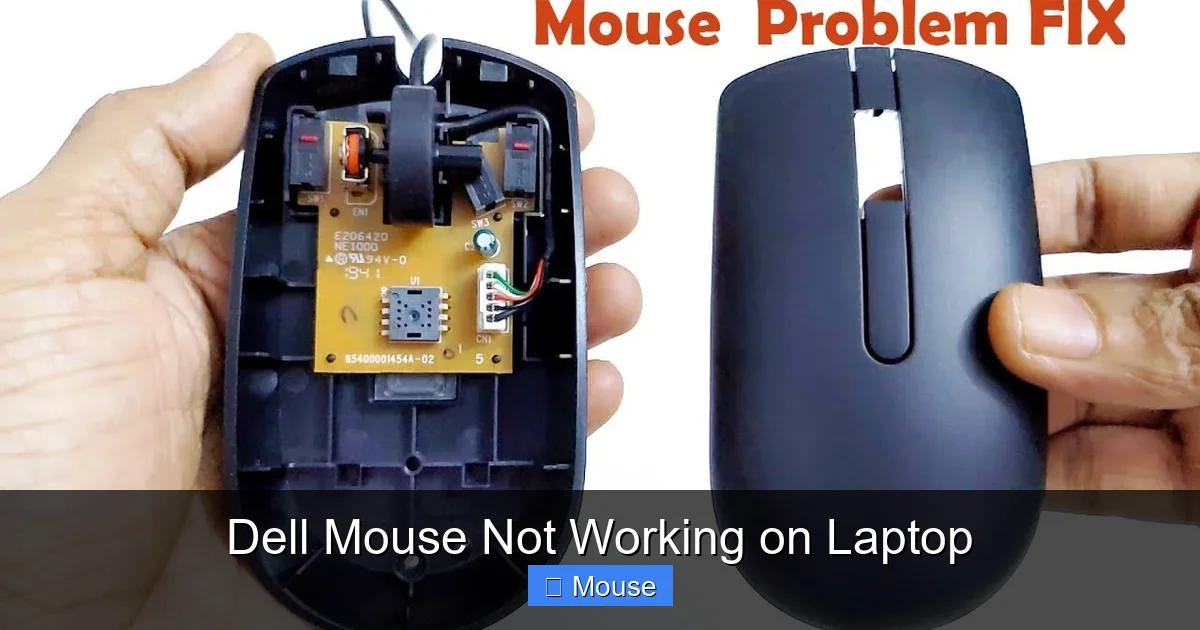
If a second mouse works fine, the original Dell mouse may have a hardware fault. Common failures include worn-out scroll wheels or broken internal switches.
Check for Physical Damage
Look for:
- Frayed cables (wired mice).
- Cracked plastic around the buttons.
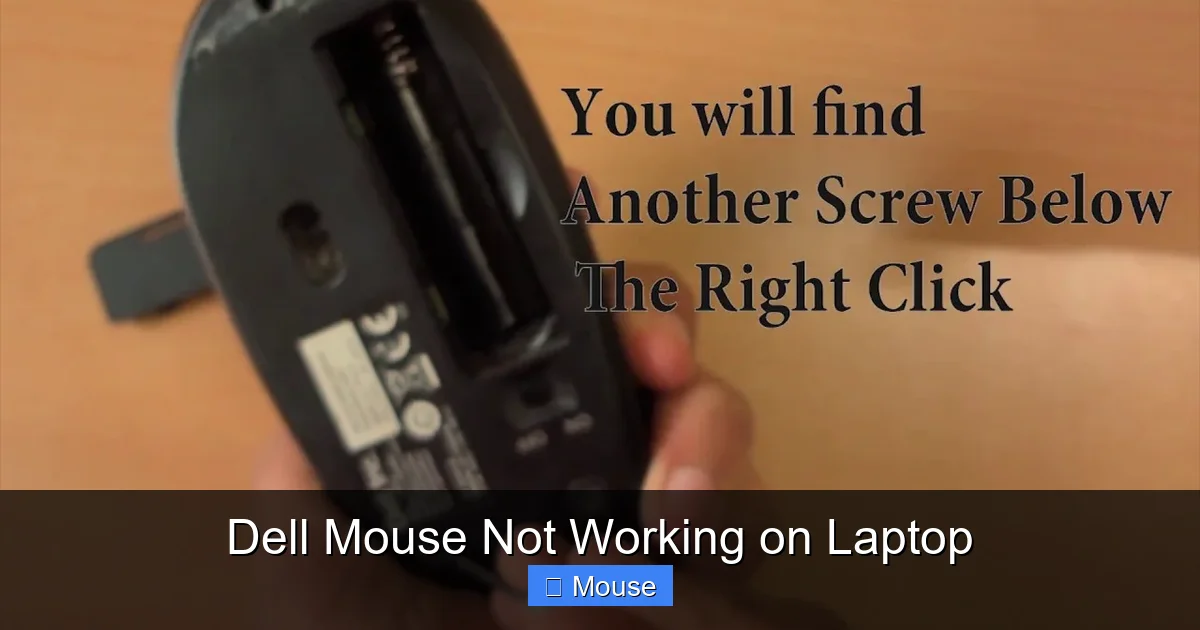
- Loose internal components—if you’re comfortable, open a wireless mouse to ensure the battery contacts are clean.
Power Management Settings
Windows sometimes powers down USB ports to save energy, which can stop the mouse from receiving power. To prevent this:
- Open Device Manager, expand Universal Serial Bus controllers.
- Right‑click each USB Root Hub, choose Properties > Power Management, and uncheck “Allow the computer to turn off this device to save power.”
5. Advanced Solutions and When to Call for Help
Registry Tweaks (Use With Caution)
For rare cases where Windows thinks the mouse is disabled, a registry edit can help:
Visual guide about Dell Mouse Not Working on Laptop
Image source: pcerror-fix.com
- Press Windows + R, type
regedit, and press Enter. - Navigate to
HKEY_CURRENT_USER\Software\Microsoft\Windows\CurrentVersion\Policies\System. - If a value named
DisableCursorexists and is set to 1, double‑click it and change it to 0. - Restart the laptop.
Back up the registry first—mistakes can cause bigger problems.
BIOS/UEFI Settings
Some Dell laptops have an option in the BIOS to enable or disable legacy USB support. Restart the laptop, press F2 to enter BIOS, and look under Advanced or USB Configuration. Make sure USB ports are enabled.
When to Replace the Mouse
If you’ve tried every software fix, swapped ports, and the mouse still won’t work on any computer, it’s likely a hardware failure. Dell mice are generally affordable, and a replacement will save you the headache of continued troubleshooting.
Get Professional Help
Should the laptop itself be the problem (e.g., a failing USB controller), contacting Dell Support is the best route. They can run remote diagnostics and, if needed, arrange a repair.
Conclusion: Bring Your Dell Mouse Back to Life
Most Dell mouse issues on laptops boil down to three areas: power/connection, drivers, and Windows settings. By following the steps above—starting with the simplest checks and moving to driver updates, settings tweaks, and hardware inspection—you’ll resolve the majority of problems without spending a dime.
Remember, a systematic approach saves time. Test the mouse on another device, verify Windows isn’t hiding the cursor, and keep your drivers current. If all else fails, a fresh mouse or a quick call to Dell support will get you back to smooth scrolling in no time.
Frequently Asked Questions
Why is my Dell mouse not recognized by Windows?
Windows may not recognize the mouse if the driver is corrupted, the USB port is disabled in BIOS, or power‑saving settings have turned off the USB controller.
Can a faulty touchpad stop an external mouse from working?
Yes. On many laptops, disabling the touchpad can also disable external USB mice. Make sure the touchpad is enabled or set to stay active when a mouse is connected.
Do I need to reinstall the Dell mouse driver after a Windows update?
Sometimes Windows updates replace drivers with generic versions that lack full functionality. Reinstalling the latest Dell driver from the Support website often restores full features.
What should I do if the mouse works on another computer?
That indicates the mouse hardware is fine. Focus on the laptop: check USB ports, driver status, and Windows pointer settings.
How can I tell if the USB port itself is broken?
Plug a known‑good device (like a flash drive) into the same port. If it isn’t detected, the port may be damaged and you should try a different one or have the laptop serviced.
Is there a way to use the mouse without installing drivers?
Windows includes a generic HID (Human Interface Device) driver that works for most basic mice. If advanced features aren’t needed, the generic driver should be sufficient.