Need to turn off the mouse on your HP laptop? We walk you through easy methods to disable the touchpad, built‑in mouse, or any connected device without digging into the BIOS. Follow our simple steps and regain control in minutes.
Key Takeaways
- Multiple ways to disable: Use Settings, Device Manager, or function keys to turn off the mouse.
- Touchpad vs. built‑in mouse: Know which component you’re disabling to avoid accidental loss of control.
- Re‑enable anytime: All methods are reversible with a few clicks or a key press.
- No driver damage: Disabling through software won’t uninstall drivers or affect warranties.
- Safety tip: Keep a USB or Bluetooth mouse handy before you disable the built‑in one.
- Model variations: HP Spectre, Pavilion, Envy, and ProBook share similar steps, but check your keyboard for the exact Fn key.
- Troubleshooting: If the mouse won’t stay disabled, we show how to adjust services and BIOS settings.
📑 Table of Contents
- Introduction
- Understanding the Different “Mouse” Components on HP Laptops
- Method 1: Using Windows Settings (Touchpad Settings)
- Method 2: Disabling the Touchpad via Device Manager
- Method 3: Using the Function Key Shortcut
- Method 4: Disabling Through BIOS/UEFI (Advanced)
- Method 5: Using Third‑Party Software
- Re‑Enabling the Mouse When You Need It
- Common Problems and How to Fix Them
- Practical Scenarios: When Disabling the Mouse Saves the Day
- Linking to Related Guides (Internal Links)
- Conclusion
Introduction
If you’ve ever found the cursor jumping around while you type, you know how frustrating a rogue mouse can be on an HP laptop. Whether you’re giving a presentation, using an external gaming mouse, or simply prefer a clean desktop, disabling the built‑in mouse (often the touchpad) can make life a lot easier.
This guide is written like a chat with a friend. We’ll keep the language simple, the steps short, and the tone relaxed. By the end, you’ll know several reliable ways to turn off the mouse on any HP laptop, how to bring it back, and what to do if something doesn’t work as expected.
Understanding the Different “Mouse” Components on HP Laptops
Touchpad vs. Built‑In Mouse
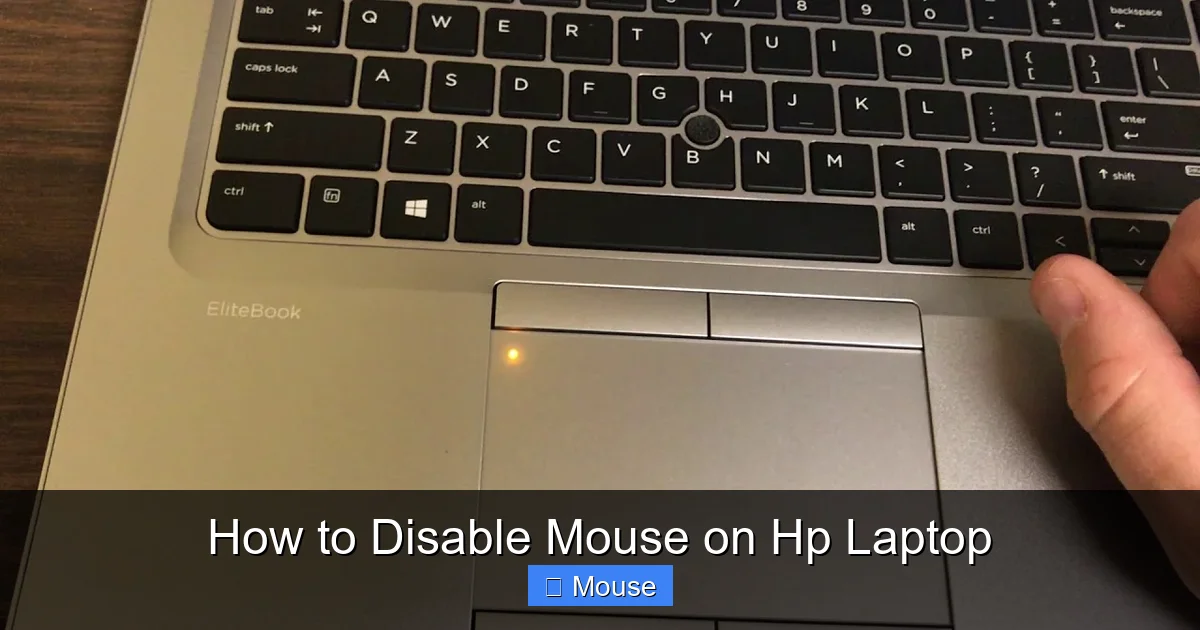
HP often uses the terms “touchpad” and “built‑in mouse” interchangeably. The touchpad is the flat, pressure‑sensitive surface below the keyboard. Some older HP models have a small physical mouse pad that acts like a mini‑trackball. Both are controlled by the same driver, but the disabling method can differ.
Visual guide about How to Disable Mouse on Hp Laptop
Image source: windowscentral.com
External Mice
USB, Bluetooth, and wireless dongle mice are separate devices. Disabling the built‑in mouse won’t affect them, but you might want to disable the internal one to avoid accidental switches.
Why Disable?
- Accidental clicks: When you’re typing, the palm can trigger clicks.
- Presentation mode: A clean screen without a cursor moving on its own.
- Gaming: Many gamers prefer a dedicated gaming mouse.
- Battery saving: Slightly reduces power draw on ultrabooks.
Method 1: Using Windows Settings (Touchpad Settings)
Step‑by‑Step Guide
1. Click the Start button and select the Settings gear.
Visual guide about How to Disable Mouse on Hp Laptop
Image source: i.ytimg.com
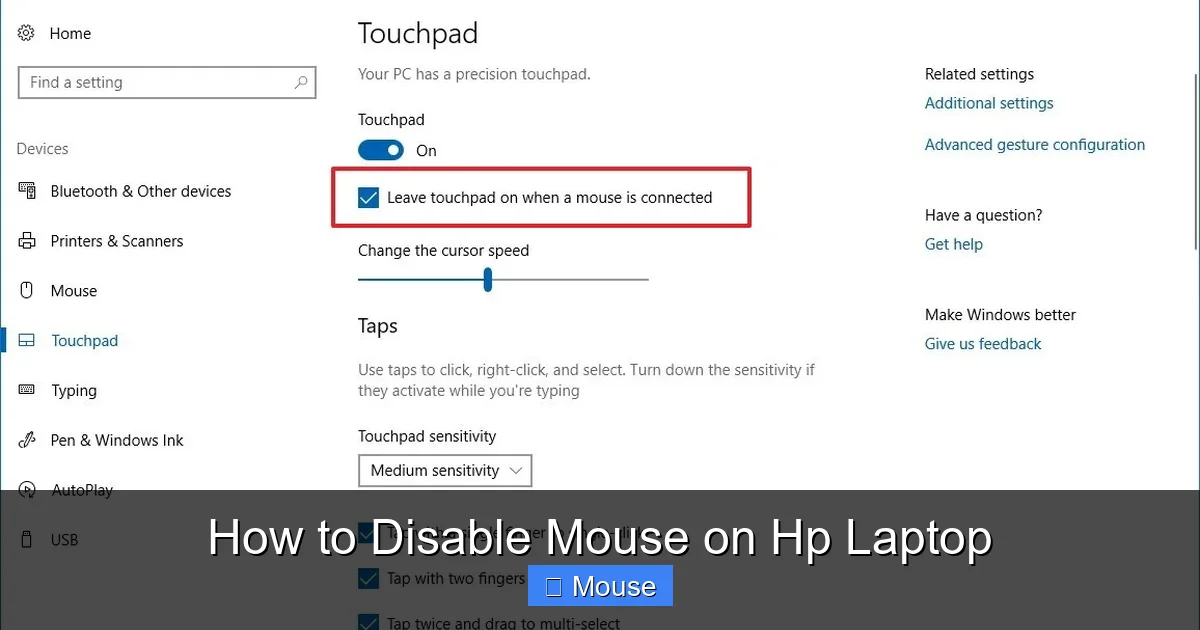
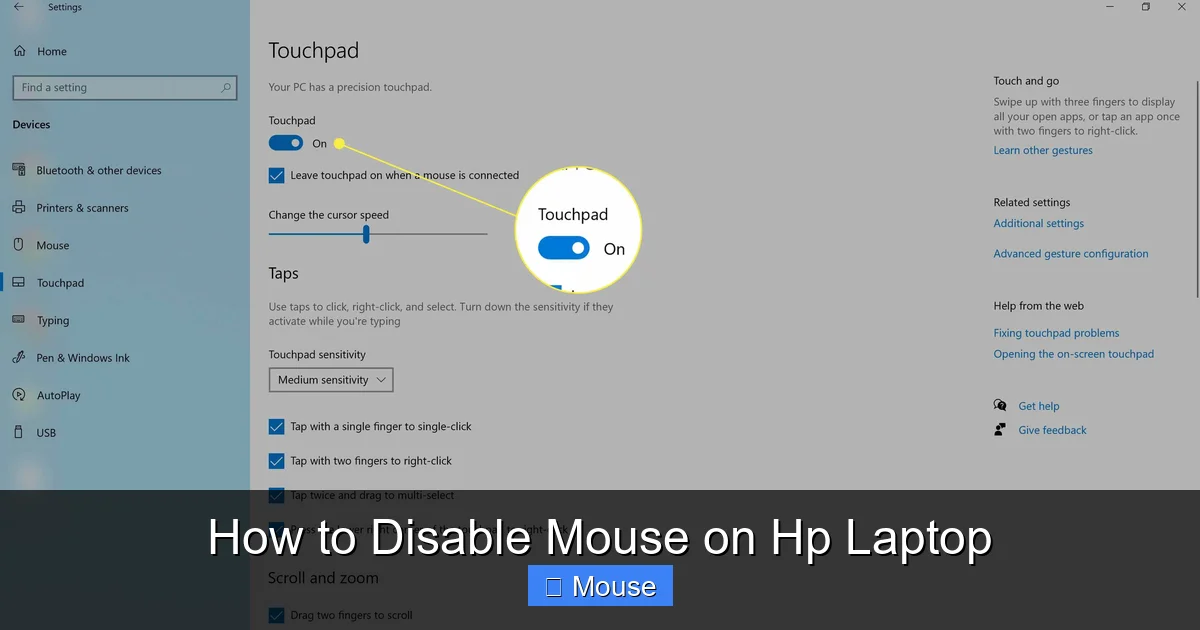
2. Navigate to Devices > Touchpad. If you don’t see “Touchpad,” look for “Mouse & touchpad” under Devices.
3. Toggle the switch that says Touchpad to Off. On some HP models the wording is “Leave touchpad on when a mouse is connected.” Uncheck that box if you want it completely disabled.
4. Close Settings. The cursor will disappear unless an external mouse is attached.
What to Expect
The change takes effect instantly. If you need the touchpad again, just reverse the toggle. This method works on Windows 10 and Windows 11, which are the most common OS versions on HP laptops today.
When This Method Fails
Some HP laptops hide the touchpad toggle in a hidden panel. In that case, move to Method 2 (Device Manager) or use the function key shortcut.
Method 2: Disabling the Touchpad via Device Manager
Why Use Device Manager?
Device Manager gives you direct control over the hardware driver. Disabling here ensures the OS won’t try to re‑enable the touchpad after an update.
Visual guide about How to Disable Mouse on Hp Laptop
Image source: lifewire.com
Step‑by‑Step Guide
1. Press Win + X and choose Device Manager from the menu.
2. Expand the Mice and other pointing devices section.
3. Look for an entry that includes “Synaptics,” “ELAN,” or “HID-compliant touchpad.” Right‑click it and select Disable device.
4. Confirm any warning dialogs. The touchpad will stop responding immediately.
5. To re‑enable, repeat the steps and choose Enable device.
Tips for a Smooth Experience
- Keep an external mouse plugged in before you disable the internal one.
- If the driver name is unclear, hover over each entry; a tooltip usually shows the manufacturer.
- After a Windows update, you may need to repeat this step.
Method 3: Using the Function Key Shortcut
Finding the Right Key
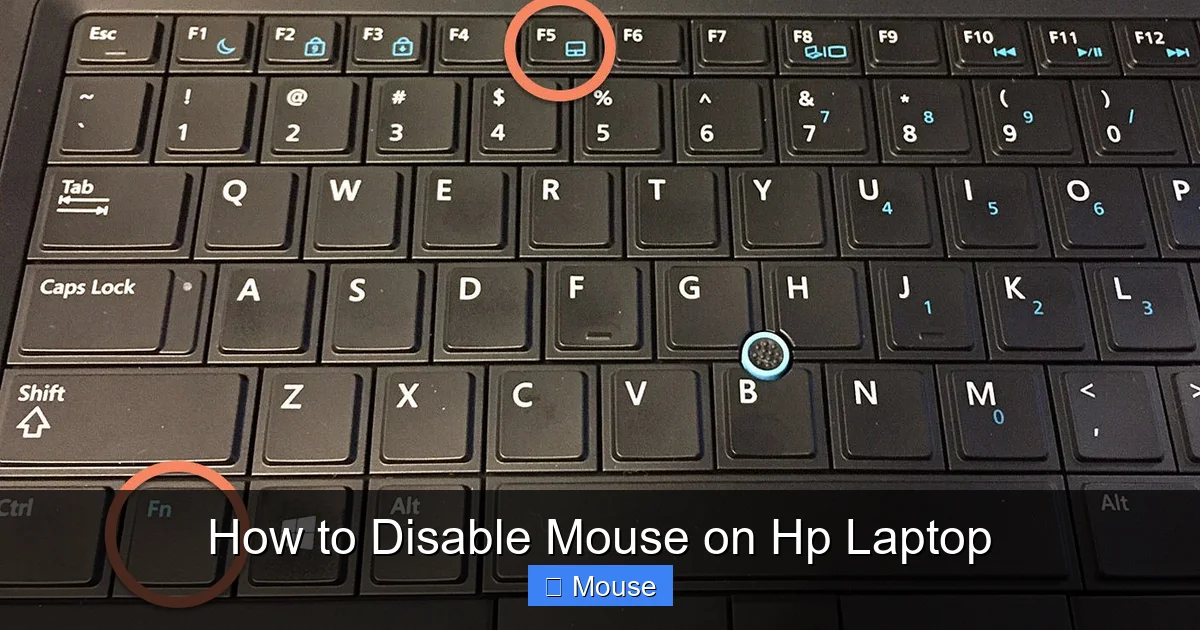
Most HP laptops have a dedicated function key to toggle the touchpad. Look for an icon that looks like a touchpad with a diagonal line. Common combos are Fn + F6, Fn + F7, or Fn + F9 depending on the model.
Step‑by‑Step Guide
1. Locate the function key with the touchpad icon.
2. Hold the Fn key and press the identified function key.
3. You’ll hear a brief chime, and an on‑screen notification will confirm the touchpad is disabled.
When It Doesn’t Work
If nothing happens, your laptop may require the driver’s utility (often called “HP Touchpad Settings”) to be installed. Download the latest driver from HP’s support site, then try again.
Method 4: Disabling Through BIOS/UEFI (Advanced)
Why Use BIOS?
Turning off the touchpad at the firmware level guarantees it stays off even before the OS loads. This is useful for kiosk setups or when Windows keeps re‑enabling the device.
Step‑by‑Step Guide
1. Shut down the laptop completely.
2. Power on and immediately press Esc (or F10 on some models) repeatedly to enter the BIOS/UEFI menu.
3. Navigate to the Advanced or Device Options tab using the arrow keys.
4. Find an entry named Internal Pointing Device, Touchpad, or similar.
5. Change the setting to Disabled. Save changes (usually F10) and exit.
6. The laptop will reboot, and the touchpad will be off at the hardware level.
Important Safety Note
Only adjust BIOS settings if you’re comfortable navigating firmware menus. Mis‑configuring other options can affect boot behavior.
Method 5: Using Third‑Party Software
Popular Tools
Programs like Touchpad Blocker or AutoHotkey scripts can automatically disable the touchpad when an external mouse is detected.
Simple AutoHotkey Script
#NoEnv
SendMode Input
SetTimer, CheckMouse, 500
Return

CheckMouse:
If (GetKeyState("LButton","P"))
{
    ; External mouse detected, disable touchpad
    Run, devcon.exe disable "HID\\VID_XXXX&PID_XXXX"
}
Return
Replace the hardware ID with your touchpad’s ID (found in Device Manager). Save the file with a .ahk extension and run it. The script watches for mouse activity and disables the touchpad automatically.
When to Use This
If you frequently switch between an external mouse and the touchpad, a software solution offers the most convenience.
Re‑Enabling the Mouse When You Need It
Quick Re‑Enable Tips
- Settings toggle: Flip the touchpad switch back on.
- Device Manager: Right‑click the disabled device and choose “Enable.”
- Fn key: Press the same combination used to disable.
- BIOS: Re‑enter BIOS and set the internal pointing device to “Enabled.”
What If the Cursor Never Returns?
First, connect an external mouse. Then, open Device Manager and look for any disabled pointing devices. If none appear, reinstall the touchpad driver from HP’s website. A fresh driver often restores functionality after a failed disable attempt.
Common Problems and How to Fix Them
Touchpad Reactivates After Windows Update
Windows updates sometimes reset driver settings. Simply repeat Method 1 or Method 2. To avoid future surprises, create a system restore point before updating.
Visual guide about How to Disable Mouse on Hp Laptop
Image source: citizenside.com
Keyboard Shortcut Doesn’t Respond
Make sure the HP Touchpad driver is installed. You can download it from the HP Support Center. After installing, restart and try the Fn key again.
External Mouse Not Working After Disabling Internal One
Check the USB port or Bluetooth pairing. Sometimes Windows disables the entire “pointing device” class. Re‑enable the external mouse in Device Manager under “Human Interface Devices.”
BIOS Option Missing
Not all HP models expose the touchpad setting in BIOS. If you can’t find it, stick to the Windows methods.
Practical Scenarios: When Disabling the Mouse Saves the Day
Scenario 1: Giving a Presentation
You’re standing in front of a crowd, and the touchpad keeps moving the cursor as you type notes. Disable the touchpad via Settings, keep a wireless presenter mouse handy, and your slides stay exactly where you want them.
Scenario 2: Working on a Small Desk
On a cramped coffee‑shop table, your palm constantly brushes the touchpad. A quick Fn‑key press turns it off, letting you type without interruptions.
Scenario 3: Gaming on a Laptop
Many gamers use a high‑precision mouse. Disabling the built‑in touchpad prevents accidental clicks that could ruin a match. Use the Device Manager method for a permanent disable while you game.
Scenario 4: Kids Using the Laptop
If your children love to explore, you might want to lock the touchpad so they can’t accidentally change settings. The BIOS method locks it down even before they log in.
Linking to Related Guides (Internal Links)
If you’re looking to disable the touch mouse on any laptop, the steps are nearly identical, but the UI may differ slightly. For those who later decide to bring the mouse back, see our guide on how to get the mouse back on a laptop. And if you ever need to unlock a disabled touchpad, the article how to unlock touch mouse on HP laptop walks you through it.
Conclusion
Disabling the mouse on an HP laptop is a straightforward task once you know where to look. Whether you prefer a quick function‑key toggle, a permanent BIOS change, or a software solution, the methods above cover every situation. Remember to keep an external mouse handy, especially if you disable the internal device completely. With these steps, you’ll enjoy a distraction‑free workspace, smoother presentations, and better gaming performance—all without compromising your laptop’s functionality.
Give one of the methods a try today, and feel free to share your experience in the comments. If you run into any hiccups, the troubleshooting section has you covered, and our internal guides are just a click away.
Frequently Asked Questions
Can I disable only the touchpad while keeping the built‑in mouse active?
Yes. Most HP laptops treat the touchpad and built‑in mouse as separate devices in Device Manager, so you can disable one without affecting the other.
Will disabling the touchpad affect Windows updates?
No. Disabling via Settings or Device Manager only changes the driver’s active state. Updates may re‑enable it, but you can quickly disable it again.
Is there a risk of voiding my warranty by disabling the mouse?
Not at all. You’re only changing software settings, not opening the chassis or altering hardware.
What if the function key shortcut doesn’t work on my HP model?
Make sure the HP Touchpad driver is installed. If it’s missing, download the latest version from HP’s support site.
Can I disable the mouse automatically when I plug in an external keyboard?
Yes. Using a tool like Touchpad Blocker or an AutoHotkey script, you can set rules to disable the touchpad whenever an external peripheral is detected.
How do I re‑enable the touchpad if I forgot the steps?
Just go back to Settings → Devices → Touchpad and toggle it on, or re‑enable the device in Device Manager.