Acer Laptop Mouse Pad Not Working

Dealing with an Acer laptop mouse pad not working can be frustrating, but it is usually fixable. This guide covers everything from simple settings tweaks to driver updates. You will learn the most effective solutions to restore your touchpad functionality without stress.
Few things disrupt your workflow faster than an Acer laptop mouse pad not working. You are in the middle of an important task, and suddenly the cursor freezes or stops responding. It is a common issue that many Acer users face. The good news is that most touchpad problems are software-related and easy to fix. You do not need to be a tech expert to solve this. We will walk you through the proven steps to get your Acer touchpad working again.
Touchpads are essential laptop components. When they fail, productivity drops. You might think your laptop is broken beyond repair. In reality, the cause is often a minor glitch. We will explore why this happens and how to resolve it. For broader issues with input devices, you can also check our guide on Acer laptop mouse not working. Let us dive into the solutions and restore your device.
Key Takeaways
- Check the basics first: Your mouse pad might be disabled via a keyboard shortcut or system setting.
- Drivers matter: Outdated or corrupted touchpad drivers often cause this issue.
- Windows settings: A simple settings adjustment could solve the problem instantly.
- External interference: Connected USB devices can sometimes disable the touchpad.
- Hardware faults: Persistent issues might indicate a physical hardware problem.
📑 Table of Contents
Understanding Why Your Acer Laptop Mouse Pad Is Not Working
Before jumping into fixes, it helps to understand the root causes. An Acer laptop mouse pad not working can stem from various sources. These range from accidental keystrokes to system corruption. Knowing the cause helps you apply the right solution faster. Most issues fall into three categories: settings, drivers, or hardware.
Common Causes of Touchpad Failure
One of the most frequent causes is accidental disabling. Many Acer laptops have a dedicated function key to turn the touchpad on and off. You might have pressed it without realizing. Another common culprit is a recent Windows update. Sometimes updates alter system settings or install incompatible drivers. This can disable the touchpad temporarily.
Driver problems are also very common. The touchpad relies on specific software to communicate with the operating system. If this software becomes outdated or corrupted, the pad stops responding. Additionally, external devices can interfere. Plugging in a USB mouse might trigger a setting that disables the touchpad automatically.
Quick Fixes to Try First
When you notice your Acer laptop mouse pad not working, start with these simple checks. They take less than a minute and often solve the problem immediately. Do not skip these basic steps, as they save you time and effort later.

Visual guide about Acer Laptop Mouse Pad Not Working
Image source: i.ytimg.com
Check the Keyboard Shortcut
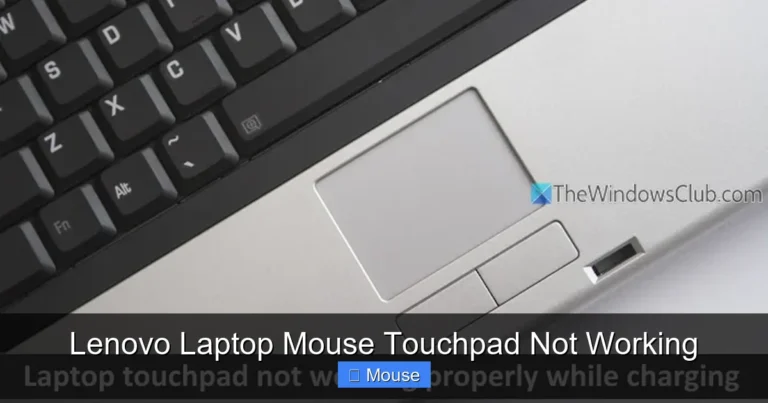
Acer laptops typically use a function key combination to toggle the touchpad. Look at the top row of your keyboard. Find the key with a touchpad icon. It is often on F5, F6, or F7. You will need to press the “Fn” key plus this function key simultaneously. Try pressing it once and see if the touchpad reactivates. Sometimes this simple step resolves the issue.
If you see a small light near the touchpad, check its color. An orange or red light usually indicates the touchpad is disabled. Toggling the function key should turn the light off and restore functionality. This is the number one fix for an Acer laptop mouse pad not working.
Restart Your Laptop
Never underestimate the power of a simple restart. A reboot refreshes the system and clears temporary glitches. Many software conflicts disappear after a fresh boot. Save your work and restart your Acer laptop. After it boots up, test the touchpad immediately. If it works, a temporary system hang was likely the cause.
Adjusting Windows Settings for Your Touchpad
If the quick fixes did not work, check your Windows settings. Sometimes the operating system disables the touchpad based on your preferences. Adjusting these settings is straightforward and often solves the Acer laptop mouse pad not working issue.
Visual guide about Acer Laptop Mouse Pad Not Working
Image source: cdn.britannica.com
Enable Touchpad in Windows Settings
Windows has a built-in setting to control the touchpad. To access it, go to the Start menu and select “Settings.” Then navigate to “Devices” and choose “Touchpad” from the left sidebar. Make sure the touchpad toggle is turned “On.” Some versions of Windows have an option that leaves the touchpad on when a mouse is connected. Ensure this is checked if you use an external mouse.
If the touchpad settings are missing or grayed out, this points to a driver issue. Windows cannot configure hardware without proper drivers. We will cover driver fixes in the next section. For more detailed steps on similar issues, explore our article on laptop mouse pad not working.
Disable Mouse Connection Auto-Disable
Many users connect an external mouse for comfort. Windows has a feature that disables the touchpad when a USB mouse is plugged in. If this setting is enabled, your touchpad will stop working whenever a mouse is connected. To disable this, go back to the touchpad settings. Look for the “Leave touchpad on when a mouse is connected” option. Toggle it on to prevent automatic disabling.
Updating and Reinstalling Touchpad Drivers
Outdated or corrupted drivers are a major reason for an Acer laptop mouse pad not working. The driver acts as a bridge between your hardware and Windows. Fixing the driver often fixes the problem. Here is how to update or reinstall your touchpad drivers.

Visual guide about Acer Laptop Mouse Pad Not Working
Image source: koala.sh
Update Drivers via Device Manager
Device Manager is your go-to tool for managing hardware drivers. Right-click the Start button and select “Device Manager.” Scroll down to “Mice and other pointing devices” or “Human Interface Devices.” Find your Acer touchpad. It might be listed as a Synaptics or ELAN device. Right-click on it and select “Update driver.” Choose the option to search automatically for drivers. Windows will look for and install a newer version.
If Windows says you have the best driver already, try the manufacturer’s website. Visit Acer’s official support page. Enter your laptop’s exact model number. Download the latest touchpad driver from there. Install it and restart your laptop.
Roll Back or Reinstall Drivers
Sometimes a new driver causes the problem. If your touchpad stopped working after an update, roll back the driver. In Device Manager, right-click the touchpad and select “Properties.” Go to the “Driver” tab and click “Roll Back Driver.” This reverts to the previous version.
If rolling back does not help, uninstall the driver completely. In Device Manager, right-click the touchpad and select “Uninstall device.” Restart your laptop. Windows will automatically reinstall a fresh copy of the driver upon reboot. This often resolves corruption issues causing the Acer laptop mouse pad not working.
Advanced Troubleshooting Methods
If standard fixes did not work, try these advanced methods. They require a bit more effort but are very effective. These steps address deeper system conflicts that might be disabling your touchpad.
Run the Power Troubleshooter
Windows includes a built-in troubleshooter for power-related issues. It can fix problems that affect USB devices, including touchpowers. Open the Settings app and go to “Update & Security.” Select “Troubleshoot” and then “Additional troubleshooters.” Run the “Power” troubleshooter. Follow the on-screen instructions. This tool detects and repairs common power management settings that might disable the touchpad.
Check BIOS Settings
The BIOS controls your laptop’s hardware at a basic level. Sometimes the touchpad is disabled in the BIOS. Restart your Acer laptop and press F2 repeatedly during boot to enter BIOS. Navigate to the “Advanced” or “Main” tab. Look for an option called “Internal Pointing Device.” Make sure it is set to “Enabled.” Save changes and exit. Your touchpad should now work.
Be careful inside the BIOS. Only change settings you understand. If you are unsure, skip this step. For a broader look at similar issues across brands, read our guide on Dell laptop mouse pad not working, which shares similar troubleshooting logic.
Physical Inspection and Hardware Solutions
When all software fixes fail, consider a hardware problem. An Acer laptop mouse pad not working could indicate physical damage. Inspect the touchpad carefully for any signs of wear or liquid damage.

Visual guide about Acer Laptop Mouse Pad Not Working
Image source: c.pxhere.com
Clean the Touchpad Surface
Dirt and oils can interfere with touchpad sensitivity. Turn off your laptop and wipe the touchpad with a soft, slightly damp cloth. Do not use harsh chemicals. Ensure the surface is dry before turning the laptop back on. Sometimes a simple cleaning restores proper function.
Check for Physical Damage
Look for cracks or loose parts around the touchpad. If you recently dropped your laptop, the touchpad cable might be loose. Opening the laptop case is not recommended unless you are experienced. Instead, take your laptop to a professional technician. They can check internal connections and replace faulty parts.
If your laptop is under warranty, contact Acer support. They will repair or replace the device for free. Do not attempt self-repairs if the warranty is active, as it might void the coverage.
Preventing Future Touchpad Issues
Once you fix the Acer laptop mouse pad not working issue, take steps to prevent it from happening again. Regular maintenance and careful usage keep your touchpad functioning smoothly.
Visual guide about Acer Laptop Mouse Pad Not Working
Image source: iemone.jp
Keep Drivers Updated
Make it a habit to check for driver updates periodically. Acer often releases updates that improve hardware performance. You can use the Acer Care Center app to automate this process. Keeping drivers fresh prevents many common issues.
Be Mindful of Function Keys
Accidental key presses are a leading cause of touchpad problems. Pay attention to the function row on your keyboard. Some users place a sticker over the touchpad toggle key to avoid pressing it by mistake. This simple trick saves a lot of frustration.
In conclusion, an Acer laptop mouse pad not working is usually a solvable problem. Start with the simplest fixes like keyboard shortcuts and settings adjustments. Move on to driver updates if needed. Advanced troubleshooting and hardware checks are your last resort. With patience and the right approach, you can restore your touchpad and get back to work. For more tips on managing input devices, check out our detailed article on mouse pad not working on laptop.
Frequently Asked Questions
How do I turn my Acer laptop touchpad back on?
Press the Fn key along with the function key that has a touchpad icon. This often toggles the touchpad on and off instantly. Check for a light indicator near the pad.
Why did my Acer touchpad stop working after a Windows update?
Windows updates can sometimes install incompatible drivers. Roll back the touchpad driver via Device Manager. You can also check Acer’s website for updated drivers.
Can an external mouse cause the touchpad to stop working?
Yes, Windows may disable the touchpad automatically when a USB mouse is connected. Change the setting in Windows Touchpad settings to keep it on.
How do I update my Acer touchpad drivers?
Go to Device Manager, find your touchpad under “Mice and other pointing devices,” and select “Update driver.” You can also download drivers from Acer’s support site.
Is a non-working touchpad a hardware issue?
Not always. Most cases are software-related. If all software fixes fail, then it might be a loose cable or physical damage requiring professional repair.
What if the touchpad settings are missing in Windows?
Missing settings usually point to a missing or corrupted driver. Reinstall the touchpad driver through Device Manager to restore the settings.