How Do You Get Your Mouse Back on a Laptop

Losing your mouse cursor on a laptop can be frustrating, but it’s usually an easy fix. This guide covers the most common reasons your mouse disappears and walks you through step-by-step solutions to get it back quickly. Whether your touchpad is disabled, your cursor is frozen, or your external mouse isn’t connecting, you’ll find the answer here.
Key Takeaways
- Check the function keys first: Most laptops have a dedicated key combination (usually Fn + F3, F5, F7, or F9) that toggles the touchpad on and off, and you may have accidentally pressed it.
- Restart your laptop: A simple reboot can resolve temporary software glitches that cause the mouse cursor to disappear or become unresponsive.
- Update or reinstall mouse drivers: Outdated or corrupted drivers are a leading cause of mouse problems, and updating them through Device Manager often fixes the issue.
- Check your external mouse connection: If you’re using a wireless or USB mouse, ensure it’s properly connected, charged, or paired with your laptop.
- Adjust touchpad settings in Windows: Your touchpad may be disabled in the system settings, and re-enabling it through the Control Panel or Settings app can restore functionality.
- Run a malware scan: In rare cases, malware can interfere with your mouse functionality, so running a full system scan is a good troubleshooting step.
- Use keyboard shortcuts as a temporary fix: While troubleshooting, you can navigate your laptop using keyboard shortcuts like Tab, Arrow keys, and Enter to access settings and menus.
📑 Table of Contents
- Introduction: Why Does Your Laptop Mouse Disappear?
- Understanding the Different Types of Laptop Mice
- Quick Fixes: Try These First
- How to Get Your Mouse Back Through Windows Settings
- Updating and Reinstalling Mouse Drivers
- Fixing External Mouse Connection Issues
- Advanced Troubleshooting for Persistent Mouse Problems
- Using Your Laptop Without a Mouse: Essential Keyboard Shortcuts
- Preventing Future Mouse Problems
- Conclusion: Getting Your Mouse Back Is Easier Than You Think
Introduction: Why Does Your Laptop Mouse Disappear?
There’s nothing quite like the panic you feel when your mouse cursor suddenly vanishes from your screen. You’re in the middle of an important project, a deadline is looming, and then — poof — your mouse is gone. Your touchpad isn’t responding, your cursor is nowhere to be found, and you’re left frantically tapping and clicking with no results.
Don’t worry. This is one of the most common laptop issues, and it happens to everyone at some point. The good news is that in most cases, figuring out how to get the mouse back on a laptop is surprisingly simple. You don’t need to be a tech expert, and you definitely don’t need to rush to a repair shop.
In this comprehensive guide, we’ll walk you through every possible reason your mouse might have disappeared and give you clear, step-by-step instructions to bring it back. Whether you’re using a Windows laptop, a Chromebook, or a Mac, we’ve got you covered. Let’s dive in and get your mouse working again.
Understanding the Different Types of Laptop Mice
Before we jump into solutions, it helps to understand the different types of pointing devices your laptop might use. Each type has its own set of common issues and fixes.
The Built-In Touchpad
The touchpad is the rectangular surface located below your keyboard. It’s the most common pointing device on laptops and works by detecting the movement of your finger across its surface. Touchpads can be disabled accidentally through keyboard shortcuts, software settings, or driver issues.
Most modern touchpads also support multi-touch gestures like two-finger scrolling, pinch-to-zoom, and three-finger swipes. If your touchpad has suddenly stopped working, it’s often because it was toggled off or because a recent update changed its settings.
External USB Mice
External mice connect to your laptop through a USB port. They’re popular because they offer more precision and comfort than a touchpad, especially for tasks like graphic design, gaming, or long work sessions. When an external USB mouse stops working, the issue is usually a loose connection, a dead battery (for wireless models), or a driver problem.
Bluetooth and Wireless Mice
Wireless mice connect via Bluetooth or a USB receiver. They offer the convenience of no cables but can sometimes lose their connection or run out of battery power. If you’re using a wireless mouse and it suddenly stops responding, the first thing to check is whether it’s still paired with your laptop and whether the batteries need replacing.
Quick Fixes: Try These First
When your mouse disappears, start with these quick fixes. They solve the majority of mouse problems and only take a few seconds each.
Press the Touchpad Toggle Key
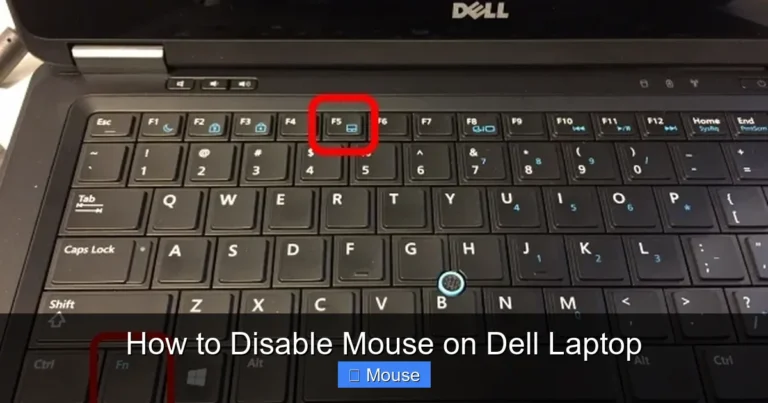
The number one reason a laptop mouse stops working is that someone accidentally pressed the touchpad toggle key. Most laptops have a function key combination that turns the touchpad on and off. Look for a key with a touchpad icon — it’s usually on the F1 through F12 row.
Common combinations include:
- Fn + F3 — common on Acer and Toshiba laptops
- Fn + F5 — common on some Dell models
- Fn + F7 — common on ASUS laptops
- Fn + F9 — common on HP laptops
- Fn + F1 — common on Lenovo laptops
Press the combination once and see if your cursor reappears. If it doesn’t, try pressing it again — you may have toggled it off and then back on without realizing it.
Restart Your Laptop
It sounds too simple, but restarting your laptop fixes a surprising number of mouse issues. A restart clears temporary files, resets drivers, and refreshes the operating system. If your mouse disappeared after a software update or a program crash, a restart is often all you need.
To restart without a mouse, press Ctrl + Alt + Delete, then use the Tab key and Arrow keys to navigate to the power icon in the bottom-right corner. Press Enter and select Restart.
Check Physical Connections
If you’re using an external mouse, unplug it and plug it back in. Try a different USB port if the first one doesn’t work. For wireless mice, check the battery and make sure the USB receiver is firmly plugged in. Sometimes the simplest physical fix is the right one.
How to Get Your Mouse Back Through Windows Settings
If the quick fixes didn’t work, it’s time to dig into your laptop’s settings. Windows has several places where your mouse or touchpad can be disabled or misconfigured.
Re-Enable the Touchpad in Settings
Windows 10 and 11 have a dedicated touchpad settings menu. Here’s how to access it without a mouse:
- Press the Windows key to open the Start menu.
- Type “touchpad settings” and press Enter.
- Use the Tab key to navigate to the touchpad toggle switch.
- Press the Spacebar to turn it on if it’s off.
You can also get there by pressing Windows + I to open Settings, then navigating to Bluetooth & devices > Touchpad using the Tab and Arrow keys.
Check Mouse Settings in Control Panel
The classic Control Panel has additional mouse settings that can affect your touchpad’s behavior:
- Press Windows + R to open the Run dialog.
- Type “control mouse” and press Enter.
- In the Mouse Properties window, look for a Device Settings or Touchpad tab.
- Make sure your touchpad is enabled and not set to disable when an external mouse is connected.
Some laptops have manufacturer-specific touchpad software (like Synaptics or ELAN) that adds extra tabs to this window. Check those tabs for any settings that might be disabling your touchpad.
Disable the “Disable When External Mouse Is Connected” Option
Many laptops have a setting that automatically disables the touchpad when you plug in an external mouse. This is meant to prevent accidental cursor movements while typing, but it can be confusing if you unplug the external mouse and the touchpad doesn’t automatically re-enable.
To check this setting, go to Settings > Bluetooth & devices > Touchpad and look for an option that says something like “Leave touchpad on when a mouse is connected.” Make sure this is turned on so your touchpad always works, regardless of whether an external mouse is plugged in.
Updating and Reinstalling Mouse Drivers
Drivers are the software that allows your operating system to communicate with your hardware. When mouse drivers become outdated, corrupted, or incompatible with a recent update, your mouse can stop working entirely.
How to Update Mouse Drivers in Device Manager
Device Manager is your go-to tool for managing hardware drivers. Here’s how to use it:
- Press Windows + X and select Device Manager from the menu (use Arrow keys and Enter).
- Expand the Mice and other pointing devices section by pressing the Right Arrow key.
- Select your mouse or touchpad device and press Enter to open its properties.
- Navigate to the Driver tab using Ctrl + Tab.
- Select Update Driver and choose Search automatically for drivers.
Windows will search for and install the latest driver for your device. If it finds an update, restart your laptop afterward to apply the changes.
How to Reinstall Mouse Drivers
If updating doesn’t work, try completely reinstalling the driver. This forces Windows to start fresh with a clean driver installation:
- Open Device Manager (Windows + X, then select Device Manager).
- Expand Mice and other pointing devices.
- Right-click on your mouse device (use the Application key or Shift + F10 if you don’t have a working mouse).
- Select Uninstall device.
- Check the box that says Attempt to remove the driver for this device if available.
- Restart your laptop. Windows will automatically reinstall the driver on startup.
This process resolves many stubborn mouse issues because it clears out any corrupted driver files and replaces them with fresh ones.
Download Drivers from the Manufacturer’s Website
If Windows can’t find the right driver automatically, visit your laptop manufacturer’s website. Look for the support or downloads section, enter your laptop model number, and download the latest touchpad or mouse driver. Install it manually by running the downloaded file.
Major manufacturers with good driver support include:
- Dell: support.dell.com
- HP: support.hp.com
- Lenovo: support.lenovo.com
- ASUS: www.asus.com/support
- Acer: www.acer.com/ac/en/US/content/support
Fixing External Mouse Connection Issues
If you’re using an external mouse and it’s not working, the problem might be with the mouse itself or its connection to your laptop. Here’s how to troubleshoot.
Troubleshooting USB Mice
USB mice are generally plug-and-play, but they can still run into problems. Try these steps:
- Try a different USB port. The port you’re using might be damaged or not providing enough power.
- Test the mouse on another computer. If it doesn’t work on another computer either, the mouse itself may be broken.
- Check for debris in the USB port. Dust and lint can prevent a proper connection. Use compressed air to clean the port gently.
- Inspect the cable for damage. A frayed or bent cable can cause intermittent connectivity issues.
If you want to learn more about connecting different types of mice, check out our guide on how to connect a mouse to a laptop for detailed instructions on various connection methods.
Troubleshooting Wireless and Bluetooth Mice
Wireless mice add a few extra variables to the troubleshooting process. Here’s what to check:
- Replace the batteries. Low battery power is the most common cause of wireless mouse problems. Even if the mouse lights up, the batteries might be too weak to maintain a stable connection.
- Re-pair the Bluetooth connection. Go to Settings > Bluetooth & devices, remove the mouse from the list of paired devices, and pair it again from scratch.
- Check the USB receiver. If your mouse uses a USB dongle instead of Bluetooth, make sure the receiver is plugged in securely. Try a different USB port.
- Move closer to the laptop. Wireless signals can be blocked by walls, other electronic devices, or even your own body. Try using the mouse closer to the laptop.
- Turn the mouse off and on. Most wireless mice have a power switch on the bottom. Flip it off, wait a few seconds, then flip it back on.
When to Replace Your External Mouse
If you’ve tried all the troubleshooting steps and your external mouse still doesn’t work on any computer, it might be time for a replacement. External mice are relatively inexpensive, and a new one can save you hours of frustration. Look for a mouse that’s compatible with your laptop’s operating system and has good reviews for reliability.
Advanced Troubleshooting for Persistent Mouse Problems
If none of the standard fixes have worked, your mouse issue might be caused by something more complex. These advanced troubleshooting steps can help you identify and resolve deeper problems.
Run the Windows Hardware Troubleshooter
Windows has built-in troubleshooters that can automatically detect and fix hardware issues:
- Press Windows + I to open Settings.
- Navigate to System > Troubleshoot > Other troubleshooters.
- Find Keyboard and Hardware and Devices in the list.
- Run both troubleshooters and follow the on-screen instructions.
These tools can identify issues that aren’t obvious and apply fixes automatically.
Check for Windows Updates
Sometimes a Windows update can cause mouse problems, but more often, installing the latest updates can fix them. Microsoft regularly releases patches that address hardware compatibility issues.
To check for updates, press Windows + I, go to Windows Update, and click Check for updates. Install any available updates and restart your laptop.
Scan for Malware
While it’s rare, malware can interfere with your mouse functionality. Some types of malware can hijack your cursor, make it move erratically, or cause it to disappear entirely. Run a full system scan using Windows Defender or your preferred antivirus software.
To run a quick scan with Windows Defender, press the Windows key, type “Windows Security”, and press Enter. Navigate to Virus & threat protection and run a full scan.
Perform a System Restore
If your mouse stopped working after a specific event — like a software installation, driver update, or Windows update — you can use System Restore to roll your laptop back to a previous state when the mouse was working.
- Press Windows + R, type “rstrui”, and press Enter.
- Follow the prompts to select a restore point from before the mouse issue started.
- Restart your laptop after the restore completes.
System Restore doesn’t affect your personal files, but it does remove programs and drivers installed after the restore point date.
Check for Conflicting Software
Some third-party software can interfere with your mouse or touchpad. Remote desktop applications, virtual machine software, and certain gaming utilities are common culprits. If you recently installed new software before the mouse problem started, try uninstalling it to see if that resolves the issue.
Using Your Laptop Without a Mouse: Essential Keyboard Shortcuts
While you’re troubleshooting your mouse issue, you’ll need to navigate your laptop using only the keyboard. Here are the most essential keyboard shortcuts that will help you get around.
Basic Navigation Shortcuts
- Tab: Move forward through interactive elements on a page or dialog box.
- Shift + Tab: Move backward through interactive elements.
- Arrow keys: Navigate within menus, lists, and options.
- Enter: Activate a selected button, link, or option.
- Spacebar: Toggle checkboxes and activate buttons.
- Escape: Close a dialog box or cancel an action.
Windows Management Shortcuts
- Windows key: Open or close the Start menu.
- Windows + D: Show or hide the desktop.
- Windows + E: Open File Explorer.
- Windows + I: Open Settings.
- Alt + Tab: Switch between open applications.
- Alt + F4: Close the current window or application.
- Windows + X: Open the Quick Link menu (gives access to Device Manager, Power Options, and more).
Right-Click Alternatives
If you need to right-click without a mouse, you have two options. Press the Application key (located between the right Alt and Ctrl keys on most keyboards) to open the context menu for the selected item. Alternatively, press Shift + F10 to achieve the same result.
For more detailed instructions on navigating without a mouse, our guide on how to right-click on a laptop without a mouse covers additional techniques and shortcuts that can make mouse-free navigation much easier.
Preventing Future Mouse Problems
Once you’ve gotten your mouse back, take a few preventive steps to avoid the same issue in the future.
Keep Your Drivers Updated
Set a reminder to check for driver updates every few months. You can also enable automatic driver updates in Windows to ensure you always have the latest versions. This simple habit can prevent many mouse-related issues before they start.
Be Careful with Function Keys
Since the touchpad toggle key is so easy to press accidentally, consider memorizing which key combination affects your touchpad. Some laptops also allow you to disable the touchpad toggle function entirely in the BIOS settings, which can prevent accidental deactivation.
Maintain Your Touchpad
Keep your touchpad clean by wiping it with a soft, slightly damp cloth regularly. Oils from your fingers can build up over time and reduce the touchpad’s sensitivity. Also, make sure your hands are clean and dry before using the touchpad.
Use a Mouse Pad with an External Mouse
If you frequently use an external mouse, invest in a good mouse pad. It provides a consistent surface for tracking and can extend the life of your mouse’s sensor. For tips on choosing the right setup, check out our article on using a mouse pad with a laptop.
Create a System Restore Point
Before installing new software or drivers, create a manual system restore point. This gives you a safety net to fall back on if something goes wrong. To create a restore point, press Windows + R, type “sysdm.cpl”, go to the System Protection tab, and click Create.
Conclusion: Getting Your Mouse Back Is Easier Than You Think
Losing your mouse on a laptop can feel like a major crisis, but as you’ve seen in this guide, it’s almost always a solvable problem. In most cases, a simple key combination or a quick restart is all you need to get your mouse back on your laptop and return to normal operation.
The key is to stay calm and work through the troubleshooting steps systematically. Start with the quick fixes — check the toggle key, restart your laptop, and inspect your connections. If those don’t work, move on to the settings and driver solutions. And if all else fails, the advanced troubleshooting steps we covered should help you identify the root cause.
Remember, you can always navigate your laptop using keyboard shortcuts while you work on fixing the mouse issue. With the shortcuts and tips in this guide, you’ll never be completely stuck — even without a working mouse.
Now that you know how to handle this common issue, you can tackle it with confidence the next time your cursor decides to take an unexpected vacation. Happy computing!
Frequently Asked Questions
Why did my mouse disappear from my laptop screen?
Your mouse cursor may have disappeared due to an accidental touchpad toggle, a software glitch, outdated drivers, or a recent Windows update. In most cases, pressing the touchpad function key (Fn + the corresponding F-key) or restarting your laptop will bring the cursor back immediately.
How do I unlock my touchpad on an HP laptop?
On most HP laptops, you can unlock the touchpad by double-tapping the small LED dot in the upper-left corner of the touchpad, or by pressing Fn + F5 (or whichever F-key has the touchpad icon). You can also re-enable it through Windows Settings under Bluetooth & devices > Touchpad.
Can I use my laptop if the mouse is not working?
Yes, you can navigate your laptop entirely using keyboard shortcuts. Use Tab to move between elements, Arrow keys to navigate menus, Enter to select items, and the Application key or Shift + F10 to right-click. These shortcuts let you access all the settings you need to fix your mouse issue.
How do I fix a frozen mouse cursor on my laptop?
First, try pressing Ctrl + Alt + Delete to see if the system responds. If it does, open Task Manager and restart Windows Explorer. If the system is completely frozen, hold down the power button for 10 seconds to force a shutdown, then restart. Updating your mouse drivers after the restart can prevent future freezes.
What should I do if my external mouse is not detected by my laptop?
Try unplugging the mouse and plugging it into a different USB port. If it’s a wireless mouse, replace the batteries and re-pair the Bluetooth connection. You should also check Device Manager to see if the mouse appears under “Mice and other pointing devices” and update the driver if needed.
How do I prevent my touchpad from being accidentally disabled?
Memorize which function key combination toggles your touchpad so you can quickly re-enable it if needed. Some laptops allow you to disable the touchpad toggle function in the BIOS. You can also go to Settings > Bluetooth & devices > Touchpad and enable the option to keep the touchpad on when an external mouse is connected.