How to Unlock Your Laptop Mouse

A locked laptop mouse can stop your workflow instantly, but the fix is usually quick. Most of the time, the touchpad gets disabled by accident through a keyboard shortcut or a setting change. This guide shows you how to unlock your laptop mouse on Windows, Mac, and popular brands like HP, Dell, and Lenovo, with easy steps you can try in minutes.
Key Takeaways
- Most locked laptop mice are caused by an accidental keyboard shortcut – Many laptops use a Fn key combo that toggles the touchpad on and off.
- Windows and Mac both have built-in settings to enable the touchpad – You can unlock the mouse through system preferences or the Settings app.
- Device Manager is a powerful tool for fixing disabled touchpads – You can re-enable the device or update drivers here.
- HP, Dell, and Lenovo laptops each have brand‑specific shortcuts and software – Knowing your brand makes unlocking faster.
- External mouse issues are often separate from touchpad problems – Check battery, USB receiver, and Bluetooth settings for wireless devices.
- Fast startup and driver conflicts can disable the touchpad after updates – A restart or driver rollback may solve it.
- You can still use your laptop without a mouse – Keyboard shortcuts and accessibility tools keep you working while you fix the issue.
📑 Table of Contents
- Why Your Laptop Mouse Suddenly Stops Working
- 1. The Fastest Way to Unlock Your Laptop Mouse With Keyboard Shortcuts
- 2. How to Unlock Your Laptop Mouse in Windows Settings
- 3. How to Unlock Your Laptop Mouse Using Device Manager
- 4. How to Unlock Your Laptop Mouse on a Mac
- 5. How to Unlock an External Mouse Connected to Your Laptop
- 6. Brand-Specific Tips to Unlock Your Laptop Mouse
- 7. What to Do If Your Laptop Mouse Is Still Locked
- Conclusion
Why Your Laptop Mouse Suddenly Stops Working
You are typing, clicking, or scrolling, and then your laptop mouse just freezes. The cursor will not move, taps do nothing, and nothing you do on the touchpad seems to help. It feels like the touchpad disappeared even though it is still physically there.
This is a very common problem. In most cases, your laptop mouse is not broken. It is usually locked or disabled by accident. Maybe you hit a key combo you did not know existed. Maybe a Windows update changed a setting. Maybe a driver conflict is blocking the touchpad.
In this guide, you will learn how to unlock your laptop mouse step by step. We will cover Windows 10, Windows 11, Mac, and popular brands like HP, Dell, and Lenovo. We will also look at external mouse issues, so you can fix both touchpads and USB or wireless mice. By the end, you will know exactly what to do the next time your laptop mouse stops working.
1. The Fastest Way to Unlock Your Laptop Mouse With Keyboard Shortcuts
In many cases, a locked laptop mouse is just a touchpad that has been toggled off. Most laptops have a keyboard shortcut that can disable or enable the touchpad. You may have pressed it without realizing it.
Visual guide about How to Unlock Your Laptop Mouse
Image source: api.www.labxchange.org
Common Function Key Shortcuts
Look at the top row of your keyboard. One of the F1 to F12 keys usually has a small touchpad icon. It might look like a rectangle with a line through it or a finger tapping a pad.
- On many laptops, you press Fn + that F-key to toggle the touchpad.
- On some models, you can press the F-key alone if function lock is enabled.
- If you are not sure which key it is, check for icons on F1 to F12 or look up your laptop model online.
Here are some common examples:
- HP laptops: Often use Fn + F6 or a double-tap on the top-left corner of the touchpad.
- Dell laptops: Often use Fn + F3 or Fn + F5.
- Lenovo laptops: Often use Fn + F6 or Fn + F8.
- Acer laptops: Often use Fn + F7.
- ASUS laptops: Often use Fn + F9.
Double-Tap on the Touchpad Corner
Some laptops let you lock and unlock the touchpad by double-tapping a specific corner, usually the top-left. Look for a small LED or icon near that corner. If the light is on or orange, the touchpad might be disabled. Double-tap that spot to turn it back on.
If you want more detailed steps for specific brands, check out our guides on how to unlock the touch mouse on an HP laptop and how to unlock your mouse on a laptop.
2. How to Unlock Your Laptop Mouse in Windows Settings
If the keyboard shortcut does not help, the next step is to check your Windows settings. Sometimes the touchpad is disabled in the system, especially after an update or when an external mouse is connected.

Visual guide about How to Unlock Your Laptop Mouse
Image source: assets.roar.media
Enable the Touchpad in Windows 10
Follow these steps on Windows 10:
- Open the Start menu and click Settings.
- Go to Devices and then Touchpad.
- Under Touchpad, make sure the toggle is set to On.
- If you see an option like Leave touchpad on when a mouse is connected, turn that on too.
Enable the Touchpad in Windows 11
On Windows 11, the steps are similar:
- Open Settings from the Start menu.
- Go to Bluetooth & devices.
- Click Touchpad.
- Make sure the Touchpad toggle is set to On.
- Check additional options here, like gestures and sensitivity.
Some laptops also have brand-specific touchpad settings. For example, you might see a Synaptics, ELAN, or Precision Touchpad control panel. Look for options that say Disable touchpad when external mouse is plugged in and turn that off if you want the touchpad to stay active.
3. How to Unlock Your Laptop Mouse Using Device Manager
Windows has a tool called Device Manager that controls all your hardware, including the touchpad. If your laptop mouse is disabled here, it will not work no matter what you do on the surface.

Visual guide about How to Unlock Your Laptop Mouse
Image source: i.pinimg.com
Open Device Manager
Here is how to get in:
- Right-click the Start button or press Windows + X.
- Choose Device Manager from the menu.
Find and Enable the Touchpad
Once Device Manager is open:
- Look for Mice and other pointing devices or Human Interface Devices.
- Click the arrow to expand the list.
- Find your touchpad. It may be listed as Synaptics TouchPad, ELAN TouchPad, HID-compliant touchpad, or something similar.
- If you see a small down arrow on the icon, the device is disabled.
- Right-click the touchpad and choose Enable device.
Update or Reinstall the Driver
If the device is already enabled but still not working, you may have a driver issue.
- Right-click the touchpad again and choose Update driver.
- Select Search automatically for drivers.
- If that does not help, choose Uninstall device, then restart your laptop. Windows will reinstall the driver on startup.
This is one of the most reliable ways to fix a laptop mouse that seems locked at the system level.
4. How to Unlock Your Laptop Mouse on a Mac
MacBooks do not usually have a separate lock button for the trackpad, but there are settings and system issues that can make it seem locked.
Check Trackpad Settings
On macOS:
- Open System Settings (or System Preferences on older versions).
- Go to Trackpad.
- Make sure Tap to click and other options are turned on if you want them.
- Check the Tracking speed slider and move it to a comfortable level.
Disable the Internal Trackpad When a Mouse Is Connected
Some users accidentally enable the option to disable the trackpad when an external mouse is connected.
- Go to System Settings > Accessibility.
- Look for Pointer Control or Mouse & Trackpad.
- Make sure there is no setting that disables the trackpad when a mouse is plugged in.
Reset SMC and NVRAM if Needed
If the trackpad is still not responding:
- Try resetting the SMC (System Management Controller) for your Mac model.
- You can also reset NVRAM by restarting and holding Option + Command + P + R until you hear the startup sound again.
These resets can fix deeper hardware and power issues that affect the trackpad.
5. How to Unlock an External Mouse Connected to Your Laptop
Sometimes the touchpad works fine, but your external mouse is the one that seems locked. This can happen with USB mice and wireless mice that use a USB receiver or Bluetooth.

Visual guide about How to Unlock Your Laptop Mouse
Image source: mustsharenews.com
Check the Basics First
Before diving into settings, check the simple things:
- Make sure the mouse is turned on if it has a power switch.
- Check or replace the batteries if it is wireless.
- Unplug and replug the USB receiver or cable.
- Try a different USB port if the current one seems faulty.
Reconnect a Wireless Mouse
If you use a Bluetooth mouse:
- Open Settings > Bluetooth & devices.
- Remove the mouse from the list of paired devices.
- Put the mouse back into pairing mode.
- Add it again as a new device.
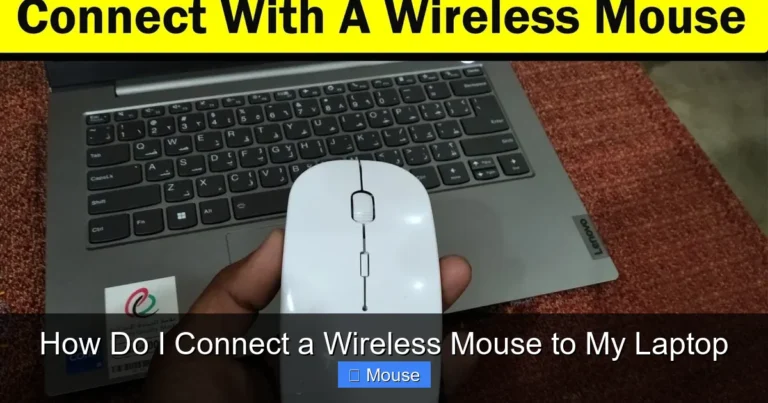
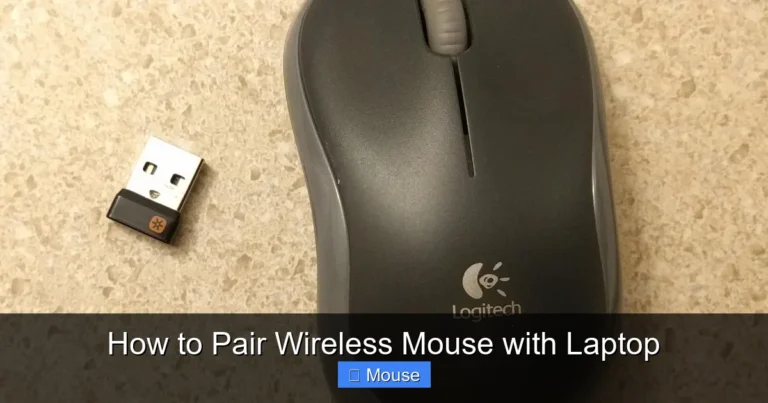
For more help, see our guides on how to connect a wireless mouse to a laptop and how to pair a wireless mouse with a laptop.
Enable the Mouse in Device Manager
Just like with the touchpad, you can check Device Manager:
- Open Device Manager.
- Expand Mice and other pointing devices.
- Look for your external mouse.
- If it shows a down arrow, right-click and choose Enable device.
- If there is a yellow warning icon, try Update driver or Uninstall device, then restart.
6. Brand-Specific Tips to Unlock Your Laptop Mouse
Different laptop brands handle the touchpad in slightly different ways. Knowing your brand can save you a lot of time.
HP Laptops
HP laptops often have:
- A double-tap zone on the top-left corner of the touchpad to toggle it on and off.
- Function key shortcuts like Fn + F6.
- Touchpad settings in the HP Support Assistant or Synaptics control panel.
Dell Laptops
Dell models may use:
- Fn + F3 or Fn + F5 to toggle the touchpad.
- Dell-specific touchpad drivers that appear in Device Manager.
- Settings in the Dell Touchpad app or control panel.
Lenovo Laptops
Lenovo laptops often have:
- Fn + F6 or Fn + F8 shortcuts.
- Settings in the Lenovo Vantage app.
- Options to disable the touchpad automatically when a mouse is connected.
If you are not sure which key or setting applies to your model, check the support page for your exact laptop or look for icons on the function keys.
7. What to Do If Your Laptop Mouse Is Still Locked
If you have tried the shortcuts, settings, and Device Manager and your laptop mouse is still not working, it is time to dig a bit deeper.

Visual guide about How to Unlock Your Laptop Mouse
Image source: thumb-nss.xhcdn.com
Restart Your Laptop
This sounds simple, but a full restart can clear temporary glitches. If you use Fast Startup in Windows, try a full shutdown:
- Open Command Prompt as administrator.
- Type shutdown /s /f /t 0 and press Enter.
- Wait a few seconds, then power the laptop back on.
Check for Windows Updates
Sometimes an update causes the problem, and a newer update fixes it.
- Go to Settings > Windows Update.
- Install any pending updates.
- Restart your laptop.
Roll Back or Reinstall Touchpad Drivers
If the issue started after a driver update:
- Open Device Manager.
- Right-click the touchpad under Mice and other pointing devices.
- Choose Properties > Driver tab.
- Select Roll Back Driver if available.
- If not, choose Uninstall device, restart, and let Windows reinstall the driver.
Use an External Mouse While You Troubleshoot
If you need to keep working, plug in a USB mouse or connect a Bluetooth mouse. This lets you navigate while you fix the touchpad issue. You can also use keyboard shortcuts to move around:
- Tab and Arrow keys to move between items.
- Enter to select.
- Windows + X to open quick menus.
For more advanced fixes, you can also check our guides on how to fix a touchpad mouse on a laptop and how to get the mouse back on a laptop.
Conclusion
A locked laptop mouse is annoying, but it is usually easy to fix. In most cases, you are dealing with an accidental keyboard shortcut, a setting that got changed, or a driver that needs a refresh. By following the steps in this guide, you can unlock your laptop mouse and get back to work fast.

Visual guide about How to Unlock Your Laptop Mouse
Image source: 101dogbreeds.com
Start with the simple fixes: try the function key shortcut, double-tap the touchpad corner, and check your system settings. If that does not work, move on to Device Manager, driver updates, and brand-specific tools. And if your external mouse is the problem, check the batteries, connections, and Bluetooth settings.
With these steps, you will know exactly what to do the next time your laptop mouse stops responding.
Frequently Asked Questions
Why is my laptop mouse not moving even though the laptop is on?
Your laptop mouse is likely disabled by accident. This often happens when you press a function key shortcut that toggles the touchpad off. Check the top row of your keyboard for a touchpad icon and try pressing that key with the Fn key.
How do I unlock my laptop mouse using the keyboard?
Look for a touchpad icon on one of the F1–F12 keys. Press Fn + that key to toggle the touchpad on or off. On some laptops, you can also double-tap the top-left corner of the touchpad to unlock it.
How do I enable the touchpad in Windows 10 or 11?
Go to Settings > Devices (Windows 10) or Bluetooth & devices (Windows 11), then click Touchpad. Make sure the touchpad toggle is turned on and check options like leaving the touchpad on when a mouse is connected.
What should I do if my external mouse is locked or not responding?
First, check the power switch and batteries if it is wireless. Unplug and replug the USB receiver or try a different port. If it is a Bluetooth mouse, remove it from your paired devices and pair it again.
Can a Windows update lock my laptop mouse?
Yes, updates can sometimes change touchpad settings or cause driver conflicts. If your laptop mouse stopped working after an update, try updating or rolling back the touchpad driver in Device Manager.
How do I unlock the mouse on an HP laptop?
On many HP laptops, you can double-tap the top-left corner of the touchpad to toggle it. You can also try Fn + F6 or check the touchpad settings in the Synaptics or HP control panel.