Can You Upgrade Ram in a Laptop
Yes, you can upgrade RAM in many laptops, but it depends on your specific model, design, and current memory configuration. Some laptops come with soldered RAM that cannot be replaced, while others have accessible slots that make upgrades quick and affordable. In this guide, we will walk you through everything you need to know about laptop RAM upgrades, including compatibility, step-by-step instructions, and common mistakes to avoid.
Key Takeaways
- Check your laptop’s manual first to confirm RAM upgrade compatibility and supported maximum capacity.
- Verify RAM type and speed your laptop supports before purchasing any new memory modules.
- Match RAM specifications like DDR generation and frequency to avoid performance issues or incompatibility.
- Back up your data before opening the laptop to prevent accidental loss during installation.
- Install RAM in matched pairs to enable dual-channel mode and maximize memory performance.
- Check free slots before buying RAM since some laptops have limited or soldered memory.
- Consult a professional if you feel unsure about opening your laptop or handling components.
📑 Table of Contents
- How to Check If Your Laptop Supports RAM Upgrades
- Understanding RAM Types and Compatibility
- Step-by-Step Guide to Upgrading Laptop RAM
- How Much RAM Do You Really Need?
- Common Mistakes to Avoid When Upgrading RAM
- Benefits of Upgrading Your Laptop RAM
- When Upgrading RAM Is Not an Option
- Final Thoughts
How to Check If Your Laptop Supports RAM Upgrades
Before you buy any memory, you need to find out if your laptop even allows upgrades. This is the most important step. Skipping it could mean wasting money on a part that does not fit.
Start by finding your laptop model number. You can usually find it on the bottom of the device or in the system settings. Once you have the model number, search the manufacturer’s website for specifications. Look for details about memory slots and whether the RAM is removable or soldered.
Finding Your Laptop Model Number
Your model number is your best friend here. It tells you exactly what parts are compatible. Most laptops have a small sticker on the underside with the model name. You can also open the Start menu on Windows and type “System Information.” Your model number will appear there. On a Mac, click the Apple logo and choose “About This Mac.”
Using Free Tools to Check RAM Slots
Several free tools can scan your laptop and tell you what you are working with. Crucial System Scanner and CPU-Z are two popular options. They check your memory slots, current RAM type, and maximum capacity. These tools take seconds to run and give you clear results.
If the tool shows zero free slots, your laptop might still support an upgrade. Some models have one slot occupied and one open. Others allow you to replace an existing stick with a larger one. Always double-check the manual or support page for your specific model.
Understanding RAM Types and Compatibility
Not all memory is the same. Laptops use a specific type of RAM called SODIMM, which is smaller than the sticks you find in desktop computers. Buying the wrong type is the most common mistake people make. So let us break this down clearly.
DDR4 vs DDR5
Most modern laptops use either DDR4 or DDR5 memory. DDR4 has been the standard for several years and is still widely used. DDR5 is newer and offers faster speeds, but it also costs a bit more. Check what your laptop supports before buying. Mixing DDR4 and DDR5 will not work. They are physically different and will not fit in the same slot.
SODIMM Modules Explained
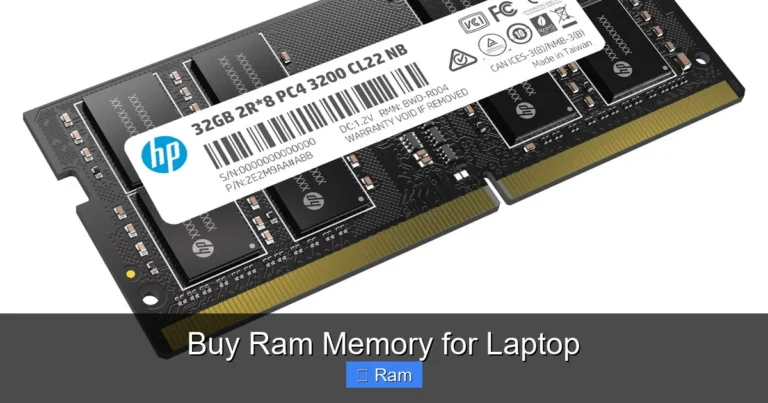
A SODIMM module is the small stick of memory designed for laptops. It looks nothing like a desktop RAM stick. SODIMMs are about half the size, which makes sense given the compact space inside a laptop. They come in different speeds and capacities, so you have options to choose from based on your needs and budget.
Maximum RAM Capacity
Every laptop has a maximum RAM capacity. This is the most memory your system can recognize. Older laptops might max out at 8GB or 16GB. Newer models can support 32GB or even 64GB. Check the manufacturer’s website for this number. It will save you from buying a stick that your laptop cannot use.
| Laptop Type | Common Max RAM | Typical RAM Type |
|---|---|---|
| Budget Laptops | 16GB | DDR4 SODIMM |
| Mid-Range Laptops | 32GB | DDR4 or DDR5 SODIMM |
| High-End Laptops | 64GB | DDR5 SODIMM |
| Ultrabooks (Some Models) | Soldered (No Upgrade) | LPDDR4X or LPDDR5 |
Note: Some ultrabooks and thin laptops use soldered memory. This means the RAM is attached directly to the motherboard and cannot be replaced or upgraded.
Step-by-Step Guide to Upgrading Laptop RAM
If your laptop supports upgrades, the process is simpler than you might think. You do not need to be a tech expert. With the right tools and a little patience, you can do it yourself in about 15 minutes.
What You Will Need
Before you start, gather these items:
- The correct SODIMM RAM stick for your laptop
- A small Phillips-head screwdriver
- A soft, clean workspace
- An anti-static wrist strap (optional but helpful)
- Your laptop’s user manual or a quick online teardown guide
The Installation Process
First, turn off your laptop completely. Unplug the power cable and remove the battery if possible. This is a safety step you should never skip. Next, locate the RAM access panel on the bottom of your laptop. It is usually a small rectangular cover held in place by one or two screws.
Remove the screws and gently pop off the panel. You will see the memory slots. If you are replacing an existing stick, gently push the metal clips on either side outward. The stick will pop up at an angle. Pull it out carefully.
To insert the new stick, align the notch on the RAM module with the ridge in the slot. Press it down firmly until the metal clips snap into place on both sides. You should feel it click. Replace the access panel, screw it back in, and reconnect the battery.
Turn on your laptop. It should recognize the new memory automatically. You can verify this by going to your system settings and checking the installed memory. If the full amount shows up, you are all set.
How Much RAM Do You Really Need?
This is one of the most common questions people ask. The answer depends entirely on what you use your laptop for. There is no one-size-fits-all number. Let us look at a few scenarios.
RAM for Everyday Tasks
If you mainly use your laptop for browsing the web, watching videos, and working on documents, 8GB of laptop memory is usually enough. Most budget laptops come with 8GB pre-installed. For many users, this is perfectly fine. You will not notice any slowdown during normal daily use.
However, if you have many browser tabs open at once, even 8GB can start to feel tight. In that case, moving up to 16GB can make a real difference in system performance.
RAM for Gaming and Creative Work
Gamers and content creators need more memory. Modern games and video editing software eat up RAM fast. If you are running Adobe Premiere, Photoshop, or playing a demanding game, 16GB is the sweet spot. For heavy 4K video editing or running virtual machines, 32GB or more is ideal.
Keep in mind that RAM speed also matters for some tasks. Faster memory can improve frame rates in games and reduce render times in video editing. But the difference is not always huge. Capacity usually matters more than speed for most users.
Common Mistakes to Avoid When Upgrading RAM
Even with the best intentions, people make mistakes when upgrading their laptop RAM. Here are a few to watch out for.
Buying the Wrong RAM Type
This happens more often than you would think. A laptop that needs DDR4 SODIMM will not work with DDR5 SODIMM or desktop RAM. Always check the specifications before you buy. The model number and a quick search will tell you exactly what type you need.
Ignoring Dual Channel Setup
If your laptop has two memory slots, consider buying a matching pair. This enables dual channel memory, which can boost performance by up to 15%. For example, two 8GB sticks work better than one 16GB stick in most cases. The memory controller can access both sticks at the same time, which speeds things up.
Forgetting to Ground Yourself
Static electricity can damage your laptop’s components. Before you touch any internal parts, touch a metal surface to discharge any static. Some people use an anti-static wrist strap. Even without one, simply touching a metal doorknob or the laptop chassis before you start can help protect your components.
Benefits of Upgrading Your Laptop RAM
So what happens after you upgrade ram in a laptop? The improvements can be surprising, especially if you started with very little memory.
Faster Multitasking
With more laptop memory, you can run several applications at once without slowdowns. Switching between a browser, a spreadsheet, and a video call becomes smooth. Your laptop stops freezing or hanging when you have many things open at the same time.
Better System Responsiveness
Low memory often causes your laptop to use virtual memory or swap space on the hard drive. This is much slower than physical RAM. Adding more memory reduces the need for swap space. Your laptop boots faster, apps open quicker, and overall system performance improves noticeably.
Longer Laptop Lifespan
Software keeps getting heavier. New operating systems and applications demand more memory every year. By upgrading RAM in a laptop, you future-proof your device. You can keep using the same laptop for several more years without feeling the need to replace it. It is a smart investment that pays off over time.
When Upgrading RAM Is Not an Option
It is important to be honest about the limits. Some laptops simply do not allow RAM upgrades. Many modern ultrabooks and thin laptops use soldered memory. Apple’s newer MacBook Air and MacBook Pro models, for example, have memory that is glued to the motherboard.
If your laptop falls into this category, you cannot add more memory after purchase. This is something to consider before you buy a new laptop. Check the specifications carefully. If future expandability matters to you, choose a model with removable SODIMM slots.
In cases where upgrades are not possible, you can still improve performance in other ways. Clearing out unused programs, switching to a solid-state drive, or closing background apps can help. But these are workarounds, not true solutions for memory-hungry tasks.
Final Thoughts
Upgrading RAM in a laptop is one of the best ways to breathe new life into an aging machine. It is affordable, relatively simple, and delivers noticeable results. Whether you are a student, a professional, or a casual user, more memory can make your daily tasks faster and smoother.
Just remember to check compatibility first. Know your laptop model, find out what RAM type it supports, and understand the maximum RAM capacity. With the right part and a few simple tools, you can complete the upgrade process in under 20 minutes.
Do not let a slow laptop hold you back. Take a few minutes to research your options. If your laptop supports it, a RAM upgrade might be exactly what you need to get back up to speed.
Frequently Asked Questions
Can You Upgrade RAM in a Laptop?
Yes, you can upgrade RAM in a laptop in most cases, but it depends on your specific model. Some laptops have accessible RAM slots, while others have soldered memory that cannot be replaced. Always check your laptop’s specifications and user manual before purchasing new RAM.
How Do You Know if Your Laptop RAM Is Upgradeable?
You can check by looking up your laptop model online or using a system information tool to see if it has free RAM slots. Many budget and mid-range laptops have at least one open slot, while ultrabooks often have soldered RAM. Checking the maximum supported RAM capacity for your model is a quick way to confirm upgradeability.
What Happens When You Upgrade RAM in a Laptop?
Upgrading RAM in a laptop can significantly improve multitasking, speed up app switching, and reduce lag during heavy workloads. You may notice smoother performance in tasks like video editing, gaming, or running multiple browser tabs at once. However, the improvement depends on your current RAM amount and what you use your laptop for.
Can You Upgrade RAM in a Laptop by Yourself?
Yes, upgrading RAM in a laptop by yourself is possible and relatively straightforward if your model allows it. You typically need a small screwdriver, an anti-static wrist strap, and the correct type of RAM for your system. Just be sure to follow your laptop’s disassembly guide to avoid damaging any components during the process.
How Much Does It Cost to Upgrade RAM in a Laptop?
The cost to upgrade RAM in a laptop usually ranges from $20 to $80 per stick, depending on the type and speed of memory you buy. DDR4 and DDR5 SODIMM modules are widely available and affordable at most electronics retailers. Keep in mind that you only need to buy the amount of RAM your laptop supports and has room for.
Is It Worth Upgrading RAM in a Laptop?
It is worth upgrading RAM in a laptop if you experience slow performance, frequent freezing, or difficulty running modern applications. However, if your laptop already has enough RAM for your daily tasks, the upgrade may not make a noticeable difference. Always consider your usage needs and budget before deciding to invest in a RAM upgrade.