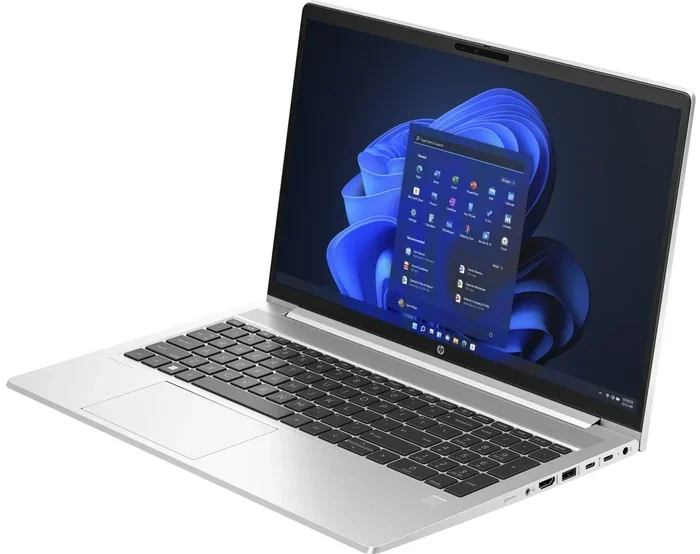
How to Increase Ram for Laptop
Want to speed up a slow laptop? Learning how to increase ram for laptop is one of the easiest and most affordable upgrades you can make. This guide walks you through checking your current RAM, choosing the right memory, and installing it yourself in just a few simple steps.
Is your laptop running slow? Does it freeze when you have too many tabs open? You are not alone. Most laptops start to feel sluggish after a year or two of use. The good news is that you do not need to buy a new computer. Learning how to increase ram for laptop can bring your machine back to life. In this guide, we will walk you through everything you need to know. From checking your current memory to installing new modules, we have you covered.
RAM, or Random Access Memory, is the short-term memory your laptop uses to handle tasks. Think of it as your computer’s workspace. The more workspace you have, the smoother everything runs. When your RAM fills up, your laptop slows to a crawl. Upgrading it is one of the fastest and cheapest ways to improve performance. Whether you use your laptop for work, school, or gaming, more RAM makes a huge difference.
This article covers the entire process in simple, plain language. You do not need to be a tech expert. We will explain each step clearly. We will also share tips to avoid common mistakes and get the most out of your upgrade. Let us dive in.
Key Takeaways
- Easy Upgrade: Increasing laptop RAM is a simple process that most users can do at home with basic tools.
- Big Performance Boost: More RAM means faster multitasking, smoother browsing, and better app performance.
- Check Compatibility First: Not all laptops support RAM upgrades, so always verify your model before buying.
- Right Amount Matters: 8GB is the minimum for everyday use, but 16GB is ideal for most users in 2024.
- Avoid Common Mistakes: Using the wrong RAM type or installing it incorrectly can cause problems.
- Cost-Effective: A RAM upgrade costs far less than buying a new laptop.
📑 Table of Contents
Understanding Laptop RAM and Why It Matters
Before you learn how to increase ram for laptop, it helps to understand what RAM does. RAM is temporary storage that your laptop uses while it is running. It holds data for open apps, browser tabs, and active processes. Unlike your hard drive, RAM is very fast. It gives your processor quick access to the information it needs.
When you open a program, it loads from your storage drive into RAM. The more RAM you have, the more programs you can run at the same time without slowdowns. If your RAM is full, your laptop starts using your storage drive as a substitute. This is called swapping, and it is much slower. That is when you experience lag, freezing, and frustration.
Types of Laptop RAM
Laptops use different types of RAM. The most common types today are DDR4 and DDR5. Older laptops may still use DDR3. Each type has different speeds and power requirements. Here is a quick look at the main types:
- DDR3: Older standard, still found in some legacy laptops.
- DDR4: The most common type today. Offers great speed and value.
- DDR5: The newest standard. Found in high-end and newer laptops.
Your laptop can only use the type of RAM it was designed for. You cannot mix DDR4 and DDR5, for example. Always check your laptop’s specifications before purchasing new memory. This is the first and most important step in how to increase ram for laptop.
How RAM Affects Laptop Performance
More RAM does not always mean faster speeds in terms of megahertz. But it does mean your laptop can handle more at once. Here is what more RAM helps with:
- Running multiple browser tabs without freezing
- Switching between apps quickly
- Editing photos and videos smoothly
- Playing games with better frame rates
- Running virtual machines or development tools
If you find yourself constantly closing apps to free up memory, it is time for an upgrade. A memory upgrade can feel like getting a brand new laptop.
How to Check Your Current Laptop RAM
The first step before upgrading is to find out what you currently have. You need to know how much RAM is installed, what type it is, and how many free slots you have. There are several easy ways to do this.
Check RAM on Windows
On Windows, you can check your RAM in just a few clicks. Press Ctrl + Shift + Esc to open Task Manager. Click on the Performance tab and then select Memory. You will see your total RAM, speed, and how many slots are being used. This gives you a quick snapshot of your current setup.
For more detailed information, type System Information in the Windows search bar. Look for Installed Physical Memory (RAM). This tells you the total amount in gigabytes. You can also use the command prompt. Type wmic memorychip get capacity, speed, and partnumber to get details about each RAM module.
Check RAM on macOS
If you use a Mac, the process is slightly different. Click the Apple menu and select About This Mac. You will see your total memory right there. For more details, open the System Information app. Look under the Memory section to see the type, speed, and number of RAM slots.
Another great option is to use a free tool like Crucial System Scanner. It automatically detects your laptop model and tells you exactly what RAM is compatible. This takes the guesswork out of how to increase ram for laptop.
How to Increase RAM for Laptop: A Step-by-Step Guide
Now for the fun part. Actually increasing your laptop RAM. This section walks you through the entire process from start to finish. Follow these steps carefully and you will be up and running in no time.
Step 1: Verify Your Laptop Supports RAM Upgrades
Not all laptops allow RAM upgrades. Some modern ultrabooks have soldered RAM that cannot be changed. Before buying anything, check your laptop’s specifications. Look up your model number online and find the service manual. It will tell you if your RAM is upgradeable and what the maximum capacity is.
You can also check how many RAM slots your laptop has. Some laptops have one slot, others have two. If one slot is already filled, you may need to replace the existing module rather than add a second one. This is an important detail when planning how to increase ram for laptop.
Step 2: Buy the Right RAM
Once you know your laptop supports upgrades, it is time to buy RAM. Here is what you need to consider:
- Type: DDR4, DDR5, or DDR3 (match your current RAM)
- Capacity: 4GB, 8GB, 16GB, or 32GB per module
- Speed: Match the speed of your existing RAM (e.g., 3200MHz)
- Form Factor: SO-DIMM for laptops (not desktop DIMMs)
Buying a matching pair of RAM sticks can enable dual channel mode. This improves performance by allowing the RAM to work more efficiently. If you are unsure, brands like Crucial, Kingston, and Corsair offer easy configurator tools on their websites. Just enter your laptop model and they recommend compatible RAM.
Step 3: Prepare Your Workspace
Before you start opening your laptop, set up a clean workspace. Use a flat, hard surface. Gather a small Phillips-head screwdriver. Have your new RAM stick ready. Turn off your laptop completely and unplug it from power. Remove any external devices like USB drives or printers.
It is also a good idea to ground yourself. Static electricity can damage sensitive components. Touch a metal surface or wear an anti-static wrist strap if you have one. These small precautions make a big difference when learning how to increase ram for laptop safely.
Step 4: Open Your Laptop and Access the RAM
Every laptop is different, but the general process is similar. Flip your laptop over and look for the RAM access panel. It is usually a small rectangular cover on the bottom held in place by one or two screws. Remove the screws carefully and set them aside.
Gently pry the panel off using a plastic spudger or your fingernail. Avoid using metal tools that could scratch the chassis. Once the panel is off, you will see the RAM modules. They are held in place by small clips on each side.
Step 5: Remove Old RAM (If Needed)
If you are adding RAM to existing modules, you can skip this step. But if you need to replace old RAM, here is how. Push the clips on both sides of the RAM stick outward. The module will pop up at an angle. Gently pull it straight out of the slot.
Be careful not to touch the gold contacts on the bottom of the module. Hold it by the edges. Place the old RAM in an anti-static bag or safe spot if you plan to keep it.
Step 6: Install the New RAM
Take your new RAM stick out of its packaging. Hold it by the edges. Align the notch on the gold connector with the ridge in the RAM slot. Insert the module at a 30 to 45 degree angle. Push it firmly down until the clips on both sides click into place.
You should feel a satisfying click. The RAM is now securely seated. If you are installing two modules, repeat the process for the second slot. Make sure both modules are fully inserted and locked.
Step 7: Close Up and Test
Replace the RAM access panel and screw it back in. Plug in your laptop and power it on. During the boot process, your laptop should recognize the new RAM automatically.
Once Windows or macOS loads, check your RAM again using the methods described earlier. You should see the updated total amount. If everything looks correct, congratulations. You just upgraded your laptop RAM successfully. If the system does not recognize the new memory, try reseating the modules or testing each stick individually.
How Much RAM Do You Really Need for Your Laptop
Knowing how to increase ram for laptop is one thing. Knowing how much RAM you actually need is another. The right amount depends on how you use your laptop. Here is a quick breakdown:
| Usage Type | Recommended RAM | Why |
|---|---|---|
| Basic browsing and office tasks | 8GB | Enough for light multitasking |
| Photo and video editing | 16GB | Handles large files and creative apps |
| Gaming | 16GB to 32GB | Modern games demand more memory |
| Programming and development | 16GB or more | IDEs and virtual machines use lots of RAM |
| Professional video editing | 32GB+ | 4K editing requires serious memory |
Most everyday users will see a big improvement by upgrading to 16GB. If your laptop currently has 4GB or 8GB, adding more RAM will feel like a massive upgrade. It is the single best way to breathe new life into an aging machine.
Keep in mind that some laptops have a maximum RAM limit. Check your laptop’s specifications to find out the maximum supported capacity. Trying to install more RAM than your laptop can handle will not work and could waste your money.
Common Mistakes to Avoid When Upgrading Laptop RAM
Even with a clear guide, mistakes can happen. Here are the most common errors people make when upgrading RAM and how to avoid them.
Buying the Wrong RAM Type
The most common mistake is buying incompatible RAM. DDR4 will not work in a DDR3 slot, and vice versa. Always double-check your laptop’s RAM type before purchasing. Use the Crucial scanner or your laptop’s service manual to confirm.
Ignoring Speed and Latency
RAM speed matters, but it must match your existing modules. If you mix different speeds, the system will default to the slowest speed. This can reduce the benefit of your upgrade. Try to match the speed and latency of your existing RAM when adding new modules.
Not Seating the RAM Properly
If the RAM is not fully inserted, your laptop may not boot or may show reduced memory. Always listen for the click on both sides. If you do not hear it, the module is not seated correctly. Remove it and try again.
Forgetting to Ground Yourself
Static electricity is a silent killer of computer components. Always ground yourself before touching any internal parts. Touch a metal part of the laptop chassis or use an anti-static wrist strap. This simple step can save you from costly damage.
Expert Tips to Get the Most Out of Your RAM Upgrade
Want to squeeze every bit of performance from your upgraded RAM? Here are some expert tips that make a real difference.
First, enable dual channel mode if your laptop supports it. This means using two matching RAM sticks in the correct slots. Dual channel can improve memory bandwidth by up to 20 percent. Check your laptop manual to find the correct slot configuration.
Second, close unnecessary background apps after upgrading. Even with more RAM, running too many programs at once will slow things down. Use Task Manager to identify and close resource-heavy processes.
Third, keep your operating system and drivers updated. Software updates often include memory management improvements. These can help your laptop make better use of the extra RAM you just installed.
Finally, consider upgrading your storage drive to an SSD if you have not already. RAM and SSD upgrades work together to dramatically improve laptop speed. While RAM handles active tasks, an SSD speeds up loading times and file access. Together, they make an older laptop feel brand new.
Learning how to increase ram for laptop is a valuable skill. It saves you money, reduces e-waste, and extends the life of your favorite device. With just a small investment and a little patience, you can transform a sluggish laptop into a fast, responsive machine.
Conclusion
Upgrading your laptop RAM is one of the simplest and most rewarding upgrades you can do. It costs a fraction of what a new laptop would cost, and the results are immediate. Whether you are a student, a professional, or a casual user, more RAM improves your daily experience.
We have covered everything from understanding what RAM does, to checking your current setup, buying the right modules, and installing them yourself. You now have all the knowledge you need to succeed. Start by checking your current RAM, then follow the steps in this guide to increase ram for laptop with confidence.
Do not let a slow laptop hold you back anymore. Take action today and enjoy a faster, smoother computing experience. Your laptop will thank you for it.
Frequently Asked Questions
Can I increase RAM on any laptop?
Not all laptops allow RAM upgrades. Some ultrabooks and thin laptops have soldered RAM that cannot be changed. Before upgrading, check your laptop model’s specifications to confirm it has removable RAM slots and supports upgrades.
How much does it cost to increase laptop RAM?
A laptop RAM upgrade typically costs between $20 and $80 per stick, depending on the type and capacity. DDR4 8GB modules are very affordable, while DDR5 and higher-capacity sticks cost more. Overall, it is one of the most budget-friendly laptop upgrades available.
What happens if I install the wrong RAM in my laptop?
If you install incompatible RAM, your laptop may not boot at all. It might show an error message or fail to recognize the new memory. Always match the RAM type (DDR3, DDR4, or DDR5), speed, and form factor to your laptop’s specifications before purchasing.
How do I know if my laptop RAM upgrade was successful?
After installing new RAM and powering on your laptop, check the total memory in your system settings. On Windows, go to Task Manager and look at the Memory tab. On macOS, click About This Mac. The total RAM should reflect your new upgrade.
Is it better to replace old RAM or add new RAM alongside it?
It depends on your needs and budget. If you already have 8GB of RAM and need 16GB, adding an 8GB stick is usually the easiest and cheapest option. However, if your existing RAM is old or slow, replacing it entirely with newer, faster modules may give you better overall performance.
How long does it take to increase RAM in a laptop?
The entire process takes about 10 to 20 minutes if you are prepared. Most of the time is spent researching compatibility and gathering tools. The actual installation is quick and straightforward once you know the steps. With practice, you can do it even faster.