How to Successfully Transfer Software to a New Pc the Essential Guide
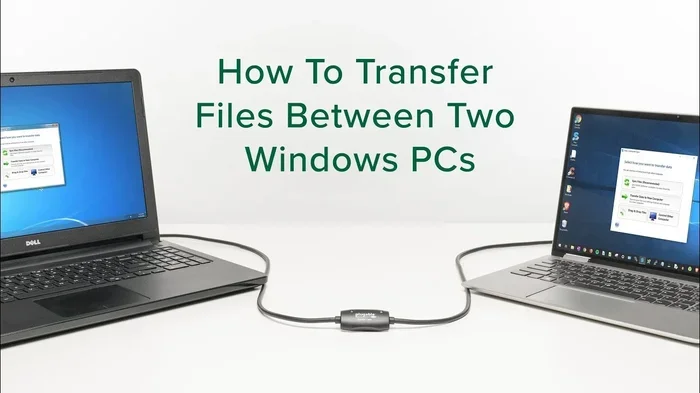
Transferring software to a new PC doesn’t have to be stressful. This essential guide walks you through every method, from simple backup and restore to advanced cloning tools. You’ll learn how to move your favorite applications, keep your license keys safe, and set up your new computer quickly and smoothly.
Moving to a new PC is exciting. But the real headache starts when you realize your favorite programs aren’t there yet. Whether you’re switching desktops or replacing an old laptop, transferring software to a new PC can feel overwhelming. There are licenses to track, settings to move, and files to organize. This guide breaks it all down into simple, actionable steps. You’ll learn multiple methods so you can pick what works best for your situation.
By the end of this article, you’ll know exactly how to migrate your applications without losing data or wasting time. We cover manual methods, dedicated transfer tools, and smart tips for keeping everything running smoothly. No fluff, no filler — just practical advice you can use right away.
Key Takeaways
- Manual Transfer Works Best for Small Setups: Copying program files and reactivating licenses is simple for a few apps.
- Migration Tools Save Hours: Tools like EaseUS and Laplink handle complex transfers with ease.
- Cloud Backup Keeps Data Safe: Storing licenses and settings in the cloud prevents data loss during migration.
- Always Back Up License Keys First: Losing a product key means repurchasing software you already own.
- Check Compatibility Before Transferring: Not all programs work the same way across different Windows versions.
- Clean Up Your Old PC After Transfer: Removing junk files frees space and keeps your system running fast.
📑 Table of Contents
- Why Transferring Software to a New PC Matters
- Method 1: Manual Software Transfer
- Method 2: Using PC Migration Software
- Method 3: Cloud-Based Transfer and Backup
- Method 4: Cloning Your Entire System
- Checking Your New PC Before Transfer
- Post-Transfer Checklist
- Expert Tips for a Smooth Transition
- Conclusion
Why Transferring Software to a New PC Matters
Your software is more than just apps. It’s your workflow, your bookmarks, your saved projects, and your preferences. When you skip the transfer process, you risk losing hours of setup time. Some programs store critical data in hidden folders that get left behind. Others require reactivation or even repurchase if you don’t handle the license correctly.
Proper PC migration ensures you don’t start from scratch. You keep your shortcuts, your file associations, and your customized settings. This matters whether you’re moving from an old Windows 10 machine to a new Windows 11 PC or simply replacing a broken laptop. The goal is the same — make the new machine feel like home.
Common Mistakes People Make
Many users simply copy and paste program folders. This rarely works. Modern software stores registry entries, temporary files, and user data in multiple locations. A simple copy-paste misses most of these. Another common mistake is forgetting to export license keys before wiping the old PC. Once it’s gone, recovering a product key can be nearly impossible.
Some people also underestimate how long reinstallation takes. Downloading and setting up 20 programs one by one can eat an entire day. Using a smarter method saves you from this frustration.
Method 1: Manual Software Transfer
The manual approach works well when you have only a few programs to move. It gives you full control and doesn’t require third-party tools. Here’s how to do it right.
Step 1: Gather Your License Keys
Before anything else, collect every product key. Check your email inbox for purchase confirmations. Look for a document where you stored keys. If you use a password manager, search there. Write them down in a safe file on a USB drive. This step is the most important part of transferring software to a new PC.
Step 2: Copy Program Files
Navigate to the installation folder on your old PC. Most programs live in C:\Program Files or C:\Program Files (x86). Copy the entire folder for each program to an external hard drive or USB stick. Make sure you copy hidden files too — they often contain important configuration data.
Step 3: Transfer User Data and Settings
Many applications save user-specific data in the AppData folder. Open File Explorer and type %appdata% in the address bar. Look for folders related to the programs you want to move. Copy these to your external drive as well.
Step 4: Reinstall on the New PC
On your new computer, run the installer for each program. During installation, point the setup wizard to the folder you copied earlier if the option appears. Then paste the user data back into the appropriate AppData subfolder. Activate the software using your saved license keys.
Quick Tip: Always reinstall the program first, then copy the data folder over. This ensures the program creates the correct directory structure on the new PC.
Method 2: Using PC Migration Software
If you have dozens of programs to move, manual transfer isn’t practical. Migration tools automate the process and handle the tricky parts for you. These tools scan your old PC, capture all installed software and settings, and recreate them on the new machine.
Top Migration Tools to Consider
Several reliable options exist for PC migration. EaseUS Todo PCTrans is a popular choice that handles both free and paid transfers. Laplink PCmover is another trusted option, especially for Windows-to-Windows migrations. Microsoft’s Windows Backup and Restore feature also helps move some programs, though it works best with system images rather than individual apps.
How Migration Tools Work
Most tools follow a similar process. You install the software on both the old and new PCs. You then connect the two machines over a local network or through an external drive. The tool scans for installed applications, user profiles, and settings. Finally, you select what to transfer and let the software do the heavy lifting.
These tools save significant time. They also reduce the risk of missing important files. However, they may not transfer every single program perfectly. Some applications, especially those tied to hardware dongles or specific driver configurations, may need manual attention.
Method 3: Cloud-Based Transfer and Backup
Cloud solutions offer a clean, modern approach to moving software to a new computer. This method works especially well for users who store documents, settings, and profiles in the cloud.
Using OneDrive and Google Drive
If you use OneDrive or Google Drive, many of your files are already synced. Sign into the same account on your new PC, and your documents, photos, and settings follow automatically. Some programs like Microsoft Office store license information in your Microsoft account, so you can reactivate with just a sign-in.
Storing License Keys in the Cloud
Consider storing all your software license keys in a cloud-based password manager. Services like Bitwarden, LastPass, or 1Password let you access your keys from any device. This way, even if your old PC dies unexpectedly, your keys are safe and ready for the new machine.
Method 4: Cloning Your Entire System
Cloning creates an exact copy of your old PC’s hard drive on the new one. This method transfers everything — every program, every setting, every file. It’s the most thorough approach to software migration.
When Cloning Makes Sense
Cloning works best when the new PC has similar hardware to the old one. If you’re moving from one Windows machine to another with comparable specs, cloning can save you hours of setup time. However, cloning to a significantly different hardware setup can cause driver conflicts and boot errors.
How to Clone Your Drive
Use a tool like Macrium Reflect or Clonezilla to create a disk image. Save the image on an external drive. On the new PC, restore the image to the new hard drive. Boot up, and your old system should be ready to go. After cloning, it’s wise to check your PC specs and update any drivers that may have changed.
Keep in mind that cloning duplicates your entire system. If the new PC has a larger drive, you may want to extend the partition afterward. If it has an NVMe SSD, make sure your cloning tool supports it properly.
Checking Your New PC Before Transfer
Before you start moving software, take a few minutes to understand what’s on your new PC. Check the RAM, storage type, and operating system version. You can check the RAM of your laptop through the Task Manager or System Settings. Knowing your specs helps you avoid installing incompatible software.
Also make sure your new PC is clean and ready. Remove any bloatware that came pre-installed. Run a cleanup tool to delete temporary files and remove junk files from your PC. A fresh start gives your migrated software the best environment to run in.
Verifying Peripheral Setup
Don’t forget about your peripherals. Before transferring software, make sure your mouse and keyboard work properly on the new machine. If you’re using a wireless mouse, connect it and test it. Setting up your mouse on a laptop correctly ensures you can navigate the migration process smoothly. A working mouse makes every step easier, from clicking through installers to managing file transfers.
Post-Transfer Checklist
Once your software is on the new PC, run through this quick checklist to make sure everything works.
- Activate all programs with your saved license keys.
- Test your most-used applications for crashes or errors.
- Check file associations — make sure .pdf files open in your preferred viewer.
- Update all software to the latest versions.
- Verify cloud sync is working for documents and settings.
- Remove temporary transfer files to free up space.
Taking these extra minutes after migration saves you from surprises later. A quick test of each major program gives you peace of mind that everything is working as it should.
Expert Tips for a Smooth Transition
Experienced IT professionals follow a few habits that make software transfer much easier. First, they never transfer a program without checking its compatibility. Some older applications simply don’t run on newer versions of Windows. Second, they always export their browser profiles separately. Your bookmarks, passwords, and extensions are just as important as your installed programs.
Another pro tip is to keep a simple spreadsheet of all your software, license keys, and purchase dates. This document becomes your single source of truth during any future migration. Update it every time you install a new program.
Finally, don’t rush the process. Take your time, do it in stages, and verify each step before moving on. A careful transfer today saves hours of troubleshooting tomorrow.
Conclusion
Transferring software to a new PC is a manageable task when you have the right approach. Whether you choose manual transfer, a dedicated migration tool, cloud backup, or full system cloning, the key is preparation. Gather your license keys first, choose the method that fits your needs, and follow the steps carefully. A clean new PC setup with all your favorite software running smoothly is well worth the effort. Take it step by step, and your new machine will feel ready to go in no time.
Frequently Asked Questions
Can I transfer paid software to a new PC for free?
Most personal software licenses allow installation on one primary PC. If you’re replacing an old computer, you can usually reactivate the license on the new machine. Check the software’s terms of service, as some subscriptions or enterprise licenses have different rules.
What is the easiest way to transfer programs to a new PC?
Using a dedicated migration tool like EaseUS Todo PCTrans or Laplink PCmover is the easiest method. These tools automate most of the process and handle settings, files, and even some program transfers without you needing to reinstall everything manually.
Will my software work on a new PC with different specs?
Most modern software works fine across different hardware configurations. However, very old or specialized programs may need specific drivers or system requirements. Always check the minimum system requirements before transferring critical applications.
How do I find my lost software license keys?
Check your email for purchase confirmations. Look in your password manager or a saved document. You can also use free tools like Belarc Advisor or ProduKey on your old PC to scan and recover installed product keys before you wipe the machine.
Should I transfer programs or just reinstall them?
For a small number of programs, reinstalling is often faster and cleaner. For large setups with many customized applications, a migration tool or manual transfer saves significant time. The right choice depends on how many programs you use and how much you’ve customized them.
Is it safe to clone my entire hard drive to a new PC?
Yes, cloning is safe when done correctly. However, hardware differences between the old and new PC can sometimes cause driver conflicts. After cloning, update your drivers and run a full system check to ensure everything works properly on the new hardware.