What Is Radeon Super Resolution
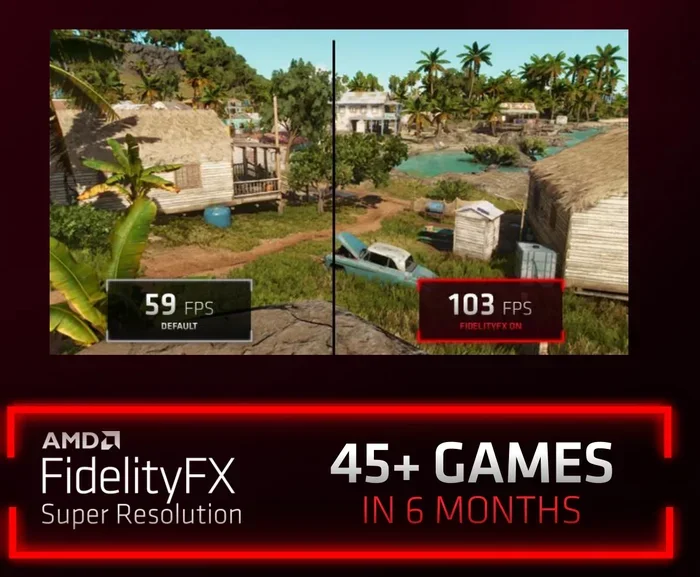
Radeon Super Resolution is AMD’s driver-level upscaling technology that improves gaming performance on laptops by rendering games at lower resolutions and then sharpening the image back up. It works similarly to NVIDIA’s DLSS but is available on a wider range of AMD Radeon graphics cards. This technology gives you a significant performance boost without sacrificing much visual quality, making it a game-changer for laptop gamers.
Have you ever tried playing a game on your laptop only to get stuck with stuttering frame rates and blurry visuals? You’re not alone. Many laptop gamers face this frustrating problem every day. The good news is that AMD has a solution called Radeon Super Resolution that can transform your gaming experience.
Radeon Super Resolution, often shortened to RSR, is a technology built right into AMD’s graphics drivers. It uses upscaling to make games run faster while keeping the picture looking sharp. Think of it as a smart trick that makes your laptop graphics card work smarter, not harder. In this article, we’ll break down exactly what this technology is, how it works, and why it matters for your setup.
Key Takeaways
- Radeon Super Resolution is AMD’s free upscaling tech: It works through driver-level adjustments, meaning you don’t need special game support to use it.
- It boosts frame rates on laptops: By rendering at a lower resolution, your GPU works less hard, giving you smoother gameplay.
- Image quality stays sharp: AMD includes a sharpening filter that restores detail after the upscaling process.
- Compatible with most AMD Radeon GPUs: Many older and newer graphics cards support this feature through Radeon Software.
- Easy to enable: You can turn it on in a few clicks through the AMD Radeon Software dashboard.
- It’s not perfect for every game: Some titles may show minor visual artifacts, so tweaking settings helps.
- Pair it with good laptop cooling: Keeping your GPU at a good idle temperature ensures the best upscaling results.
📑 Table of Contents
What Is Radeon Super Resolution?
Radeon Super Resolution is AMD’s version of resolution upscaling. It renders your game at a lower internal resolution and then uses smart algorithms to stretch the image back to your screen’s native resolution. This process takes the heavy load off your GPU, which means you get more frames per second without turning down all your game settings.
The technology is built into the AMD Radeon Software, so it works automatically with most games that support AMD graphics cards. Unlike some other upscaling methods that need game developers to build in special support, Radeon Super Resolution works at the driver level. This makes it incredibly accessible for laptop users who want better performance without jumping through hoops.
How Does It Compare to Other Upscaling Tech?
NVIDIA has DLSS, which is very popular. Both technologies do something similar, but there are key differences. Radeon Super Resolution works with AMD GPUs and many older cards that don’t have dedicated hardware for upscaling. DLSS, on the other hand, uses special chips on newer NVIDIA cards. For many laptop users, RSR is the more flexible option because it doesn’t require the latest hardware.
How Does Radeon Super Resolution Work?
Understanding how Radeon Super Resolution works is simpler than you might think. The process happens in just a few steps every time you play a game.
First, the game renders the frame at a lower resolution than your monitor can display. For example, if your laptop screen is 1920×1080, RSR might render the frame at 1280×720. This takes much less computing power. Then, AMD’s upscaling algorithm fills in the missing pixels and sharpens the image. Finally, the full-resolution frame appears on your screen, looking crisp and clear.
The Role of the Sharpening Filter
One of the coolest parts of Radeon Super Resolution is its built-in sharpening filter. When you downscale an image and then upscale it, you can lose some detail. The sharpening filter brings back edge clarity and fine textures. This means you don’t just get a blurry, low-resolution mess. You get a clean, sharp image that looks great on your display.
You can adjust the sharpening strength in the Radeon Software settings. If you prefer a more natural look, you can dial it back. If you want maximum crispness, you can push it up. This level of control is one reason why Radeon Super Resolution is so popular among laptop gamers.
Why Should Laptop Gamers Care?
If you game on a laptop, Radeon Super Resolution should be on your radar. Laptops have a big disadvantage compared to desktop PCs: their graphics card and cooling systems are smaller and less powerful. This means they often struggle with demanding modern games.
Radeon Super Resolution levels the playing field. It lets older or lower-end laptop GPUs run games at playable frame rates. You don’t have to lower every visual setting and sacrifice the look of the game. Instead, you get a smart balance between performance and image quality.
Another big advantage is that it’s free. You don’t need to buy any extra hardware or pay for a subscription. As long as you have a compatible AMD Radeon GPU, you can enable Radeon Super Resolution right away through your driver software.
Performance Boost You Can Actually Feel
Many users report a 30 to 50 percent increase in frame rates when they turn on Radeon Super Resolution. That’s a huge difference. Games that were barely running at 30 frames per second can suddenly feel smooth and responsive at 60 frames per second or higher.
For competitive gamers, this means less lag and a better chance of spotting enemies quickly. For casual players, it means enjoying story-driven games without constant stuttering. Whatever your gaming style, Radeon Super Resolution can make a noticeable improvement.
How to Enable Radeon Super Resolution
Getting started with Radeon Super Resolution is straightforward. Here’s a step-by-step guide you can follow on your laptop.
- Open AMD Radeon Software. Right-click on your desktop and select “AMD Radeon Software” from the menu. If you don’t have it installed, download it from AMD’s official website.
- Go to the Graphics tab. Look for the “Radeon Super Resolution” option in the menu on the left side of the window.
- Toggle RSR On. Switch the feature from Off to On. You’ll see a slider that lets you choose the upscaling quality level.
- Adjust the sharpening filter. Use the sharpening slider to find the balance between crispness and natural image quality.
- Launch your game. The settings apply automatically. You should notice smoother performance right away.
Quick Tips for Best Results
- Start with a medium upscaling setting. You can always push it higher if you need more performance.
- Keep your GPU drivers updated. AMD regularly improves RSR algorithms with new driver releases.
- Monitor your temperatures. Even with Radeon Super Resolution reducing GPU load, make sure your GPU stays at a good idle temperature during long gaming sessions.
- Pair RSR with other optimizations. Lowering shadows and anti-aliasing settings alongside RSR can give you even better frame rates.
Common Mistakes When Using Radeon Super Resolution
While Radeon Super Resolution is easy to use, there are a few mistakes that can hurt your experience. Knowing what to avoid will help you get the best results.
Setting the upscaling too high. Cranking RSR to the maximum level can cause visual artifacts like shimmering or ghosting. A medium setting usually offers the best balance between performance and image quality.
Ignoring sharpening adjustments. The default sharpening might not be ideal for every game or every screen. Take a few minutes to tweak the sharpening filter for each game you play. This small step makes a big difference in how clean the image looks.
Expecting perfect image quality. No upscaling technology is flawless. Radeon Super Resolution does an impressive job, but you may notice slight differences compared to native resolution. For most gamers, the trade-off is absolutely worth it.
Forgetting about RAM and system performance. Upscaling helps your GPU, but your laptop’s overall performance still matters. Having enough RAM ensures your system can handle the upscaled frames smoothly. If you’re unsure about your setup, check out our guide on what is good RAM for a laptop to make sure your system is balanced.
Who Should Use Radeon Super Resolution?
Radeon Super Resolution is a great fit for many types of laptop users. Here’s a quick look at who benefits the most.
- Budget laptop gamers. If you have an older or entry-level AMD GPU, RSR can make modern games playable.
- Gamers who value frame rates. Competitive players who need every bit of performance will appreciate the boost.
- Users with limited laptop cooling. Since RSR reduces GPU workload, it also helps keep temperatures down, which is especially important for thin and light laptops.
- Anyone who wants easy setup. No complex configurations or third-party tools needed. Just toggle it on and play.
However, if you have a very high-end GPU and already get smooth frame rates at native resolution, RSR might not add much value for you. It’s designed to help when performance is the bottleneck, not when everything already runs perfectly.
Final Thoughts
Radeon Super Resolution is one of the most useful tools available to laptop gamers today. It’s free, easy to use, and delivers real performance gains without a noticeable drop in image quality. Whether you’re playing a demanding AAA title or a lightweight indie game, RSR can help you get the most out of your AMD Radeon graphics card.
The technology continues to improve with each driver update, so the experience only gets better over time. If you haven’t tried it yet, we highly recommend enabling Radeon Super Resolution and seeing the difference for yourself. Your laptop GPU will thank you, and your games will look and feel better than ever.
Frequently Asked Questions
Is Radeon Super Resolution the same as NVIDIA DLSS?
Both technologies do upscaling to boost performance, but they work differently. Radeon Super Resolution runs at the driver level and works with most AMD GPUs, while DLSS uses dedicated hardware on newer NVIDIA cards. RSR is more widely compatible with older GPUs.
Can I use Radeon Super Resolution on any laptop?
You need a laptop with an AMD Radeon graphics card. Most AMD GPUs from the last several generations support RSR. Check the AMD Radeon Software to see if the option is available on your system.
Does Radeon Super Resolution reduce image quality?
There can be a slight reduction compared to native resolution, but AMD’s sharpening filter helps restore clarity. Most users find the difference minimal and well worth the performance gain.
How much of a performance boost can I expect from Radeon Super Resolution?
Many users see a 30 to 50 percent increase in frame rates, depending on the game and the upscaling level you choose. The boost is most noticeable on demanding titles and lower-end hardware.
Do I need an internet connection to use Radeon Super Resolution?
No. Radeon Super Resolution works entirely offline. It processes frames locally on your GPU through the AMD driver, so no internet connection is required.
Will Radeon Super Resolution work with VR games?
RSR can work with some VR titles, but results vary. Because VR requires very high frame rates for comfort, RSR can help achieve smoother performance. However, always test in VR-specific settings for the best experience.
=== CONCLUSION ===
Radeon Super Resolution is a powerful, accessible tool that every laptop gamer should know about. It brings upscaling technology into your hands without cost or complexity. From boosting frame rates to keeping your GPU cooler, the benefits are clear and immediate. Enable it today and experience smoother, sharper gaming on your laptop.