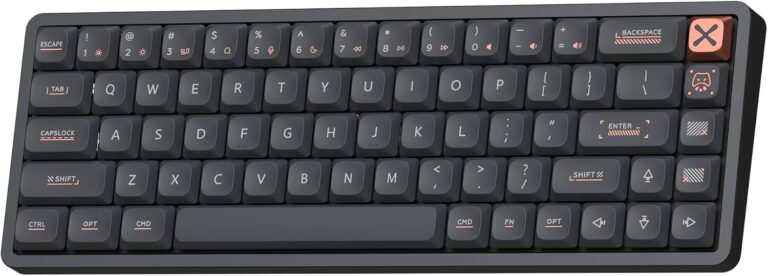
What Do the F1 F2 and F3 Mean on the Computer Keyboard

The F1, F2, and F3 keys are part of the function key row on your keyboard, and each one has a specific job. F1 is mostly used to open Help menus, F2 lets you rename files and folders fast, and F3 often triggers search functions. These keys can also work with the Fn key to control brightness, volume, and other media features. Understanding what these keys do saves you time and makes using your computer much easier.
Have you ever looked at the top row of your keyboard and wondered what those F1, F2, and F3 keys are actually for? You are not alone. Many people use their computers every day without ever touching these small but powerful keys. The truth is, these function keys can save you a lot of time if you know what they do.
The F1, F2, and F3 keys sit at the very top of almost every standard computer keyboard. They are part of a row of twelve function keys labeled F1 through F12. Each key has a default job, and many of them change behavior depending on the program you are using. In this article, we will focus on F1, F2, and F3, and explain exactly what each one does. We will also cover how they work with the Fn key, and share practical tips you can use right away.
Whether you are a student, a office worker, or just someone who wants to get more out of your laptop, understanding these keys matters. They are not just decorative. They are shortcuts built right into your keyboard. Let us break down what each one does in simple terms.
Key Takeaways
- F1 opens Help: Pressing F1 in most programs brings up the Help or support window instantly.
- F2 renames files: Select any file or folder and press F2 to rename it quickly without right-clicking.
- F3 opens Search: F3 is the go-to key for launching search functions in browsers and file explorers.
- Fn key changes behavior: Holding Fn with F1-F3 activates media controls like brightness and volume.
- F keys work across apps: These function keys behave differently depending on the program you are using.
📑 Table of Contents
What Are the F1, F2, and F3 Keys?
The function key row sits at the very top of your keyboard. These keys are labeled F1 through F12 and have been a standard part of keyboards for decades. The F1 F2 and F3 keys are the first three in that row, and they each carry a specific default function. Over time, software makers have assigned these keys special roles that make working on a computer faster and more efficient.
On most keyboards, pressing an F key by itself triggers its default function. But if you hold down the Fn key at the bottom of your keyboard, the same F key can do something completely different. For example, pressing F2 alone might rename a file, but holding Fn and F2 could lower your screen brightness. This dual behavior is common on laptops where space is limited.
The great thing about these keys is that they work across almost every program and operating system. Whether you are on Windows, Mac, or ChromeOS, the F1 F2 F3 keys follow similar patterns. Once you learn them, you will start using them without even thinking.
Why Do Keyboards Have Function Keys?
Function keys were added to keyboards long before mice became standard. Back in the early days of computing, these keys were one of the few ways to give commands to a computer. They allowed users to navigate software, trigger actions, and control hardware without reaching for a mouse. Today, even though mice and touchpads are everywhere, function keys still serve an important purpose. They offer quick access to common tasks that would otherwise require more clicks and steps.
Think of the function key row as a row of shortcuts built into your hardware. Instead of opening a menu and hunting for an option, you can press a single key. This is especially useful when you are working fast or juggling multiple tasks at once. If you use a wireless keyboard and mouse for laptop computer, the function keys still work the same way, giving you quick access to essential commands no matter what setup you have.
What Does the F1 Key Do?
The F1 key is the most recognized function key on the keyboard. Its primary job is to open the Help menu in almost any program. This has been the standard behavior for F1 since the early days of personal computing, and it has stuck around because it works so well.
F1 in Windows and Programs
When you press F1 on your keyboard while using a Windows program, it usually opens the Help or Support window for that application. For example:
- In Microsoft Word: Pressing F1 opens the Word Help pane where you can search for answers to questions about formatting, printing, or saving.
- In a Web Browser: F1 often opens the browser Help page, which provides guides and troubleshooting tips.
- In Windows Explorer: Pressing F1 opens the Windows Help and Support center.
- In Games: Some games use F1 to open settings or pause menus, though this varies by title.
The F1 key is a reliable and consistent shortcut across most software. You do not need to memorize complex key combinations. Just press F1, and help appears. This makes it one of the easiest keyboard shortcuts to learn and use daily.
F1 for System Recovery
Beyond opening Help, the F1 key has another important role during computer startup. On many computers, pressing F1 right after turning the machine on can take you into the BIOS or setup menu. The BIOS is a low-level system that controls your hardware before the operating system loads. Accessing it with F1 lets you change boot settings, check hardware status, and troubleshoot startup problems.
Some manufacturers also use F1 to trigger system recovery or access hidden diagnostic tools. If your computer is acting up, trying F1 during boot-up is a quick first step. This is a great example of how a single key can serve multiple purposes depending on when and how you use it.
What Does the F2 Key Do?
The F2 key is all about speed and convenience. Its most common function is to rename selected files and folders in Windows and other operating systems. It is one of the handiest shortcuts for anyone who works with files regularly.
F2 for Renaming Files and Folders
Here is how F2 works for renaming:
- Click on any file or folder to select it.
- Press the F2 key on your keyboard.
- The name of the file will become editable.
- Type the new name and press Enter.
That is it. No need to right-click and search for the Rename option. The F2 key does it instantly. This trick works in File Explorer, on your desktop, and in most file management apps. It is a small shortcut that adds up to big time savings over days and weeks of computer use.
F2 in Microsoft Excel and Spreadsheets
If you use spreadsheets, the F2 key has a completely different job. In Excel and similar programs, pressing F2 puts a cell into edit mode. This means you can change the contents of a cell directly without double-clicking it. It is a fast way to update data in large spreadsheets, especially when you are working with hundreds of rows.
You can also combine F2 with other keys for even more power. For instance, pressing Ctrl and F2 together in Word opens the Print Preview window. These combinations are part of the broader world of keyboard shortcuts that make computer use faster and more efficient.
F2 and Your Laptop’s Fn Key
On many laptops, holding the Fn key while pressing F2 can adjust system settings. Common Fn+F2 combinations include lowering or raising screen brightness, controlling volume, or toggling wireless connections. The exact behavior depends on your laptop brand and model, so check your manual if you are unsure.
What Does the F3 Key Do?
The F3 key is most commonly associated with search functions. It is the key you reach for when you want to find something quickly in a document, on a webpage, or across your entire computer.
F3 for Search in Browsers
In most web browsers, pressing F3 opens the Find bar, which lets you search for specific text on the current page. This is incredibly useful when you are reading long articles, looking for a specific detail in a document, or trying to locate a keyword in a webpage. Here is how it works:
- Open any webpage in your browser.
- Press F3 on your keyboard.
- A search box will appear, usually at the bottom or top of the page.
- Type what you are looking for, and the browser will highlight all matches.
You can press F3 repeatedly to jump from one match to the next. This is much faster than scrolling through a long page trying to find a specific word or phrase. It is one of those keyboard shortcuts that once you start using, you will never go back to manual searching.
F3 in Windows File Explorer
F3 also works in Windows File Explorer. Pressing it opens the search bar at the top of the window, allowing you to search for files and folders on your computer. This is a quick alternative to clicking the search box with your mouse. If you are looking for a specific document buried deep in your folders, F3 can save you several clicks.
F3 in Microsoft Word and Other Apps
In Microsoft Word, pressing F3 does something unique. It cycles through different text case options. For example, if you have selected a word in lowercase, pressing F3 might change it to Title Case, then UPPERCASE, and back again. This is a neat trick for quick formatting without using the mouse.
Some applications also use F3 to repeat the last action or command. This is especially helpful in graphics programs and development environments where you might perform the same task multiple times in a row.
How the Fn Key Changes Everything
The Fn key is a modifier key, much like the Shift or Ctrl key. When you hold it down and press an F key, the key performs a secondary function instead of its default one. This is especially common on laptops, where the F1 through F12 keys share space with media controls and system shortcuts.
Here are some common Fn + F key combinations you might find on your keyboard:
- Fn + F1: Mute or unmute sound
- Fn + F2: Adjust screen brightness down
- Fn + F3: Adjust screen brightness up
- Fn + F4: Decrease volume
- Fn + F5: Increase volume
- Fn + F6: Toggle Bluetooth or Wi-Fi
Not all laptops use the same combinations. The icons printed on the F keys at the bottom of each key give you a clue about the secondary function. Look for small symbols like a sun (brightness), a speaker (volume), or a wireless signal (Wi-Fi).
If you find yourself accidentally triggering the secondary functions instead of the default F key behavior, many laptops have an Fn Lock key. This toggles the behavior so that the F keys work as standard function keys without needing to hold the Fn key. Check your keyboard for an Fn Lock or Fn Mode key, usually located near the bottom left corner.
Common Mistakes People Make with F Keys
Even though the F keys are simple, there are some common mistakes that people make when using them. Being aware of these can help you get the most out of your keyboard.
Forgetting to Select the Target First
One of the biggest mistakes is pressing F2 without first selecting the file or folder you want to rename. If nothing is selected, pressing F2 may not do anything, or it might rename the wrong item. Always click on the item first to make sure it is highlighted before pressing F2.
Ignoring the Fn Lock
Many users get frustrated because F1, F2, and F3 seem to control brightness or volume instead of opening Help or renaming files. The solution is usually to enable Fn Lock, which switches the F keys back to their default functions. Once you turn it on, F1 opens Help, F2 renames files, and F3 triggers search as expected.
Assuming All Programs Behave the Same
The F keys do not work identically in every program. While F1 almost always opens Help, F2 and F3 can behave very differently depending on the application. Always check the program’s documentation or help menu to learn the specific shortcuts for that software. This is especially true for creative tools, games, and development environments where custom shortcuts are common.
Not Using F Keys with Modifier Keys
The real power of the F keys comes alive when you combine them with Ctrl, Alt, Shift, or the Fn key. Learning even a few combinations can dramatically speed up your workflow. Start with the basics like Ctrl+F2 for Print Preview in Word, and build from there.
Quick Tips for Using F1, F2, and F3
Here are some practical tips to help you use the F1 F2 and F3 keys more effectively:
- Memorize the defaults: F1 = Help, F2 = Rename, F3 = Search. These three defaults cover the most common tasks.
- Use Fn Lock: If your F keys are doing media functions instead of their default jobs, find and press the Fn Lock key.
- Combine with Ctrl and Alt: Try Ctrl+F2, Alt+F3, and similar combos to discover even more shortcuts.
- Check the icons: Look at the bottom of each F key on your laptop to see what the secondary Fn functions are.
- Practice daily: The more you use these keys, the more natural they will feel. Try to use F2 for renaming instead of right-clicking every time.
- Explore your programs: Open the Help or keyboard shortcuts menu in your favorite apps to see if F1, F2, or F3 have been assigned special roles.
How F Keys Compare Across Different Keyboards
The F1, F2, and F3 keys work on almost all keyboards, but their behavior can vary slightly depending on the type of keyboard you use. Desktop keyboards from major brands like Dell, HP, and Logitech generally follow the standard F key behavior. Laptops, on the other hand, often repurpose the F keys for media controls and system functions, requiring the Fn key to access their default roles.
External and wireless keyboards tend to keep the standard F key behavior without any Fn layer. This makes them a great choice if you prefer the traditional function key layout. If you are shopping for a new keyboard, check whether it has dedicated F keys or shared function/media keys.
Some ergonomic and compact keyboards may not include the full F1-F12 row at all. In these cases, you might need to use the Fn key or on-screen keyboards to access the F1, F2, and F3 functions. Understanding your specific keyboard layout helps you make the most of every key.
Final Thoughts
The F1 F2 and F3 keys may seem small and simple, but they pack a lot of utility into three tiny keys. F1 opens Help when you are stuck. F2 renames files in a flash. F3 launches search and saves you from scrolling through pages of content. Together, these keys form a powerful toolkit for faster, more efficient computer use.
Learning what these keys do takes just a few minutes, but the time you save adds up quickly. Start incorporating F1, F2, and F3 into your daily routine. You will wonder how you ever managed without them. The next time you sit down at your keyboard, give these keys a try. You might be surprised at how much smoother your workflow becomes.
Remember, every shortcut you learn makes you a more confident and capable computer user. The F keys are just the beginning. Once you master these three, you can explore the rest of the function key row and build a whole library of time-saving shortcuts. Happy computing!
Frequently Asked Questions
What happens when you press F1 on a computer?
Pressing F1 on most computers and programs opens the Help or Support window. In Windows, it typically launches the Help and Support center. In applications like Microsoft Word or Excel, F1 opens the program-specific Help pane where you can search for answers and guides.
Can you use F2 to rename files on a Mac?
On a Mac, the F2 key is usually assigned to a different function by default, such as adjusting keyboard brightness. To use F2 for renaming files, you may need to hold the Fn key while pressing F2, or change the keyboard settings in System Preferences to use the standard F key functions.
Why does F3 not work for search in some programs?
Some programs override the default F3 search function with their own custom shortcuts. In these cases, F3 might do something entirely different, or it might not have a function at all. Check the program’s keyboard shortcuts menu to see what F3 is assigned to in that specific application.
How do I stop my F keys from controlling brightness and volume?
Most laptops let you toggle the F keys between standard function keys and media controls. Look for an Fn Lock key on your keyboard, or check your laptop’s BIOS or keyboard settings to switch the F keys to their default behavior. On some models, you can hold the Fn key temporarily to access the standard F key function.
What is the difference between F keys on a laptop and a desktop keyboard?
Laptop keyboards often share the F keys with media controls, so you need the Fn key to access the standard F1, F2, F3 functions. Desktop keyboards usually have dedicated F keys that work as standard function keys without any modifier. This difference is due to the smaller size of laptop keyboards, which requires sharing keys for multiple functions.
Are F1, F2, and F3 the same across all operating systems?
The F1, F2, and F3 keys follow similar patterns across Windows, Mac, and ChromeOS, but there are some differences. For example, F2 renames files in Windows but may need the Fn key on a Mac. The core functions like Help, Rename, and Search remain consistent, but the exact behavior can vary slightly depending on the operating system and software you are using.
=== CONCLUSION ===
The F1 F2 and F3 keys on your computer keyboard are far more useful than most people realize. F1 opens Help, F2 renames files, and F3 triggers search. These simple functions can make your daily computer tasks faster and more efficient. With the addition of the Fn key, these same keys can also control brightness, volume, and other system features. Learning these shortcuts is a small investment that pays off quickly. Start using the F keys today and experience the difference for yourself.