What Does the Flashing Apple Symbol Mean on an Iphone That Wont Turn On
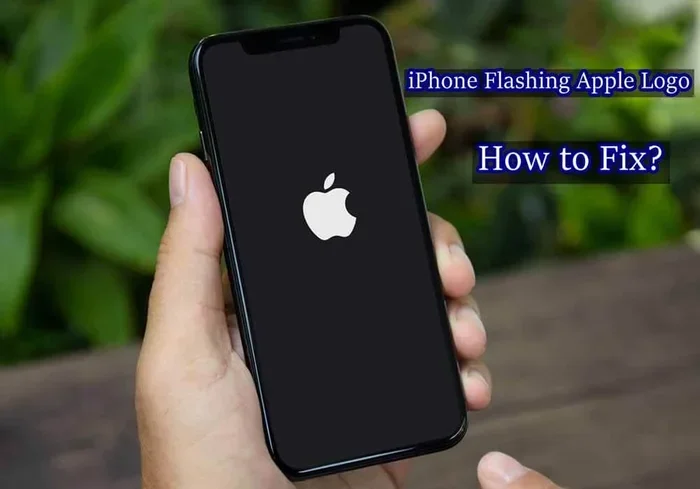
The flashing Apple symbol on an iPhone that won’t turn on usually signals a startup problem, software glitch, or hardware issue. This guide walks you through every possible cause and fix so you can get your phone working again. You’ll learn simple steps like force restarting, updating iOS, and when to visit a repair shop.
You press the power button on your iPhone. Nothing happens. Then you see it. A tiny Apple logo blinking on and off, over and over. Your phone won’t turn on. It just keeps flashing that little symbol like it’s trying to tell you something. If you’ve ever seen this, you know how stressful it can be.
The flashing Apple symbol on an iPhone that won’t turn on is one of the most common issues iPhone users face. It can happen to anyone. Whether your phone dropped, got wet, or just decided to act up after an update, this guide will help you understand what’s going on and how to fix it. Let’s break it down step by step.
Key Takeaways
- Flashing Apple logo meaning: It typically means your iPhone is stuck during the boot process and cannot fully load.
- Software glitches are the most common cause: A failed iOS update or corrupted file can trigger the flashing symbol.
- Force restarting often solves the problem: This simple step clears temporary errors without losing data.
- Recovery Mode and DFU Mode are powerful tools: These modes let you restore your iPhone when it won’t turn on normally.
- Hardware issues need professional help: A damaged motherboard or battery may require expert repair.
- Regular backups prevent data loss: Keeping your iPhone backed up ensures you never lose important files during a fix.
📑 Table of Contents
What Does the Flashing Apple Symbol Mean?
When your iPhone shows a flashing Apple logo, it means the phone is trying to start up but can’t complete the process. Think of it like a car engine that turns over but won’t catch. The phone’s brain, also known as the processor, is stuck somewhere during the startup sequence.
This issue is often called a boot loop. The iPhone tries to load iOS, fails, restarts, tries again, and keeps looping. The flashing Apple symbol is your phone’s way of saying, “I’m stuck, and I need help.”
Why Does This Happen?
Several things can cause your iPhone won’t turn on problem. Here are the most common reasons:
- Failed software update: If an iOS update interrupted midway, your iPhone can get stuck in a boot loop.
- Corrupted system file: A damaged file in the operating system can prevent normal startup.
- Battery issues: A deeply drained or faulty battery may not provide enough power to fully boot.
- Hardware damage: Drops, water exposure, or motherboard problems can cause startup failures.
- Jailbreaking or unauthorized apps: Modifying your iPhone’s software can lead to instability.
Understanding the root cause helps you choose the right fix. Let’s explore each solution in detail.
How to Fix a Flashing Apple Logo on iPhone
The good news is that most cases of a flashing Apple symbol can be resolved at home. You don’t need to be a tech expert. Here are the steps you should try, in order of simplicity.
Step 1: Force Restart Your iPhone
A force restart is the easiest and most effective first step. It clears temporary memory and resets the startup process. Unlike a regular restart, a force restart does not erase any of your data.
Here’s how to do it depending on your iPhone model:
- iPhone 8 and newer: Press and quickly release the Volume Up button. Then press and quickly release the Volume Down button. Finally, press and hold the Side button until the Apple logo appears.
- iPhone 7 and 7 Plus: Press and hold both the Volume Down button and the Side button at the same time. Keep holding until you see the Apple logo.
- iPhone 6s and older: Press and hold both the Home button and the Top (or Side) button together. Release when the Apple logo shows up.
After the force restart, check if your iPhone boots up normally. If it does, great! If the flashing Apple symbol keeps coming back, move on to the next step.
Step 2: Charge Your iPhone
Sometimes the issue is as simple as a dead battery. If your iPhone has been sitting unused for a while, the battery may have drained completely. Plug your phone into a charger and wait at least 15 to 30 minutes before trying to turn it on again.
Use an original Apple cable or a certified MFi cable for best results. Cheap knockoff cables sometimes fail to deliver enough power, especially when the battery is deeply discharged.
While your iPhone is charging, look for a battery icon or charging indicator. If you see one, that’s a good sign. If the screen stays completely black with just the flashing Apple logo, the battery may not be the issue.
Step 3: Put Your iPhone in Recovery Mode
If a force restart and charging don’t work, the next step is to use Recovery Mode. This mode connects your iPhone to a computer and allows you to restore the software.
Here’s how to enter Recovery Mode:
- Connect your iPhone to your computer using a USB cable.
- Open iTunes on a Mac or PC (or Finder on macOS Catalina and later).
- Force restart your iPhone using the steps above.
- Keep holding the buttons even after the Apple logo disappears.
- Wait until you see the Recovery Mode screen on your iPhone.
Your computer should now detect your iPhone in Recovery Mode. You’ll see an option to either Update or Restore. Try Update first, as it reinstalls iOS without erasing your data. If that doesn’t work, you’ll need to Restore, which does erase everything.
Step 4: Use DFU Mode for Advanced Fixes
DFU stands for Device Firmware Update. It’s a deeper level of recovery that can fix issues regular Recovery Mode cannot. DFU Mode lets your computer communicate directly with your iPhone’s firmware, bypassing the iOS entirely.
This method is more advanced, but it’s very effective for stubborn iPhone won’t turn on problems. Follow these steps carefully:
- Connect your iPhone to your computer.
- Force restart your iPhone.
- After the Apple logo appears, continue holding the Side button and Volume Down button for another 5 seconds.
- Release the Side button but keep holding the Volume Down button for about 10 more seconds.
- If the screen stays completely black, you’re in DFU Mode.
Your computer should now detect your iPhone in DFU Mode. You can then restore it using iTunes or Finder. This process can take 15 to 30 minutes, so be patient.
Common Causes of the Flashing Apple Symbol
Knowing what triggers the flashing Apple logo helps you prevent it from happening again. Here are the most common culprits.
Failed iOS Updates
iOS updates are essential for security and performance. But sometimes, an update can fail during installation. This usually happens if:
- Your battery died during the update process.
- Your internet connection dropped mid-download.
- There wasn’t enough storage space for the update.
- The download file was corrupted.
To avoid this, always make sure your iPhone is charged above 50% before updating. Also, use a stable Wi-Fi connection and free up enough storage space beforehand.
Hardware Damage
Physical damage is another major cause. If your iPhone took a hard fall or got wet, internal components may be damaged. The motherboard, charging port, or battery connector could be affected.
Signs that hardware damage is the cause include:
- The phone was dropped recently.
- There is visible damage to the screen or body.
- The phone got wet or exposed to moisture.
- The charging port looks bent or damaged.
If you suspect hardware damage, it’s best to visit an authorized Apple service center. Trying to fix hardware issues yourself can make things worse.
Battery Degradation
iPhone batteries have a limited lifespan. Over time, they hold less charge and can fail to deliver the power needed for a full startup. If your iPhone is more than two or three years old, battery degradation could be the reason behind the flashing Apple symbol.
You can check your battery health by going to Settings > Battery > Battery Health. If the maximum capacity is below 80%, it’s time to consider a battery replacement.
When to Seek Professional Help
Not every flashing Apple logo issue can be fixed at home. If you’ve tried all the steps above and your iPhone still won’t turn on, it’s time to get professional help.
Here are signs that you need expert assistance:
- The Recovery Mode and DFU Mode restore attempts keep failing.
- Your iPhone gets very hot when you try to turn it on.
- There is visible physical damage to the phone.
- The phone was exposed to water and won’t respond.
- The screen remains completely black even after a restore.
Apple Support and authorized repair centers have specialized diagnostic tools. They can identify issues that aren’t visible from the outside. In some cases, the logic board or display assembly may need replacement.
Also, if your phone was showing a red indicator light before the issue started, that could point to a specific hardware problem worth mentioning to the technician.
Preventing the Flashing Apple Symbol Issue
Prevention is always better than cure. Here are simple habits that can keep your iPhone from getting stuck in a boot loop:
- Keep iOS updated: Always install the latest iOS version when available. These updates include important bug fixes.
- Back up regularly: Use iCloud or a computer to back up your data weekly. This way, even if you need to restore your phone, you won’t lose anything.
- Avoid low battery shutdowns during updates: Keep your phone charged above 50% before starting any update.
- Use only trusted apps: Download apps only from the official App Store to avoid software conflicts.
- Protect your phone physically: Use a sturdy case and screen protector to minimize damage from drops.
- Avoid moisture exposure: Keep your iPhone away from water and humid environments unless it has an IP68 rating.
If you’re curious about other iPhone features and indicators, you might want to read about what the flower icon means in the iPhone camera or learn about what the M setting means in camera mode. Understanding these icons helps you navigate your iPhone with confidence.
What to Do If You Lose Data After a Restore
If your iPhone required a full restore and you lost data, don’t panic. You have several options to recover your files:
- Restore from an iCloud backup: During the setup process, choose “Restore from iCloud Backup” and select the most recent backup.
- Restore from a computer backup: Connect your iPhone to your computer and use iTunes or Finder to restore from a local backup.
- Use third-party recovery tools: Apps like Dr.Fone or Tenorshare UltData can sometimes recover deleted files even without a backup.
The key takeaway here is to always maintain regular backups. It saves you from heartbreak when something like a boot loop strikes unexpectedly.
Final Thoughts on the Flashing Apple Symbol
Seeing a flashing Apple symbol on an iPhone that won’t turn on is frustrating, but it’s rarely a permanent problem. In most cases, a simple force restart or software restore gets your phone back up and running. The steps in this guide cover everything from the easiest fix to the most advanced troubleshooting methods.
Start with the basics: charge your phone, force restart it, and try Recovery Mode. If those don’t work, move on to DFU Mode or seek professional help. And above all, keep your data safe with regular backups.
Your iPhone is a powerful device, and the flashing Apple symbol is just a temporary setback. With the right approach, you’ll have your phone working again in no time.
Frequently Asked Questions
Why is my iPhone showing a flashing Apple logo and won’t turn on?
A flashing Apple logo usually means your iPhone is stuck in a boot loop. This can happen after a failed software update, due to a corrupted system file, or because of hardware damage. Most of the time, a force restart or software restore fixes the issue.
How do I force restart my iPhone when the screen is black?
The method depends on your iPhone model. For iPhone 8 and newer, press Volume Up, then Volume Down, then hold the Side button. For iPhone 7, hold Volume Down and the Side button together. For iPhone 6s and older, hold the Home button and the Top button at the same time.
Will restoring my iPhone in Recovery Mode delete my data?
Yes, restoring your iPhone erases all data and settings. This is why regular backups are so important. Always try the Update option first in Recovery Mode, as it reinstalls iOS without deleting your files.
Can a dead battery cause the flashing Apple symbol?
Yes, a completely drained battery can cause your iPhone to show a flashing Apple logo. Plug your phone into a charger and wait at least 15 to 30 minutes. If the battery was the issue, your phone should start up normally after charging.
How long does it take to fix a flashing Apple logo issue?
A simple force restart takes about a minute. A Recovery Mode restore can take 15 to 30 minutes. DFU Mode restores may take up to an hour depending on your internet speed and the size of the iOS update. Hardware repairs at a service center may take a few days.
Should I take my iPhone to Apple if the flashing symbol won’t go away?
Yes, if you’ve tried all the software fixes and the flashing Apple symbol persists, it’s time to visit Apple Support or an authorized repair center. They have professional diagnostic tools to identify and fix hardware problems that can’t be resolved at home.