How to Test Computer Speed and Make It Faster Today
Learning how to test computer speed is the first step toward a faster, smoother PC. This guide walks you through free tools, simple checks, and proven fixes that anyone can use. You will discover what slows your system down and how to boost performance in minutes.
Your computer feels slow. Pages take forever to load. Apps freeze right when you need them most. You are not alone. Millions of people deal with this every single day. The good news is that you do not need to be a tech expert to fix it. You just need to know how to test computer speed and what to do about it.
This guide will show you exactly how to check your PC performance step by step. We will cover free tools you can use right now. We will also share simple fixes that make a real difference. Whether you use a desktop or a laptop, these tips will help you get back up to speed. Let us dive in and make your computer faster today.
Key Takeaways
- Free tools like Speedtest and CrystalDiskMark give you accurate results without spending a dime.
- Your processor and RAM are the biggest factors in how fast your computer handles daily tasks.
- Unnecessary startup programs and full storage are the most common reasons computers run slow.
- Simple tweaks like clearing cache and updating drivers can boost speed almost immediately.
- Hardware upgrades like SSDs and more RAM deliver the biggest long-term speed gains.
- Regular maintenance keeps your PC running at top performance over time.
- Testing your speed before and after changes helps you measure real improvement.
📑 Table of Contents
What Does It Mean to Test Computer Speed?
When you test computer speed, you are measuring how fast your system handles tasks. This includes how quickly it opens apps, loads files, and runs programs. Think of it like checking your car’s engine. You want to know if everything is running the way it should.
There are several things that affect your speed. Your processor handles calculations. Your RAM manages temporary data. Your hard drive stores and retrieves files. Your graphics card handles visuals. Each part plays a role. When one component slows down, your whole system feels it.
Why Regular Speed Checks Matter
You would not skip oil changes for your car. The same idea applies here. Regular PC performance checks help you catch problems early. A slow computer can also mean hidden issues like malware or outdated drivers. Catching these early saves you time and money.
Testing your speed also helps you decide if an upgrade makes sense. Maybe your processor speed is holding you back. Or perhaps your disk speed needs a boost. Without testing, you are just guessing. And guessing costs you time and sometimes money.
Free Tools to Test Computer Speed
The best part about testing your PC speed today is that you do not need expensive software. Many excellent tools are completely free. Here are the ones I recommend trying first.
Speedtest by Ookla
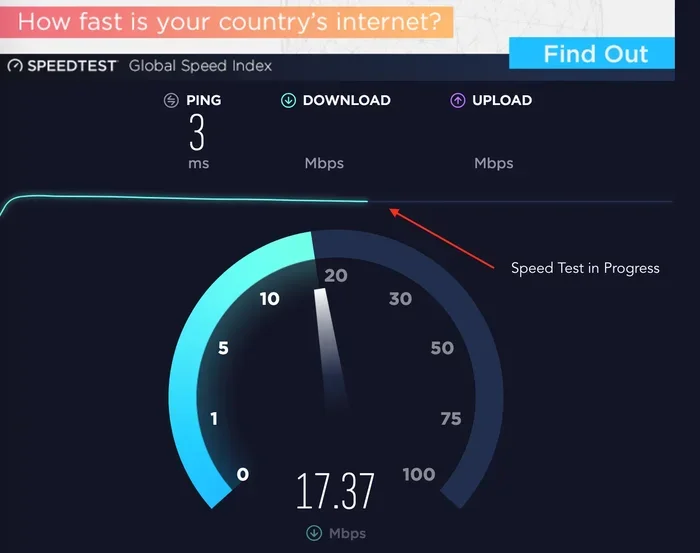
This tool checks your internet speed, which matters a lot if you stream videos or browse often. It measures your download and upload speeds in seconds. You can run it right from your browser. No downloads needed for the basic version.
CrystalDiskMark
This tool tests your hard drive speed. It tells you how fast your storage reads and writes data. If your PC takes ages to boot up, this tool will show you why. It is small, fast, and gives clear results.
CPU Benchmark Tools
Tools like Cinebench and PassMark test your CPU benchmark scores. These programs push your processor to its limits and give you a score. You can compare your score to other systems online. It is a great way to see if your chip is performing as it should.
Built-In Windows Tools
Windows has some hidden tools that help you check system performance. The Task Manager shows real-time CPU and RAM usage. The Performance Monitor gives deeper details. You do not need to install anything extra. Just press Ctrl + Shift + Esc to open Task Manager.
How to Check Your Processor and RAM Performance
Your processor and RAM are the heart of your computer. If either one is weak or overloaded, everything slows down. Here is how to check each one properly.
Checking Your Processor Speed
Open Task Manager and click the Performance tab. Look for CPU usage. If it stays near 100 percent often, your processor is struggling. You can also check your base clock speed in the system settings. Compare it to the spec sheet for your model.
If your processor speed is much lower than expected, you might have a background program eating up resources. Sometimes a simple restart clears this out. Other times, you may need to upgrade your CPU for better computer performance.
Checking Your RAM Usage
RAM is your computer’s short-term memory. When you open many tabs or apps, RAM usage goes up. Check Task Manager to see how much memory you are using. If you regularly hit 90 percent or more, you need more RAM.
Running a RAM speed test can also reveal problems. Slow RAM means data moves sluggishly between components. This creates bottlenecks that drag down your entire system. For most users, 8 GB is the minimum. Power users should aim for 16 GB or more.
Common Reasons Your Computer Runs Slow
Before you fix a problem, you need to understand what caused it. Here are the most common reasons computers lose speed over time.
Too Many Startup Programs
When you turn on your PC, many programs launch automatically. Some you need. Most you do not. These startup programs eat up RAM and CPU power from the very first second. Disabling unnecessary ones can make a huge difference.
Full Hard Drive
Your hard drive needs free space to work properly. When it gets too full, everything slows down. Try to keep at least 15 to 20 percent of your drive empty. Delete old files you do not need. Move large files to an external drive or cloud storage.
Malware and Viruses
Malware runs secretly in the background. It uses your resources without you knowing. This is one of the sneaky reasons computer performance drops. Run a full scan with a trusted antivirus program. Remove anything suspicious you find.
Outdated Software and Drivers
Old drivers cause conflicts and slowdowns. Software updates often include performance optimizations. Keeping everything up to date is one of the easiest ways to maintain speed. Set your system to update automatically whenever possible.
Simple Ways to Make Your Computer Faster
Now for the part you have been waiting for. Here are practical, proven ways to boost computer speed starting right now.
Clean Up Your Startup List
Open Task Manager and go to the Startup tab. Disable programs you do not need right when your PC turns on. This alone can cut your boot time in half. You can always enable them later if you need them.
Clear Temporary Files
Windows stores temporary files that pile up over time. These files take up space and slow things down. Type “Disk Cleanup” in the search bar and run it. Delete temporary files, cache, and old logs. You will be surprised how much space you free up.
Switch to an SSD
If you still use a traditional hard drive, switching to a solid-state drive (SSD) is a game changer. SSDs read and write data much faster. Your apps will open quicker. Your system will boot in seconds instead of minutes. It is one of the best upgrades you can make.
Add More RAM
More RAM means your computer can handle more tasks at once. If you often have many browser tabs open, this upgrade helps a lot. Check your motherboard to see what type of RAM it supports. Adding RAM is one of the easiest and cheapest upgrades available.
Keep Your System Updated
Windows updates include fixes for performance issues. They also patch security holes that malware can exploit. Set your system to install updates automatically. This keeps your system performance stable and secure over time.
Uninstall Programs You Do Not Use
Old programs take up space and sometimes run background processes. Go through your installed apps and remove anything you do not need. This frees up storage and reduces the load on your system. Your computer will thank you for it.
If your computer is still struggling after trying these steps, you might want to explore how to fix a computer running slow and freezing. That guide covers deeper issues and more advanced solutions that can help when basic tips are not enough.
When to Consider Upgrading Your Hardware
Sometimes software fixes are not enough. If your system is several years old, a hardware upgrade might be the best path forward.
Upgrade Your Processor
Your processor handles almost everything your computer does. If you are still using an older generation chip, upgrading can feel like getting a new machine. Check if your motherboard supports newer processors before buying. You can find guidance on the best computer processor for laptop options if you are upgrading a portable system.
Upgrade Your Storage
An SSD upgrade gives the most noticeable speed boost for the money. Even budget SSDs outperform traditional hard drives by a wide margin. Your apps will load faster and your system will feel snappier. This is the single best upgrade for aging computers.
Upgrade Your Graphics Card
If you do video editing or play games, your graphics card matters a lot. A weak GPU creates bottlenecks in visual tasks. For creative work, check out the best laptop for video and photo editing to see what specs matter most for your workflow.
How to Track Your Progress Over Time
The best way to stay on top of your computer performance is to test regularly. Run a speed test once a month. Keep a log of your scores. When you make changes, compare the results. This helps you see what works and what does not.
Tracking also helps you spot problems early. If your scores drop suddenly, something might be wrong. Maybe a program is hogging resources. Maybe your drive is failing. Either way, catching it early saves headaches down the road.
Remember that boosting computer speed is not a one-time fix. It is an ongoing process. Regular maintenance keeps your system running smoothly. A few minutes of care each month goes a long way. Your computer will stay fast and responsive for years.
Conclusion
Learning how to test computer speed empowers you to take control of your PC. You do not have to live with a slow, frustrating machine. Free tools give you clear answers. Simple fixes deliver real results. And smart upgrades keep your system future-ready.
Start today. Run a speed test. Check your processor and RAM. Clean up your startup programs. You will be amazed at how much faster your computer can feel. A little effort goes a long way. Your faster, smoother PC is just a few steps away.
Frequently Asked Questions
What is the best free tool to test computer speed?
Speedtest by Ookla is great for checking internet speed. CrystalDiskMark works best for testing hard drive performance. For overall system testing, Windows Task Manager and built-in Performance Monitor give you solid insights without costing anything.
How often should I test my computer speed?
Testing once a month is a good routine. You should also test after making any changes like installing new software or upgrading hardware. This helps you see what is working and catch problems before they get worse.
Can I test computer speed without installing any software?
Yes. Windows has built-in tools like Task Manager and the Performance Monitor. You can also use browser-based speed tests like Speedtest by Ookla. These tools require no downloads and give you useful results right away.
Does more RAM always make a computer faster?
More RAM helps when you run many programs at once. If you already have enough RAM for your tasks, adding more will not make a big difference. Check your usage first. If you regularly use 80 percent or more of your RAM, an upgrade will help.
Is it better to upgrade RAM or switch to an SSD?
For most users, switching to an SSD gives the biggest speed boost. It improves boot times, app loading, and overall responsiveness. RAM upgrades help with multitasking. Ideally, do both if your budget allows. But if you can only choose one, start with the SSD.
Why does my computer slow down over time?
Startup programs pile up, temporary files accumulate, and software updates add new features that need more resources. Malware can also run silently in the background. Regular maintenance like clearing cache and uninstalling unused apps keeps your system running smoothly.