How To Find Your Perfect Mouse Sensitivity Settings
Finding the right mouse sensitivity settings can completely change how you work and play. This guide walks you through DPI, pointer speed, and in-game adjustments step by step. Whether you are a gamer or a casual user, you will learn how to fine-tune your cursor for smooth, accurate control.
Do you ever feel like your cursor moves too fast or too slow when you move your mouse? You are not alone. Many people struggle to find the right mouse sensitivity for their setup. The good news is that adjusting your settings is easier than you think.
Your mouse sensitivity settings control how fast your cursor moves across the screen. Too fast, and you overshoot targets. Too slow, and simple tasks feel tedious. Whether you are gaming, designing, or just browsing, getting this right makes a huge difference in your daily workflow.
In this guide, we will walk you through everything you need to know. You will learn what mouse sensitivity means, how DPI affects it, and how to adjust settings on your computer. By the end, you will know exactly how to set up your mouse for the best experience possible.
Key Takeaways
- Mouse sensitivity affects the speed and accuracy of your cursor on screen
- DPI settings are the foundation of your mouse sensitivity and should be matched to your task
- Windows pointer speed works alongside your mouse DPI for total control over cursor movement
- In-game sensitivity lets you fine-tune your setup for different games and play styles
- eDPI combines your mouse DPI with in-game sensitivity for a universal comparison metric
- Testing your settings over several days helps you find the true perfect balance
- Avoid common mistakes like over-adjusting or ignoring your mouse pad size
📑 Table of Contents
- What Is Mouse Sensitivity and Why Does It Matter
- Understanding DPI and Its Role in Mouse Sensitivity Settings
- How To Adjust Mouse Sensitivity on Windows
- Finding Your Ideal Sensitivity for Gaming
- Tips for Fine-Tuning Your Mouse Sensitivity Settings
- Common Mistakes to Avoid When Adjusting Mouse Sensitivity
- Conclusion
What Is Mouse Sensitivity and Why Does It Matter
Mouse sensitivity determines how far your cursor moves on screen for every inch you move your physical mouse. A low sensitivity means your cursor moves slowly and precisely. A high sensitivity means it covers more ground with less physical movement.
Understanding Cursor Speed
Cursor speed is the most visible part of your sensitivity settings. When you adjust it, you are changing how responsive your pointer speed is to your hand movements. Think of it like a volume knob. Turn it up, and small movements create big cursor jumps. Turn it down, and you get fine control over tiny movements.
Different tasks need different speeds. If you are editing photos, you want a lower sensitivity for precision. If you are navigating a large monitor, a higher sensitivity saves time. The key is finding the sweet spot that feels natural to you. Many people use a mouse sensitivity calculator online to get a starting point before fine-tuning by hand.
How Sensitivity Affects Daily Tasks
Your mouse sensitivity touches almost everything you do on a computer. Scrolling through long documents, selecting text, dragging files, and clicking icons all depend on how your cursor responds. When your sensitivity is off, even simple tasks become frustrating.
For example, if your sensitivity is too high, you might accidentally click the wrong item. If it is too low, you might need to sweep your mouse across your entire mouse pad just to move the cursor from one side of the screen to the other. Both extremes slow you down and drain your energy over a full workday.
Many people do not realize that they can use a mouse on a laptop with customized sensitivity. This is especially helpful if you work on the go or prefer an external mouse over a trackpad. A good external mouse paired with the right mouse configuration can transform your laptop experience.
Understanding DPI and Its Role in Mouse Sensitivity Settings
DPI stands for Dots Per Inch. It is the most fundamental setting that controls your mouse sensitivity. Your mouse DPI tells you how many pixels your cursor moves for every inch you slide the mouse. Higher DPI equals more cursor movement per inch of physical travel.
What Is DPI?
Imagine you are moving your mouse one inch on a desk. At 800 DPI, your cursor moves 800 pixels. At 1600 DPI, it moves 1600 pixels. At 3200 DPI, it moves 3200 pixels. The higher the number, the faster your cursor travels across the screen.
Most modern gaming mice let you switch between multiple DPI levels on the fly. This is incredibly useful. You might want low DPI for precise aiming in a shooter game and high DPI for navigating a spreadsheet or a web browser. Having switchable DPI levels gives you flexibility without digging into software menus every time.
Standard DPI options include 800, 1200, 1600, 2400, and 3200. Some advanced sensors go even higher. But more is not always better. A very high DPI on a small monitor can make your cursor feel uncontrollable. Match your DPI to your screen resolution and monitor size for the best results.
How to Check Your Mouse DPI
Checking your current DPI is straightforward. Many mice come with companion software that displays your current DPI setting clearly. If your mouse does not have software, you can check the product specifications on the manufacturer’s website. Some mice also have a DPI button on the top that lets you cycle through preset levels with a single press.
If you are unsure about your current tracking speed, you can use an online sensitivity test tool. These tools measure how far your cursor moves at your current settings. They give you a baseline to work from when making adjustments. Write down your current DPI and test results so you can compare changes over time.
DPI vs. Sensitivity: What Is the Difference
People often confuse DPI with in-game sensitivity, but they are different. DPI is a hardware setting built into your mouse. In-game sensitivity is a software setting inside the game itself. Together, they determine your total sensitivity adjustment. This combined value is sometimes called eDPI, which stands for effective DPI.
Think of DPI as the engine and in-game sensitivity as the steering wheel. Both matter. A powerful engine with poor steering still gives you a bad experience. The same goes for your mouse configuration. You need both settings balanced for the best results. A mismatch between the two can make your cursor feel jerky or unpredictable.
How To Adjust Mouse Sensitivity on Windows
Windows gives you built-in tools to adjust your mouse sensitivity settings. You do not need any extra software to get started. A few simple steps can transform how your cursor feels every single day.
Using Windows Mouse Settings
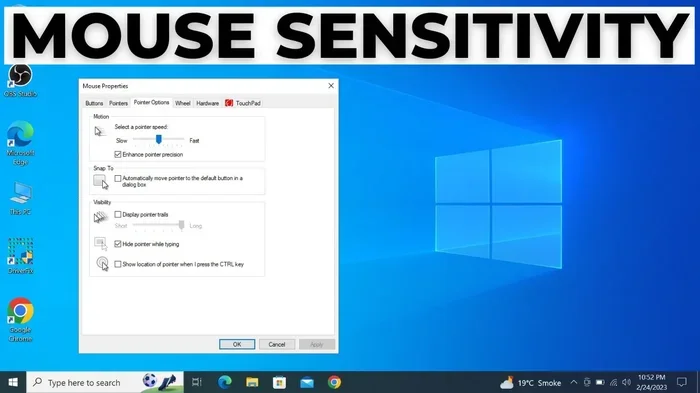
To adjust your pointer speed in Windows, follow these steps. Open the Start menu and type “Mouse Settings.” Click on the result to open the Mouse Properties window. Under the Pointer Options tab, you will see a slider labeled “Select a pointer speed.”
Move the slider left for slower movement or right for faster movement. The default setting is usually in the middle, which works for most people. However, your perfect setting might be different based on your hand size, desk space, and personal preference. Do not be afraid to experiment.
Make sure to uncheck the “Enhance pointer precision” box if you want raw mouse sensitivity. This setting adds mouse acceleration, which means your cursor moves faster when you move the mouse quickly. While this sounds helpful, it can actually make your aiming less consistent. Many gamers and professionals prefer to turn this off for predictable, linear movement.
Adjusting Pointer Speed for Your Workflow
Your pointer speed should match your workflow. If you spend most of your day in front of a large monitor, you might want a faster setting. If you work on a smaller screen or do detailed design work, a slower setting gives you more control and precision.
Here are some quick tips to help you find your ideal pointer speed:
- Start at the Windows default setting and test it for a full day
- Move the slider one notch at a time in either direction
- Test your new setting with tasks you do daily
- Give yourself at least a few hours to adjust before changing again
- Note your preferred setting so you can return to it if needed
- Use a mouse sensitivity calculator to estimate your ideal starting point
Using Your Mouse Manufacturer Software
Many modern mice come with dedicated software from the manufacturer. This software often provides more granular control than Windows settings alone. You can adjust DPI levels, create custom profiles, and even set up button mappings for specific applications.
For example, Logitech G HUB and Razer Synapse both let you create multiple profiles. You can have one profile for gaming with high mouse DPI and another for work with lower mouse sensitivity. Switching between them takes just a single click. This saves you from constantly readjusting every time you switch tasks.
If your mouse is not working correctly after adjusting settings, you might need to fix your mouse on a laptop by updating drivers, checking for hardware issues, or resetting the device to factory defaults.
Finding Your Ideal Sensitivity for Gaming
Gaming sensitivity is a whole world of its own. Every game type benefits from different sensitivity settings. A setting that works great for strategy games might feel terrible for a first-person shooter. Finding your ideal gaming sensitivity takes a bit of experimentation and patience.
Low vs. High Sensitivity in Gaming
Low sensitivity means you need more physical movement to turn your view or aim. High sensitivity means small wrist flicks cover a lot of ground. Both have clear advantages and trade-offs.
Low sensitivity offers more precision. Professional esports players often use low settings because they give finer control over aim. You make smaller, more deliberate movements, which reduces overshooting. High sensitivity lets you react faster to threats on screen. It is popular among players who use large monitors or ultrawide displays where a small turn needs to cover a wide field of view.
The best way to decide is to try both. Spend a few hours playing your favorite game at low sensitivity. Then switch to high and see which feels more natural. Your mouse grip style also plays a role. Claw grip and fingertip grip players often prefer higher sensitivity. Palm grip players usually do better with lower settings because their whole hand stays in contact with the mouse.
How to Test Your Gaming Sensitivity
Testing your sensitivity does not have to be complicated. You can use a simple method that many gamers swear by. Open your favorite game and find an open area with targets or enemies. Spend 15 to 20 minutes playing at your current setting.
Ask yourself these questions. Do you feel in control of your aim? Do you overshoot targets often? Does turning feel smooth or jerky? If the answer is no to any of these, your sensitivity adjustment might need tweaking.
You can also use aim training tools like Aim Lab or Kovaak’s. These free tools let you test your tracking speed and accuracy at different sensitivity levels. They give you concrete numbers to compare against. Many players find that their ideal sensitivity is different from what they originally assumed.
eDPI: The Magic Number for Gamers
eDPI stands for effective DPI. It is the product of your mouse DPI and your in-game sensitivity. This number gives you a universal way to compare sensitivity across different games and mice.
Here is how you calculate it. Multiply your mouse DPI by your in-game sensitivity value. For example, if your mouse is set to 800 DPI and your in-game sensitivity is 2, your eDPI is 1600. If you switch to a 1600 DPI mouse but lower your in-game sensitivity to 1, your eDPI stays the same at 1600.
This is powerful because it means you can keep your in-game sensitivity consistent even when you change hardware. Many competitive gamers use eDPI to maintain their muscle memory across different setups. It also makes it easier to share settings with friends or look up pro player configurations online.
If you also need to adjust your mouse scroll speed for gaming or browsing, you can learn how to optimize mouse scroll on a laptop for a smoother and more responsive experience.
Tips for Fine-Tuning Your Mouse Sensitivity Settings
Once you have your base settings dialed in, there are a few more tricks to help you refine your mouse sensitivity even further. These tips can make a noticeable difference in how your setup feels day to day.
Consider Your Mouse Pad Size
Your mouse pad size directly affects how you use your sensitivity settings. A large mouse pad gives you more room to move, which suits lower sensitivity well. A small pad forces you to use higher sensitivity because you run out of space quickly.
If you are using a small desk or a compact mouse pad, consider raising your DPI slightly. This way, you can keep your in-game or pointer sensitivity low while still having enough physical space to make full sweeping movements. A quality mouse pad is a worthwhile investment for anyone serious about their setup.
Test Before You Commit
Do not just set a number and stick with it blindly. Take time to test your new sensitivity settings in real-world scenarios. Spend at least a few days with any new configuration before making further changes.
Your muscle memory needs time to adapt. If you change your sensitivity every day, you will never give your brain a chance to adjust. Pick a setting, use it consistently, and evaluate after a week. You will be surprised how much better it feels once you are used to it. Avoid the temptation to tweak constantly. Consistency is the key to building comfortable habits.
Keep Your Firmware and Drivers Updated
Your mouse configuration can be affected by outdated firmware or drivers. Manufacturers regularly release updates that improve tracking accuracy and add new DPI options. Check your mouse manufacturer’s website or software for updates regularly.
A well-maintained mouse performs better regardless of your sensitivity settings. Clean your sensor regularly and keep your cable or wireless connection stable. These small habits keep your tracking speed consistent and reliable. They also extend the life of your device.
Common Mistakes to Avoid When Adjusting Mouse Sensitivity
Even experienced users make mistakes when tuning their mouse sensitivity settings. Being aware of these pitfalls can save you time and frustration.
Over-Adjusting Your Settings
One of the biggest mistakes is changing too many settings at once. If you adjust DPI, pointer speed, and in-game sensitivity all at the same time, you will not know which change made the difference. Change one thing at a time. Test it thoroughly. Then move on to the next adjustment.
This approach gives you clear feedback on what works and what does not. It also prevents the frustrating cycle of constantly tweaking without ever settling on a good configuration. Write down your changes so you can track what you have tried and what results you got.
Ignoring Your Hardware Limits
Not all mice are created equal. A budget mouse might not support high DPI or might have a poor sensor that struggles at certain speeds. If you are trying to use very high sensitivity settings on a low-end mouse, you might experience jitter or inconsistency.
Invest in a quality gaming mouse if you are serious about precision. A good sensor makes a world of difference at any DPI level. Your polling rate also matters. A higher polling rate means your mouse reports its position more frequently, resulting in smoother and more responsive movement.
Forgetting to Test After Changes
It is easy to tweak a setting and then immediately forget about it. But your sensitivity adjustment needs real-world testing. Spend meaningful time with any change before deciding it works for you.
Set a reminder to revisit your settings after a week or two. Your hands and habits change over time. What felt perfect six months ago might not be ideal anymore. Regular check-ins keep your setup optimized and comfortable.
If you run into persistent issues with your mouse not responding correctly, you may want to learn how to make your mouse work on a laptop by checking connections, updating drivers, and reviewing your power management settings.
Conclusion
Finding your perfect mouse sensitivity settings is a journey, not a one-time fix. It takes patience, testing, and a willingness to experiment. But the payoff is worth it. A well-tuned mouse feels like an extension of your hand. Tasks become smoother, aiming becomes more precise, and your overall experience improves dramatically.
Start with the basics. Understand your DPI, adjust your pointer speed in Windows, and then fine-tune for your specific use case. Whether you are a gamer chasing that perfect flick shot or a professional working through long design sessions, the right mouse sensitivity makes all the difference in the world.
Take your time. Follow the tips in this guide. Trust your instincts. You will find your perfect settings sooner than you think, and you will never want to go back to your old configuration again.
Frequently Asked Questions
What is the best mouse sensitivity for gaming?
There is no single best setting because it depends on your game, your monitor size, and your personal preference. Most gamers find their sweet spot between 800 and 1600 DPI combined with an in-game sensitivity that feels comfortable. Use eDPI as a guide to maintain consistency across games.
How do I know if my mouse sensitivity is too high?
If you find yourself overshooting targets, losing your cursor off screen edges, or making accidental clicks, your sensitivity is likely too high. Try lowering it by one notch and test for a few days to see if control improves.
Should I turn off Enhance Pointer Precision in Windows?
Yes, most experts recommend turning it off. This feature adds mouse acceleration, which makes cursor speed vary with how fast you move the mouse. For consistent and predictable control, especially in gaming, disable this option.
Can I use different sensitivity settings for different games?
Absolutely. Most modern games save their own sensitivity profiles independently. You can also use mouse manufacturer software to create per-application profiles that automatically switch your settings when you launch a specific game.
How often should I recalibrate my mouse sensitivity?
There is no fixed schedule. Recalibrate when you change your mouse, switch to a different monitor size, or notice your current settings no longer feel right. Many players revisit their settings once or twice a year as their habits evolve.
Does mouse pad size really affect my sensitivity needs?
Yes, it does. A larger mouse pad gives you more room for low-sensitivity sweeping movements. A smaller pad may require higher DPI or sensitivity to make the same range of motion. Match your pad size to your sensitivity style for the best experience.