Best SSD for Asus Vivobook to Supercharge Your Workflow
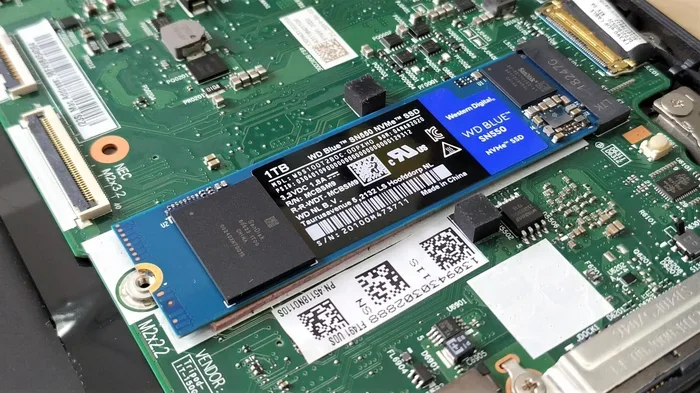
Upgrading your Asus Vivobook with the right SSD can transform your workflow, slashing boot times and supercharging file transfers. Whether you need a lightweight M.2 NVMe drive for everyday tasks or a high-capacity PCIe Gen 4 SSD for demanding workloads, this guide has you covered. We break down the top options, compatibility details, and simple steps to get you running faster today.
Your Asus Vivobook is a great machine, but over time it can start to feel sluggish. Apps take forever to open, files copy at a crawl, and boot times test your patience. The good news? A simple SSD upgrade can change everything.
Whether you use your Vivobook for work, school, or casual browsing, picking the right solid state drive makes a massive difference. In this guide, we walk you through the best options available. We cover speed, capacity, compatibility, and everything else you need to know. By the end, you will know exactly which drive to buy and how to install it.
Key Takeaways
- SSD upgrades breathe new life into older Vivobooks: A simple swap can make your laptop feel brand new.
- M.2 NVMe drives are the go-to choice: They offer blazing speeds and fit most Vivobook models easily.
- Capacity matters: Choose between 512GB and 2TB based on your storage needs and budget.
- Installation is straightforward: Most Vivobooks allow a DIY upgrade in under 30 minutes.
- Brand reliability counts: Stick with trusted names like Samsung, Western Digital, and Kingston.
- Check compatibility first: Not all Vivobook models support the same SSD form factor or interface.
📑 Table of Contents
- Why Upgrade the SSD in Your Asus Vivobook?
- Types of SSDs Compatible with Asus Vivobook
- Top SSD Picks for Asus Vivobook
- How to Choose the Right SSD for Your Vivobook
- How to Install an SSD in Your Asus Vivobook
- Common Mistakes to Avoid When Upgrading Your SSD
- How Much Does an SSD Upgrade Cost?
- Final Thoughts
Why Upgrade the SSD in Your Asus Vivobook?
Most Asus Vivobooks come with a basic hard drive or entry-level SSD out of the box. These drives work fine for light tasks, but they quickly become a bottleneck. Here is why upgrading makes sense.
First, speed. A modern NVMe SSD can read data at speeds up to 7,000 MB per second. That is dozens of times faster than a traditional hard drive. Your laptop will boot in seconds, apps will launch instantly, and large files will copy in a flash.
Second, responsiveness. When you upgrade to a fast laptop storage solution, your entire system feels snappier. Multitasking becomes smoother, video calls run better, and even heavy applications like video editors load faster.
Third, value. A new laptop costs hundreds of dollars. A storage upgrade costs a fraction of that and delivers noticeable results. It is one of the best investments you can make for an older Vivobook.
Signs Your Vivobook Needs a New SSD
Not sure if it is time for an upgrade? Watch for these signs:
- Your laptop takes more than a minute to boot up.
- Apps freeze or take a long time to open.
- File transfers feel painfully slow.
- Your storage is constantly full and you need more space.
- Your system struggles when you have multiple apps open.
If you noticed any of these, it is time to look at a new M.2 NVMe SSD for your Vivobook.
Types of SSDs Compatible with Asus Vivobook
Not all SSDs are the same. Before you buy, you need to understand the different types and which one fits your Vivobook model.
M.2 NVMe SSDs
The M.2 NVMe SSD is the most popular choice for modern laptops. It is a small, stick-shaped drive that plugs directly into the motherboard. The NVMe protocol uses the PCIe interface, which delivers much higher speeds than older standards.
Most newer Asus Vivobook models support M.2 NVMe drives. These drives come in different capacities, usually ranging from 256GB to 2TB. For most users, a 512GB PCIe NVMe M.2 SSD for laptop offers the perfect balance of speed and storage.
SATA SSDs
SATA SSDs are older but still reliable. They use a different interface and are slower than NVMe drives. However, they work well for basic tasks like web browsing and document editing. Some older Vivobook models use a 2.5-inch SATA drive slot, so check your model before purchasing.
2.5-Inch SATA Drives
These are the traditional laptop hard drives you might already have in your Vivobook. They are slow but cheap. If your Vivobook only has a 2.5-inch bay, you can replace it with a SATA SSD for a meaningful speed boost, though it will not match NVMe performance.
Top SSD Picks for Asus Vivobook
Now let us look at the best drives you can buy. Each pick is based on speed, reliability, price, and real-world performance.
Samsung 980 Pro
The Samsung 980 Pro is a top-tier NVMe M.2 SSD that delivers outstanding speeds. It uses PCIe Gen 4 technology, which means read speeds up to 7,000 MB per second. It is perfect for users who need the fastest laptop storage available.
This drive is reliable, runs cool, and comes with a five-year warranty. It is a bit pricier than other options, but the performance is worth it for power users and gaming performance enthusiasts.
Western Digital SN770
The WD SN770 is an excellent mid-range NVMe SSD that balances speed and price. It offers read speeds up to 5,150 MB per second and uses PCIe Gen 4. It is a great choice for everyday users who want a fast SSD upgrade without breaking the bank.
This drive is widely available and comes in capacities from 500GB to 2TB. It also has low power consumption, which helps preserve your laptop battery.
Kingston NV2
The Kingston NV2 is a budget-friendly NVMe M.2 SSD that punches above its price. It uses PCIe Gen 4 and delivers solid read speeds up to 4,000 MB per second. If you need a reliable drive on a tight budget, this is a strong contender.
It is available in 500GB, 1TB, and 2TB sizes. The Kingston NV2 is a great entry point for anyone new to SSD upgrades.
WD Black SN850X
The WD Black SN850X is a premium gaming and performance SSD. It delivers read speeds up to 7,300 MB per second and is optimized for heavy workloads. If you use your Vivobook for gaming or video editing, this drive is a fantastic choice.
This drive also features excellent thermal management, which keeps temperatures low during intensive tasks. It is slightly more expensive but delivers top-tier performance.
How to Choose the Right SSD for Your Vivobook
With so many options, choosing the right drive can feel overwhelming. Here are the key factors to consider.
Check Your Vivobook Model
Not all Vivobooks support the same type of SSD. Some models have an M.2 slot for NVMe drives, while others use a 2.5-inch SATA bay. Check your specific model number on the Asus website or in your user manual.
For example, if you own an Asus Vivobook with an Asus Vivobook Laptop RAM Upgrade potential, you likely have an M.2 slot ready for a new drive. Always confirm your slot type before buying.
Consider Your Storage Needs
Think about how much space you actually need. Here is a quick guide:
- 256GB: Basic use, web browsing, and documents only. Not recommended for most users today.
- 512GB: The sweet spot for most users. Enough for the operating system, apps, and a reasonable amount of files.
- 1TB: Great for users who store media, games, or large project files.
- 2TB: Ideal for professionals who need lots of space for video editing, large datasets, or extensive game libraries.
Speed Matters, But So Does Price
NVMe Gen 4 drives offer the fastest speeds, but Gen 3 drives are still very capable and often more affordable. For most users, a Gen 3 NVMe SSD provides more than enough speed for daily tasks. Only power users and gamers really need Gen 4 speeds.
Brand Reputation and Warranty
Stick with well-known brands like Samsung, Western Digital, and Kingston. These companies offer solid warranties, usually five years, and have proven track records for reliability. Avoid no-name brands that may use low-quality NAND flash memory.
How to Install an SSD in Your Asus Vivobook
Installing an SSD in your Vivobook is easier than you might think. You do not need to be a tech expert. Here is a simple step-by-step guide.
What You Will Need
- A Phillips-head screwdriver
- Your new M.2 NVMe SSD
- A small tray or dish to keep screws safe
- A USB-to-SATA adapter (optional, for cloning)
Step-by-Step Installation
- Back up your data. Before you start, make sure all your important files are saved to an external drive or cloud storage.
- Power off your laptop. Unplug it and remove the battery if possible.
- Open the back panel. Use your screwdriver to remove the screws on the bottom of your Vivobook.
- Locate the M.2 slot. It is usually easy to spot. It looks like a small slot with a screw holding the current drive in place.
- Remove the old drive. Unscrew the old drive and gently pull it out at a slight angle.
- Insert the new SSD. Align the new drive with the slot at a 30-degree angle and press it down gently. Secure it with the screw.
- Close the back panel. Replace all screws and reconnect the battery.
- Power on and format. Boot up your laptop and format the new drive through Windows Disk Management.
If you want to keep your old data, you can use a USB-to-SATA adapter to clone your existing drive to the new one before installation. This saves you the hassle of reinstalling everything from scratch.
Quick Tips for a Smooth Installation
- Work on a clean, flat surface to avoid losing screws.
- Do not touch the gold contacts on the SSD.
- Make sure the drive is fully seated before tightening the screw.
- If your Vivobook has limited space, check the Asus Vivobook Laptop RAM Upgrade guide for tips on accessing internal components safely.
Common Mistakes to Avoid When Upgrading Your SSD
Even a simple upgrade can go wrong if you are not careful. Here are common mistakes and how to avoid them.
Buying the Wrong Form Factor
This is the most common mistake. Make sure you buy an M.2 SSD if your Vivobook has an M.2 slot. Do not buy a 2.5-inch drive unless your laptop specifically supports it. Double-check your model specifications before purchasing.
Skipping the Clone
If you do not clone your old drive, you will need to reinstall Windows and all your programs. Many people forget to back up their data and lose important files. Always back up first.
Ignoring Thermal Management
Some high-performance NVMe SSDs run hot. If your Vivobook has a small enclosure, heat can throttle your drive’s speed over time. Consider adding a small heatsink or choosing a drive with built-in thermal protection.
Not Updating the BIOS
Before installing a new NVMe SSD, make sure your laptop’s BIOS is up to date. Older BIOS versions may not recognize newer drives properly. Check the Asus support page for your specific Vivobook model.
How Much Does an SSD Upgrade Cost?
The cost of an SSD upgrade varies depending on the brand and capacity you choose. Here is a rough price breakdown:
- 500GB NVMe SSD: Around $30 to $50
- 1TB NVMe SSD: Around $50 to $80
- 2TB NVMe SSD: Around $100 to $150
Compared to buying a new laptop, this is a very affordable way to breathe new life into your current machine. A 1TB NVMe SSD is the most popular choice for most Vivobook users because it offers plenty of space at a reasonable price.
If you are also considering a RAM upgrade alongside your SSD, check out the Asus Laptop 32GB RAM 1TB SSD configuration guide for ideas on how to pair these upgrades for maximum performance.
Final Thoughts
Upgrading the SSD in your Asus Vivobook is one of the simplest and most effective ways to improve your daily workflow. A fast NVMe M.2 drive can turn a sluggish laptop into a responsive powerhouse. Whether you choose the Samsung 980 Pro for top-tier speed or the Kingston NV2 for budget-friendly performance, the difference will be noticeable from the first boot.
Remember to check compatibility, back up your data, and follow the installation steps carefully. With the right drive and a little patience, you will be up and running in no time. Your Vivobook will feel faster, smoother, and ready to handle whatever you throw at it.
Do not let a slow laptop hold you back any longer. Pick the right SSD for your Asus Vivobook today and experience the difference a proper storage upgrade can make.
For more tips on keeping your laptop running at its best, explore our guides on laptop performance and storage solutions. If you are also looking for the best accessories to pair with your upgraded Vivobook, check out our best laptop bag for men recommendations for durable and stylish options.
Frequently Asked Questions
Can I upgrade the SSD in any Asus Vivobook model?
Most Asus Vivobook models support SSD upgrades, but the type of slot varies. Newer models typically have an M.2 NVMe slot, while older ones may use a 2.5-inch SATA bay. Check your specific model’s specifications on the Asus website to confirm compatibility before purchasing.
Do I need special software to install a new SSD?
No special software is required for the physical installation. However, if you want to transfer your existing operating system and files to the new drive, you can use free cloning software like Macrium Reflect or Samsung Data Migration. Windows also has a built-in Disk Management tool for formatting the new drive.
Will upgrading my SSD improve gaming performance on my Vivobook?
Yes, upgrading to a fast NVMe SSD will improve game load times and reduce stuttering caused by slow storage. While the SSD does not directly boost your graphics performance, faster file transfer speeds and quicker game loading make a noticeable difference in your overall gaming experience.
How long does an SSD upgrade take?
The physical installation typically takes 15 to 30 minutes if you are comfortable opening your laptop. If you also need to clone your old drive and reinstall Windows, plan for about one to two hours total. Having a backup of your important files beforehand will save you a lot of time and stress.
What is the difference between NVMe and SATA SSDs?
NVMe SSDs use the PCIe interface and are much faster than SATA SSDs. A typical NVMe drive can read at speeds of 5,000 to 7,000 MB per second, while SATA SSDs max out around 550 MB per second. For most users, an NVMe drive is the clear winner for speed and responsiveness.
Is 512GB enough storage after upgrading my Vivobook SSD?
For most users, 512GB is the sweet spot. It gives you enough room for your operating system, common applications, and a good amount of personal files. If you work with large media files, games, or video projects, consider stepping up to 1TB or 2TB for more breathing room.