5 Fixes For Explorer Exe Memory Leak On Windows 11 24h2
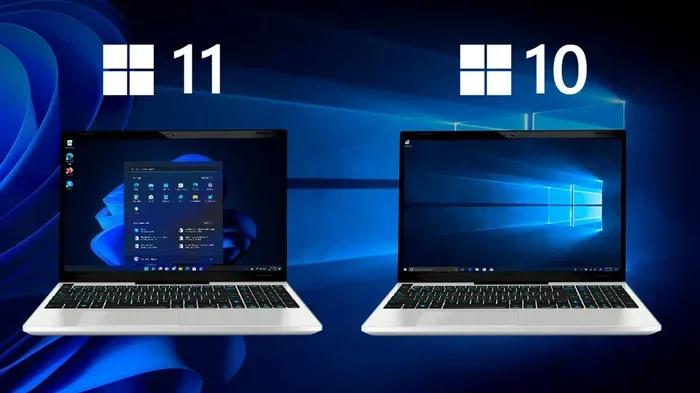
The explorer.exe memory leak on Windows 11 24H2 can slow down your PC and cause frustrating freezes. This guide covers 5 simple fixes that help you stop the leak and restore normal performance. You will learn how to use Task Manager, run system scans, and update drivers to keep your file explorer running smoothly.
The explorer.exe memory leak on Windows 11 24H2 is a frustrating problem that eats up your system resources and slows everything down. When this happens, your file explorer uses more RAM than it should, causing freezes, lag, and even crashes. Many users notice their PC becoming sluggish after updating to the latest Windows 11 build. This guide walks you through 5 proven fixes to stop the leak and get your system running smoothly again. By the end, you will know exactly how to tackle this issue step by step.
If you have been dealing with high RAM usage on your PC after installing Windows 11 24H2, you are not alone. The explorer.exe process is responsible for managing your desktop, taskbar, and file explorer. Sometimes, this process starts consuming way too much memory, leading to serious performance issues. A memory leak means the program keeps grabbing more RAM without releasing it. Over time, this can make your computer nearly unusable. The good news is that you can fix this problem without needing advanced technical skills. Below, we cover 5 practical solutions that work for most users.
Key Takeaways
- Restart Explorer.exe to instantly free up memory and stop the leak temporarily.
- Run SFC and DISM scans to repair corrupted system files causing the issue.
- Update Windows 11 drivers and install the latest patches from Microsoft.
- Check for malware that may be disguising itself as explorer.exe and hogging resources.
- Perform a clean boot to identify third-party apps triggering the memory leak.
- Reset Windows 11 as a last resort if nothing else resolves the problem.
📑 Table of Contents
- What Is Explorer.exe and Why Does It Leak Memory?
- Fix 1: Restart Explorer.exe to Free Up Memory
- Fix 2: Run SFC and DISM System Scans
- Fix 3: Update Windows 11 and Device Drivers
- Fix 4: Check for Malware and Viruses
- Fix 5: Perform a Clean Boot to Isolate the Problem
- When to Consider Resetting Windows 11
- Conclusion
What Is Explorer.exe and Why Does It Leak Memory?
Explorer.exe is a core Windows process. It handles your desktop background, taskbar, Start menu, and file browsing. Without it, your PC would look very different. You would not see your icons or taskbar. This process is part of the Windows shell experience and runs in the background at all times.
When a memory leak occurs, explorer.exe fails to release memory after completing tasks. Instead, it keeps holding onto RAM. This causes high memory usage over time. Your system starts to slow down, and other programs struggle to run. The operating system relies on explorer.exe for so many daily tasks that even a small leak can cause big problems.
Common Signs of the Memory Leak
- File Explorer opens very slowly
- Your taskbar freezes or becomes unresponsive
- RAM usage stays high even when you are idle
- Your PC feels sluggish during everyday tasks
- Explorer.exe crashes and restarts on its own
Why Windows 11 24H2 Makes It Worse
The 24H2 update brought many improvements. However, it also introduced some bugs. Some users reported that the explorer.exe memory leak became more frequent after installing this update. Microsoft is aware of these issues and has been releasing patches to address them. The new features in Windows 11 24H2 put extra demand on system resources, which can amplify existing problems with the shell process.
Fix 1: Restart Explorer.exe to Free Up Memory
The simplest and fastest fix is to restart the explorer.exe process. This clears out the memory it has been holding onto. It is like giving your file explorer a fresh start. You do not need to restart your entire PC either. A quick process restart can save you a lot of time and frustration.
How to Restart Explorer.exe Using Task Manager
Open Task Manager by pressing Ctrl + Shift + Esc. Look for Windows Explorer in the list of processes. Right-click on it and select Restart. Your taskbar will flash for a moment, and then everything will come back. This simple process restart often fixes the memory leak immediately. It is the first thing you should try whenever explorer.exe starts acting up.
Using Command Prompt for a Quick Restart
You can also restart explorer.exe from the Command Prompt. Type cmd in the Start menu and run it as administrator. Then type the following commands:
- taskkill /f /im explorer.exe
- start explorer.exe
This method forces the process to close and reopen. It frees up the memory that was being wasted. Many users find this the quickest way to restore system performance during a session. You can bookmark these commands for quick access whenever the leak strikes again.
Fix 2: Run SFC and DISM System Scans
Corrupted system files can trigger the explorer.exe memory leak. Windows includes built-in tools to scan and repair these files. Running both SFC and DISM scans is a powerful way to fix underlying issues. These tools check your system files and replace anything that is damaged. Think of it as a health check for your operating system.
Running the SFC Scan
The System File Checker (SFC) scans your system files for corruption. Open Command Prompt as administrator and type sfc /scannow. The scan may take several minutes. Let it finish completely before closing the window.
If the tool finds any damaged files, it will attempt to repair them automatically. After the scan completes, restart your PC and check if the memory leak improves. This is one of the most reliable steps in PC troubleshooting. Always run SFC before trying more complex fixes.
Running the DISM Command
The DISM tool works deeper than SFC. It repairs the Windows system image. Run these commands one by one in an elevated Command Prompt:
- DISM /Online /Cleanup-Image /CheckHealth
- DISM /Online /Cleanup-Image /ScanHealth
- DISM /Online /Cleanup-Image /RestoreHealth
The last command downloads fresh files from Windows Update to replace damaged ones. After running DISM, run the SFC scan again for best results. This two-step approach addresses most file corruption problems that cause high memory usage. Keeping your system files healthy is essential for long-term stability.
Fix 3: Update Windows 11 and Device Drivers
Outdated software and drivers often cause memory leaks. Microsoft regularly releases updates that fix known bugs in Windows 11 24H2. Keeping your system and drivers up to date is essential for smooth operation. Many users skip updates, but they often contain critical fixes for issues like the explorer.exe memory leak.
Installing the Latest Windows 11 Update
Go to Settings and click on Windows Update. Click Check for updates and install anything that is available. Microsoft has been rolling out patches specifically targeting the explorer.exe memory leak issue. Make sure you install all recommended updates. If you are using a Windows 11 16GB RAM laptop, staying updated is especially important. More RAM means more resources at stake, and outdated builds can waste them quickly.
Updating Device Drivers Manually
Drivers control how your hardware communicates with Windows. A faulty driver can cause explorer.exe to behave badly. Open Device Manager by typing it in the Start menu. Look for any devices with a yellow warning icon.
Right-click on the device and select Update driver. Choose Search automatically for drivers. Repeat this for your graphics card, chipset, and storage drivers. Updated drivers often resolve performance issues tied to the memory leak. You can also visit your PC manufacturer’s website for the latest driver downloads.
Fix 4: Check for Malware and Viruses
Sometimes the explorer.exe memory leak is not a Windows bug. Malware can disguise itself as legitimate system processes. It may hide under the name explorer.exe and consume massive amounts of RAM. This is a serious security concern that requires immediate attention. Always treat unexpected memory spikes as a potential threat.
Running a Full System Scan
Open Windows Security by clicking the shield icon in your taskbar. Go to Virus and threat protection. Click Scan options and choose Full scan. Click Scan now to start the process.
A full scan checks every file on your system. It may take a while, but it is thorough. If Windows finds any threats, it will quarantine or remove them. After cleaning, restart your PC and monitor your RAM usage. A clean system is the foundation of good system performance.
Using a Second Opinion Scanner
For extra peace of mind, run a second scanner. Malwarebytes is a popular free option that catches threats Windows might miss. Download it from the official website and run a full scan. This extra step ensures no hidden threats are causing system resources drain. Removing malware not only fixes the memory leak but also protects your privacy and data. Regular scans should be part of your routine PC troubleshooting habits.
Fix 5: Perform a Clean Boot to Isolate the Problem
A clean boot starts Windows with only essential services and drivers. It helps you identify if a third-party application is causing the memory leak. If explorer.exe behaves normally after a clean boot, you know a background app is the culprit. This method is especially useful when the problem is intermittent and hard to track.
How to Set Up a Clean Boot
Press Win + R to open the Run dialog. Type msconfig and press Enter. Go to the Services tab and check Hide all Microsoft services. Click Disable all. Then go to the Startup tab and open Task Manager. Disable every startup item one by one.
Restart your PC and see if the memory leak stops. If it does, re-enable services and startup items one at a time to find the guilty app. This method takes patience but is very effective for isolating the cause of performance issues. Once you find the problematic app, you can update it, reconfigure it, or remove it entirely.
What to Do If a Third-Party App Is the Cause
Once you find the problematic app, you have options. Update the app to its latest version. Check the developer website for known Windows 11 24H2 compatibility issues. If no fix is available, consider replacing the app with an alternative. Users running a Windows 11 8GB RAM laptop should be especially careful about background apps. Limited RAM means any memory leak has a bigger impact on overall system performance.
When to Consider Resetting Windows 11
If none of the fixes above work, resetting Windows 11 may be your best option. A reset reinstalls Windows while keeping your personal files. It removes all installed apps and settings, giving your system a fresh start. This is a powerful step that resolves deep-rooted issues that simple fixes cannot touch.
Go to Settings, then System, and click Recovery. Choose Reset this PC. Select Keep my files to preserve your data. The process takes some time but often resolves persistent problems. Before resetting, make sure you back up your important files. Also, note your installed apps so you can reinstall them afterward. A reset should be your last resort when dealing with a stubborn explorer.exe memory leak that refuses to go away.
Conclusion
The explorer.exe memory leak on Windows 11 24H2 is a manageable problem. You do not need to be a tech expert to fix it. Start with the simplest fix: restarting explorer.exe through Task Manager. Then move on to SFC and DISM scans to repair any corrupted files.
Keep your Windows 11 update and drivers current. Scan for malware regularly. Use a clean boot to identify problematic apps. If all else fails, resetting Windows gives your PC a clean slate. Try each fix in order and your system should return to normal performance. Remember, a little PC troubleshooting goes a long way. Your file explorer should run smoothly again in no time. Share this guide with friends who might be facing the same issue.
Frequently Asked Questions
Why does explorer.exe keep using so much memory on Windows 11 24H2?
The explorer.exe memory leak happens when the process fails to release memory after completing tasks. Windows 11 24H2 introduced some bugs that make this worse. Corrupted system files, outdated drivers, or malware can also trigger the problem. Running the fixes in this guide usually resolves the issue.
Is it safe to restart explorer.exe from Task Manager?
Yes, it is completely safe. Restarting explorer.exe only closes the file explorer and taskbar temporarily. Everything will reopen automatically within seconds. Your open files and folders stay safe. This is one of the fastest ways to free up system resources without restarting your PC.
Can a memory leak damage my computer?
A memory leak will not physically damage your hardware. However, it can make your PC very slow and unresponsive. Over time, high RAM usage can cause crashes and data loss if you do not save your work. Fixing the leak quickly protects both your system performance and your data.
How do I know if the memory leak is caused by malware?
Run a full system scan using Windows Security or Malwarebytes. If a threat is found hiding as explorer.exe, the scanner will detect it. Unusual network activity or unfamiliar programs running in the background are also warning signs. Always keep your antivirus up to date to catch these threats early.
Will resetting Windows 11 delete my files?
No, if you choose the Keep my files option. This removes installed apps and settings but preserves your personal documents, photos, and other files. Always back up your data before resetting, just to be safe. Resetting is a powerful fix for persistent explorer.exe memory leak issues that nothing else can solve.
How can I prevent the memory leak from coming back?
Keep Windows 11 updated with the latest patches. Regularly update your device drivers and run malware scans. Avoid installing suspicious or untrusted software. Monitor your RAM usage using Task Manager to catch leaks early. These habits keep your system healthy and reduce the chance of the problem returning.