Best Windows Backup Software for Protecting Your Files
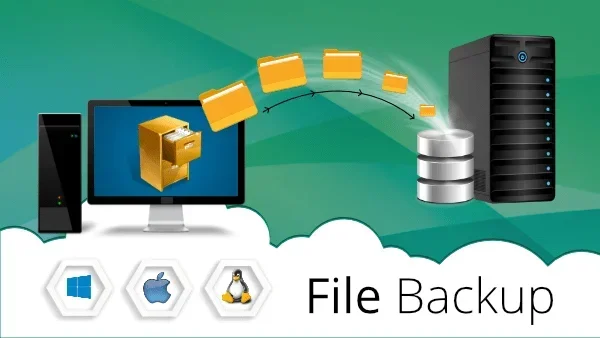
Windows backup software is essential for keeping your files safe from unexpected loss. Whether you use a PC for work or personal tasks, a reliable backup tool ensures your data stays protected. In this guide, we break down the best options, key features, and simple steps to get started with your Windows backup software today.
Losing important files on your computer can be a nightmare. Photos, documents, work projects, and personal memories can disappear in an instant due to hardware failure, a virus, or even a simple accidental delete. This is exactly why Windows backup software matters so much. Whether you are a casual user or someone who relies on their PC every day, having a solid backup plan is not optional. It is a necessity.
In this article, we will walk you through everything you need to know about backing up your Windows PC. We will cover the best software options, the key features to look for, and simple steps to set up your first backup. By the end, you will feel confident about keeping your files safe and sound. Let us dive in and explore the world of data backup for Windows users.
Key Takeaways
- Data loss can happen anytime: hardware failure, malware, or accidental deletion can wipe out important files in seconds.
- Built-in tools are free: Windows offers native backup features like File History and Windows Backup that come at no extra cost.
- Third-party options add power: premium backup software provides cloud storage, version control, and automated scheduling for peace of mind.
- System requirements matter: your laptop specs, such as RAM and storage, affect how well backup software runs on your machine.
- Setting up a backup schedule is key: automating your backups ensures you never forget to protect your files.
- Multiple backup locations are safer: combining local and cloud backups gives you the best protection against data loss.
📑 Table of Contents
Why You Need Windows Backup Software
Many people ignore backup until something goes wrong. By then, it is too late. Your computer holds years of valuable information, and replacing it all is not easy. Windows backup software gives you a reliable safety net that works automatically in the background.
The Risk of Losing Your Files
Hard drives fail more often than most people think. A sudden crash can erase everything on your system. Malware and ransomware attacks are also on the rise, and they can lock or destroy your files instantly. Even something simple like spilling coffee on your laptop can cause permanent data loss. Without a proper file protection plan, you are left with nothing.
Consider this scenario. You have been working on an important project for weeks. One day, your computer stops working. There is no backup. All that effort is gone. This happens to thousands of people every single day. A good backup tool prevents this kind of stress and heartbreak.
Common Causes of Data Loss
Understanding what causes data loss helps you see why backup is so important. Here are the most common reasons people lose files:
- Hard drive failure: Mechanical parts wear out over time, leading to sudden crashes.
- Viruses and malware: Malicious software can delete or encrypt your files.
- Accidental deletion: A simple mistake can send important files to the recycle bin forever.
- Power surges: Electrical issues can corrupt files or damage your system.
- Ransomware attacks: Hackers lock your files and demand payment to release them.
- Physical damage: Drops, spills, or theft can destroy your computer and all its data.
No matter the cause, the result is the same. You lose access to files that may be irreplaceable. Windows backup software solves this problem by creating copies of your data that you can restore anytime.
Top Features to Look For in Backup Software
Not all backup tools are created equal. When choosing the right Windows backup software, you need to know which features matter most. Here is what to look for in a quality backup solution.
Automatic Scheduling
The best backup software works without you needing to remember it. Look for tools that let you set up an automatic backup schedule. You can choose to back up your files daily, weekly, or monthly. Once set, the software runs in the background and handles everything for you.
Automatic backups are a game changer. You never have to worry about forgetting to save your work. The software keeps your files up to date without any effort on your part.
Cloud Storage Integration
Cloud backup adds an extra layer of safety. Instead of only saving files to an external drive, you can send copies to the cloud. This means your data stays safe even if your computer is destroyed or stolen. Many Windows backup software options now include built-in cloud storage or work seamlessly with popular cloud services.
Cloud integration also makes it easy to access your files from any device. You can pull up your documents on your phone, tablet, or another computer. This kind of flexibility is incredibly helpful for people who work across multiple devices.
Version Control
Not all file changes are permanent. Sometimes you need to go back to an earlier version of a document. Good backup software keeps multiple versions of your files. This means you can restore a previous copy if a new edit goes wrong or if a file gets corrupted.
Version control is especially useful for people who work on important documents regularly. It gives you a safety net within your safety net. Even if you accidentally overwrite something, you can easily retrieve the older version.
Incremental and Full Backup Options
There are two main types of backups: full backups and incremental backups. A full backup copies every file on your system. It takes more time and storage space but gives you a complete snapshot. An incremental backup only saves the changes made since your last backup. It is faster and uses less space.
The best Windows backup software offers both options. You can run a full backup once a month and incremental backups daily. This combination saves time and storage while keeping your data fully protected.
Best Windows Backup Software Options
Now that you know what to look for, let us explore the top choices available. We have broken them down into built-in options and third-party solutions.
Built-in Windows Backup Tools
Windows comes with several free backup features already included in the operating system. These tools are a great starting point for anyone who wants to protect their files without spending extra money.
File History is one of the most useful built-in features. It automatically saves copies of your personal files every hour. You can connect an external drive and let File History do its work in the background. If you ever need to restore a file, it is just a few clicks away.
Windows Backup (also known as Windows Backup and Restore) lets you create a full system image. This includes your operating system, installed programs, and all your personal files. If your system crashes, you can restore everything exactly as it was. The setup process is simple and does not require any technical expertise.
While built-in tools are convenient, they do have limitations. They may lack advanced features like cloud integration or version control. For users who want more power and flexibility, third-party options are worth considering.
Third-Party Backup Solutions
Third-party backup software offers more features and greater control over your data. These tools are designed for users who want a more comprehensive backup solution. Here are some popular options:
- Acronis True Image: Offers full disk imaging, cloud backup, and ransomware protection.
- EaseUS Todo Backup: Provides flexible scheduling, disk cloning, and cloud storage support.
- Macrium Reflect: Known for reliable system imaging and fast restore times.
- Backblaze: A simple cloud backup service that is affordable and easy to use.
- Carbonite: Offers automatic cloud backup with strong security features.
Each of these tools has its strengths. Some focus on cloud backup, while others excel at local disk imaging. The right choice depends on your specific needs and budget.
How to Choose the Right Backup Software
Choosing the right Windows backup software can feel overwhelming with so many options available. Here are some practical tips to help you make the best decision.
Consider Your Storage Needs
Before you pick a tool, think about how much data you need to back up. Check the total size of your important files. If you have a large media library or work with big project files, you will need more storage space. Some backup solutions offer unlimited cloud storage, while others charge based on usage.
Also consider your local storage options. Do you have an external hard drive available? An external drive is a great way to store backup copies without paying for cloud storage. Many users find that a combination of local and cloud backup works best for their needs.
Check System Requirements
Not all backup software runs well on every computer. Before you install anything, check the system requirements. Some tools need a certain amount of RAM or free disk space to work properly. For example, if you are running a system with limited resources, you might want to look at lightweight options that do not slow down your PC.
Your laptop specifications matter here too. A machine with 16GB RAM and a fast SSD will handle backup software much better than an older system with limited memory. If you are unsure about your current setup, you can check your system specs in the Windows settings menu.
For users who also run business software, compatibility matters. Make sure your chosen backup tool works well with other programs you use daily, like HR Block software or any accounting tools that store sensitive financial data on your computer.
Look for Ease of Use
You do not need to be a tech expert to use good backup software. The best tools are designed with simplicity in mind. Look for a clean interface, clear setup wizards, and straightforward restore options. If a program feels confusing during the trial period, it will probably feel even more confusing when you need it most.
Setting Up Your First Backup
Getting started with Windows backup software is easier than most people think. Here is a simple step-by-step guide to help you set up your first backup.
Step-by-Step Guide
- Choose your backup tool: Pick a software option that fits your needs and budget.
- Connect your backup drive: Plug in an external hard drive or set up a cloud account.
- Select what to back up: Choose your important folders, documents, and system files.
- Set a backup schedule: Configure automatic backups to run daily or weekly.
- Run your first backup: Start the initial backup and let it complete.
- Verify the backup: Check that your files were copied correctly by opening a few from the backup location.
- Monitor regularly: Periodically check that your backups are running on schedule.
Tips for Backup Success
Here are a few quick tips to make your backup routine more effective:
- Keep your backup drive in a safe, dry place away from heat and moisture.
- Test your restores regularly to make sure your backups actually work.
- Update your backup software to the latest version for the best security.
- Store at least one backup offsite, such as in the cloud, for extra protection.
- Label your backup drives with dates so you always know which copy is the most recent.
Common Backup Mistakes to Avoid
Even with the best Windows backup software, mistakes can happen. Here are common errors that people make and how to avoid them.
- Only backing up once: A single backup is not enough. Set up recurring backups to keep your data current.
- Ignoring backup errors: If your software reports a failed backup, check it right away. Ignoring errors can leave gaps in your protection.
- Storing backups in the same location as your PC: A fire, flood, or theft can destroy both your computer and your backup drive if they are in the same place.
- Not testing your restores: A backup is only useful if you can actually restore the files. Test your backups regularly.
- Using outdated backup software: Old software may not work well with newer versions of Windows. Keep your tools updated.
Final Thoughts on Protecting Your Data
Your files are some of the most important things on your computer. Photos, documents, work projects, and personal records all hold value that cannot be replaced. Windows backup software gives you the power to protect all of that data with minimal effort.
Whether you choose a built-in Windows tool or a premium third-party solution, the most important step is to start. Do not wait until something goes wrong. Set up your backup today and enjoy the peace of mind that comes with knowing your files are safe. A few minutes of setup now can save you hours of stress and frustration later.
Take a few minutes right now to review your current backup setup. If you do not have one, pick a tool from our list and get started. Your future self will thank you when your data is safe and sound.
Frequently Asked Questions
What is the best free Windows backup software?
Windows built-in tools like File History and Windows Backup are the best free options available. They come pre-installed on your system and offer reliable backup features without any extra cost. For users who need more advanced features, free versions of third-party tools like EaseUS Todo Backup also work well.
How often should I back up my files?
You should back up your files at least once a week. However, daily backups are even better if you work on important documents regularly. Automatic scheduling in your Windows backup software makes this process effortless. The more frequent your backups, the less data you risk losing.
Can I use both cloud and local backup together?
Absolutely. In fact, using both cloud and local backup is the safest approach. A local backup on an external drive gives you fast access to your files, while a cloud backup protects your data even if your physical devices are damaged or stolen. Together, they provide complete file protection.
Is Windows backup software hard to set up?
No, most backup tools are designed to be simple and user-friendly. Built-in Windows tools like File History require just a few clicks to configure. Third-party solutions usually include setup wizards that guide you through the process step by step. You do not need any technical skills to get started.
What happens if my backup fails?
Most backup software will alert you if a backup fails. Check the error message and try running the backup again. Common causes include a disconnected drive, low disk space, or software conflicts. Keeping your Windows backup software updated helps reduce the chances of failures.
Do I need a lot of RAM for backup software to work well?
Most backup tools run fine on standard systems. However, if you are backing up large amounts of data, having more RAM helps the process run smoothly. A system with 8GB or more of RAM handles backup tasks without slowing down your PC. For heavy backup workloads, a machine with 16GB RAM performs even better.
=== CONCLUSION ===
Windows backup software is one of the most important tools you can have on your computer. It protects your files from unexpected loss, gives you peace of mind, and makes data recovery simple when issues do arise. From built-in Windows tools to powerful third-party solutions, there is a backup option for every user and every budget.
Take the time to choose the right tool, set up an automatic schedule, and test your backups regularly. Your digital life is valuable, and it deserves the protection that a solid backup plan provides. Start today, and never worry about losing your important files again.