Wondering if you can upgrade your RAM on your laptop? The short answer is often yes—but it depends on your model, RAM type, and how many slots are free. This guide walks you through checking compatibility, opening your laptop safely, installing new memory, and troubleshooting common issues, so you can boost performance without breaking the bank.
Key Takeaways
- Compatibility matters: Verify RAM type (DDR3, DDR4, DDR5) and maximum supported capacity for your specific laptop model.
- Slot count is crucial: Laptops may have one, two, or more slots; knowing how many are free determines whether you add or replace modules.
- Tools are minimal: A small Phillips screwdriver, anti‑static wrist strap, and the right RAM sticks are all you need.
- BIOS/UEFI updates help: Updating firmware can improve memory recognition and stability after an upgrade.
- Performance boost is real: More RAM reduces swapping, speeds up multitasking, and can extend the life of older laptops.
- Cost‑effective alternatives: If your laptop isn’t upgradeable, consider external SSD caching or cloud‑based solutions.
- Safety first: Always power down, unplug, and discharge static before handling internal components.
📑 Table of Contents
- Introduction: Why RAM Upgrade Is a Game Changer
- 1. Understanding Laptop RAM Basics
- 2. Checking If Your Laptop Is Upgradeable
- 3. Choosing the Right RAM Modules
- 4. Step‑by‑Step Installation Guide
- 5. When Upgrading RAM Isn’t Possible
- 6. Maintaining Your Upgraded System
- Conclusion: Yes, You Can—and It’s Worth It
Introduction: Why RAM Upgrade Is a Game Changer
Imagine trying to juggle three balls while walking on a tightrope. That’s what your laptop feels like when it runs out of RAM. Each open program, browser tab, or background service needs a slice of memory to work smoothly. When the memory runs low, the system starts swapping data to the slower hard drive, and everything feels sluggish.
Upgrading RAM is one of the most affordable ways to give your laptop new life. Instead of buying a brand‑new machine, a simple memory boost can shave seconds off boot times, make video editing smoother, and keep gaming frames steady. The big question many users ask is, “Can I upgrade my RAM on my laptop?” The answer is usually “yes,” but the process varies by brand, model, and design.
1. Understanding Laptop RAM Basics
What Is RAM?
RAM (Random Access Memory) is a short‑term storage area where your computer keeps data it needs right now. Unlike a hard drive or SSD, RAM is volatile—it loses everything when power is cut. More RAM means more space for active tasks, which translates to faster performance.

Visual guide about Can I Upgrade My Ram on My Laptop
Image source: i.ytimg.com
Types of Laptop RAM
- DDR3: Older laptops (2012‑2016) often use DDR3 modules, running at 1066‑1600 MT/s.
- DDR4: Most mid‑range and high‑end laptops from 2016 onward use DDR4, typically 2133‑3200 MT/s.
- DDR5: The newest ultrabooks (2022+) are moving to DDR5, offering higher bandwidth and lower power draw.
Each generation has a different notch pattern, voltage, and speed, so mixing them is impossible.
How Much RAM Do You Really Need?
For basic web browsing and office work, 8 GB is comfortable. Creative work, gaming, and virtual machines benefit from 16 GB or more. Anything above 32 GB is usually overkill for most consumer laptops unless you run heavy scientific simulations.
2. Checking If Your Laptop Is Upgradeable
Consult the Manufacturer’s Documentation
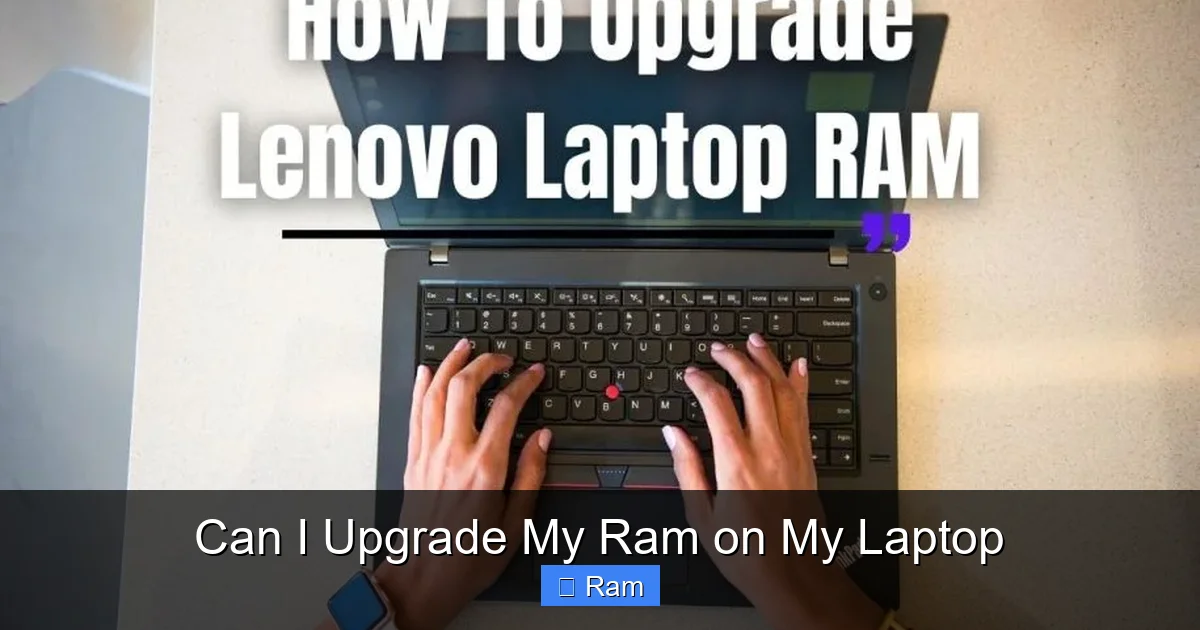
The first place to look is the official service manual or specifications sheet. Brands like Dell, Lenovo, HP, and ASUS often list supported RAM types, maximum capacity, and slot configuration. Search for “your model RAM upgrade guide.”
Visual guide about Can I Upgrade My Ram on My Laptop
Image source: i.ytimg.com
Use System Tools to Identify Current Memory
On Windows, open Task Manager → Performance → Memory to see current size, speed, and form factor (e.g., “DDR4 2666 MHz”). On macOS, click Apple menu → About This Mac → Memory. Linux users can run sudo dmidecode -t memory.
Physical Inspection
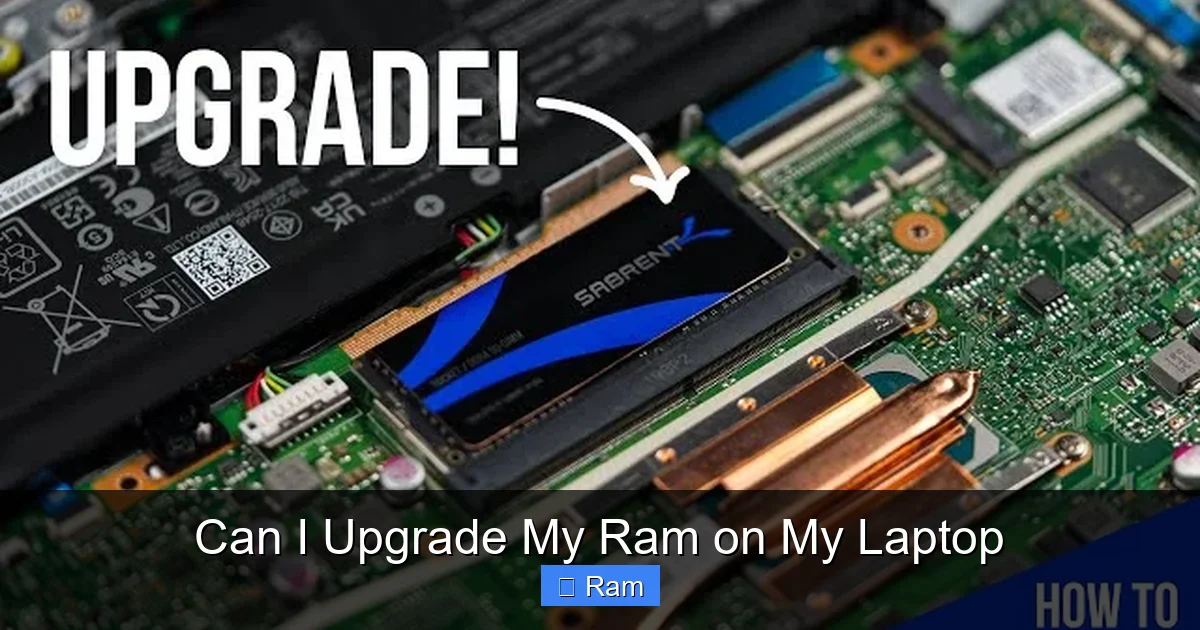
If the documentation is vague, a quick visual check helps. Most laptops have a removable bottom panel secured by a few screws. Once removed, you’ll see one or more rectangular slots with a small clip on each side. If the slots are covered by a metal shield, the laptop may be soldered‑on, making upgrades impossible.
Common Upgrade Scenarios
- One free slot: Add a matching module without removing the existing one.
- Both slots occupied: Replace the current sticks with higher‑capacity modules.
- Soldered RAM: Upgrade not possible; consider external solutions.
3. Choosing the Right RAM Modules
Match the Speed and Voltage
Pick RAM that matches the speed (MHz) supported by your laptop’s motherboard. Installing a faster stick won’t hurt, but it will run at the lower speed of the existing memory. Voltage is usually 1.2 V for DDR4 and 1.1 V for DDR5.
Visual guide about Can I Upgrade My Ram on My Laptop
Image source: pccores.com
Consider Dual‑Channel Benefits
Dual‑channel mode doubles the data path, effectively boosting bandwidth. To enable it, use two identical sticks (same size, speed, and timings). If you have a single 8 GB stick, upgrading to two 8 GB sticks is better than a single 16 GB module.
Brands and Warranty
Reputable brands like Crucial, Kingston, Corsair, and G.Skill offer laptop‑specific modules with limited‑lifetime warranties. Buying from the manufacturer’s “compatible memory” list reduces the risk of incompatibility.
Cost‑Benefit Analysis
As of 2026, a 16 GB DDR4 kit (2 × 8 GB) costs around $55‑$70, while a 32 GB kit (2 × 16 GB) is $110‑$130. Compare this to the price of a new laptop; often the upgrade is a fraction of the cost.
4. Step‑by‑Step Installation Guide
What You’ll Need
- Small Phillips #0 screwdriver
- Anti‑static wrist strap (optional but recommended)
- New RAM module(s) compatible with your laptop
- Soft, lint‑free cloth
Preparation
- Shut down the laptop completely. Do not just hibernate.
- Unplug the power adapter and remove any external devices.
- Flip the laptop over and locate the bottom screws. Keep them in a small container.
- Wear the anti‑static wrist strap and attach it to a grounded metal object.
Opening the Bottom Panel
Gently pry open the panel using a plastic spudger if needed. Avoid metal tools that can scratch the chassis. Once the panel is loose, lift it away to expose the internals.
Locating the RAM Slots
The slots are usually near the center or side of the board, with a small metal clip on each side. If a stick is already installed, you’ll see a black module with a notch aligning with the slot.
Removing Existing Modules (If Needed)
- Push the clips outward; the module will pop up at an angle.
- Grip the edges of the module and pull it out gently, keeping it parallel to the board.
Installing the New Module(s)
- Align the notch on the RAM with the key in the slot. The module only fits one way.
- Insert the module at a 30‑degree angle, then press down until the clips click into place.
- Make sure the module sits flat and the clips are fully engaged.
Reassembly and First Boot
Replace the bottom panel, screw it back in, and turn the laptop on. If the system boots normally, open the system information tool again to confirm the new memory is recognized.
Troubleshooting Common Issues
- Memory not recognized: Reseat the module, check for dust, or verify you used the correct type.
- System won’t start: Ensure the module is fully seated and the clips are locked.
- Blue screen or crashes: Run a memory diagnostic (Windows Memory Diagnostic or MemTest86) to spot faulty sticks.
5. When Upgrading RAM Isn’t Possible
Soldered‑On Memory
Many ultra‑thin ultrabooks (e.g., Apple MacBook Air 2022+, Dell XPS 13 2023) have RAM soldered directly to the motherboard. In these cases, you cannot add or replace memory.
Alternative Performance Boosts
- Upgrade to an SSD: Replacing a hard drive with an NVMe SSD reduces load times dramatically.
- Clean Up Software: Uninstall unused programs, limit startup apps, and keep the OS updated.
- External GPU (eGPU): For graphics‑intensive tasks, an eGPU can offload work without touching RAM.
- Cloud Computing: Use cloud‑based virtual machines for heavy processing instead of local resources.
When to Consider a New Laptop
If your laptop is more than 5‑7 years old, the CPU and storage may also be bottlenecks. In such cases, the cost of a RAM upgrade plus a new SSD may approach the price of a modern entry‑level laptop with better overall performance.
6. Maintaining Your Upgraded System
Regular BIOS/UEFI Checks
Manufacturers sometimes release BIOS updates that improve memory compatibility and stability. Check the support page every few months.
Run Periodic Memory Tests
Running a quick memory test every 3‑6 months helps catch early signs of failing RAM. Most tools are free and can be run from a USB stick.
Keep the Interior Clean
Dust can cause overheating, which may affect RAM performance. Use compressed air to blow out vents and slots once a year.
Backup Important Data
While RAM upgrades rarely cause data loss, it’s good practice to back up critical files before any hardware change.
Conclusion: Yes, You Can—and It’s Worth It
In most cases, the answer to “can i upgrade my ram on my laptop” is a confident yes. By checking compatibility, choosing the right modules, and following a careful installation process, you can add a noticeable speed boost without spending a fortune. Even if your device isn’t upgradeable, there are still plenty of ways to improve performance through storage upgrades and software tweaks. Take the time to evaluate your needs, follow the steps outlined above, and enjoy a faster, more responsive laptop that feels like new again.
Frequently Asked Questions
Can I mix different brands of RAM in my laptop?
Yes, you can, but for the best stability and performance use identical sticks (same size, speed, and timings). Mixing brands may work, but it can sometimes cause compatibility hiccups.
Will upgrading RAM void my laptop warranty?
Most manufacturers allow user upgrades without voiding the warranty, as long as you don’t damage the device. Check your warranty terms; some brands require you to use authorized service centers.
How do I know if my laptop has soldered RAM?
If you open the bottom panel and see the memory chips directly attached to the motherboard with no slots, the RAM is soldered and cannot be upgraded.
Do I need to reinstall my operating system after adding RAM?
No. Adding RAM does not affect the OS installation. Your system should recognize the new memory automatically on the next boot.
What is the difference between dual‑channel and single‑channel memory?
Dual‑channel uses two matching sticks to double the data path, offering higher bandwidth and better performance than a single stick of the same total capacity.
Can I upgrade RAM on a 2‑in‑1 convertible laptop?
Many 2‑in‑1s have upgradeable RAM, but a growing number have soldered memory to keep the device thin. Check the service manual or open the bottom panel to verify.