Mouse Not Working on Laptop

A mouse not working on a laptop is a common but frustrating issue that usually has a simple fix. The problem typically stems from connection problems, driver conflicts, power issues, or hardware failure. Start with basic checks: replace batteries, try a different USB port, or reconnect Bluetooth. If that fails, updating drivers, checking for software conflicts, or testing the mouse on another computer can pinpoint the cause. Most mouse problems are solvable at home without technical expertise.
You’re in the middle of an important project, your cursor freezes, and you’re frantically jiggling your mouse. Nothing. That sinking feeling is universal. A mouse not working on a laptop brings productivity to a screeching halt. But before you panic or rush to buy a new one, take a deep breath. The vast majority of mouse issues are not terminal. They are usually minor, solvable problems that you can fix yourself in minutes. This guide will walk you through every possible cause and solution, from the simplest battery swap to more advanced driver surgery. Think of it as your friendly, comprehensive troubleshooting manual.
We’ll cover both wired USB mice and wireless varieties (RF dongle and Bluetooth), as the troubleshooting paths differ slightly. The core principle remains the same: isolate the variable. Is it the mouse, the laptop, the connection, or the software? By following a logical, step-by-step process, you’ll identify the problem and get your pointer moving again. Let’s start with the most common and easily overlooked reasons your mouse has gone on strike.
Key Takeaways
- Connection is the first suspect: For wired mice, try a different USB port. For wireless, ensure batteries are fresh and the receiver/Bluetooth is properly connected.
- Software and drivers are frequent culprits: Outdated, corrupt, or conflicting mouse drivers are a top cause of failure. Updating or reinstalling them often resolves the issue.
- Power issues plague wireless mice: Weak batteries, a uncharged mouse, or a receiver that’s gone to sleep can cause disconnections. Always check power first.
- Interference and settings matter: Other wireless devices, mouse sensitivity settings, or disabled touchpad/mouse settings in your OS can make a mouse appear dead.
- Test to isolate the problem: Connect the mouse to another computer. If it works there, the issue is with your laptop. If it doesn’t, the mouse itself is likely faulty.
- Hardware failures happen: A damaged USB port, a broken mouse cable, or internal mouse component failure requires physical repair or replacement.
- When in doubt, restart: A simple restart of your laptop and the mouse (if applicable) can clear temporary glitches and reset connections.
📑 Table of Contents
- The Usual Suspects: Common Reasons Your Mouse Stops Working
- Step-by-Step: Troubleshooting a Wired (USB) Mouse
- Solving the Mystery: Troubleshooting a Wireless Mouse
- Software & Driver Deep Dive: Beyond the Basics
- Hardware Diagnostics: Is It Truly Broken?
- Advanced Solutions and When to Seek Help
- Prevention and Best Practices
The Usual Suspects: Common Reasons Your Mouse Stops Working
Before diving into complex fixes, understanding the typical failure points saves time and prevents unnecessary worry. A mouse not working on a laptop rarely means your entire computer is broken. It’s usually a localized issue. Here are the top categories of problems we’ll explore.
Physical Connection Problems
This is the big one, especially for wired mice. The USB connection is a physical interface, and it can fail in many ways. The port might be loose or dirty. The cable could have a break near the connector. The USB port itself on your laptop might be disabled in the BIOS or have failed electrically. For wireless mice, the connection is either via a small USB receiver (often called a dongle) or Bluetooth. The receiver might not be seated properly, its internal antenna could be damaged, or Bluetooth pairing can become corrupted. Simply put, if the laptop and mouse can’t “talk” to each other, nothing will work.
Power Issues (The Wireless Nemesis)
Forget the old adage about “my batteries are fine.” When a wireless mouse starts acting up—stuttering, freezing, or disconnecting—the first and most likely cause is weak power. Rechargeable mice lose capacity over time. Disposable batteries can sit on a shelf and lose a small charge, enough to cause erratic behavior in low-power devices. Also, many wireless mice have aggressive power-saving modes. If you don’t move it for a few minutes, it may enter a deep sleep state and take a second or two to “wake up” when you move it again. If that wake-up fails, it appears dead.
Driver and Software Conflicts
Your operating system needs a translator—a driver—to understand what your mouse is saying. Windows, macOS, and Linux all rely on these small pieces of software. A driver can become corrupted after a system update, conflict with another piece of software (like a gaming mouse utility), or be accidentally deleted. An outdated driver might not fully support newer mouse features or might glitch with a recent OS patch. Sometimes, a Windows Update doesn’t play nice with your existing mouse setup, causing a sudden failure.
Operating System Settings
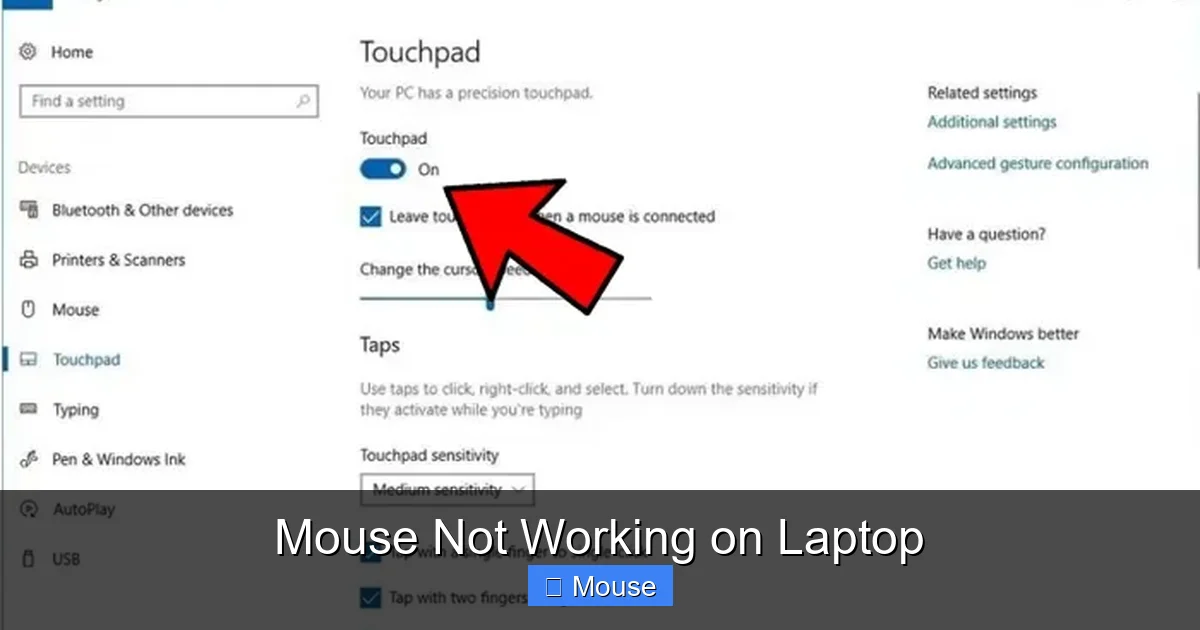
It’s easy to accidentally disable your mouse or touchpad. In Windows, for instance, you can disable the internal touchpad when an external mouse is detected. But if that setting gets corrupted, it might disable *both*. Mouse settings like pointer speed, double-click speed, or scroll wheel configuration can also be set to extremes that make the mouse seem unresponsive (e.g., pointer speed set to “Slow” with “Enhance pointer precision” off can feel sluggish). Accessibility features like Mouse Keys (which lets you control the cursor with the keyboard numpad) can also be accidentally turned on, overriding the physical mouse.
Hardware Failure
This is the least common but most final-sounding cause. The mouse itself can fail—a solder joint cracks inside, the scroll wheel encoder wears out, the optical sensor gets dirty or damaged, or the internal circuitry fries. On the laptop side, a specific USB port can die due to a power surge or physical damage. The laptop’s internal Bluetooth radio could malfunction. While possible, hardware failure should be your last conclusion after exhausting all other troubleshooting steps, as it requires repair or replacement.
Step-by-Step: Troubleshooting a Wired (USB) Mouse
Let’s get methodical. For a wired mouse, we start with the physical and move inward. Grab your mouse and follow these steps in order.

Visual guide about Mouse Not Working on Laptop
Image source: theserpwire.com
Step 1: The Basic Plug-and-Play Check
Unplug your mouse from the current USB port. Plug it into a different USB port on your laptop. Preferably, use a port directly on the laptop itself, not through a hub. Does it work? If yes, your original port may be faulty. If no, try the mouse on a completely different computer, like a friend’s PC or a family desktop. This critical test tells you immediately if the problem is with the mouse or your laptop. If it works on another computer, the issue is with your laptop’s software or that specific port. If it doesn’t work anywhere, the mouse is almost certainly broken.
Step 2: Inspect the Physical World
Look closely at the mouse’s USB plug. Is it bent, dirty, or have bent pins? Blow out any dust or lint from the plug. Use a cotton swab with a tiny bit of isopropyl alcohol to clean the metal contacts. Let it dry completely. Now, look at the cable, especially near the ends. Gently bend the cable back and forth along its length. Do you feel or hear a crunch? That’s a broken wire. Wiggle the connector where it meets the cable. If the cursor flickers or the mouse disconnects when you move the cable, the internal wires are frayed. This is a death sentence for a cheap mouse, but for a nicer one, you might consider a repair shop.
Step 3: Dive into Device Manager (Windows)
If the mouse works on another PC, the problem is software-related on your laptop. On Windows, right-click the Start button and select Device Manager. Expand Mice and other pointing devices. You might see a yellow exclamation mark on your mouse, indicating a problem. Right-click the mouse and select Update driver. Choose Search automatically for drivers. If that doesn’t work, right-click again and choose Uninstall device. Check the box that says “Delete the driver software for this device” if available. Then unplug the mouse and plug it back in. Windows will reinstall a fresh, generic driver. This fixes many corruption issues.
Step 4: Check for USB Power Management
Windows has a power-saving feature that can turn off USB ports to save battery, especially on laptops. This can make your mouse disconnect. In Device Manager, expand Universal Serial Bus controllers. Right-click on each USB Root Hub and select Properties. Go to the Power Management tab. If “Allow the computer to turn off this device to save power” is checked, uncheck it. Click OK. Do this for every USB Root Hub. This stops Windows from putting your mouse’s port to sleep.
Solving the Mystery: Troubleshooting a Wireless Mouse
Wireless mice add a layer of complexity with batteries and radio signals. The process is similar but includes extra steps.
Step 1: Power, Power, Power
This cannot be overstated. Replace the batteries with brand-new ones. Even if the mouse has an LED that’s on, it might not have enough current for the radio transmitter. If it’s a rechargeable mouse, plug it in and let it charge for at least 30 minutes. Some mice have a physical on/off switch on the bottom—make sure it’s on. Look for a small LED indicator. If it’s not lit, there’s no power. If it’s blinking slowly, it might be in pairing mode or low-battery mode (consult your manual).
Step 2: The Receiver/Dongle Dance
If your mouse uses a small USB receiver (like those from Logitech’s Unifying or Razer’s HyperSpeed), unplug it and plug it into a different USB port. Avoid USB 3.0 blue ports if possible, as they can sometimes cause radio frequency interference. Try a port on the opposite side of the laptop from the mouse to minimize signal blockage from the laptop’s metal case. If your laptop has a USB-C port, use a USB-A to USB-C adapter. Also, ensure the receiver is not physically damaged.
Step 3: Re-Pairing (For Bluetooth & Unifying Receivers)
For Bluetooth mice: Go to your laptop’s Bluetooth settings (Windows: Settings > Devices > Bluetooth & other devices; macOS: System Preferences > Bluetooth). Remove the mouse from the list of paired devices. Turn the mouse off and on (or press the pairing button, usually on the bottom). Put it in pairing mode (often a blinking LED). On your laptop, click “Add Bluetooth or other device” and search for it. Pair fresh.
For Logitech Unifying receivers: Download and install the Logitech Unifying Software. It will show you paired devices. You can add a new mouse or reassign the receiver to your existing mouse. This re-establishes the encrypted link.
Step 4: Eliminate Wireless Interference
Radio frequencies are a shared space. Your Wi-Fi router, cordless phone, microwave oven, and even some USB 3.0 devices can jam the 2.4GHz band your mouse uses. Move the receiver closer to the mouse using a USB extension cable. Keep the mouse and receiver away from large metal objects and other wireless devices. If you have a Wi-Fi router on your desk, try switching your laptop’s Wi-Fi to the 5GHz band (if available) to clear the 2.4GHz airwaves for your mouse.
Software & Driver Deep Dive: Beyond the Basics
When basic updates don’t work, we need to go deeper into the software stack. This is where most persistent problems hide.

Visual guide about Mouse Not Working on Laptop
Image source: i.ytimg.com
Using the Manufacturer’s Software
Gaming mice (Logitech G Hub, Razer Synapse, SteelSeries GG) and some productivity mice have their own configuration suites. These programs install their own drivers and can override Windows settings. If this software is corrupted or outdated, it can break the mouse. Uninstall it completely via Windows Apps & features (Settings > Apps). Then, download the latest version directly from the manufacturer’s website and reinstall it. Configure your mouse from scratch. This often resolves strange button mapping or DPI issues that feel like a “broken” mouse.
Checking for OS Conflicts and Updates
Did the mouse stop working after a major Windows update? This is a classic scenario. Sometimes, the update includes a new, generic driver that conflicts with your old one. Go to Windows Update (Settings > Windows Update) and check for Optional updates. Microsoft sometimes releases driver fixes here. You can also use the Windows Update Catalog to manually find and install a specific older driver if the newest one is problematic.
On macOS, check for system updates in System Preferences > Software Update. Also, check System Preferences > Accessibility > Mouse & Trackpad to ensure Mouse Keys is off and your tracking speed is normal.
Booting in Safe Mode
Safe Mode loads Windows with a minimal set of drivers and startup programs. If your mouse works in Safe Mode, it confirms that a third-party software conflict is the cause. A program running in the background (like screen recording software, clipboard managers, or even some antivirus programs) can hijack mouse input. To enter Safe Mode in Windows 10/11: Hold Shift while clicking Restart in the Start Menu power options. Navigate to Troubleshoot > Advanced Options > Startup Settings > Restart. Then press 4 or F4. Test your mouse. If it works, you need to perform a “clean boot” by disabling startup programs and services one by one to find the culprit.
Hardware Diagnostics: Is It Truly Broken?
After all software avenues are exhausted, we must consider physical failure. But even here, we can test intelligently.
Visual guide about Mouse Not Working on Laptop
Image source: maketecheasier.com
The Ultimate Test: Another Computer
We mentioned this earlier, but it’s the golden rule. Testing your mouse on a known-good computer is the only 100% way to confirm if the mouse is faulty. Do this before you open anything or buy a new mouse. If it fails on another PC, the mouse is dead. If it works, the problem is definitely in your laptop—likely a port or deep software issue.
Checking the Laptop’s USB Ports
Try every USB port on your laptop. If only one port fails, that port is likely dead. You can sometimes revive it by shutting down the laptop completely (not sleep/hibernate), unplugging it from power, and holding the power button for 30 seconds to discharge static electricity. Boot it back up. If the port remains dead, it may need soldering repair by a technician. Avoid using that port and rely on a working one or a USB hub (if the hub has its own power source).
Bluetooth Radio Health
If no Bluetooth devices are working, your laptop’s internal Bluetooth adapter may have failed. Check Device Manager under Bluetooth. Is your adapter listed without a yellow mark? Try updating its driver. If the adapter is missing or has an error, the hardware may have died. You can purchase a cheap USB Bluetooth dongle to bypass the internal adapter.
Advanced Solutions and When to Seek Help
For the stubborn cases that survive all previous steps, here are more nuclear options and guidance on when to throw in the towel (professionally).
System Restore or Reset
If a recent software change broke your mouse, rolling back the clock can help. In Windows, search for Create a restore point. Under System Restore, see if there’s a restore point from before the problem started. Run it. This will revert system files and drivers to that state. Note: This does not affect personal files, but programs installed after the restore point will be gone. As a last resort, Windows 10/11 offers a Reset this PC option (Settings > Update & Security > Recovery). You can choose to keep your personal files. This reinstalls Windows fresh and eliminates all software conflicts. Back up your data first!
BIOS/UEFI Settings
Enter your laptop’s BIOS or UEFI settings (usually by pressing F2, Del, or F10 during boot). Look for settings related to USB Legacy Support, USB Configuration, or Internal Pointing Device. Ensure USB ports are enabled. Some gaming laptops have settings to prioritize USB power for charging—disable that temporarily to see if it helps. Be careful in BIOS; changing the wrong setting can prevent booting.
When the Mouse is Definitely Dead
If the mouse fails on multiple computers, shows no signs of life (no LED, no movement), and is physically damaged, it’s time for a replacement. Modern mice are not built to be repaired. The cost of diagnosis and repair at a shop often exceeds the price of a new, decent mouse. For a wired mouse, the most common failure point is the USB connector’s solder joints. For wireless, it’s the receiver or the mouse’s internal battery (if non-replaceable). Unless it’s a high-end specialty mouse, replacement is the economical choice.
When to Consult a Professional
Seek help from a technician if: You’ve confirmed the mouse works on other PCs, but your laptop’s USB ports don’t work with *any* device. This points to a laptop motherboard issue. If your laptop is under warranty, contact the manufacturer. If the Bluetooth adapter is dead and you’re not comfortable opening the laptop to check the internal card (if it’s even replaceable), a repair shop can diagnose and potentially replace it. Also, if you suspect a deep malware infection that’s hijacking input devices, a professional malware removal service might be needed.
Prevention and Best Practices
An ounce of prevention is worth a pound of cure. Here’s how to keep your mouse relationship healthy.
Cable and Port Care
Don’t yank wired mice by the cable. Pull from the mouse body. Use a cable tie to manage excess cord and prevent tripping. When unplugging a USB, grip the connector, not the cable. Keep USB ports clean. Use compressed air to blow out dust periodically. Avoid plugging/unplugging USB devices while the laptop is on if not necessary; do it when the laptop is shut down or in sleep mode to prevent electrical spikes.
Wireless Wisdom
For mice with replaceable batteries, change them at the first sign of lag, not when the mouse dies completely. Weak power causes erratic behavior. Keep the receiver on the same side of the laptop as your mouse. If you use a USB-C laptop, get a small, durable USB-A to USB-C adapter and leave the receiver plugged in permanently. For Bluetooth mice, periodically forget and re-pair the device to clear any corrupted pairing data.
Software Hygiene
Only install mouse software from the official manufacturer’s website. Avoid third-party “driver updater” scams. Keep your operating system updated, but consider waiting a week after a major update to see if others report mouse issues. Create a system restore point before installing any major new software or driver. If you use multiple mice (e.g., a travel mouse), uninstall the software for the one you’re not using to prevent conflicts.
A mouse not working on a laptop is almost always a solvable puzzle. By systematically checking power, connections, drivers, and settings, you can diagnose and fix the issue 90% of the time. Start simple, work your way down the list, and you’ll have that cursor dancing across your screen again before you know it. Remember: test on another computer first—it’s the fastest way to know whose fault it is.
Frequently Asked Questions
Why does my wireless mouse keep disconnecting randomly?
This is almost always a power issue. Replace the batteries with fresh ones immediately. If it’s rechargeable, fully charge it. Also, try moving the USB receiver to a different port using a short extension cable to improve the signal and reduce interference from the laptop’s body.
Can a laptop touchpad disable an external mouse?
Yes. Many laptops have a setting that automatically disables the internal touchpad when an external mouse is detected. If this setting or its driver gets corrupted, it might disable both. Check your laptop’s touchpad driver settings (often in the system tray or Device Manager) or your mouse settings in the Control Panel/System Preferences.
My mouse works in the BIOS/login screen but not in Windows. What gives?
This is a clear sign of a Windows software problem, not hardware. The mouse and its basic drivers work at a fundamental level, but something in Windows is blocking it. Focus on driver issues (uninstall/reinstall in Device Manager), startup software conflicts (clean boot), or recent Windows updates that may need to be rolled back.
Could a virus cause my mouse to stop working?
It’s rare, but possible. Some malware can hijack input devices. Run a full scan with your antivirus software and a secondary scanner like Malwarebytes. If you suspect infection and other fixes fail, a system restore or reset might be necessary to remove the malicious software.
My mouse cursor is moving erratically or on its own. Is it broken?
Not necessarily. First, clean the bottom of the mouse. Dust or debris on the optical sensor can cause jittery movement. Also, try using the mouse on a different surface—some mice struggle on glossy, reflective, or highly patterned mousepads. For wireless mice, weak batteries are a common cause of erratic, jumpy movement.
Do I need to install special software for a basic mouse?
No. Basic USB and Bluetooth mice use standard drivers built into Windows, macOS, and Linux. They should work plug-and-play. Only install manufacturer software if you want to customize button functions, DPI settings, or RGB lighting. If that software causes problems, uninstall it and revert to the generic driver.