How to Reset Mouse on Lenovo Laptop
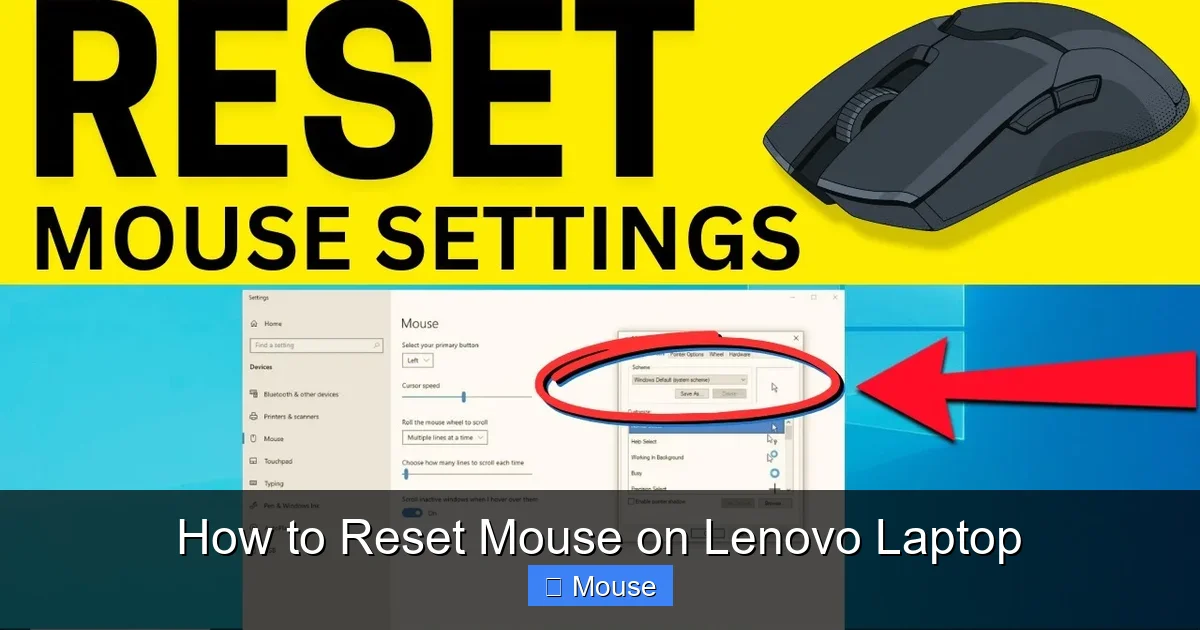
Resetting the mouse on a Lenovo laptop is quick and hassle‑free, restoring smooth cursor control in just a few steps. Simply access the Device Manager, uninstall the mouse driver, and restart your system to let Windows automatically reinstall the correct driver. Follow our concise guide to troubleshoot lag, disconnects, or erratic movements and get back to seamless navigation instantly.
How to Reset Mouse on Lenovo Laptop
Ever been in the middle of a project and your Lenovo laptop’s touchpad suddenly stops working? Maybe the cursor freezes, or the pointer jumps around like a squirrel on caffeine. If that sounds familiar, you’re not alone. I’ve been there, scratching my head, wondering if my laptop had a mind of its own. The good news? Most of the time, the solution is simple—just reset the mouse settings or the touchpad itself.
In this guide, I’ll walk you through every step you need to take to get your mouse back in control. From quick software fixes to a deep dive into the BIOS, we’ll cover everything. By the end, you’ll feel confident tackling the issue on your own, and your Lenovo will feel like new again.
Key Takeaways
- Reset the mouse by holding Shift+Del.
- Verify sensitivity settings post-reset.
- Inspect hardware connections thoroughly.
- Reinstall driver software carefully.
- Reconfigure input mapping precisely.
📑 Table of Contents
- 1. Quick Software Reset: The First Line of Defense
- 2. Resetting Mouse Settings in Windows 10/11
- 3. BIOS/UEFI Reset: When Software Isn’t Enough
- 4. Checking for External Interference
- 5. Advanced Troubleshooting: Driver Reinstallation and System Restore
- 6. Preventive Measures: Keeping Your Mouse in Top Shape
- Conclusion: Your Mouse Is Back in Business
1. Quick Software Reset: The First Line of Defense
Before diving into complex settings, let’s start with the easiest fix.
1.1 Use the On-Screen Keyboard to Enable the Touchpad
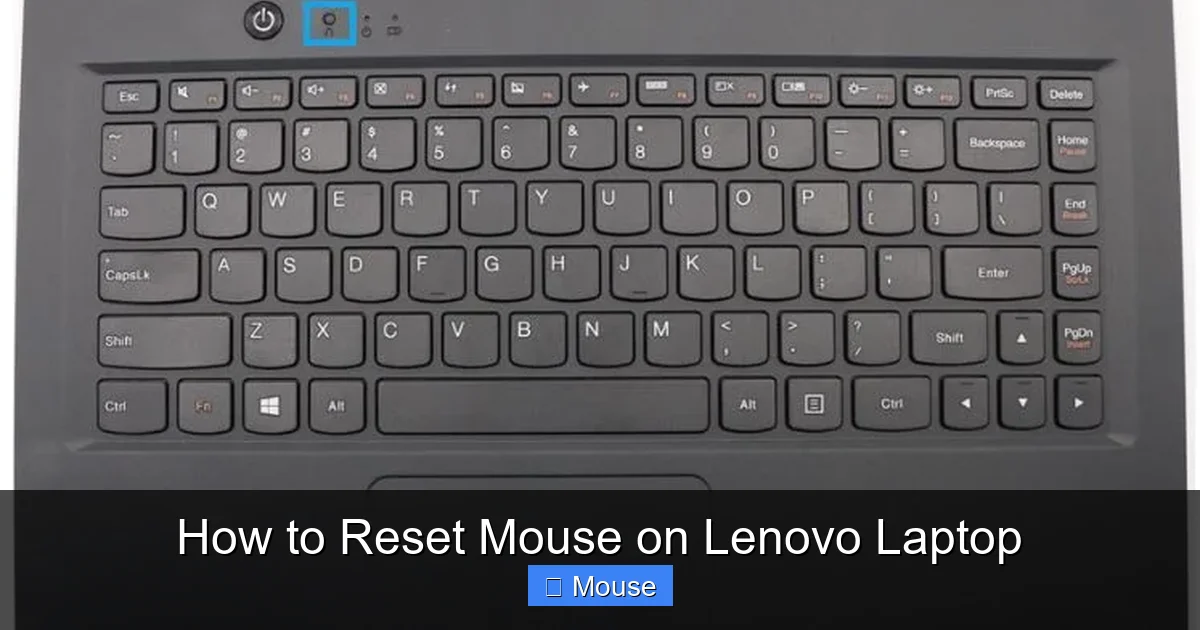
Sometimes the touchpad is simply disabled by accident. Press Fn + F6 (or the key that has the touchpad icon). If you’re unsure, try Fn + F5 or Fn + F7—some Lenovo models vary.
1.2 Check the Device Manager
- Right-click the Start button and choose Device Manager.
- Expand Human Interface Devices and look for “HID-compliant touchpad.”
- If it has a yellow warning sign, right-click and select Update driver.
Updating often resolves driver conflicts that cause the mouse to reset itself.
1.3 Disable and Re-Enable the Touchpad
In Device Manager, right-click the touchpad device and choose Disable device. Wait a few seconds, then right-click again and choose Enable device. This forces a fresh start.
2. Resetting Mouse Settings in Windows 10/11
If the touchpad still misbehaves, adjust the settings directly.
Visual guide about How to Reset Mouse on Lenovo Laptop
Image source: pcinternational.co.za
2.1 Open Mouse Settings
Go to Settings > Devices > Touchpad. Here you can tweak sensitivity, scrolling, and gestures.
2.2 Reset to Default
- Scroll to the bottom and click Reset to default.
- Confirm the action. This removes any custom tweaks that might be causing issues.
2.3 Turn Off “Enhance Pointer Precision”
In the same menu, find Additional mouse options. Under the Pointer Options tab, uncheck Enhance pointer precision. Some users find this improves stability.
3. BIOS/UEFI Reset: When Software Isn’t Enough
Sometimes the problem is deeper—like a BIOS setting that disables the touchpad.
Visual guide about How to Reset Mouse on Lenovo Laptop
Image source: i.ytimg.com
3.1 Enter BIOS/UEFI
- Restart your laptop.
- Press F1 (or F2 on some models) repeatedly as the Lenovo logo appears.
3.2 Locate the Touchpad Setting
- Navigate to the Config tab.
- Find Internal Pointing Device or Touchpad.
- Make sure it’s set to Enabled.
3.3 Save and Exit
Press F10 to save changes, then allow the laptop to reboot.
4. Checking for External Interference
External devices or software can sometimes interfere with your mouse.
Visual guide about How to Reset Mouse on Lenovo Laptop
Image source: i.ytimg.com
4.1 Disconnect USB Devices
Remove any external mice, keyboards, or USB hubs. Restart and see if the touchpad recovers.
4.2 Clean the Touchpad
Dust or grime can affect touch sensitivity. Use a soft, dry cloth to wipe the surface gently.
4.3 Disable Touchpad during Gaming
If you’re a gamer, some games automatically disable the touchpad. Check in the game settings or use How To Fix Touch Mouse On Laptop for a workaround.
5. Advanced Troubleshooting: Driver Reinstallation and System Restore
When all else fails, reinstalling drivers or rolling back to a previous system state can help.
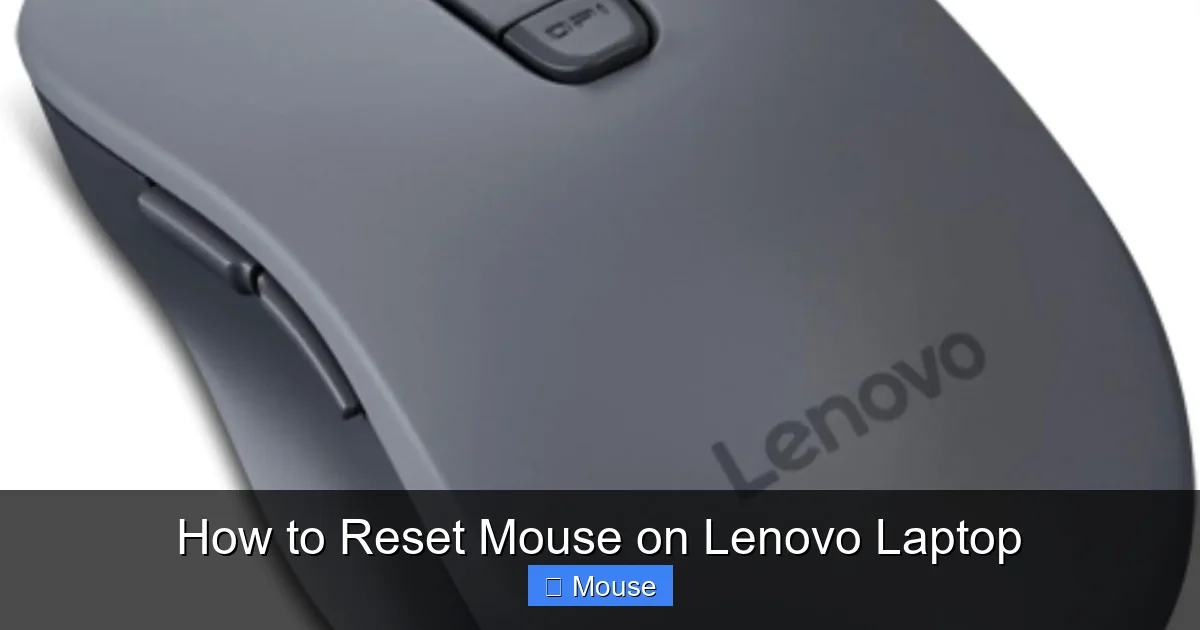
Visual guide about How to Reset Mouse on Lenovo Laptop
Image source: m.media-amazon.com
5.1 Uninstall and Reinstall the Touchpad Driver
- Back in Device Manager, right-click the touchpad and select Uninstall device.
- Check “Delete the driver software for this device” if available.
- Restart the laptop; Windows will automatically reinstall the driver.
5.2 Use System Restore
If the mouse stopped working after a recent update, try restoring to an earlier point:
- Search for “Create a restore point” and open it.
- Click System Restore and follow the prompts.
5.3 Contact Lenovo Support
If the issue persists, it might be a hardware fault. Reach out to Lenovo support or visit a service center.
6. Preventive Measures: Keeping Your Mouse in Top Shape
Once you’ve reset the mouse, keep it healthy with these habits.
Visual guide about How to Reset Mouse on Lenovo Laptop
Image source: hometechnerves.com
6.1 Update Drivers Regularly
Check Lenovo’s official website for the latest drivers.
6.2 Use a Protective Cover
A touchpad cover can protect against dust and accidental scratches.
6.3 Avoid Extreme Temperatures
High heat can cause internal components to misbehave. Keep your laptop on a flat, cool surface.
Conclusion: Your Mouse Is Back in Business
Resetting the mouse on a Lenovo laptop doesn’t have to be a headache. By following these steps—from a quick software toggle to a BIOS check—you’ll likely solve most issues. Remember, a simple disable/enable reset is often the fastest way to restore functionality. If you run into more complex problems, consider reaching out to Lenovo’s support or using a How To Get The Mouse Back On A Laptop guide for additional insight.

Visual guide about How to Reset Mouse on Lenovo Laptop
Image source: featurelens.com
Now that your touchpad is back online, enjoy smooth navigation and the confidence that you can handle any mouse hiccup that comes your way. Happy computing!
Frequently Asked Questions
How do I reset my mouse on a Lenovo laptop?
To reset your mouse on a Lenovo laptop, start by disconnecting any wireless devices. Then, go to the Lenovo Vantage software, navigate to the ‘Peripherals’ section, and select ‘Reset to Default Settings.’ This should restore default mouse configurations.
Is there a keyboard shortcut to reset the mouse on a Lenovo laptop?
There is no universal keyboard shortcut to reset the mouse on a Lenovo laptop. However, you can use the Lenovo Vantage tool or device settings to manually reset mouse settings, which avoids relying on a shortcut.
Why isn’t my Lenovo laptop mouse responding after a reset?
If your mouse isn’t responding after a reset, ensure the device is properly connected or paired. Check for driver updates via Windows Update or Lenovo Support, as outdated drivers can cause compatibility issues post-reset.
How to reset the mouse on a Lenovo ThinkPad laptop?
For Lenovo ThinkPad laptops, open the Lenovo Vantage app, go to ‘Peripherals,’ and choose ‘Mouse’ or ‘Touchpad.’ Select ‘Reset’ to revert to factory settings. If Vantage isn’t available, use the Device Manager in Windows to uninstall and reinstall the mouse driver.
Can I reset my wireless mouse on a Lenovo laptop?
Yes, you can reset a wireless mouse on a Lenovo laptop by removing the battery or unplugging the receiver. After a short wait, reconnect or re-pair the device. This process effectively resets the mouse’s connection to the laptop.
What if resetting the mouse on my Lenovo laptop doesn’t work?
If resetting the mouse doesn’t resolve issues, try troubleshooting steps like checking for physical damage, testing with another mouse, or running the Windows Troubleshooter. As a last resort, a full system restart or reinstalling the mouse driver may be necessary.