Mouse Pad on Laptop Not Working
Having trouble with the mouse pad on your laptop not working? This guide walks you through common causes, quick checks, and step‑by‑step solutions so you can restore smooth cursor control in minutes. From driver updates to hardware tweaks, we’ve got you covered.
Key Takeaways
- Check the basics first: A simple enable/disable toggle or a stray finger can disable the touchpad.
- Update or roll back drivers: Corrupt or outdated drivers are a top reason the mouse pad stops responding.
- Settings matter: Windows touchpad sensitivity, palm‑rejection, and power‑saving options can unintentionally turn the pad off.
- Hardware checks are essential: Loose cables, spilled liquids, or a faulty pad require physical inspection.
- External devices interfere: Connecting a USB mouse or certain keyboards may automatically disable the built‑in pad.
- BIOS/UEFI settings can disable the pad: A quick BIOS check can solve hidden disablements.
- When all else fails, seek professional help: Persistent issues may need a replacement part or expert service.
📑 Table of Contents
Introduction
Imagine you’re in the middle of an important video call, and suddenly the cursor freezes. You reach for the external mouse, but it’s not plugged in. The culprit? Your mouse pad on laptop not working. It’s a frustrating hiccup that can happen to anyone, whether you’re a student, a remote worker, or a casual gamer.
Luckily, most touchpad problems are solvable without a trip to the repair shop. In this article we’ll explore why the pad may stop responding, walk through quick diagnostics, and give you detailed, easy‑to‑follow fixes. By the end, you’ll know exactly how to get that smooth, buttery movement back.
1. Common Reasons the Touchpad Stops Working
1.1 Accidental Disablement
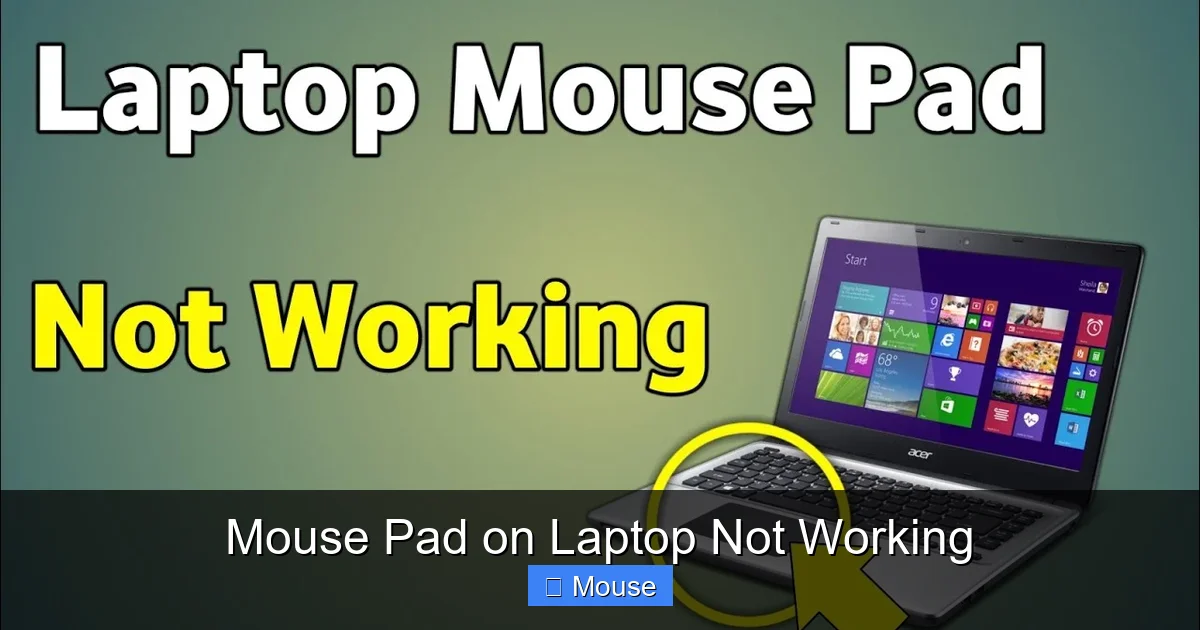
Many laptops have a function key (often Fn + F7 or a dedicated touchpad icon) that toggles the pad on and off. Pressing it by accident is the most common cause of a non‑responsive pad.
Visual guide about Mouse Pad on Laptop Not Working
Image source: i.ytimg.com
1.2 Driver Glitches
Touchpad drivers act as the translator between hardware and Windows. A corrupted driver, a recent Windows update, or an outdated driver can break that communication.
1.3 Power‑Saving Settings
To extend battery life, Windows may disable the touchpad when the laptop runs on low power or when an external mouse is detected.
1.4 BIOS/UEFI Configuration
Some manufacturers include a BIOS option to enable or disable the internal pointing device. If this is set to “Disabled”, the OS never sees the pad.
1.5 Physical Issues
Spilled coffee, dust under the pad, or a loose internal cable can cause the pad to stop sending signals.
2. Quick First‑Aid Checks
2.1 Verify the Touchpad Is Enabled
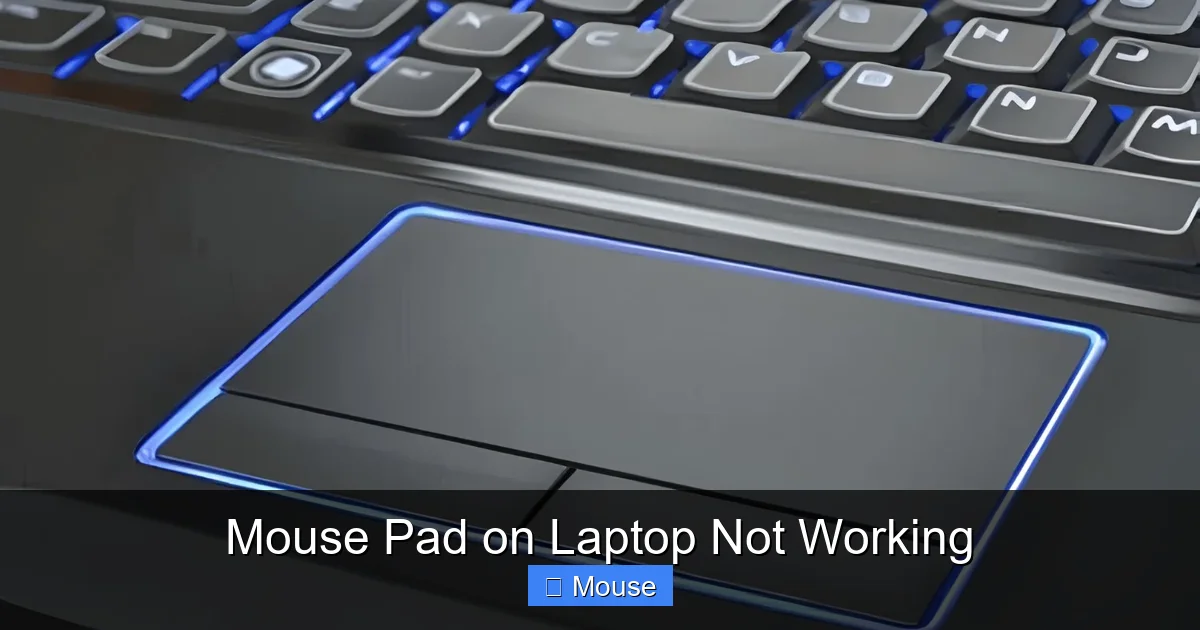
Go to Settings → Devices → Touchpad and make sure the toggle is turned on. On many laptops you can also double‑tap the top‑left corner of the pad to re‑enable it.
Visual guide about Mouse Pad on Laptop Not Working
Image source: robots.net
2.2 Test With an External Mouse
Plug in a USB or Bluetooth mouse. If it works, Windows is fine; the issue is likely limited to the built‑in pad.
2.3 Restart Your Laptop
A simple reboot clears temporary glitches and reloads drivers. It’s worth doing before diving into deeper troubleshooting.
3. Updating or Reinstalling Touchpad Drivers
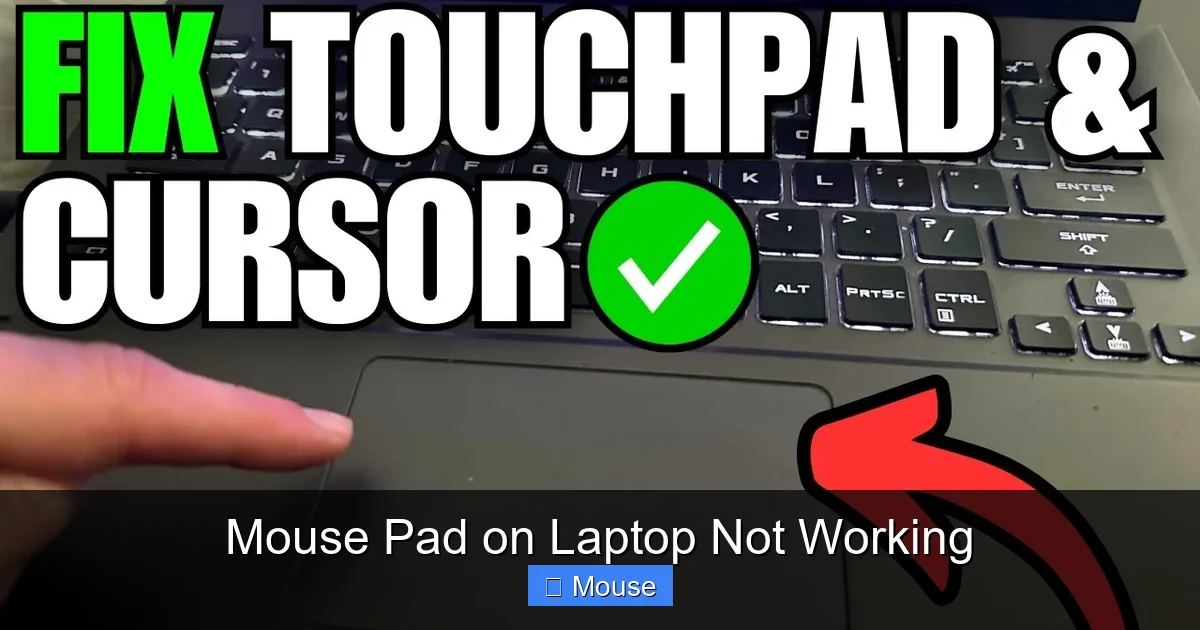
3.1 Identify Your Touchpad Model
Open Device Manager (right‑click the Start button → Device Manager). Expand “Mice and other pointing devices”. Look for entries like “Synaptics Touchpad”, “ELAN”, or “Microsoft Precision Touchpad”.
Visual guide about Mouse Pad on Laptop Not Working
Image source: i.ytimg.com
3.2 Download the Latest Driver
Visit the laptop manufacturer’s support page and locate the driver that matches your model and Windows version. For example, Dell users can check the Dell Laptop Mouse Pad Not Working guide for specific links.
3.3 Install and Restart
Run the installer, follow prompts, and restart. If the new driver doesn’t help, try rolling back to a previous version via the driver’s Properties tab in Device Manager.
4. Adjusting Windows Touchpad Settings
4.1 Sensitivity and Palm‑Rejection
In Settings → Devices → Touchpad, adjust the sensitivity slider. If it’s set too low, the pad may not register light taps.
Visual guide about Mouse Pad on Laptop Not Working
Image source: zappedia.com
4.2 Disable “Leave Touchpad On When a Mouse Is Connected”
Uncheck the option that automatically disables the pad when an external mouse is attached. This prevents unexpected turn‑offs.
4.3 Power Management Tweaks
Open Device Manager, right‑click your touchpad entry, choose Properties → Power Management, and clear “Allow the computer to turn off this device to save power”. This ensures the pad stays active even on battery.
5. BIOS/UEFI Checks and Firmware Updates
5.1 Accessing BIOS
Restart the laptop and press the manufacturer‑specific key (often F2, Del, or Esc) to enter BIOS/UEFI. Look for a menu named “Internal Pointing Device”, “Touchpad”, or “Trackpad”. Make sure it is set to “Enabled”.
5.2 Updating Firmware
Some touchpad issues are resolved by a BIOS update. Download the latest BIOS from the vendor’s site and follow the provided instructions carefully.
6. Dealing with Hardware Problems
6.1 Cleaning the Pad
Turn off the laptop, disconnect power, and gently wipe the touchpad with a microfiber cloth slightly dampened with isopropyl alcohol. Avoid excess moisture.
6.2 Checking Internal Connections
If you’re comfortable opening the chassis, locate the flat ribbon cable that connects the pad to the motherboard. Ensure it’s seated securely. This step is common for Dell and Lenovo models; see the Laptop Mouse Pad Not Working article for model‑specific disassembly tips.
6.3 When the Pad Is Physically Damaged
Cracks, warping, or liquid damage usually mean the pad needs replacement. Contact the manufacturer’s service center or a reputable repair shop.
7. Special Cases: Brand‑Specific Issues
7.1 Lenovo Laptops
Lenovo often uses the “ThinkPad” series with a dedicated “TrackPoint” toggle. Ensure the “F6” key isn’t disabling the pad. For deeper issues, review the Mouse On Laptop Not Working Lenovo guide.
7.2 HP Laptops
HP devices sometimes hide the touchpad settings under “HP Settings”. Also, HP’s “HP Support Assistant” can automatically detect driver problems.
7.3 Acer and ASUS Models
These brands may use ELAN drivers. If Windows shows “ELAN Touchpad” with a yellow warning sign, reinstall the driver from the Acer/ASUS support page.
Conclusion
The mouse pad on laptop not working is rarely a sign of a dead device. Most issues stem from simple software settings, outdated drivers, or a loose connection that you can fix at home. Start with the quick checks, move on to driver updates, and only then consider hardware repair. By following the steps outlined above, you’ll likely have your cursor gliding smoothly again in no time.
If you’ve tried everything and still face problems, don’t hesitate to reach out to professional support. Remember, a well‑maintained touchpad can last the entire life of your laptop.
Frequently Asked Questions
Why does my touchpad stop working after a Windows update?
Windows updates can replace or reset driver files, causing incompatibility with the existing touchpad driver. Reinstalling the latest driver from the manufacturer usually resolves the issue.
Can an external mouse permanently disable the laptop’s touchpad?
Some laptops automatically disable the built‑in pad when an external mouse is detected. Disable this feature in Settings → Devices → Touchpad to keep both active.
Is it safe to clean the touchpad with water?
No. Use a lightly dampened microfiber cloth with isopropyl alcohol. Excess moisture can seep into the device and cause damage.
How do I know if the touchpad hardware is faulty?
If the pad doesn’t respond after driver updates, BIOS checks, and cleaning, and if you notice physical damage or liquid spillage, the hardware is likely at fault and may need replacement.
Why does the cursor disappear but the touchpad still works?
This can happen when the cursor is hidden due to a software glitch or when the display driver crashes. Restarting Windows or updating the display driver often restores the cursor.
Do I need to reinstall Windows to fix a non‑responsive touchpad?
Reinstalling Windows is a last‑resort step. In most cases, driver reinstall, BIOS check, or a simple settings tweak resolves the problem without a full OS reinstall.