Having trouble adjusting your mouse speed on an Apple laptop? You’re not alone. The issue often stems from macOS settings, trackpad drivers, or conflicting external devices. Follow our step‑by‑step guide to diagnose and fix the problem, ensuring a smoother, more responsive cursor experience.
Picture this: you’re working on a spreadsheet, the cursor moves predictably at first, then suddenly it blinks, lags, or refuses to pick up the speed slider you set. If you’re using an Apple laptop, you might be wondering why mouse speed is not changing in Apple laptop even after multiple attempts. The good news is that this problem is usually solvable with a few targeted steps. In this guide, we’ll walk you through the most common causes and practical solutions, from simple preference tweaks to deeper system resets.
Key Takeaways
- Check System Preferences: The first line of defense is the Mouse & Trackpad settings under System Settings.
- Update macOS: Keeping your OS current resolves many cursor‑speed glitches.
- Reset NVRAM/PRAM: A simple reset often clears hidden configuration errors.
- External Devices: Disconnect or update drivers for any connected mice or touchpads.
- Accessibility Settings: Features like “Shake mouse pointer to locate” can interfere with speed adjustments.
📑 Table of Contents
1. Understanding Mouse Speed in macOS
Apple’s macOS treats the trackpad and any connected mouse as a single “pointer” system. The speed setting you see in System Settings is a global factor that applies to both input devices. This means that if you change the slider, it should affect your cursor regardless of whether you’re using the built‑in trackpad or an external USB/Bluetooth mouse.
1.1 How macOS Calculates Pointer Speed
macOS calculates pointer velocity using a combination of acceleration curves and a base speed. The slider you adjust is a multiplier; the system then applies acceleration based on how fast you move the input device. This explains why some users see a dramatic speed change while others notice only a subtle shift.
1.2 Common Misconceptions
Many users think the trackpad’s “natural scrolling” setting or the “Three‑Finger Drag” gesture can alter speed. In reality, these settings affect scrolling behavior, not pointer velocity. Likewise, the “Shake mouse pointer to locate” feature can make the cursor jump, giving the illusion of a speed glitch.
2. Quick Fixes: The First 10 Minutes
Before diving into advanced troubleshooting, try these straightforward steps. They often resolve the issue with minimal effort.
Visual guide about Mouse Speed Is Not Changing in Apple Laptop
Image source: citizenside.com
2.1 Adjust the Speed Slider
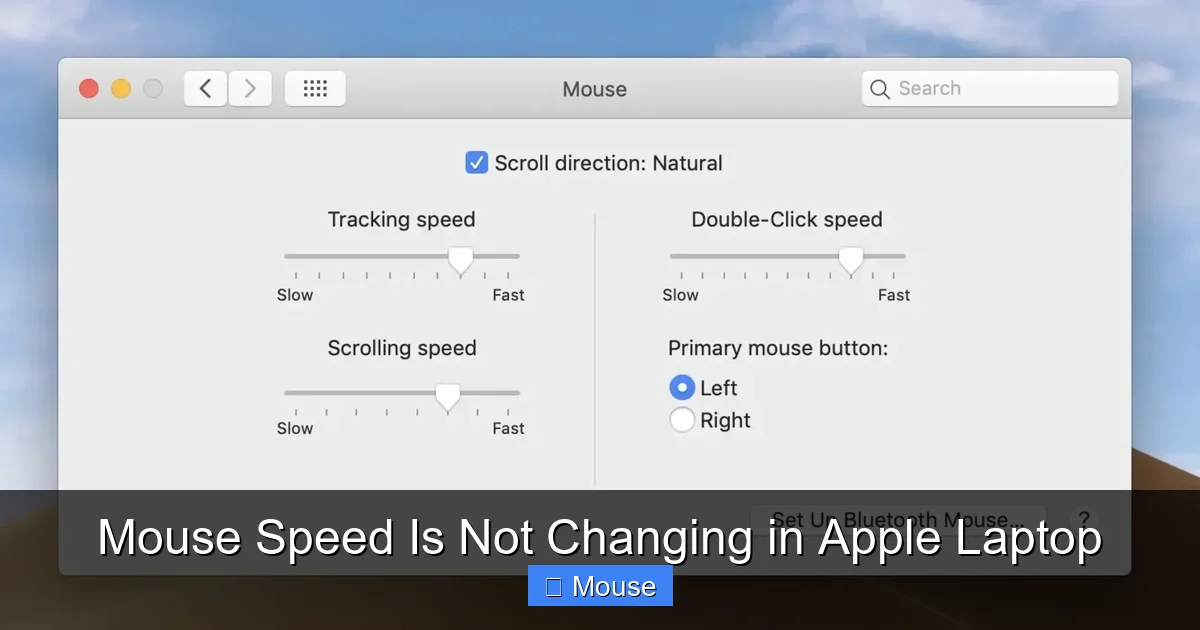
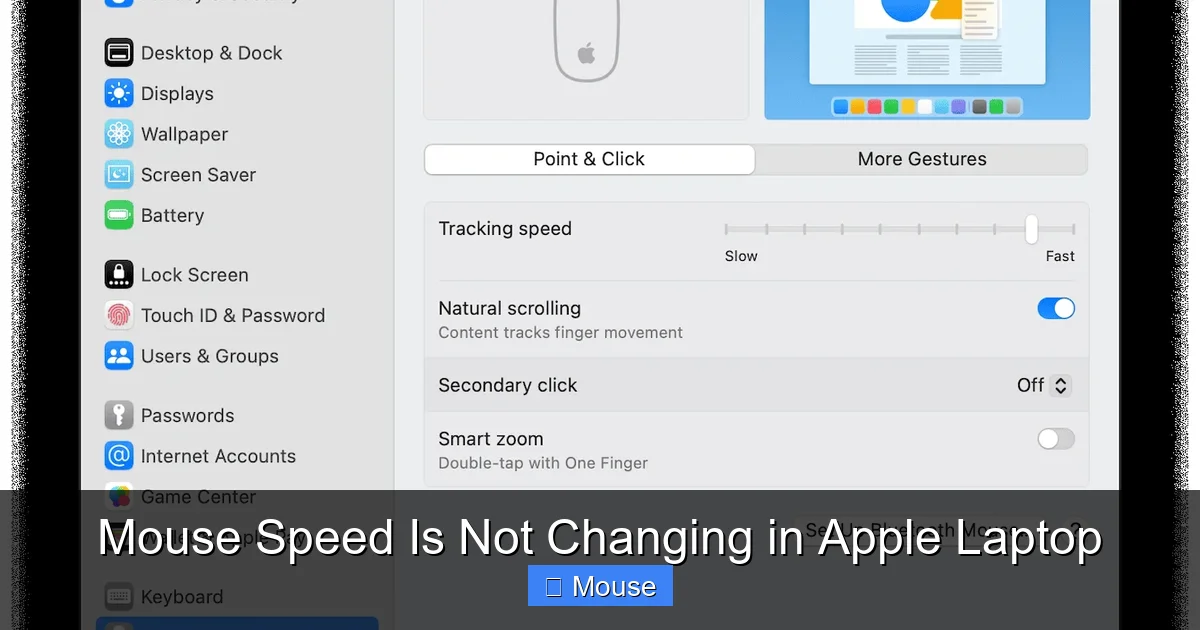
Open System Settings → Mouse & Trackpad. Move the “Cursor speed” slider left or right and watch the preview. If the preview doesn’t update, the problem is deeper.
2.2 Toggle the Trackpad Off/On
Turning the trackpad off (in the same Settings panel) forces macOS to rely solely on the external mouse. If the speed changes after toggling, the trackpad may be corrupted.
2.3 Re‑pair the External Mouse
Disconnect the mouse, wait a few seconds, then reconnect. For Bluetooth mice, try Bluetooth Settings → Assistive Devices and toggle “Enable Mouse & Trackpad” off and back on.
2.4 Check for Other Software
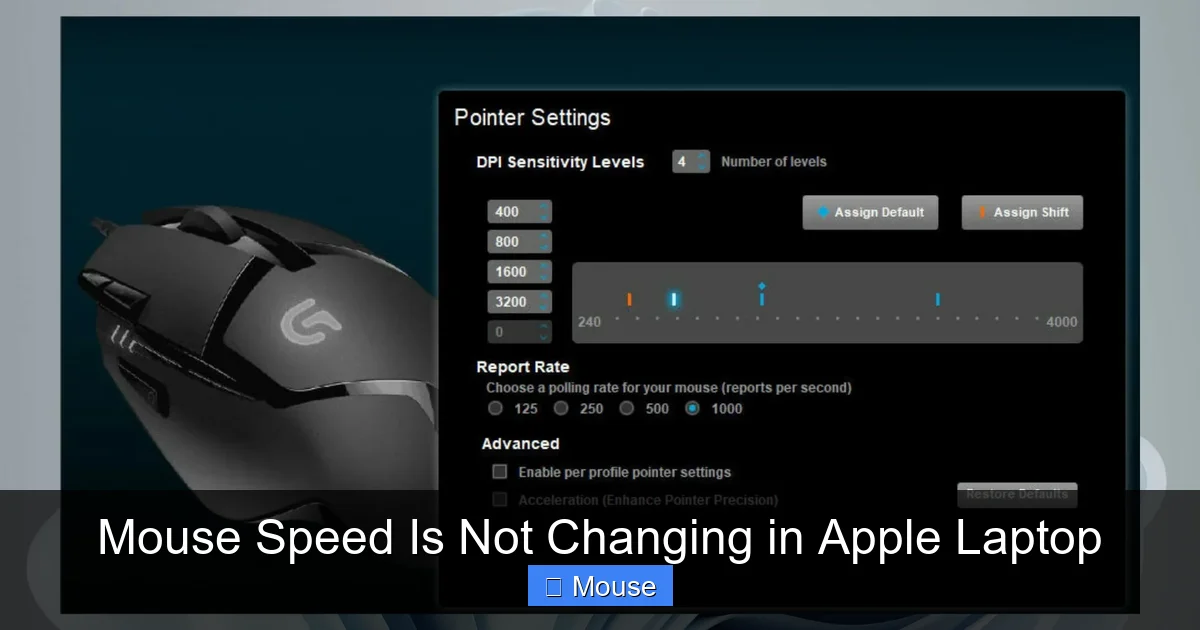
Third‑party utilities like SteerMouse or USB Overdrive can override system settings. If you have such software installed, disable or uninstall it to see if the speed slider resumes control.
3. System Settings Deep Dive
If the quick fixes don’t work, it’s time to explore the System Settings more thoroughly. We’ll cover the relevant tabs, hidden options, and how to reset them.
Visual guide about Mouse Speed Is Not Changing in Apple Laptop
Image source: macbookjournal.com
3.1 Reset Trackpad Preferences
Navigate to System Settings → Trackpad. Toggle each gesture off, close Settings, then open it again and toggle them back on. This forces macOS to re‑initialize the trackpad drivers.
3.2 Accessibility Overrides
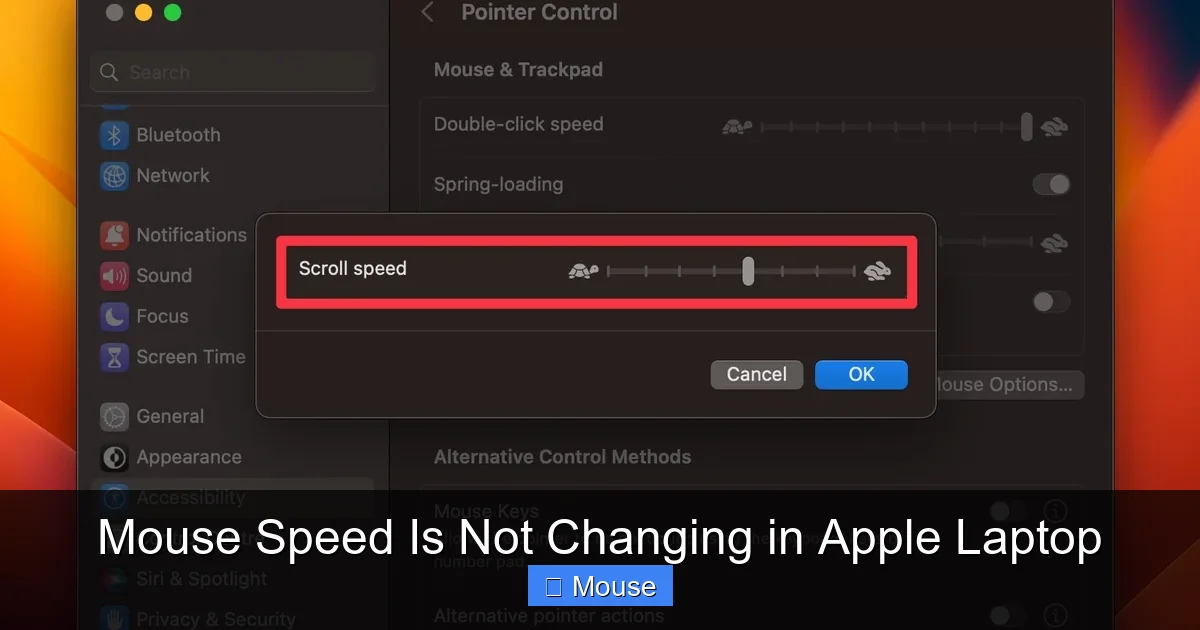
Go to System Settings → Accessibility → Pointer Control. Here you’ll find the “Shake mouse pointer to locate” toggle. Disable it; sometimes this feature can interfere with the speed slider by making the pointer jump unexpectedly.
3.3 Mouse & Trackpad Input Sources
Under System Settings → Input Sources, ensure that the correct input device is active. If a language or layout is overriding, it may affect pointer responsiveness.
4. Advanced Troubleshooting Steps
When basic settings fail, we need to reset or re‑install system components. These steps are a bit more involved but usually bring the mouse speed back to normal.
Visual guide about Mouse Speed Is Not Changing in Apple Laptop
Image source: rmupdate.com
4.1 Reset NVRAM/PRAM
1. Shut down your Mac. 2. Turn it on and immediately press and hold Option + Command + P + R for about 20 seconds. 3. Release the keys; your Mac will restart. This clears stored settings that might be causing the speed issue.
4.2 Reset SMC (System Management Controller)
For MacBooks with the T2 chip, follow Apple’s guide to SMC reset. This step can resolve hardware‑related input problems that aren’t fixed by NVRAM reset.
4.3 Reinstall macOS
If all else fails, reinstalling macOS via Recovery Mode can replace corrupted system files. Remember to back up your data first.
5. External Mouse Specific Issues
Sometimes the problem lies with the mouse itself rather than the laptop. Check these areas if you’re using a USB or Bluetooth mouse.
Visual guide about Mouse Speed Is Not Changing in Apple Laptop
Image source: pctips.com
5.1 USB Port Integrity
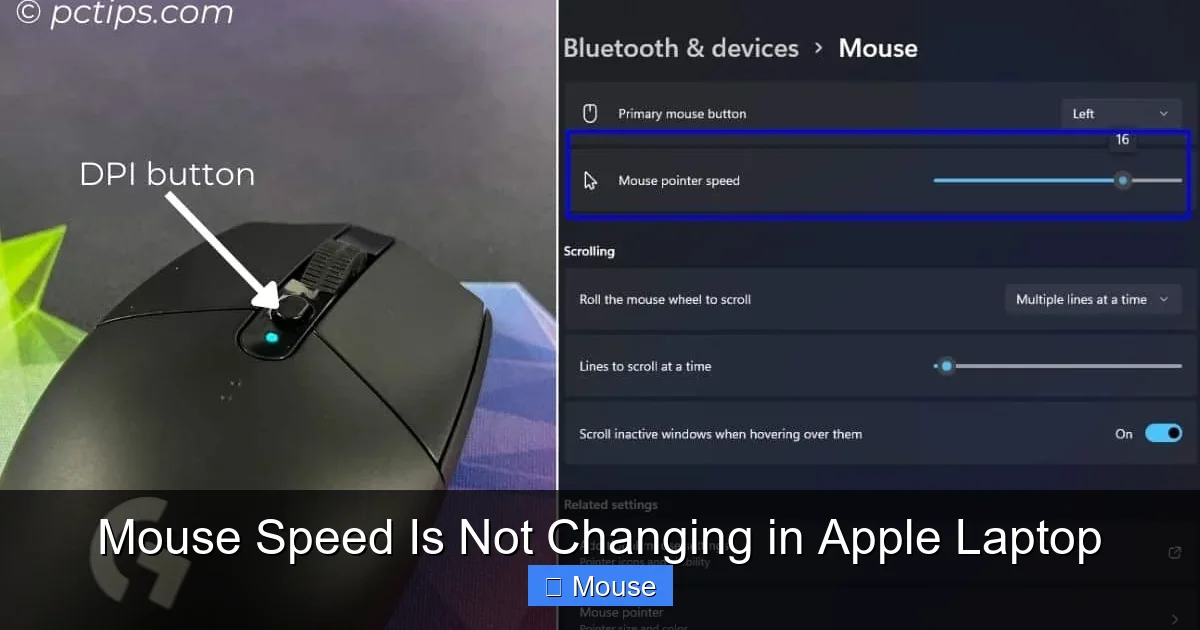
Try a different USB port. A faulty port can transmit incomplete data, affecting speed.
5.2 Mouse Firmware Updates
Manufacturers often release firmware updates that improve compatibility with macOS. Visit the mouse’s website and install any available updates.
5.3 Battery Health for Bluetooth Mice
Low battery can cause lag. Replace or recharge the mouse battery and test again.
6. When to Seek Professional Help
If you’ve exhausted all the above steps and the mouse speed still won’t change, it may be time to contact Apple Support or visit an Apple Store. Hardware failure in the trackpad or motherboard could be the culprit.
Visual guide about Mouse Speed Is Not Changing in Apple Laptop
Image source: cdn.shopify.com
6.1 Apple Diagnostics
Run Apple Diagnostics by restarting and holding the D key. Follow the on‑screen prompts to check for hardware issues.
6.2 Service Appointment
Schedule an appointment through Apple Support or a certified technician. Bring your MacBook and any external mice you use for a comprehensive check.
Conclusion
Having your mouse speed not changing in Apple laptop can feel like a frustrating glitch, but the good news is that most causes are straightforward to diagnose and fix. Start with the quick checks in System Settings, then move to more advanced resets if needed. Remember to keep your macOS updated and to manage any third‑party mouse utilities responsibly. By following this guide, you’ll restore smooth, responsive cursor movement and get back to working efficiently.
Visual guide about Mouse Speed Is Not Changing in Apple Laptop
Image source: cdn.cleanmymac.com
Frequently Asked Questions
Why is my mouse speed not changing on my MacBook?
Often the issue stems from corrupted trackpad settings or conflicting third‑party mouse utilities. Resetting NVRAM or toggling the trackpad off and on can resolve the problem.
Can a Bluetooth mouse cause speed issues on macOS?
Yes, low battery, outdated firmware, or interference from other wireless devices can affect pointer speed. Updating firmware and ensuring a strong connection helps.
Does disabling “Shake mouse pointer to locate” affect cursor speed?
It can. This feature can cause the pointer to jump, which may look like a speed issue. Turning it off usually restores normal behavior.
What if my external mouse still doesn’t respond after all these steps?
Try the mouse on another computer. If it works elsewhere, the issue is likely with your MacBook’s settings or hardware, not the mouse itself.
Can macOS updates fix pointer speed problems?
Yes, Apple frequently releases updates that include driver fixes for input devices. Keep your system up to date to benefit from these improvements.
Is there a way to manually tweak pointer acceleration curves?
macOS doesn’t provide native tools for that, but third‑party apps like SteerMouse or USB Overdrive allow advanced acceleration adjustments if you need finer control.