Having trouble adjusting mouse speed on a Windows 11 laptop? This guide walks you through the most common reasons the setting won’t stick and provides clear, step‑by‑step solutions. From simple tweaks in Settings to driver updates and registry fixes, you’ll be back to a smooth cursor in no time.
Key Takeaways
- Check basic settings first: The Mouse Speed slider in Settings often resets due to a hidden “Enhance pointer precision” option.
- Update or roll back drivers: A recent driver change can lock the speed setting; reinstalling the correct driver usually solves the problem.
- Registry edits can help: Modifying the `MouseSensitivity` value in the registry forces Windows to respect your chosen speed.
- Disable conflicting software: Third‑party mouse utilities or touchpad apps may override Windows settings.
- Hardware issues matter: Faulty touchpads or USB ports can make it seem like the speed isn’t changing when the device itself is at fault.
- System updates are a double‑edged sword: New Windows 11 updates sometimes reset mouse preferences; knowing how to re‑apply them saves time.
- Backup before major changes: Creating a restore point or backing up the registry protects you from accidental mis‑configurations.
📑 Table of Contents
Introduction
Imagine you’re scrolling through a document on your brand‑new Windows 11 laptop, but the cursor moves either too slowly or too quickly no matter how many times you adjust the mouse speed slider. Frustrating, right? You’re not alone. Many users report that the mouse speed setting simply won’t change, and the problem can be caused by anything from a tiny registry glitch to a stubborn driver conflict.
In this article we’ll treat the issue like a friendly troubleshooting session. We’ll start with the easiest fixes, then move on to deeper system tweaks, and finally cover what to do if the problem is hardware‑related. By the end, you’ll have a clear action plan and know exactly which step to take next.
1. Verify the Basic Settings
1.1 Open the Mouse Settings in Windows 11
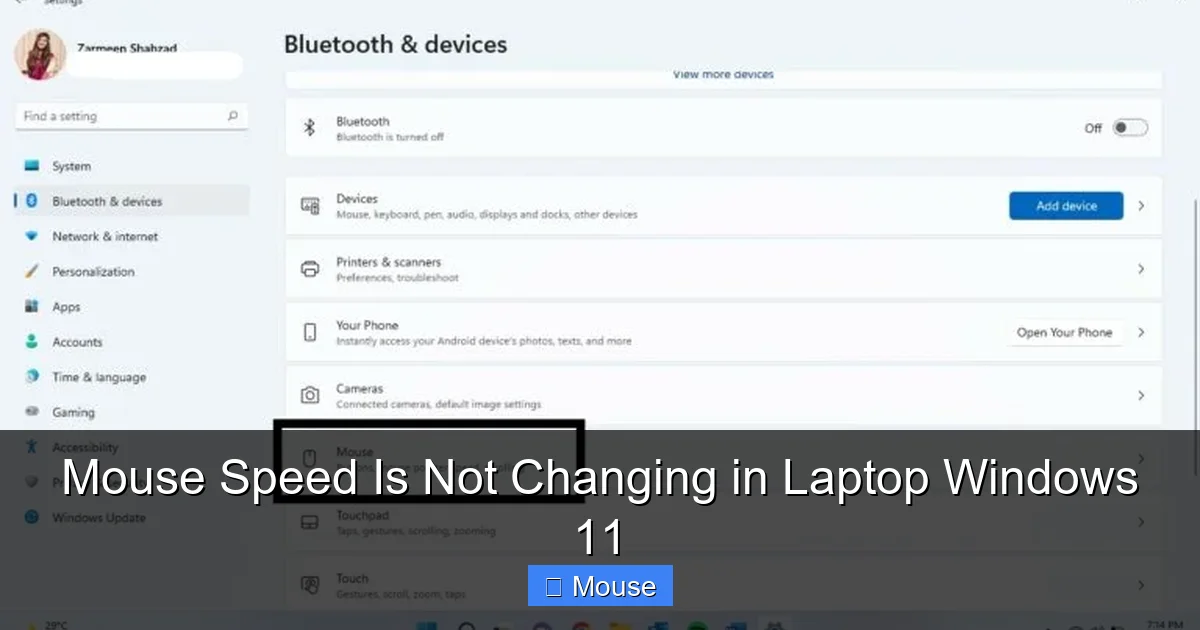
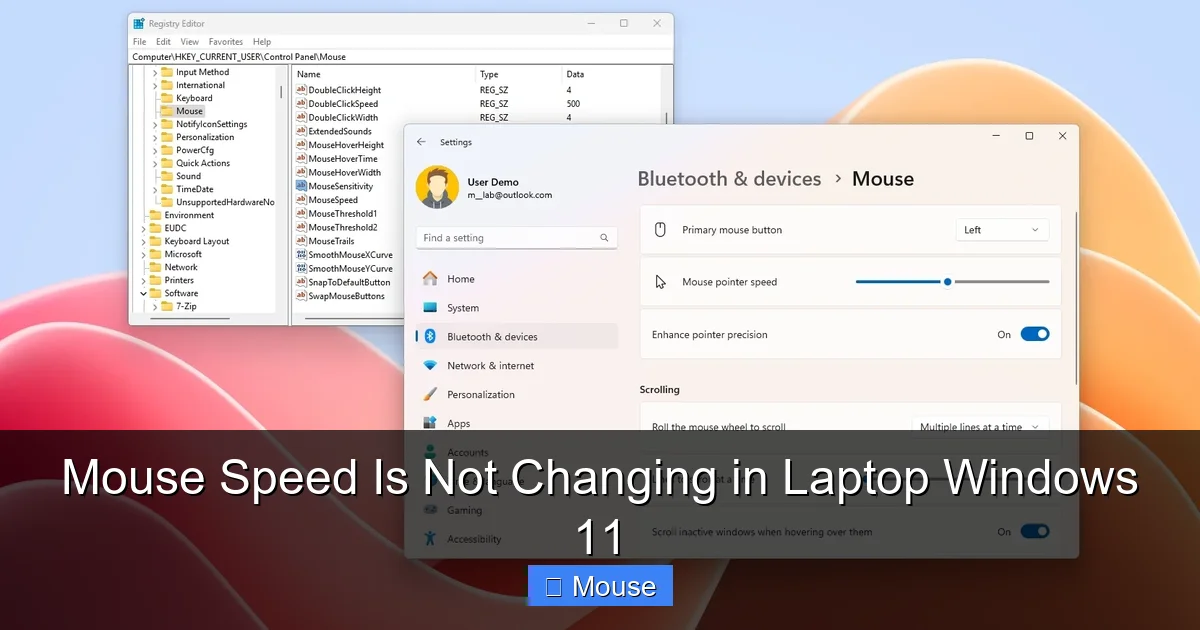
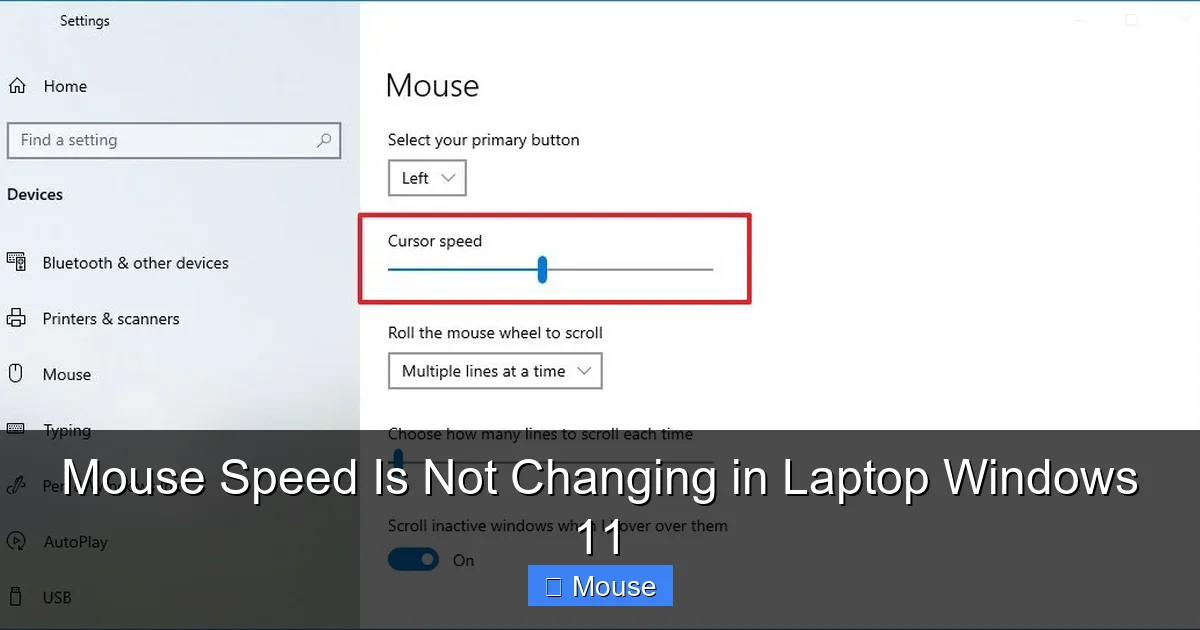
First, make sure you’re looking at the right place. Press Windows + I to open Settings, then navigate to Bluetooth & devices > Mouse. Here you’ll see the primary “Mouse speed” slider.
Visual guide about Mouse Speed Is Not Changing in Laptop Windows 11
Image source: cdn.wccftech.com
1.2 Check “Enhance pointer precision”
This option, found under Additional mouse options → Pointer Options, can override the speed slider. If it’s turned on, the cursor may feel jittery or unresponsive. Try turning it off, click Apply, and then adjust the speed again.
1.3 Test with a different mouse
Plug in a USB mouse or a Bluetooth mouse you know works on another computer. If the speed changes normally, the issue is likely tied to your original device or its driver.
2. Update or Roll Back Mouse Drivers
2.1 Why drivers matter
Windows 11 relies on the mouse driver to interpret your speed setting. A corrupted or mismatched driver can ignore the slider, leaving the cursor stuck at a default speed.
Visual guide about Mouse Speed Is Not Changing in Laptop Windows 11
Image source: cdn.mos.cms.futurecdn.net
2.2 How to update the driver
- Right‑click the Start button and select Device Manager.
- Expand the Mice and other pointing devices section.
- Right‑click your mouse (or touchpad) and choose Update driver → Search automatically for drivers.
- Restart the laptop after the update finishes.
2.3 Rolling back a recent driver
If the problem started after a Windows update, the new driver may be the culprit. In Device Manager, right‑click the device, select Properties → Driver tab, then click Roll Back Driver. Confirm and reboot.
3. Use the Registry to Force a New Speed
3.1 Understanding the relevant keys
The registry stores the value that Windows reads for mouse sensitivity. The key is:
Visual guide about Mouse Speed Is Not Changing in Laptop Windows 11
Image source: guidingtech.com
HKEY_CURRENT_USER\Control Panel\Mouse\MouseSensitivity
The default value is 10 (range 1–20). Changing this manually can make Windows accept the speed you want.
3.2 Editing the registry safely
- Press Windows + R, type
regedit, and press Enter. - Navigate to the path above.
- Double‑click MouseSensitivity and set a number between 1 and 20 (e.g., 15 for a faster cursor).
- Close Regedit and restart your computer.
3.3 Back up before you edit
Right‑click the Mouse key and choose Export. Save the .reg file somewhere safe. If anything goes wrong, double‑click the file to restore the original values.
4. Disable Conflicting Software
4.1 Third‑party mouse utilities
Programs like Logitech Options, Razer Synapse, or even some touchpad enhancement tools can force their own speed settings. Open the utility and either set the speed there or temporarily disable the software to see if Windows regains control.
Visual guide about Mouse Speed Is Not Changing in Laptop Windows 11
Image source: cdn.wccftech.com
4.2 Touchpad settings overriding the mouse
On many laptops the built‑in touchpad shares the same pointer configuration. Go to Settings > Bluetooth & devices > Touchpad and make sure the “Touchpad sensitivity” isn’t set to a value that conflicts with your external mouse.
4.3 Example of a related issue
If you’re also experiencing touchpad problems, our article Laptop Mouse Touchpad Not Working dives deeper into how touchpad drivers can affect overall pointer behavior.
5. Check for Hardware Problems
5.1 Faulty USB port or Bluetooth adapter
Sometimes the port you’re using simply isn’t delivering stable power or data. Try a different USB port, or move the Bluetooth receiver to the opposite side of the laptop.

Visual guide about Mouse Speed Is Not Changing in Laptop Windows 11
Image source: thewindowsclub.com
5.2 Damaged mouse sensor
Even a brand‑new mouse can have a defective sensor that reports inconsistent movement, making it look like the speed setting isn’t applied. Test the mouse on another computer; if the problem follows, replace the device.
5.3 Touchpad hardware failure
A failing touchpad can send erratic signals that override external mouse settings. If disabling the touchpad (via the function key or Settings) stops the issue, you may need to replace the touchpad or get professional service.
6. Reset Windows Settings or Perform a System Restore
6.1 Reset mouse settings to default
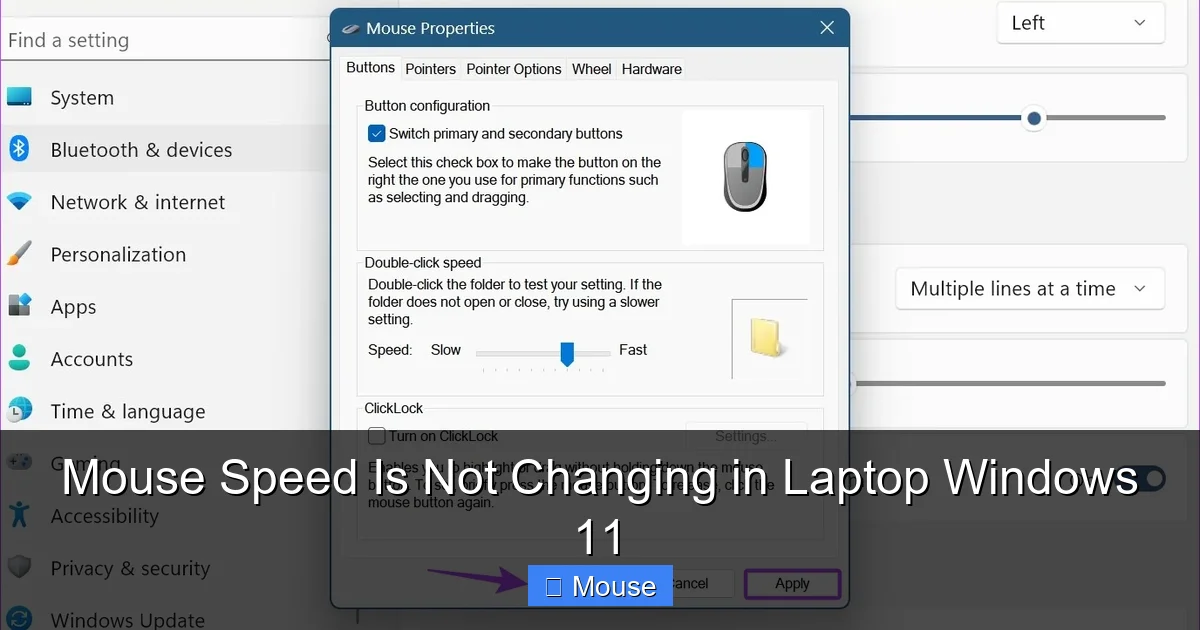
Open Control Panel → Mouse → Buttons tab and click Restore Defaults. Then re‑apply your preferred speed.

Visual guide about Mouse Speed Is Not Changing in Laptop Windows 11
Image source: media.geeksforgeeks.org
6.2 Use System Restore
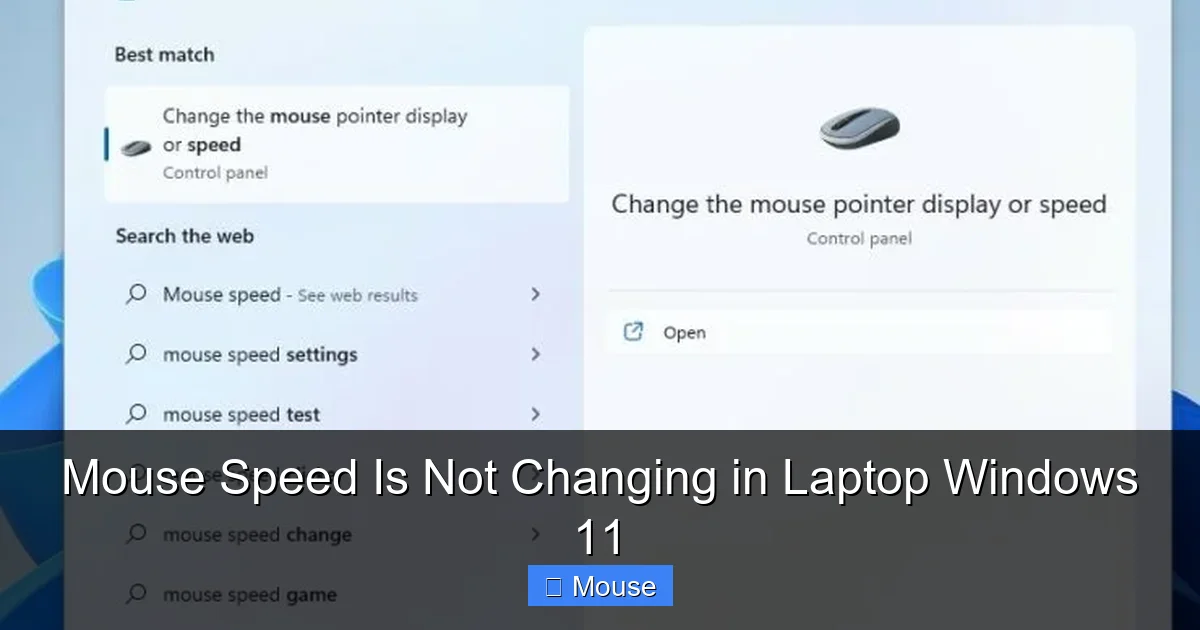
If the issue began after a specific update, open System Restore (search “Create a restore point”), choose a restore point from before the problem started, and follow the wizard.
6.3 When to consider a clean install
As a last resort, a clean Windows 11 installation will definitely reset all mouse configurations. Back up your data first, and only use this step if all other troubleshooting fails.
Conclusion
Mouse speed not changing on a Windows 11 laptop can feel like a small annoyance, but it often signals an underlying software or hardware conflict. By walking through the basic settings, updating drivers, tweaking the registry, disabling interfering programs, and checking the hardware, you can pinpoint the cause and apply the right fix.
Visual guide about Mouse Speed Is Not Changing in Laptop Windows 11
Image source: windowscentral.com
Remember to create a restore point before making registry changes, keep your drivers up to date, and test with another mouse to rule out hardware failure. With these steps in your toolbox, you’ll have a responsive cursor that moves exactly how you want—no more guessing, no more frustration.
Frequently Asked Questions
Why does the mouse speed slider move but the cursor stays the same?
Often the “Enhance pointer precision” option or a third‑party utility is overriding the Windows setting, causing the slider to appear functional while the actual speed remains unchanged.
Can a Windows 11 update reset my mouse speed?
Yes. Major feature updates sometimes reinstall default drivers and reset pointer preferences. Re‑applying your preferred speed after the update usually resolves the issue.
Is it safe to edit the registry to fix mouse speed?
It is safe if you back up the specific key first. Export the Mouse registry key, make the change, and restart. If anything goes wrong, you can double‑click the exported .reg file to restore the original values.
My external mouse works, but the touchpad speed won’t change. What should I do?
Open Settings > Bluetooth & devices > Touchpad and adjust the “Touchpad sensitivity” there. Also ensure no touchpad‑specific driver software is overriding the Windows setting.
Will disabling “Enhance pointer precision” affect gaming performance?
Turning off this option gives a linear cursor movement, which many gamers prefer for consistency. It won’t harm normal desktop use and can actually improve precision in fast‑paced games.
Do I need to reinstall Windows if none of the fixes work?
A clean reinstall is a last‑ditch option. Before taking that step, try System Restore, a fresh driver install, and testing with a different mouse. Most speed‑related problems are resolved without reinstalling the OS.