Mouse Stopped Working on Hp Laptop

Having trouble with a mouse that stopped working on your HP laptop? From simple settings tweaks to driver reinstallations, this guide walks you through practical fixes you can try right now. Get your cursor back and keep working without delay.
Key Takeaways
- Check hardware first: A loose USB port or dead battery can be the culprit.
- Update or roll back drivers: Corrupt drivers are a common cause of mouse failure.
- Toggle touchpad settings: Accidental disablement often stops the built‑in mouse.
- Run Windows troubleshooting tools: Built‑in diagnostics can automatically repair many issues.
- Consider BIOS/UEFI settings: Some HP models have mouse control options at the firmware level.
- Backup before major changes: Create a restore point to avoid data loss.
- When all else fails, seek professional help: Persistent problems may require hardware replacement.
📑 Table of Contents
Introduction
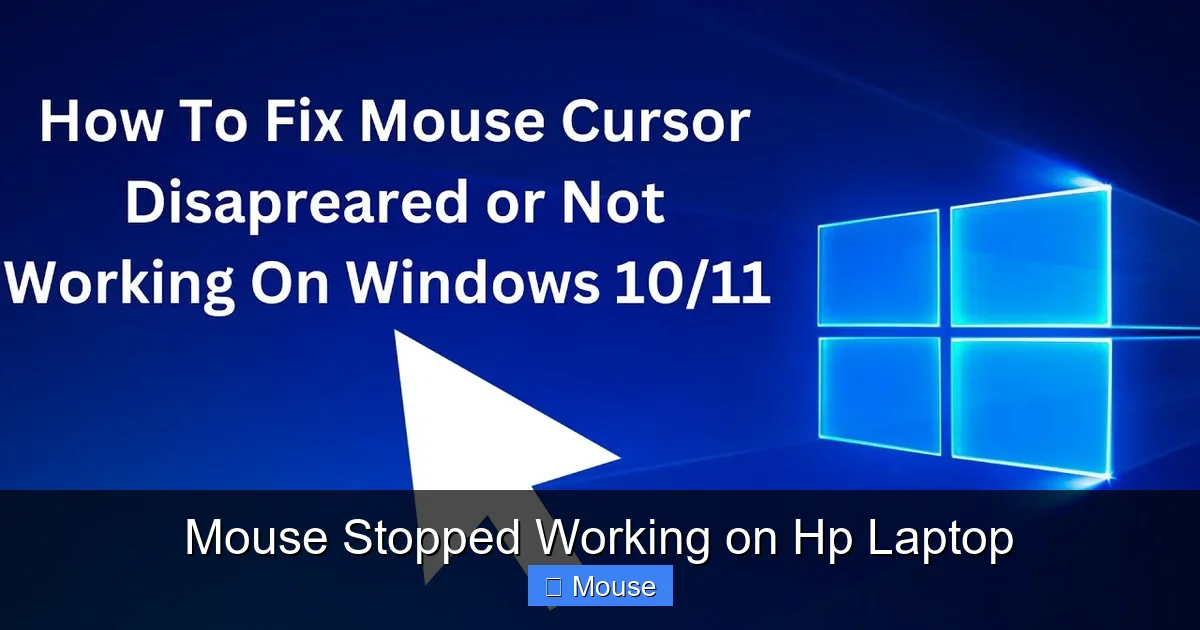
Imagine you’re in the middle of an important project, and suddenly the cursor disappears. The mouse on your HP laptop has just stopped working, and nothing seems to respond. It’s a frustrating moment, but you don’t have to panic. Most mouse issues are caused by simple software glitches or a loose connection, and they can be resolved in just a few minutes.
In this article we’ll walk through every possible reason why a mouse might stop working on an HP laptop and give you clear, step‑by‑step solutions. Whether you use a built‑in touchpad, an external USB mouse, or a Bluetooth device, the same troubleshooting principles apply. By the end, you’ll know exactly how to bring the cursor back to life.
1. Basic Checks Before Diving Deeper
1.1 Verify Power and Connections
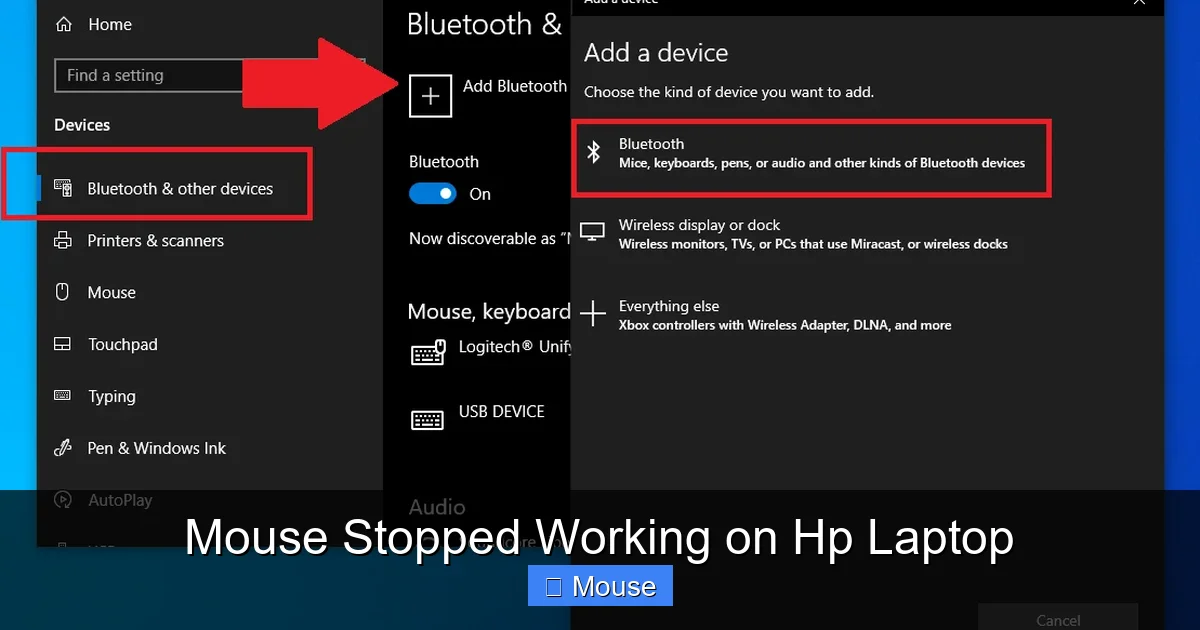
Start with the easiest things. If you’re using a USB mouse, unplug it and plug it back into a different USB port. Sometimes the port itself is faulty. For wireless mice, replace the batteries or recharge the unit. Make sure the Bluetooth toggle on your HP laptop is turned on: Settings → Devices → Bluetooth & other devices.
Visual guide about Mouse Stopped Working on Hp Laptop
Image source: i.pcmag.com
1.2 Restart Your Laptop
A quick restart clears temporary glitches that may be blocking the mouse driver. Click Start → Power → Restart and watch if the cursor reappears after boot.
1.3 Test the Mouse on Another Device
If possible, connect the same mouse to another computer. If it works elsewhere, the issue is likely with your HP laptop’s software or settings, not the mouse hardware.
2. Software Causes and How to Fix Them
2.1 Update or Roll Back the Mouse Driver
Corrupt or outdated drivers are a top reason for mouse failure. Follow these steps:
Visual guide about Mouse Stopped Working on Hp Laptop
Image source: i.ytimg.com
- Press Windows + X and select Device Manager.
- Expand the Mice and other pointing devices section.
- Right‑click your mouse entry (e.g., HID-compliant mouse) and choose Update driver. Select “Search automatically for updated driver software.”
- If the update doesn’t help, right‑click again and choose Properties → Driver → Roll Back Driver (if the option is available).
For HP‑specific driver packs, visit the official HP Support site and download the latest HP Wireless Mouse Driver for your model.
2.2 Disable and Re‑Enable the Touchpad
Accidentally pressing the touchpad disable shortcut (often Fn + F6 or F7 on HP laptops) can make the built‑in mouse stop working. To re‑enable:
- Go to Settings → Devices → Touchpad.
- Toggle the touchpad switch to On.
- If you don’t see the switch, click Additional mouse options on the right, then the Device Settings tab, and enable the touchpad.
For more details on unlocking the touch mouse, see our guide How To Unlock Touch Mouse On HP Laptop.
2.3 Run Windows Troubleshooter
Windows includes a built‑in troubleshooter that can detect and fix common mouse problems.
- Open Settings → Update & Security → Troubleshoot.
- Click Additional troubleshooters, then select Hardware and Devices.
- Run the troubleshooter and follow any recommended actions.
2.4 Check for Conflicting Software
Some third‑party utilities (like custom mouse software or remote‑desktop apps) can interfere with the default driver. Temporarily disable or uninstall recent programs to see if the mouse returns.
3. Touchpad Specific Issues
3.1 Adjust Sensitivity and Palm‑Check Settings
Too‑high palm‑check can make the touchpad ignore your finger. Navigate to Settings → Devices → Touchpad → Additional settings**. In the Dell Synaptics or ELAN control panel, lower the palm‑check or increase sensitivity.
Visual guide about Mouse Stopped Working on Hp Laptop
Image source: i.ytimg.com
3.2 Update the Touchpad Firmware
HP often releases firmware updates for the touchpad controller. Visit the HP Drivers & Support page, enter your laptop model, and look for “Touchpad” or “Input” updates.
3.3 Disable External Mouse Conflicts
If you have an external mouse plugged in, Windows may prioritize it and disable the touchpad. Unplug the external device and see if the built‑in mouse works again.
4. BIOS/UEFI Settings That Can Disable the Mouse
4.1 Access BIOS/UEFI
Restart your HP laptop and press Esc** or **F10** (depending on the model) to enter the BIOS/UEFI menu.
4.2 Locate “Internal Pointing Device”
Under the “Advanced” or “Device Configuration” tab, find an option named Internal Pointing Device or Touchpad. Make sure it is set to Enabled. Save changes and exit.
4.3 Reset BIOS to Default
If you’re unsure which setting changed, choose “Load Setup Defaults” or “Restore Defaults,” then save and reboot.
5. When Hardware Is the Problem
5.1 Physical Damage or Loose Cable
On some HP models, the touchpad is connected to the motherboard via a thin ribbon cable. A hard knock can loosen this connector. If you’re comfortable opening the laptop, power it down, remove the battery, and reseat the cable. Otherwise, seek professional service.
5.2 Faulty USB Port
Test the USB mouse in multiple ports. If none work, the port may be damaged. Use a powered USB hub as a temporary workaround.
5.3 Replace the Touchpad or Mouse
If the touchpad is dead, replacement parts are available on HP’s parts store or third‑party vendors. For an external mouse, trying a different brand can quickly confirm whether the original mouse is defective.
6. Prevent Future Mouse Problems
6.1 Keep Drivers Updated
Enable automatic driver updates in Windows Update** or use HP Support Assistant to receive notifications for new drivers.
6.2 Regularly Clean the Touchpad
Dust and oil can cause erratic behavior. Use a soft microfiber cloth lightly dampened with water or isopropyl alcohol.
6.3 Create System Restore Points
Before installing major updates or new software, create a restore point: Control Panel → System → System Protection → Create. This gives you a safety net if a driver update breaks the mouse.
6.4 Use a Backup Mouse
Keeping a spare USB or Bluetooth mouse handy can save you time when the built‑in device fails.
Conclusion
A mouse that stopped working on an HP laptop is rarely a sign of a dead machine. In most cases, the fix is as simple as reconnecting a cable, updating a driver, or toggling a touchpad setting. By following the systematic steps above—starting with basic checks, moving through software fixes, and finally examining hardware—you can troubleshoot almost any mouse issue without needing to call tech support.
If you’ve tried all the suggestions and still see no cursor, it may be time to contact HP customer service or a certified repair center. Remember, a little patience and a methodical approach often bring the cursor back faster than you think.
Frequently Asked Questions
Why did my mouse suddenly stop working on my HP laptop?
Common reasons include a loose USB connection, outdated or corrupt drivers, accidental touchpad disablement, or a BIOS setting that turned off the internal pointing device.
Can I use the keyboard to control the cursor if the mouse fails?
Yes. Press Windows + Ctrl + O to enable Mouse Keys, which lets you move the cursor with the numeric keypad.
How do I know if the problem is hardware or software?
Test the mouse on another computer. If it works elsewhere, the issue is likely software on your HP laptop. If it doesn’t, the mouse hardware may be faulty.
Will updating Windows fix my mouse issue?
Often, Windows updates include driver patches that resolve mouse problems. Check for updates under Settings → Update & Security → Windows Update.
Is there a way to reset the touchpad without reinstalling drivers?
Yes. Disable the touchpad in Settings, apply the change, then re‑enable it. This forces Windows to reload the touchpad driver.
When should I consider professional repair?
If the touchpad or internal mouse still doesn’t work after all software fixes, and you suspect a loose cable or hardware failure, it’s best to let a certified technician handle the repair.