How to Get My Mouse Back on Laptop
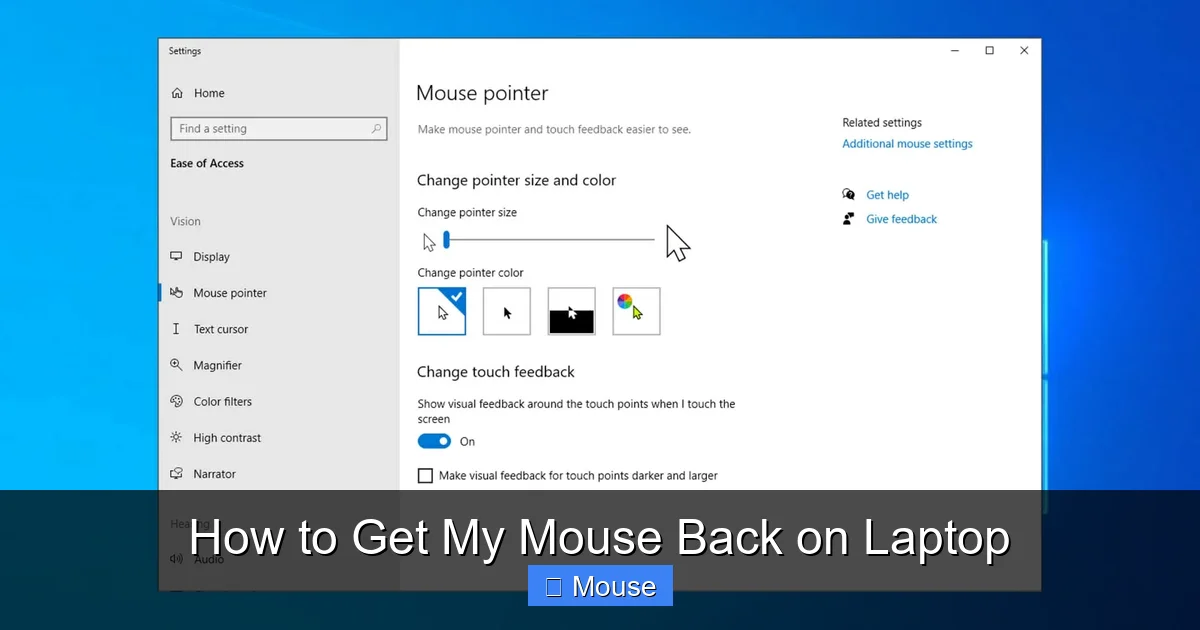
First, check the laptop’s touchpad settings and ensure it’s enabled—most issues stem from a disabled or misconfigured touchpad. If that’s not the culprit, try reconnecting the external mouse via USB or Bluetooth, and make sure the drivers are up to date; this often resolves connectivity glitches. Finally, perform a quick system restart to refresh the input devices and restore full functionality.
Key Takeaways
- Understanding how to get my mouse back on laptop: Provides essential knowledge for making informed decisions
- Practical applications: Can be applied in various real-world scenarios
- Key benefits: Offers significant advantages when properly implemented
- Important considerations: Requires attention to specific details and best practices
- Future implications: Continues to evolve and impact related fields
📑 Table of Contents
- How to Get My Mouse Back on Laptop
- 1. Check the Basics: Power, Settings, and Hardware
- 2. Dive Deeper with Device Manager and System Preferences
- 3. Troubleshooting Common Software Conflicts
- 4. Advanced Fixes: BIOS, Firmware, and External Options
- 5. Preventative Maintenance: Keep Your Mouse Running Smoothly
- Data Table: Quick Troubleshooting Checklist
- Conclusion
How to Get My Mouse Back on Laptop
Picture this: you’re deep in a spreadsheet, your eyes are glued to the screen, and suddenly the cursor stops moving. Panic hits. You’ve tried moving it, refreshed the page, even rebooted the machine. The mouse icon on the taskbar is gone. It’s a classic case of the laptop’s built‑in mouse or touchpad deciding to take a vacation without notice. Don’t worry—most of these hiccups are fixable, and you don’t need a tech wizard to bring your cursor back to life.
In this post I’ll walk you through the most common reasons a laptop mouse stops working, show you step‑by‑step troubleshooting tips, and give you a few tricks to keep it running smoothly. Think of it as a friendly guide, just like I’d give my cousin when her laptop suddenly stopped recognizing the touchpad. By the end, you’ll know exactly what to do when the mouse disappears again.
1. Check the Basics: Power, Settings, and Hardware
• Is the touchpad enabled?
Many laptops have a function‑key shortcut (often Fn + F5 or similar) that toggles the touchpad on and off. Look for a touchpad icon or a “mouse” symbol on the keys. Press the combo a few times and watch the cursor appear. If you’re unsure, check the How To Unlock Touch Mouse On Hp Laptop article for model‑specific instructions.
• Are driver updates missing?
Windows and macOS both rely on drivers to communicate with the touchpad. In Windows, open Device Manager → Mice and other pointing devices. If you see a yellow exclamation mark, right‑click and choose Update driver. For macOS, go to System Settings → Trackpad and ensure “Point & Click” is enabled.
• Is the mouse physically damaged?
For external mice, check the cable, USB port, or Bluetooth connection. Swap the mouse with another one to rule out hardware failure. If the touchpad itself feels unresponsive, try cleaning the surface with a microfiber cloth—dust can interfere with the sensor.
• What about battery or power settings?
Some laptops disable the touchpad to save power when on battery mode. Open Power Options in Windows or Battery settings in macOS and look for an option that says “Turn off the touchpad when battery is low.” Toggle it off if you want continuous use.
• Quick fix: Reboot
It sounds obvious, but a simple restart often clears temporary glitches. Save your work, close all apps, and reboot. If the mouse returns, you’ve avoided a deeper problem.
2. Dive Deeper with Device Manager and System Preferences
• Windows Device Manager walk‑through
1. Press Win + X and select Device Manager. 2. Expand Mice and other pointing devices. 3. Right‑click your touchpad device (often listed as “Synaptics” or “Elantech”) and choose Properties. 4. Under the Driver tab, click Update driver → Search automatically for drivers. 5. If Windows can’t find an update, visit the laptop manufacturer’s website for the latest driver.
• macOS System Preferences
1. Click the Apple icon → System Settings. 2. Select Trackpad. 3. Ensure all relevant checkboxes (Tap to click, Scroll, Drag) are ticked. 4. If the trackpad is gray, it’s disabled; click Enable Trackpad or check the Use trackpad as a mouse when it’s connected option.
• Test in Safe Mode
Booting into Safe Mode loads only essential drivers. If the mouse works in Safe Mode, a third‑party app is likely causing the issue. In Windows, hold Shift while clicking Restart. In macOS, hold Shift during startup.
3. Troubleshooting Common Software Conflicts
• Check for driver conflicts
Sometimes two devices claim the same driver, leading to a conflict. In Device Manager, look for a device marked with a yellow triangle. If it’s a touchpad, right‑click and choose Uninstall device. Restart and let Windows reinstall the correct driver.
• Disable or uninstall third‑party mouse utilities
Programs like Logitech SetPoint, Razer Synapse, or even some antivirus suites can interfere. Open Programs and Features (Windows) or Applications (macOS) and uninstall any recently added mouse software.
• Check accessibility settings
In Windows, go to Settings → Accessibility → Mouse & touchpad. Make sure “Touchpad” is turned on. In macOS, look under Accessibility → Pointer Control and confirm that “Enable mouse keys” is off.
• Restore system to a previous state
If the mouse stopped working after a recent update or installation, use System Restore (Windows) or Time Machine (macOS) to revert to a point when everything was fine.
4. Advanced Fixes: BIOS, Firmware, and External Options
• Update BIOS/UEFI firmware
Outdated firmware can cause hardware communication issues. Visit your laptop manufacturer’s support site, download the latest BIOS, and follow the update instructions carefully. A misstep could brick your device, so proceed with caution.
• Reset to factory settings
As a last resort, you can reset Windows to factory defaults or reinstall macOS. This wipes all data, so backup first. Sometimes a fresh install eliminates stubborn driver or configuration problems.
• Use an external mouse
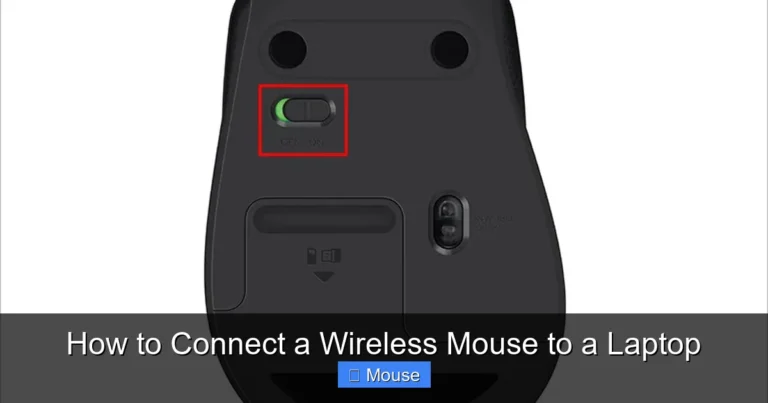
While you’re troubleshooting, a wired or Bluetooth mouse is a quick workaround. If you’re using a Bluetooth mouse, make sure it’s paired correctly: How To Connect My Wireless Mouse To My Laptop. If you need a wired option, any USB mouse will work.
• Add a USB touchpad or trackball
For a more permanent solution, consider a compact external touchpad or trackball. These are great for laptops that have unreliable built‑in touchpads.
5. Preventative Maintenance: Keep Your Mouse Running Smoothly
• Regular driver updates
Set a reminder to check for driver updates every month, especially after major OS releases.
• Clean the touchpad surface
Dust and oils can degrade sensor accuracy. Wipe gently with a dry microfiber cloth once a week.
• Enable “Always on” touchpad
In Windows, open Settings → Devices → Touchpad and toggle “Always keep touchpad on.” This stops accidental disabling when the laptop is closed.
• Use a protective keyboard cover
Keyboard dust can also affect the touchpad. A silicone cover can reduce dust accumulation.
• Monitor battery health
Low battery or aging battery can trigger power‑saving modes that disable touchpads. Keep your battery charged and consider replacing it if it’s more than five years old.
Data Table: Quick Troubleshooting Checklist
| Step | Action | Expected Result |
|---|---|---|
| 1 | Check function key toggle | Cursor appears |
| 2 | Update drivers via Device Manager | Driver status “Up to date” |
| 3 | Restart in Safe Mode | Mouse works → conflict suspected |
| 4 | Uninstall third‑party mouse software | Mouse resumes normal behavior |
| 5 | Update BIOS/UEFI | Hardware communication restored |
| 6 | Use external mouse | Immediate workaround |
Conclusion
Having your laptop’s mouse go missing can feel like a sudden glitch in a game, but most of the time, it’s a simple fix. Start with the basics: toggle the touchpad, update drivers, and reboot. If those steps don’t help, dig deeper into Device Manager, check for software conflicts, and consider a BIOS update. And when all else fails, an external mouse or touchpad can keep you productive while you fix the core issue.
Remember, technology is meant to serve us, not frustrate us. With these steps, you’ll regain control of your cursor in no time and keep your laptop running smoothly. Happy clicking!
Frequently Asked Questions
Why is my laptop touchpad not responding and how can I get my mouse back on laptop?
Often the touchpad gets disabled by accident through a function key shortcut or Windows settings. Press the appropriate Fn + touchpad key (usually F7, F9 or F6) or go to Settings → Devices → Touchpad and turn it on to restore the mouse cursor.
My external USB mouse stopped working – how do I get my mouse back on laptop?
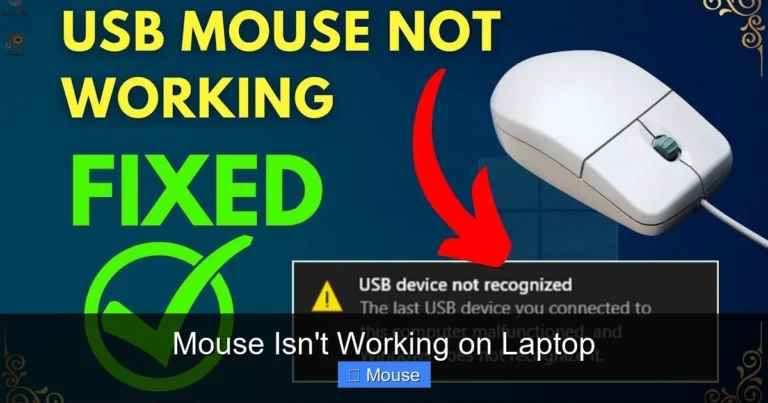
First, unplug the mouse and plug it into a different USB port to rule out a bad port. Then check Device Manager for any yellow warning icons under “Mice and other pointing devices” and update or reinstall the driver if needed.
Can a recent Windows update cause the cursor to disappear?
Yes, some updates reset touchpad or pointer settings, causing the cursor to vanish. Open Control Panel → Mouse (or Settings → Devices → Mouse) and ensure the pointer visibility and size options are enabled, then restart the laptop.
Is the touchpad disabled in BIOS, and how can I re‑enable it?
On certain laptops the touchpad can be turned off in the BIOS/UEFI for security or performance reasons. Restart the laptop, enter BIOS (usually by pressing Del, F2, or Esc), locate the “Internal Pointing Device” or “Touchpad” setting, set it to Enabled, save and exit.
My cursor jumps around or disappears intermittently—what should I check?
This behavior often points to driver conflicts or a dirty touchpad surface. Clean the touchpad with a soft, lint‑free cloth, then download the latest driver from the laptop manufacturer’s website and reinstall it.
How do I troubleshoot a frozen cursor after waking the laptop from sleep?
Sometimes the system fails to re‑initialize the pointing device after sleep. Press Ctrl + Alt + Delete to open the security screen; if the cursor appears, select “Task Manager” and end the “explorer.exe” process, then run “explorer.exe” again. If that doesn’t work, a quick reboot will restore the mouse.