How to Unfreeze Mouse on Laptop

Is your laptop’s cursor stuck or frozen? You’re not alone, and the fix is often just a few clicks away. This guide walks you through easy software tweaks, driver updates, and hardware checks to unfreeze mouse on laptop fast. Follow the practical tips and get back to seamless navigation in minutes.
Key Takeaways
- Restart is powerful: A quick reboot often resets the mouse driver and clears freezes.
- Driver health matters: Updating or reinstalling mouse drivers can solve most unfreeze issues.
- Touchpad settings: Disabling and re‑enabling the touchpad or external mouse can reset the hardware.
- System scans: Malware or corrupted system files can lock the cursor; running scans helps.
- Hardware check: Loose connections or a failing mouse/trackpad often cause freezing.
- Power settings impact: USB power‑saving modes may suspend external mice.
- Backup plan: Knowing keyboard shortcuts lets you work while you troubleshoot.
📑 Table of Contents
- Introduction: Why Does My Mouse Freeze?
- 1. Simple Restart Tricks
- 2. Check Touchpad and External Mouse Settings
- 3. Update or Reinstall Mouse Drivers
- 4. Scan for Malware and Corrupted System Files
- 5. Adjust Power Management Settings
- 6. Hardware Checks and Physical Fixes
- 7. Backup Plan: Using Keyboard Shortcuts While You Fix
- Conclusion
Introduction: Why Does My Mouse Freeze?
Picture this: you’re typing an email, you need to click “Send,” and the cursor just won’t move. It’s frustrating, especially when you’re on a deadline. A frozen mouse on a laptop can be caused by a handful of common culprits—software glitches, outdated drivers, power‑saving settings, or even a simple hardware hiccup.
Good news: most of these problems are fixable without calling tech support. In this article we’ll walk through the most effective methods to unfreeze mouse on laptop devices, whether you’re using Windows or macOS. The steps are broken down into easy‑to‑follow sections, complete with tips you can try right now.
1. Simple Restart Tricks
Why a Restart Works
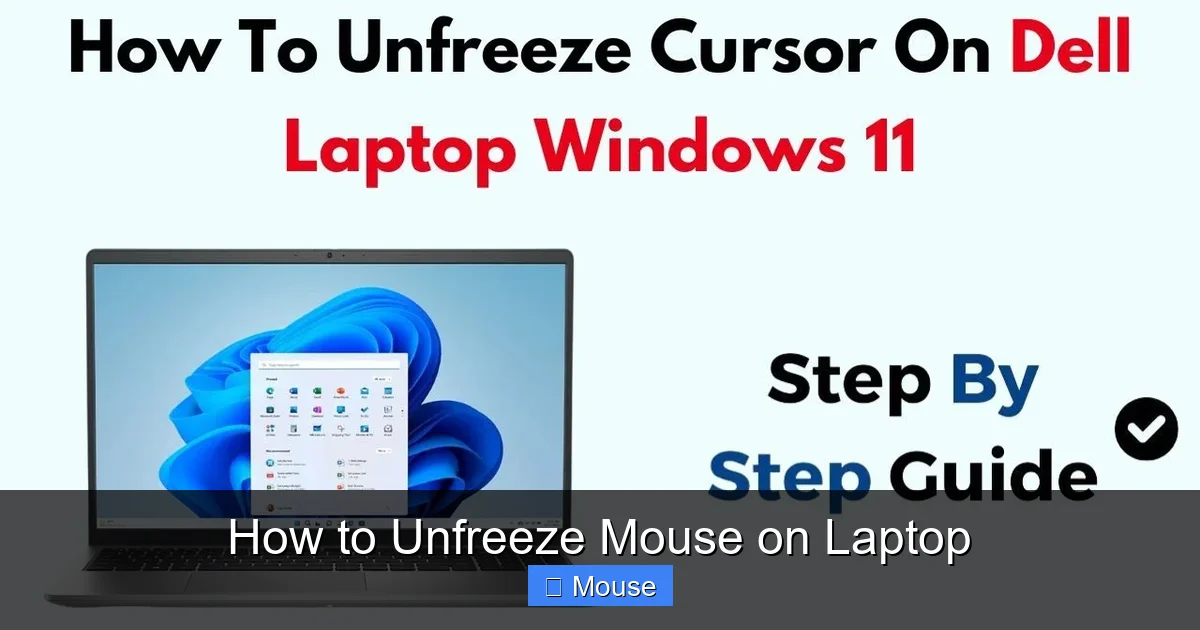
When you restart, the operating system reloads all drivers and services from scratch. If a temporary glitch caused the cursor to lock, a fresh start often clears it.

Visual guide about How to Unfreeze Mouse on Laptop
Image source: i.ytimg.com
How to Restart Properly
- Click the Start button → Power → Restart (Windows).
- On a Mac, click the Apple menu → Restart.
- If the screen is frozen, hold the power button for 5‑10 seconds to force a shutdown, then power back on.
After the reboot, check if the mouse moves. If it does, you’ve solved the issue in under a minute.
2. Check Touchpad and External Mouse Settings
Toggle the Touchpad
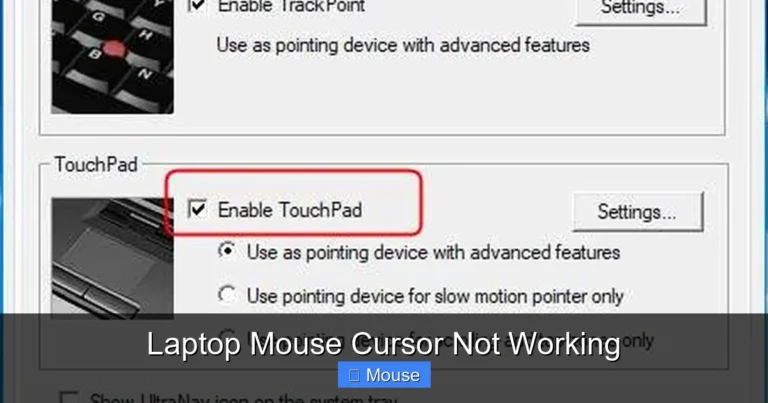
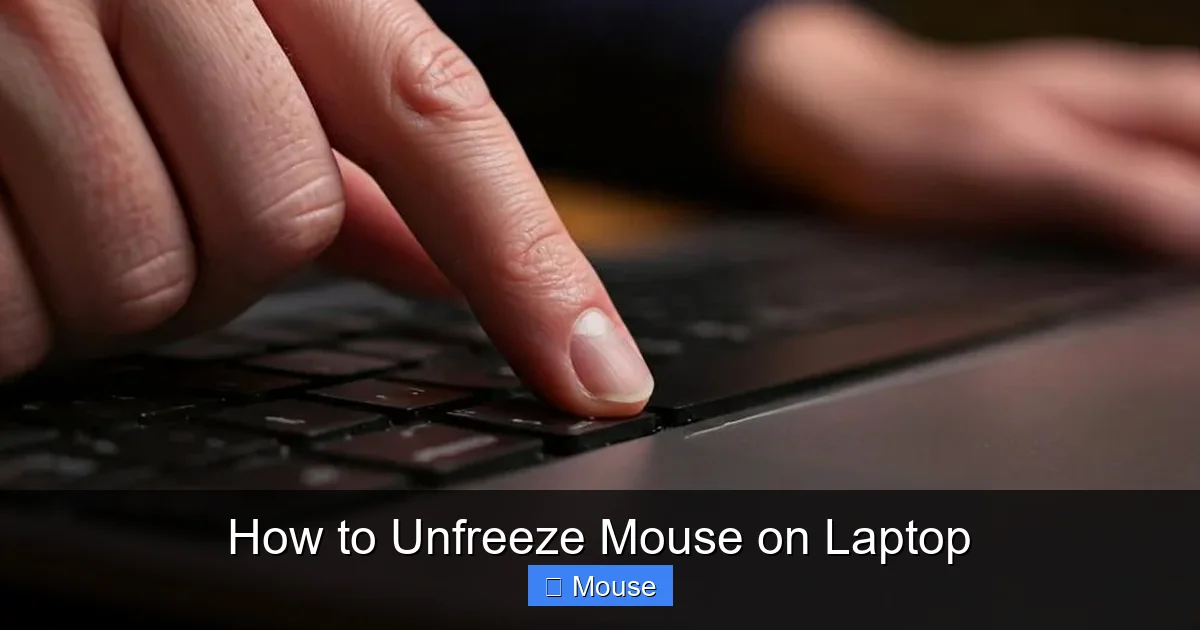
Many laptops let you disable the touchpad with a function key (often Fn + F7 or a dedicated key with a touchpad icon). Accidentally hitting this key can appear as if the mouse is frozen.
Visual guide about How to Unfreeze Mouse on Laptop
Image source: i.ytimg.com
Press the function key again to re‑enable the touchpad. If you use an external mouse, unplug it, wait a few seconds, and plug it back in.
Disable and Re‑Enable the Device in Device Manager
For Windows users:
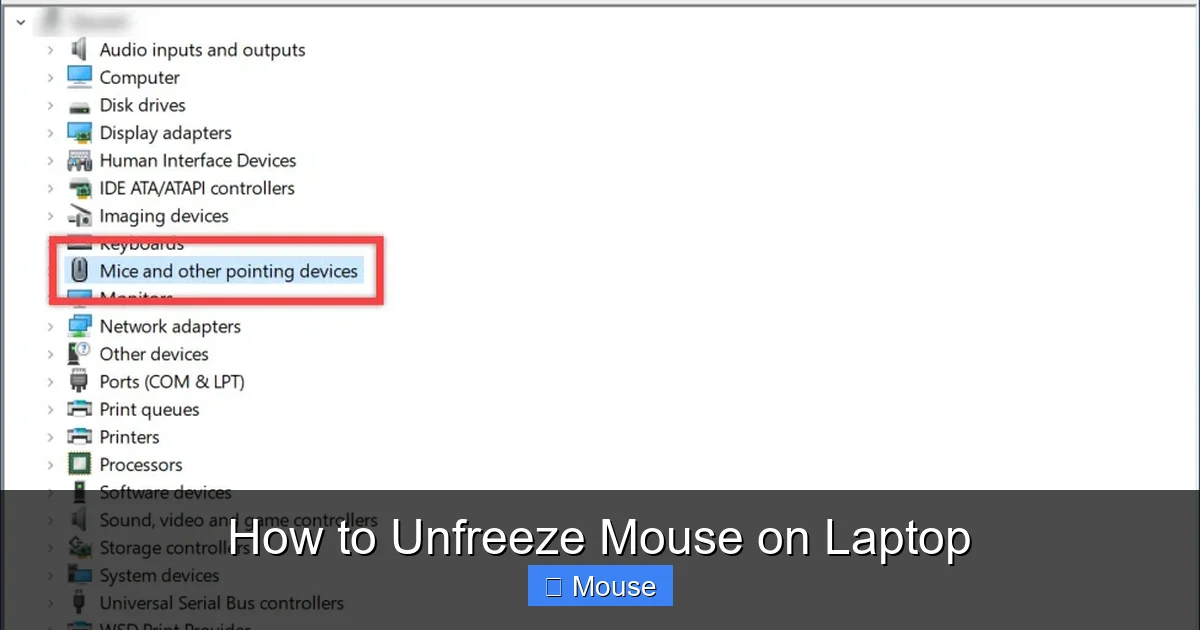
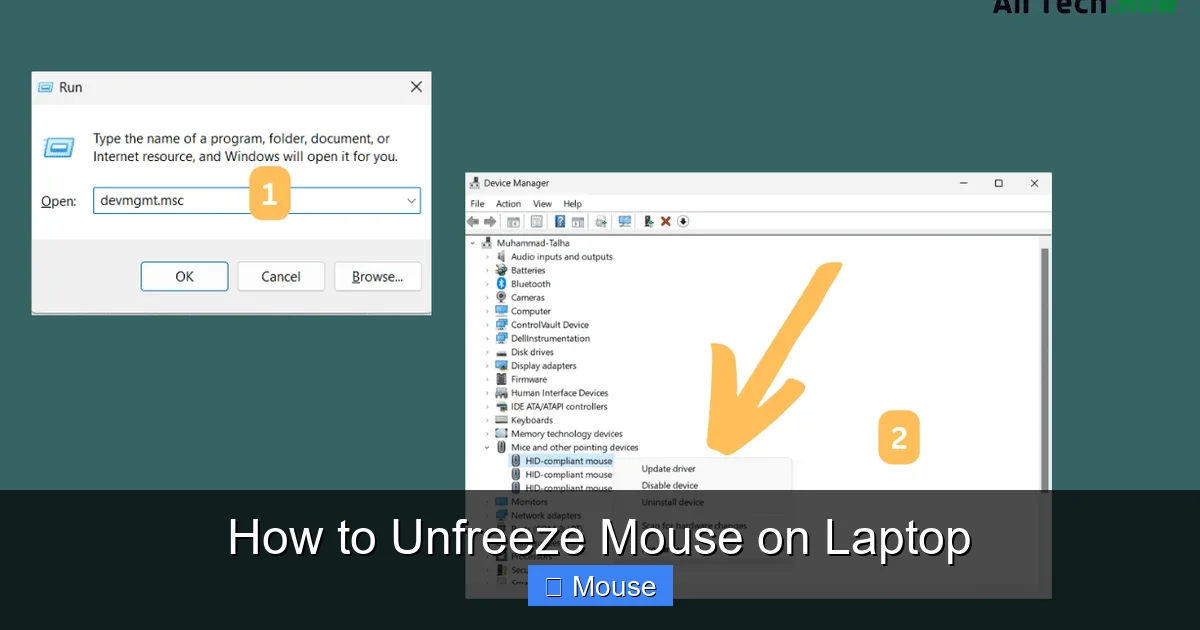
- Press Win + X and select Device Manager.
- Expand Mice and other pointing devices.
- Right‑click your mouse or touchpad entry and choose Disable device. Confirm.
- Wait 10 seconds, then right‑click again and select Enable device.
Mac users can go to System Settings → Trackpad and toggle “Tap to click” off and on.
Internal Link Example
If you’re unsure how to turn the touchpad back on, see our guide on how to turn on laptop mouse for step‑by‑step instructions.
3. Update or Reinstall Mouse Drivers
Why Drivers Matter
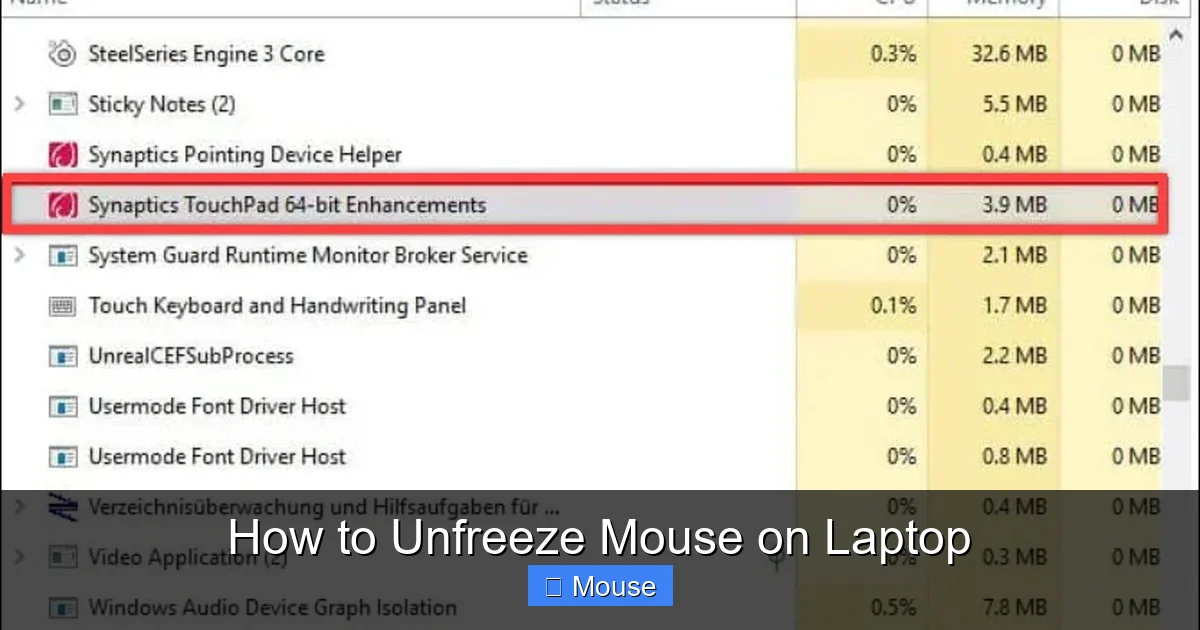
Drivers are the software bridge between your operating system and the hardware. An outdated or corrupted driver can cause the cursor to freeze, especially after a Windows update.
Visual guide about How to Unfreeze Mouse on Laptop
Image source: miro.medium.com
Updating Drivers on Windows
- Open Device Manager (Win + X → Device Manager).
- Find Mice and other pointing devices and right‑click your mouse.
- Select Update driver → Search automatically for updated driver software.
- Follow the prompts. Restart if asked.
Reinstalling Drivers
If updating doesn’t help, uninstall the driver first:
- Right‑click the mouse entry in Device Manager and choose Uninstall device.
- Check “Delete the driver software for this device” if prompted.
- Restart the laptop; Windows will reinstall a generic driver automatically.
macOS Driver Checks
macOS handles drivers automatically, but you can reset the System Management Controller (SMC) to clear low‑level hardware glitches:
- Shut down the Mac.
- Hold Shift + Control + Option on the left side and the power button for 10 seconds.
- Release all keys and press the power button again.
4. Scan for Malware and Corrupted System Files
Malware Can Freeze the Cursor
Some malicious programs hijack the mouse pointer to disrupt your workflow. Running a quick scan can rule this out.
Visual guide about How to Unfreeze Mouse on Laptop
Image source: cdn.box.co.uk
Windows Defender Quick Scan
- Open Windows Security from the Start menu.
- Click Virus & threat protection → Quick scan.
- Let the scan finish and follow any remediation steps.
System File Checker (SFC)
Corrupted system files may also cause freezing. Run SFC to repair them:
c:\> sfc /scannow
The tool will automatically fix any detected issues. After it finishes, restart and test the mouse.
5. Adjust Power Management Settings
USB Power‑Saving Can Suspend an External Mouse
Windows may turn off USB ports to save power, which can make a wired mouse appear frozen.
Visual guide about How to Unfreeze Mouse on Laptop
Image source: sharkyextreme.com
Disable USB Selective Suspend
- Open Control Panel → Power Options.
- Click Change plan settings next to your active plan.
- Select Change advanced power settings.
- Expand USB settings → USB selective suspend setting and set to Disabled.
- Apply and OK.
Mac Power Settings
On a Mac, go to System Settings → Battery and turn off “Put hard disks to sleep when possible.” This keeps the USB controller active.
6. Hardware Checks and Physical Fixes
Inspect the Mouse and Port
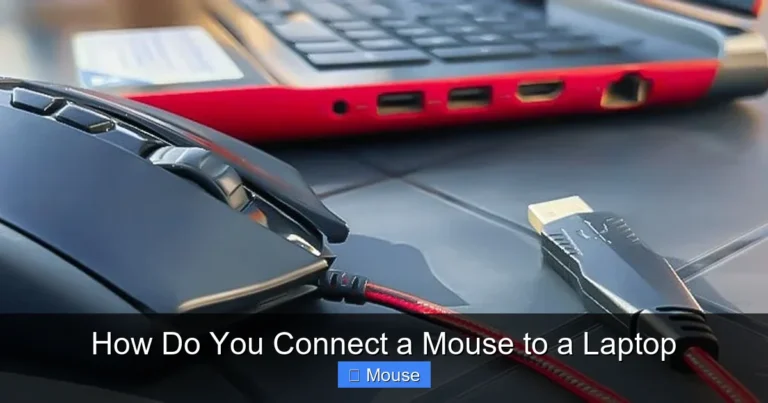
- Try a different USB port. A faulty port can cause intermittent connection.
- Test the mouse on another computer. If it freezes there too, the mouse hardware is likely the problem.
- For touchpads, clean the surface with a soft, lint‑free cloth. Dirt can interfere with sensor accuracy.
Check for Loose Internal Connections (Advanced)
If you’re comfortable opening your laptop, ensure the internal ribbon cable connecting the touchpad to the motherboard is seated properly. Refer to the service manual for your specific model.
Visual guide about How to Unfreeze Mouse on Laptop
Image source: sharkyextreme.com
When to Replace
If none of the software fixes work and the mouse still freezes on multiple devices, it’s time to consider a replacement. A new wireless mouse or a fresh touchpad replacement can save you future headaches.
7. Backup Plan: Using Keyboard Shortcuts While You Fix
Navigate Without a Mouse
While troubleshooting, you can still work using these handy shortcuts:
Visual guide about How to Unfreeze Mouse on Laptop
Image source: sharkyextreme.com
- Alt + Tab: Switch between open apps.
- Win + D: Show desktop.
- Ctrl + Esc: Open Start menu.
- Tab + Arrow Keys: Move focus between UI elements.
- Ctrl + Shift + Esc: Open Task Manager.
These shortcuts keep you productive while you apply the fixes above.
Conclusion
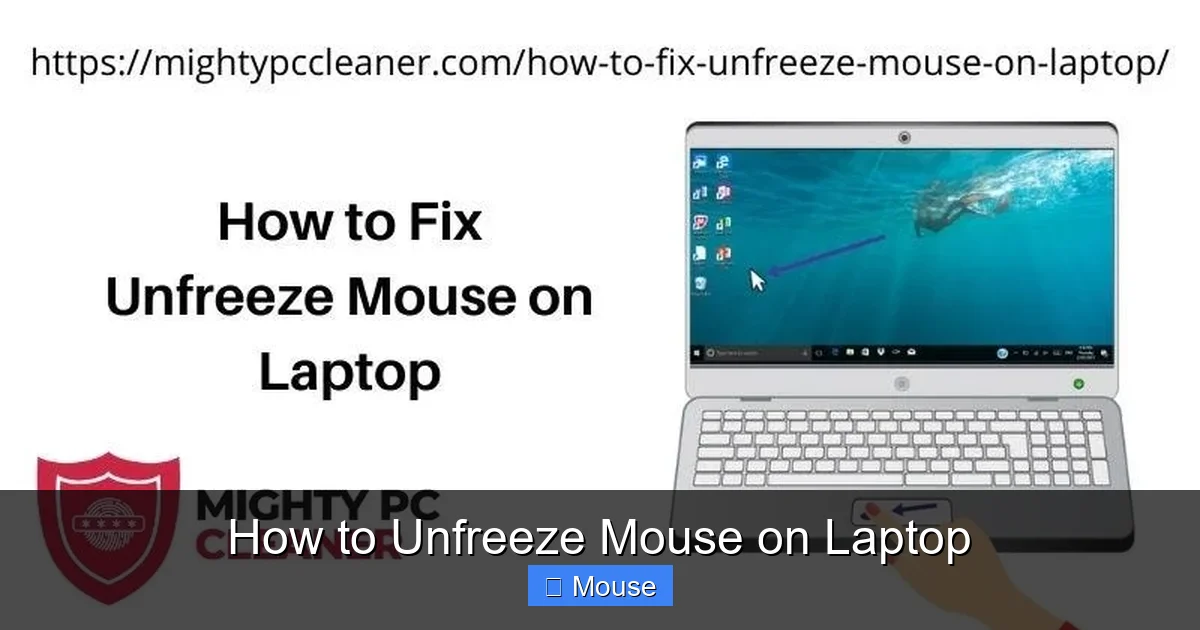
Having a frozen cursor is annoying, but it’s rarely a sign of a dead laptop. By restarting, checking touchpad settings, updating drivers, scanning for malware, tweaking power options, and confirming hardware health, you can unfreeze mouse on laptop in most cases. Keep this guide bookmarked; the next time the pointer stops moving, you’ll know exactly what to do.
Visual guide about How to Unfreeze Mouse on Laptop
Image source: alltech.how
Still stuck? Consider reaching out to the manufacturer’s support or exploring our other related articles, such as how to fix mouse on laptop and how to get the mouse back on a laptop. With a little patience, you’ll be back to smooth scrolling in no time.
Frequently Asked Questions
Why does my laptop’s cursor freeze only on certain apps?
Some applications, especially those that use heavy graphics or custom cursor handling, can conflict with the driver. Updating the app or disabling hardware acceleration often resolves the issue.
Can a frozen mouse be caused by Windows updates?
Yes. Major updates sometimes replace or roll back drivers, leading to temporary freezes. Reinstalling the mouse driver after an update usually fixes it.
Is it safe to uninstall the mouse driver and let Windows reinstall it?
Absolutely. Windows will automatically install a generic driver that works for most mice. If you have a specialized driver from the manufacturer, reinstall it afterward for full functionality.
My external wireless mouse keeps freezing—what should I check?
First, replace the batteries. Then, ensure the USB receiver is firmly plugged in and not blocked by metal objects. Finally, check the 2.4 GHz channel for interference from other devices.
Can turning off Bluetooth help if my touchpad freezes?
Sometimes Bluetooth devices cause driver conflicts. Disabling Bluetooth temporarily can help you isolate the problem.
What should I do if none of the software fixes work?
Test the mouse on another computer. If it still freezes, the hardware is likely defective. Otherwise, consider a professional hardware inspection for the laptop’s touchpad or internal connectors.