The built‑in trackpad on your HP laptop can stop responding for several easy‑to‑fix reasons, from driver glitches to hardware wear. This guide walks you through quick software checks, driver updates, and simple hardware resets, so you can restore smooth cursor control without a costly repair.
Hp Laptop Mouse Stopped Working
There’s nothing more frustrating than sitting down to finish a report, only to discover that the cursor on your HP laptop has frozen, vanished, or simply won’t respond. It feels like the universe is conspiring against you, especially when you’ve got a deadline breathing down your neck. Trust me, I’ve been there – the dreaded moment when the hp laptop mouse stopped working and every click feels like a gamble.
Before you consider splurging on a new device or rushing to a repair shop, take a deep breath. In many cases the fix is right at your fingertips, and the solution can be as simple as a setting tweak or a driver update. This guide walks you through every plausible reason your HP laptop’s mouse might have quit, and gives you clear, step‑by‑step instructions to bring it back to life.
Key Takeaways
- Understanding hp laptop mouse stopped working: Provides essential knowledge for making informed decisions
- Practical applications: Can be applied in various real-world scenarios
- Key benefits: Offers significant advantages when properly implemented
- Important considerations: Requires attention to specific details and best practices
- Future implications: Continues to evolve and impact related fields
📑 Table of Contents
1. Quick Checks Before Diving Deep
Is the Touchpad Disabled?
Many HP laptops come with a function key that can toggle the touchpad on and off. Look for a key with an icon that looks like a small rectangle with a hand or a finger. Press Fn + that key (often F6 or F7) and see if the cursor reappears.
External Mouse Interference
If you have a USB or Bluetooth mouse plugged in, try unplugging it. Some laptops automatically disable the built‑in touchpad when an external mouse is detected, and a faulty external device can cause the built‑in mouse to stop responding.
Restart the Laptop
It sounds cliché, but a simple reboot can clear temporary glitches. Power off completely, wait ten seconds, then turn it back on. Often the hp laptop mouse stopped working issue resolves itself after a fresh start.
2. Software Glitches and Driver Issues
Update or Roll Back the Touchpad Driver
Outdated or corrupted drivers are a top culprit. Follow these steps:
Visual guide about Hp Laptop Mouse Stopped Working
Image source: i.pcmag.com
- Right‑click Start → Device Manager.
- Expand Mice and other pointing devices.
- Right‑click the touchpad entry (often labeled Synaptics or ELAN) and choose Update driver.
- Select “Search automatically for updated driver software.”
- If the problem started after a recent update, choose Properties → Driver → Roll Back Driver.
Windows Updates Can Break Things
Sometimes a new Windows update can clash with the touchpad driver. Go to Settings → Update & Security → View update history. If you spot a recent update, you can uninstall it temporarily to test if the mouse works again.
Check for HP Specific Software
HP often installs utilities like HP Support Assistant or HP Quick Launch Buttons. Open these tools and look for touchpad settings. Ensure the touchpad isn’t disabled there.
3. Hardware Troubleshooting
Physical Damage or Dirt
Dust, crumbs, or a spilled drink can jam the touchpad’s sensor. Power off the laptop, gently clean the surface with a soft, lint‑free cloth lightly dampened with water or isopropyl alcohol. Avoid harsh chemicals.

Visual guide about Hp Laptop Mouse Stopped Working
Image source: hplaptopservicecentres.com
Check the Touchpad Cable (Advanced)
If you’re comfortable opening your laptop, you can verify the internal ribbon cable connecting the touchpad to the motherboard. A loose connection can cause the hp laptop mouse stopped working symptom. Refer to the service manual for your exact model before attempting this.
Test with an External Mouse
Plug in a USB mouse. If it works flawlessly, the issue is likely confined to the built‑in touchpad hardware. If the external mouse also fails, the problem may be deeper in the system’s USB controller or BIOS.
4. BIOS and System Settings
Enable Touchpad in BIOS
Restart the laptop and press Esc or F10 (depending on the model) to enter BIOS. Navigate to the Advanced or Device Configuration section and ensure the touchpad is set to Enabled. Save changes and exit.

Visual guide about Hp Laptop Mouse Stopped Working
Image source: hplaptopservicecentres.com
Reset BIOS to Default
Sometimes a mis‑configured BIOS setting can disable the touchpad. While in BIOS, look for an option like “Load Setup Defaults” or “Restore Defaults”. Apply it, save, and reboot.
Secure Boot and Driver Signature
If you’ve installed third‑party drivers, Secure Boot may block them. Temporarily disable Secure Boot in BIOS to see if the mouse regains functionality.
5. Operating System Alternatives and Workarounds
Use the On‑Screen Keyboard and Mouse
Windows includes an on‑screen mouse pointer that can be controlled with the keyboard. Press Windows + Ctrl + O to enable Mouse Keys, allowing you to move the cursor with the numeric keypad. This is handy while you troubleshoot.
Visual guide about Hp Laptop Mouse Stopped Working
Image source: hplaptopservicecentres.com
Boot into Safe Mode
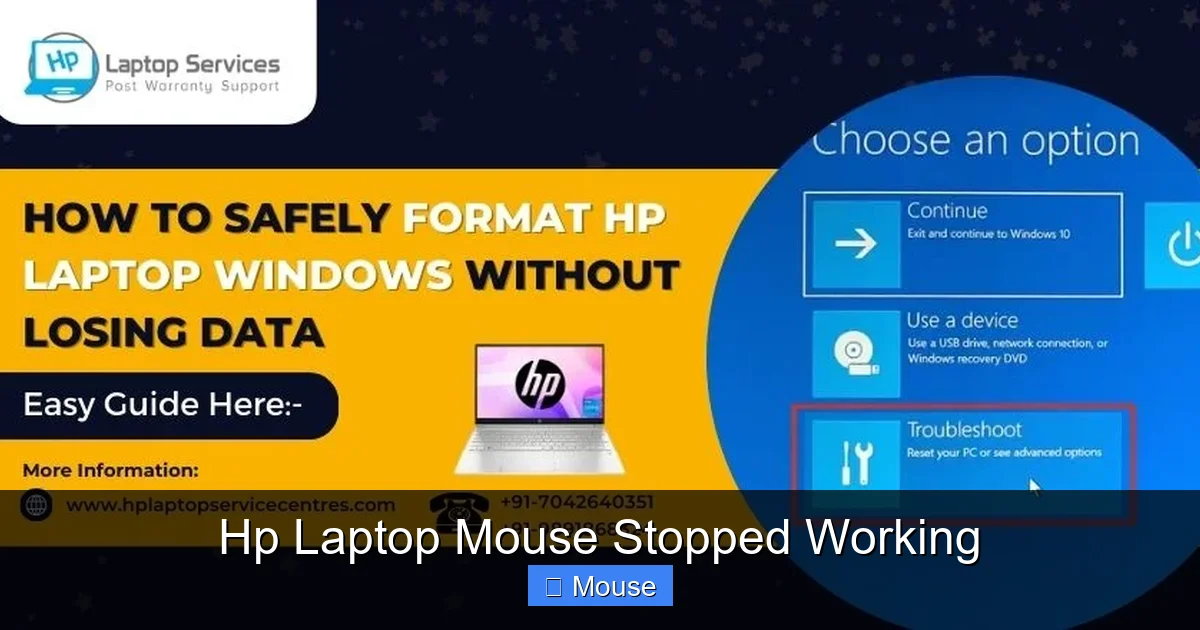
Restart and hold Shift while clicking “Restart”. Choose Troubleshoot → Advanced options → Startup Settings → Restart. Then press 4 for Safe Mode. If the mouse works here, a third‑party app is likely the cause.
System Restore
Pick a restore point from before the mouse stopped working. Go to Control Panel → Recovery → Open System Restore. Follow the wizard and let Windows revert system files.
6. When All Else Fails – Professional Help and Replacement Options
Warranty Check
Most HP laptops come with a one‑year limited warranty. Locate your warranty status on the HP support site using the serial number. If you’re still covered, contact HP Support for a repair or replacement.
Authorized Service Centers
If the laptop is out of warranty, look for an authorized service center. Explain that the hp laptop mouse stopped working after you’ve already tried driver updates and BIOS checks. This helps the technician focus on hardware diagnostics.
Consider a Replacement Touchpad
For older models, buying a replacement touchpad kit can be cost‑effective. Ensure the part matches the exact model number (e.g., “HP Pavilion 15‑eb0xxx Touchpad”). Installation guides are often available on YouTube.
Alternative: Use an External Mouse Permanently
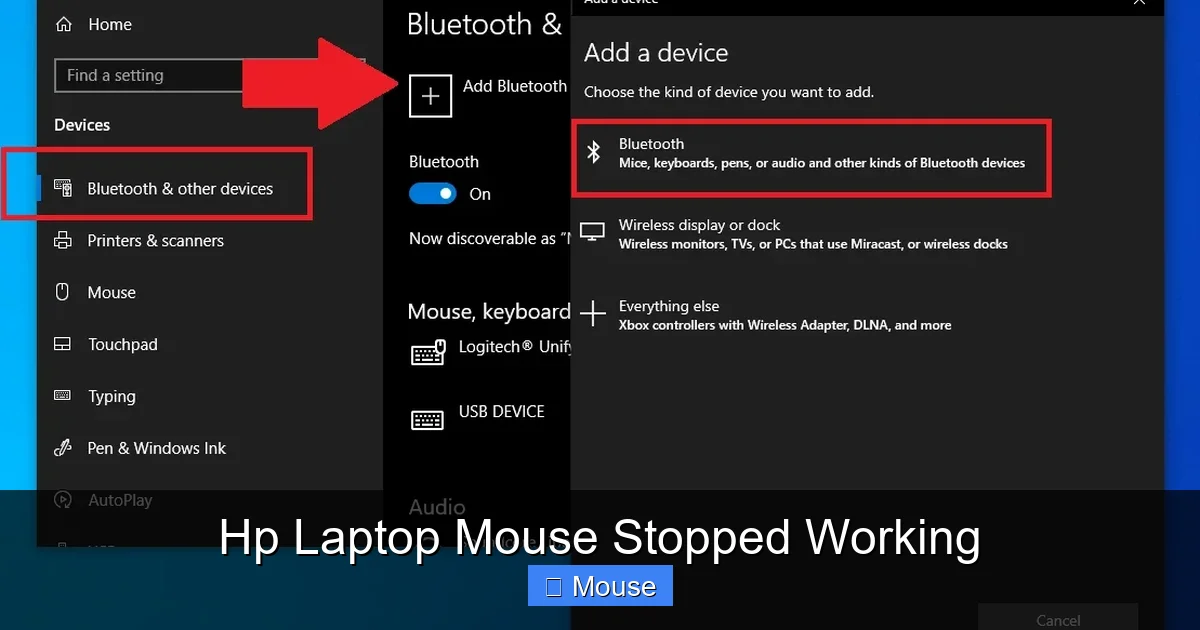
If you’re comfortable with a wired or wireless mouse, this can be a quick, inexpensive fix. Pair a Bluetooth mouse via Settings → Devices → Bluetooth & other devices, or plug in a USB mouse.
Data Table: Common Causes & Quick Fixes
| Cause | Likely Symptom | Quick Fix |
|---|---|---|
| Touchpad disabled via function key | No cursor movement | Press Fn + F6/F7 (touchpad icon) |
| Outdated/corrupt driver | Cursor jumps or disappears | Update or roll back driver in Device Manager |
| Windows update conflict | Mouse stops after update | Uninstall recent update or use System Restore |
| Physical debris | Intermittent or no response | Clean touchpad surface gently |
| BIOS disabled | Mouse never works, even in Safe Mode | Enable touchpad in BIOS settings |
Conclusion
Discovering that the hp laptop mouse stopped working can feel like a roadblock, but more often than not the solution is within reach. By methodically checking software settings, drivers, BIOS configurations, and hardware conditions, you can usually revive the touchpad without spending a dime. Remember to start with the simplest steps—function‑key toggles, restarts, and driver updates—before moving on to deeper diagnostics.
If you’ve tried everything in this guide and the cursor still refuses to appear, it’s time to lean on professional support or consider a reliable external mouse. Either way, you now have a solid roadmap to troubleshoot and resolve the issue, saving you time, stress, and possibly a costly repair.
For more stories about similar problems and detailed solutions, you might find these articles helpful: Mouse On Hp Laptop Not Working, Mouse Not Working On Hp Laptop, and My Laptop Mouse Stopped Working.
Frequently Asked Questions
Why did my HP laptop mouse stop working?
It could be due to a driver issue, a faulty USB port, or a hardware failure. Updating or reinstalling the mouse driver often resolves the problem.
Can a simple reboot fix an HP laptop mouse that stopped working?
Yes, rebooting can clear temporary glitches and reload drivers, which often restores mouse functionality.
What should I do if the HP laptop mouse stopped working after a Windows update?
Check the Device Manager for error symbols, roll back the update, or reinstall the latest mouse drivers from HP’s support site.
Is it possible that the USB port is damaged when the HP laptop mouse stops working?
Absolutely. Try plugging the mouse into a different USB port or a USB hub to rule out a port issue.
How can I troubleshoot the HP laptop mouse stopped working using HP Support Assistant?
Run HP Support Assistant, let it scan for hardware problems, and follow its recommended fixes or driver updates to restore mouse operation.
Can a battery or power issue cause the HP laptop mouse to stop working?
For wireless mice, low batteries or interference can cause the mouse to fail. Replace the batteries or check the wireless receiver’s connection.