Hp Mouse Not Working Laptop
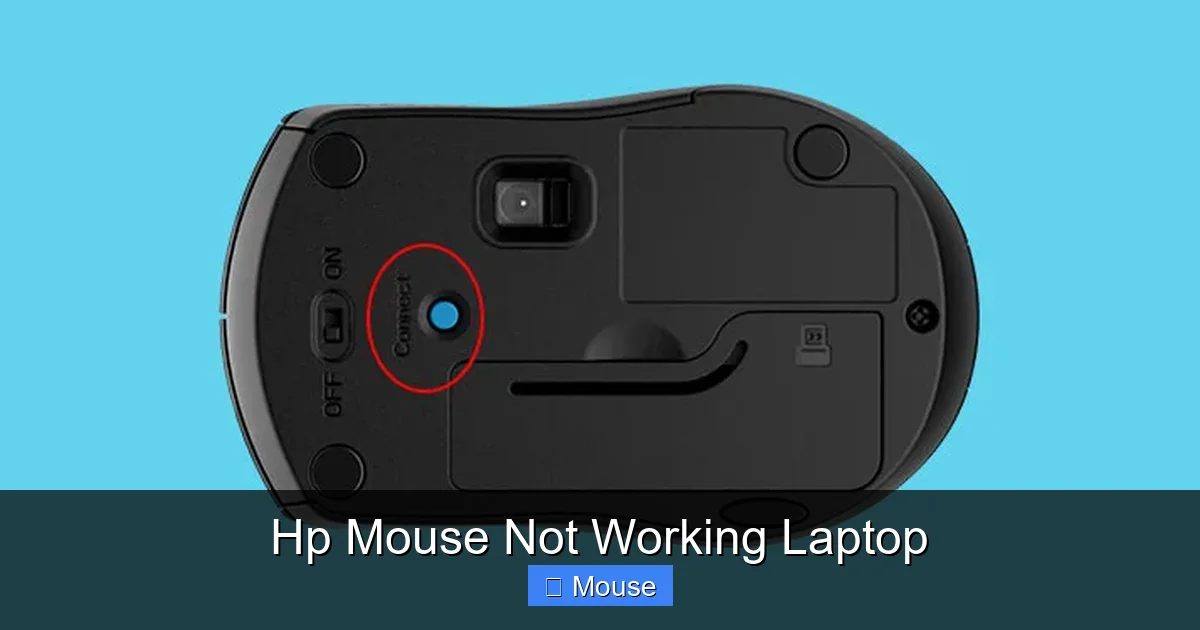
Having trouble with your HP laptop mouse? Whether the touchpad stops responding or a wired mouse goes silent, this guide covers simple checks, driver updates, and advanced solutions to get you back to smooth navigation fast.
Key Takeaways
- Check power and connectivity: Simple switches like the touchpad toggle or USB port can solve most problems.
- Driver health matters: Updating or reinstalling the mouse driver often restores full functionality.
- BIOS and firmware play a role: A firmware update can fix subtle hardware conflicts that drivers miss.
- Software conflicts are common: Background apps or touchpad‑enhancement tools can disable the mouse.
- Hardware faults need replacement: If diagnostics show a defective sensor or port, replace the mouse or touchpad.
- Use online resources: HP’s support pages and community forums provide model‑specific fixes.
[FEATURED_IMAGE_PLACEHOLDER]
📑 Table of Contents
Introduction
It’s a modern nightmare: you sit down at your HP laptop, click the mouse icon on the taskbar, and nothing happens. Your cursor is frozen, the touchpad is unresponsive, and the external USB mouse is silent. If you’re like most users, you expect a laptop’s pointing device to work out of the box. When it doesn’t, the frustration can feel like a full‑blown computer crime.
In this article we’ll walk through the most common reasons why an HP mouse might stop working, and give you a clear, step‑by‑step approach to troubleshoot and fix the problem. From quick power‑cycle checks to driver re‑installation and even BIOS updates, you’ll learn how to get your cursor moving again in minutes.
1. Is the Mouse Really Not Working?
1.1 Quick Visual Test
Before diving into technical steps, verify that the issue is real. Plug the mouse into another USB port, or try a different mouse on the same port. If the new mouse works, the original mouse or the port is the culprit.

Visual guide about Hp Mouse Not Working Laptop
Image source: i.ytimg.com
1.2 Check the Touchpad Switch
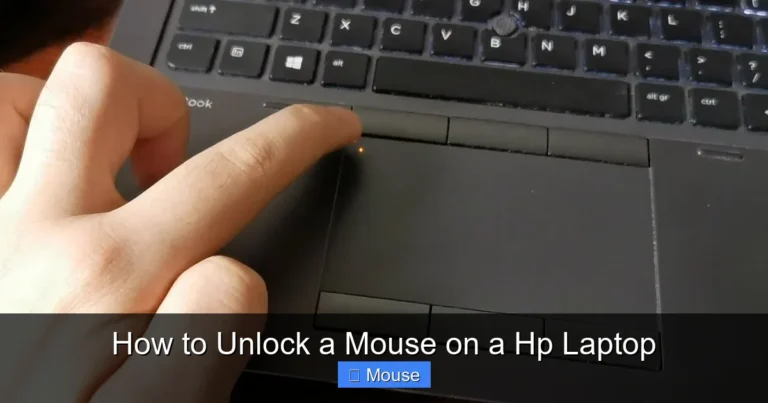
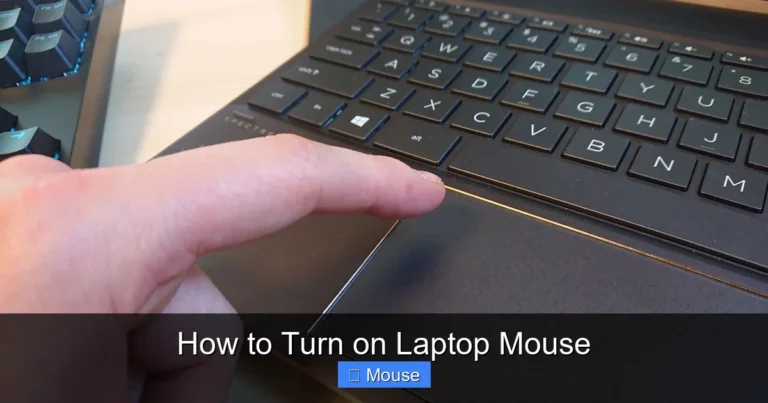
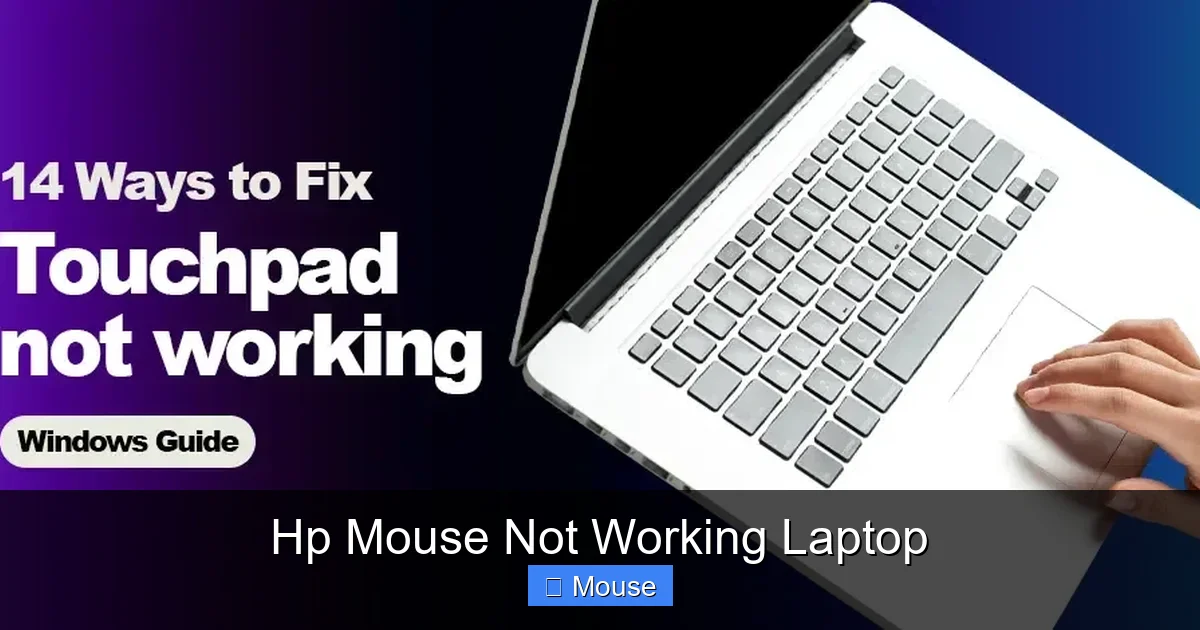
HP laptops often have a function‑key toggle (Fn + F5 or F9) that disables the touchpad. Look for a touchpad icon on the keyboard; pressing it can re‑enable the touchpad.
1.3 Test in Safe Mode
Boot into Windows Safe Mode (Start > Settings > Update & Security > Recovery > Advanced startup). If the mouse works in Safe Mode, a third‑party driver or software is likely causing the problem.
2. Driver Troubleshooting
2.1 Update the Mouse Driver
Open Device Manager (Win + X → Device Manager). Expand “Mice and other pointing devices,” right‑click your mouse, and choose “Update driver.” Let Windows search automatically. If a newer driver is available, install it and restart.
Visual guide about Hp Mouse Not Working Laptop
Image source: fixingblog.com
2.2 Re‑install the Mouse Driver
If updating doesn’t help, choose “Uninstall device.” Check “Delete the driver software for this device” if prompted. After uninstallation, restart your laptop; Windows will reinstall the default driver.
2.3 Verify the Touchpad Driver
HP laptops use either Synaptics or ELAN touchpad drivers. In Device Manager, under “Mice and other pointing devices,” locate the touchpad entry. Update or reinstall it in the same way as the external mouse.
2.4 Use HP Support Assistant
HP’s free Support Assistant automatically detects outdated drivers. Download it from HP’s website, run a full scan, and follow the prompts to update the mouse or touchpad driver.
3. BIOS and Firmware Updates
3.1 Why BIOS Matters
Modern laptops have firmware that controls hardware interactions. An outdated BIOS can misinterpret touchpad signals, leading to a non‑responsive mouse.

Visual guide about Hp Mouse Not Working Laptop
Image source: hplaptopservicecentres.com
3.2 Checking Your BIOS Version
Press F10 (or the key shown on the screen) during boot to enter BIOS. Note the version number. Compare it to the latest version on HP’s support site for your model.
3.3 Updating the BIOS
Download the BIOS update package from HP. Follow the manufacturer’s instructions carefully—interrupting a BIOS update can brick the laptop.
4. Software Conflicts and Settings
4.1 Disable Touchpad Enhancements
HP’s touchpad often comes with software that adds gestures and sensitivity settings. Open “HP Touchpad” settings, and disable any “gesture” features that might be locking the pointer.

Visual guide about Hp Mouse Not Working Laptop
Image source: partitionwizard.com
4.2 Check for Malware
Some malware can disable input devices. Run a full system scan with Windows Defender or a reputable third‑party anti‑virus.
4.3 Look at Power Settings
In Power Options, set “USB selective suspend setting” to “Disabled.” This prevents the USB port from powering down and potentially cutting power to the mouse.
4.4 Review Accessibility Settings
Windows has “Mouse Keys” under Ease of Access that can override normal mouse input. Ensure it’s turned off.
5. Hardware Diagnostics
5.1 HP Hardware Diagnostics
Restart your laptop and press F2 to launch HP Diagnostics. Run the “Input Devices” test to see if the touchpad or mouse is detected.
5.2 Inspect Physical Connections
For laptops with removable touchpad covers, open the laptop (consult the service manual) and check the ribbon cable connection to the motherboard.
5.3 Replace Faulty Components
If diagnostics show a hardware fault, purchase a replacement touchpad or external mouse. HP parts are available through their support site or reputable retailers.
6. When All Else Fails
6.1 Restore to a Previous System State
Use System Restore to revert to a point when the mouse worked. Start > Settings > Update & Security > Recovery > “Open System Restore.”
6.2 Reinstall Windows
As a last resort, back up your data and perform a clean Windows installation. This eliminates software corruption and ensures a fresh driver environment.
Conclusion
Having a non‑working mouse on an HP laptop can feel like a roadblock, but most issues are solvable with a systematic approach. Start with the simplest fixes—check the touchpad toggle, disconnect other USB devices, and reboot. If that doesn’t help, move on to driver updates, BIOS firmware, and finally hardware diagnostics. By following the steps above, you’ll restore smooth cursor control and get back to productive work in no time.
Visual guide about Hp Mouse Not Working Laptop
Image source: media.geeksforgeeks.org
Frequently Asked Questions
What should I do if my HP laptop mouse stops working after a Windows update?
Windows updates can overwrite or disable drivers. Try updating the mouse driver again or reinstalling it. If the problem persists, roll back the update or use System Restore to revert to a pre‑update state.
Can a battery issue cause my HP laptop mouse to stop working?
Yes. If the laptop is running on a low battery or a failing battery, power management settings may disable peripherals to conserve energy. Charge the battery fully or replace it if it’s old.
Is it safe to update the BIOS on my HP laptop?
When done correctly, BIOS updates are safe and can improve hardware compatibility. Follow HP’s instructions precisely, keep the laptop plugged in, and avoid power interruptions.
Will a software like HP Touchpad help if my mouse isn’t working?
HP Touchpad is a configuration tool, not a fix for hardware failures. It can adjust sensitivity and gestures, but if the device is physically damaged, the software won’t help.
How do I check which USB port is working on my HP laptop?
Plug a known working USB device (like a flash drive) into each port. If the device is recognized, that port is functional. Test the mouse in the same port to confirm.
Should I use a wireless mouse with my HP laptop if the wired one stops working?
Wireless mice are a convenient alternative, but they rely on a functioning USB receiver or Bluetooth. If the USB ports are faulty, a Bluetooth mouse may still work, provided the laptop’s Bluetooth hardware is healthy.