How Do You Connect a Bluetooth Mouse to a Laptop
Connecting a Bluetooth mouse to your laptop is a simple process that takes just a few minutes. This guide walks you through every step, from turning on your mouse to pairing it with your laptop. Whether you use Windows or Mac, you’ll have your wireless mouse up and running in no time.
Key Takeaways
- Bluetooth must be enabled: Your laptop needs Bluetooth turned on before it can detect and pair with a wireless mouse.
- Put the mouse in pairing mode: Most Bluetooth mice require you to hold a button to make them discoverable by your laptop.
- Windows and Mac have different menus: The pairing process varies slightly between operating systems, but both are straightforward.
- Fresh batteries matter: A mouse with low battery may fail to pair or disconnect frequently during use.
- One mouse at a time: Pairing a new Bluetooth mouse may require removing an old paired device if you’ve reached the connection limit.
- Troubleshooting is simple: Most connection issues are resolved by restarting Bluetooth, re-pairing, or updating drivers.
- Bluetooth vs. USB receiver: Bluetooth mice don’t need a USB dongle, freeing up a port on your laptop.
📑 Table of Contents
- How Do You Connect a Bluetooth Mouse to a Laptop
- What You Need Before You Start
- How to Connect a Bluetooth Mouse to a Windows Laptop
- How to Connect a Bluetooth Mouse to a Mac Laptop
- How to Connect a Bluetooth Mouse to a Chromebook
- Common Problems and How to Fix Them
- Tips for Using Your Bluetooth Mouse
- Bluetooth Mouse vs. USB Receiver Mouse: Which Is Better?
- Conclusion
How Do You Connect a Bluetooth Mouse to a Laptop
So you just bought a shiny new Bluetooth mouse and you’re ready to ditch that old wired one. Good choice! A wireless mouse gives you freedom of movement, less cable clutter, and a cleaner workspace. But now you’re staring at your laptop wondering, “How do I actually connect this thing?”
Don’t worry. Connecting a Bluetooth mouse to a laptop is one of the easiest tech tasks you’ll ever do. You don’t need to be a computer expert. You don’t need any special software. All you need is a laptop with Bluetooth capability and a mouse that supports it. In this guide, I’ll walk you through the entire process step by step, whether you’re on Windows or Mac. I’ll also cover common problems and how to fix them. Let’s get started!
If you’re also curious about other ways to get a mouse working on your laptop, check out our guide on how to connect a mouse to a laptop for a broader overview of all connection methods.
What You Need Before You Start
A Laptop with Bluetooth
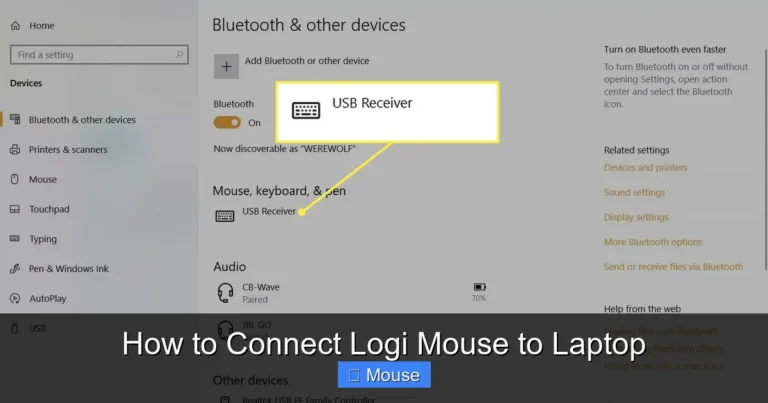
First things first. Your laptop must have Bluetooth built in. Most laptops made in the last decade have Bluetooth, but it’s worth confirming. On Windows, you can check by going to Settings > Devices > Bluetooth & other devices. If you see a Bluetooth toggle switch, you’re good to go. On a Mac, click the Apple menu > System Settings > Bluetooth. If the option is there, your Mac supports Bluetooth.
If your laptop doesn’t have Bluetooth, you can buy a small USB Bluetooth adapter for under $15. Plug it into any USB port, install the driver if needed, and you’ll have Bluetooth functionality instantly.
A Bluetooth-Compatible Mouse
Not all wireless mice use Bluetooth. Some use a USB receiver (called a dongle) instead. Make sure your mouse specifically says “Bluetooth” on the box or in the product description. Popular Bluetooth mouse brands include Logitech, Microsoft, Apple Magic Mouse, and Razer.
Fresh Batteries or a Charged Mouse
This sounds obvious, but it’s the number one reason people think their mouse is broken. Before you start the pairing process, make sure your mouse has fresh batteries or is fully charged. A weak battery can prevent the mouse from entering pairing mode or cause it to disconnect randomly.
How to Connect a Bluetooth Mouse to a Windows Laptop
Windows makes pairing a Bluetooth mouse pretty painless. Here’s the full process broken down into simple steps.
Step 1: Turn On Your Mouse and Enable Pairing Mode
Flip the power switch on the bottom of your mouse to the “On” position. Then look for a small button, usually on the bottom or side of the mouse, labeled “Pair” or “Connect.” Press and hold this button for about 3 to 5 seconds. You should see a small LED light start blinking. That blinking light means your mouse is in pairing mode and ready to be discovered by your laptop.
Pro tip: Some mice enter pairing mode automatically the first time you turn them on. Check your mouse’s manual if you’re not sure which method yours uses.
Step 2: Open Bluetooth Settings on Your Laptop
Click the Start menu and select Settings (the gear icon). Then click on Bluetooth & devices. Make sure the Bluetooth toggle at the top is switched to On. If it’s off, turn it on and wait a few seconds for your laptop to start scanning for nearby devices.
Step 3: Add Your Mouse
Click the “Add device” button at the top of the Bluetooth settings page. A small window will pop up asking what type of device you want to add. Select “Bluetooth” (not “Everything else”). Your laptop will now scan for nearby Bluetooth devices. After a few seconds, you should see your mouse appear in the list. It might show up as the model name, like “Logitech MX Master 3” or simply “Bluetooth Mouse.”
Click on your mouse’s name. Windows will pair with it automatically. You’ll see a confirmation message that says “Your device is ready to go!” That’s it. Your Bluetooth mouse is now connected and ready to use.
Step 4: Test Your Mouse
Move your mouse around and make sure the cursor responds on screen. Click the left and right buttons to confirm they work. Try scrolling with the scroll wheel. If everything works, you’re all set!
If you want to explore more wireless connection options, our article on how to connect a wireless mouse to a laptop covers both Bluetooth and USB receiver methods in detail.
How to Connect a Bluetooth Mouse to a Mac Laptop
Mac users, the process is just as simple. Apple has made Bluetooth pairing incredibly smooth across all its devices. Here’s how to do it.
Step 1: Enable Pairing Mode on Your Mouse
Just like with Windows, turn on your mouse and press the pairing button until the LED light starts blinking. Your mouse is now discoverable.
Step 2: Open Bluetooth Settings on Your Mac
Click the Apple menu in the top-left corner of your screen. Select System Settings (or System Preferences on older macOS versions). Click on Bluetooth in the sidebar. Make sure Bluetooth is turned on.
Step 3: Pair Your Mouse
Your Mac will automatically scan for nearby devices. You should see your mouse appear in the list under “Nearby Devices.” Click the “Connect” button next to your mouse’s name. Within a few seconds, the status will change to “Connected.” Your mouse is now paired with your Mac.
Step 4: Customize Your Mouse Settings
After connecting, you can customize your mouse behavior. Go to System Settings > Mouse to adjust tracking speed, scrolling direction, and secondary click settings. If you’re using an Apple Magic Mouse, you’ll also see options for gestures like swiping between pages and accessing Mission Control.
How to Connect a Bluetooth Mouse to a Chromebook
Chromebook users aren’t left out either. The process is quick and easy.
Step 1: Turn On Pairing Mode
Power on your Bluetooth mouse and hold the pairing button until the LED blinks.
Step 2: Open Bluetooth on Your Chromebook
Click on the status area in the bottom-right corner of your screen (where the time and battery icon are). Click the Bluetooth icon to open Bluetooth settings. Make sure Bluetooth is enabled.
Step 3: Pair the Mouse
Click “Pair new device.” Your Chromebook will scan for available devices. When your mouse appears in the list, click on it. The Chromebook will pair with the mouse automatically. You’ll see a confirmation, and your cursor should start responding to the mouse immediately.
Common Problems and How to Fix Them
Sometimes things don’t go smoothly. Here are the most common issues people run into when trying to connect a Bluetooth mouse to a laptop, along with simple fixes.
My Laptop Doesn’t Detect the Mouse
This is the most common frustration. First, make sure your mouse is actually in pairing mode. The LED should be blinking. If it’s not blinking, try holding the pairing button again for a few more seconds. Second, make sure Bluetooth is turned on your laptop. It sounds basic, but it’s easy to overlook. Third, try turning Bluetooth off and back on again. This forces your laptop to rescan for devices.
If your mouse still doesn’t show up, try restarting your laptop. A fresh boot often resolves Bluetooth detection issues. Also, make sure you’re within range. Bluetooth typically works within about 30 feet, but walls and interference can reduce that distance.
The Mouse Connects but the Cursor Doesn’t Move
If your mouse shows as “Connected” but nothing happens when you move it, try turning the mouse off and back on. Sometimes the connection establishes but the data doesn’t flow properly. If that doesn’t work, remove the mouse from your Bluetooth device list and pair it again from scratch.
On Windows, you can also try updating your Bluetooth drivers. Go to Device Manager > Bluetooth, right-click your Bluetooth adapter, and select “Update driver.”
The Mouse Keeps Disconnecting
Frequent disconnections usually point to a power issue. Check your mouse’s battery level. If it’s low, replace the batteries or charge the mouse. Another cause is power-saving settings on your laptop. On Windows, go to Device Manager > Bluetooth, right-click your Bluetooth mouse, select Properties, and uncheck “Allow the computer to turn off this device to save power” under the Power Management tab.
Some users with Lenovo laptops have reported that their Bluetooth mouse doesn’t reconnect after the laptop wakes from sleep. If this happens to you, check out our troubleshooting article about Lenovo laptops not connecting to Bluetooth mice after sleep for specific fixes.
My Laptop Doesn’t Have Bluetooth
No problem! You can buy a USB Bluetooth adapter (also called a Bluetooth dongle) for around $10 to $15. Plug it into any available USB port on your laptop. Windows and Mac will usually install the driver automatically. Once the adapter is recognized, you can pair your Bluetooth mouse using the same steps described above.
Tips for Using Your Bluetooth Mouse
Now that your mouse is connected, here are some tips to get the most out of it.
Keep Your Drivers Updated
Both Windows and macOS release updates that can improve Bluetooth performance. Make sure your operating system is up to date. On Windows, go to Settings > Windows Update. On Mac, go to System Settings > General > Software Update.
Reduce Wireless Interference
Bluetooth operates on the 2.4 GHz frequency, which is the same as many Wi-Fi routers, microwaves, and other wireless devices. If you experience lag or disconnections, try moving other wireless devices away from your laptop and mouse. Switching your Wi-Fi to the 5 GHz band can also help reduce interference.
Manage Multiple Bluetooth Devices
Most laptops can handle several Bluetooth devices at once. You can have a Bluetooth mouse, keyboard, and headphones all connected simultaneously. However, if you notice performance issues, try disconnecting devices you’re not actively using.
Know When to Re-Pair
If your mouse starts acting glitchy after a system update or after you’ve used it with another device, simply remove it from your Bluetooth device list and pair it again. This fresh start resolves most lingering connection issues.
Bluetooth Mouse vs. USB Receiver Mouse: Which Is Better?
You might be wondering whether a Bluetooth mouse is better than one that uses a USB receiver. Both have pros and cons.
Bluetooth mice don’t need a USB port, which is great if your laptop has limited ports. They also pair directly with your operating system, so there’s no extra hardware to lose. The downside is that Bluetooth can occasionally have slight latency compared to a dedicated USB receiver, though for most people the difference is unnoticeable.
USB receiver mice (like those using Logitech’s Unifying Receiver) tend to have a more stable connection and lower latency. They’re also usually easier to set up. You just plug in the dongle and go. The downside is that they use a USB port, and if you lose the tiny receiver, the mouse becomes useless.
For most everyday users, a Bluetooth mouse is the better choice. It’s cleaner, more portable, and works across multiple devices without needing to move a dongle around.
Conclusion
Connecting a Bluetooth mouse to a laptop is genuinely one of the simplest tech tasks you can do. Turn on your mouse, enable pairing mode, open your laptop’s Bluetooth settings, and click connect. That’s the whole process. Whether you’re on Windows, Mac, or Chromebook, the steps are nearly identical and take less than two minutes.
If you run into any issues, remember the basics. Check your batteries. Make sure Bluetooth is on. Restart things. Remove and re-pair the device. These simple steps fix the vast majority of Bluetooth mouse problems.
Now go enjoy your cable-free workspace. Your wrist and your desk will thank you!
Frequently Asked Questions
How do I know if my laptop has Bluetooth?
On Windows, go to Settings > Bluetooth & devices. If you see a Bluetooth toggle, your laptop has Bluetooth. On Mac, click the Apple menu > System Settings > Bluetooth. If the option appears, Bluetooth is available. You can also check your laptop’s specifications on the manufacturer’s website.
Can I connect a Bluetooth mouse and a USB wireless mouse at the same time?
Yes, you can use both simultaneously. Your laptop can handle multiple pointing devices at once. Just keep in mind that both cursors will control the same on-screen pointer, so using them at the exact same time might feel a bit confusing.
Why won’t my Bluetooth mouse connect to my laptop?
The most common reasons are dead batteries, the mouse not being in pairing mode, or Bluetooth being turned off on your laptop. Try replacing the batteries, holding the pairing button until the LED blinks, and toggling Bluetooth off and on. If that fails, restart your laptop and try again.
Do Bluetooth mice work with all laptops?
Bluetooth mice work with any laptop that has Bluetooth capability and runs a modern operating system like Windows 10/11, macOS, or ChromeOS. If your laptop doesn’t have built-in Bluetooth, you can add it with a USB Bluetooth adapter for under $15.
How many Bluetooth devices can I connect to my laptop at once?
Most laptops support up to seven Bluetooth devices simultaneously, though performance may vary. You can typically connect a mouse, keyboard, headphones, and a few other devices without any issues. If you experience lag, try disconnecting devices you’re not using.
Is a Bluetooth mouse better than a wireless mouse with a USB receiver?
It depends on your needs. Bluetooth mice don’t use a USB port and are more portable, making them ideal for laptops with limited ports. USB receiver mice often have slightly lower latency and a more stable connection. For general everyday use, most people prefer the convenience of Bluetooth.