Want To Display Day Of The Week On Windows 11 Taskbar
You can easily display the day of the week on your Windows 11 taskbar by adjusting the clock format in Settings. This simple tweak gives you quick access to today’s date without clicking. Follow our guide to personalize your taskbar clock in just a few minutes.
Want to know how to display day of the week on Windows 11 taskbar? You are in the right place. This guide walks you through every step in plain language. You do not need to be a tech expert to make this change. In just a few minutes, your taskbar clock will show the full day, date, and time. Let us get started.
The Windows 11 taskbar is a powerful tool. It holds your quick shortcuts, system tray, and clock. But by default, it only shows the time. Many users want to see the day of the week too. It helps you stay aware of the date at a glance. Whether you are scheduling meetings or just keeping track, adding the day makes a big difference. The good news is that Windows 11 makes this easy.
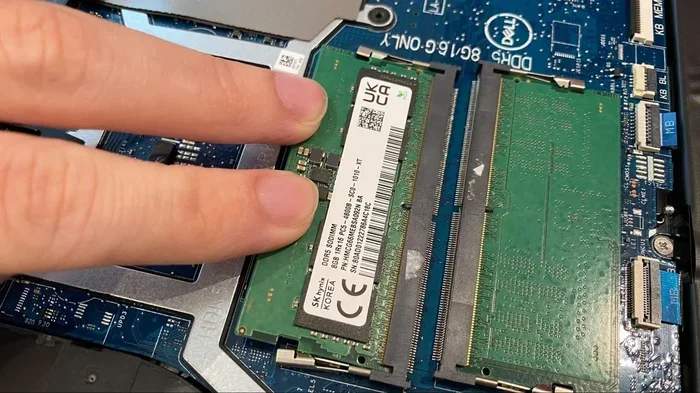
You might also want to check the RAM on my laptop if your system feels slow after making changes. But for now, let us focus on your taskbar clock. This article covers everything you need to know. From basic settings to advanced customizations, we have you covered.
Key Takeaways
- Quick Access: Adding the day of the week to your taskbar saves time and keeps you organized.
- Simple Steps: The process only takes a few minutes through Windows 11 Settings.
- Customizable Options: You can choose from multiple clock formats and styles.
- No Extra Software Needed: Everything is built right into Windows 11.
- Works for All Users: Whether you use a desktop or laptop, the steps are the same.
📑 Table of Contents
- Understanding The Windows 11 Taskbar
- How To Display Day Of The Week On Windows 11 Taskbar
- Customizing Your Taskbar Clock Display
- Troubleshooting Common Issues
- Expert Tips For A Better Taskbar Experience
- Why Showing The Day On Your Taskbar Matters
- Comparison: Taskbar Clock With and Without Day Display
- Final Thoughts
Understanding The Windows 11 Taskbar
The taskbar sits at the bottom of your screen by default. It includes the Start menu, pinned apps, the system tray, and the clock. The clock area is called the system tray. This is where you can add extra details like the day of the week. Windows 11 gives you full control over what appears here.
Before you make any changes, it helps to understand the layout. The system tray is on the right side of the taskbar. It houses the clock, volume, network icons, and more. When you right-click the taskbar, a menu appears. This menu lets you access taskbar settings quickly. If your mouse is not working properly, you can learn how to use the mouse on a laptop with our dedicated guide.
Why Customize Your Taskbar Clock?
Customizing your taskbar clock is more than just a visual upgrade. It improves your daily workflow. When you can see the day of the week instantly, you plan your day better. You do not need to open a calendar or check your phone. This small change boosts productivity. It also reduces the clutter on your desktop. You get more information without taking up extra space.
How To Display Day Of The Week On Windows 11 Taskbar
Now let us dive into the main steps. Displaying the day of the week on your Windows 11 taskbar is straightforward. There are two main methods. You can use the Settings app or the Control Panel. Both work well. Pick the one that feels most comfortable.
Method 1: Using Windows Settings
This is the easiest method for most users. Follow these steps carefully:
- Right-click on an empty area of your taskbar.
- Click on Taskbar settings from the menu.
- Scroll down to find the System tray section.
- Click on Clock or Date and time.
- Toggle on the option to Show day of the week.
- Close the Settings window and check your taskbar.
That is it. Your taskbar clock should now display the full day name like Monday or Tuesday. If it does not work right away, try restarting your computer. Sometimes Windows needs a refresh to apply new settings.
Method 2: Using the Control Panel
Some users prefer the classic Control Panel. It offers more detailed options. Here is how to use it:
- Press Windows + R to open the Run dialog.
- Type control and press Enter.
- Click on Clock and Region.
- Select Date and Time.
- Click on Change date and time.
- Go to the Format tab.
- Customize the short time or long time format to include the day.
This method gives you more control over the exact format. You can choose between short day names like Mon or full names like Monday. Play around with the settings until you find what works best for you.
Customizing Your Taskbar Clock Display
Once you have the day of the week showing, you might want to tweak the look further. Windows 11 offers several customization options. These let you make the clock truly yours.
Changing the Clock Format
You can change how the time appears. Do you prefer a 12-hour or 24-hour format? The choice is yours. Go to Settings, then Time and Language, and then Date and Time. From there, you can adjust the format. You can also add seconds to the clock display if you like.
Adjusting the Font Size
If the day and time are hard to read, you can increase the font size. Right-click the desktop and select Display settings. Adjust the scale and layout to make everything bigger. This is especially helpful on smaller laptop screens.
Choosing Your Time Zone
Make sure your time zone is set correctly. If you travel often or work with teams in different regions, this matters. Go to Settings, then Time and Language, and then Date and Time. Toggle on Adjust for daylight saving time if needed. This keeps your clock accurate year-round.
Troubleshooting Common Issues
Sometimes things do not go as planned. Your taskbar clock might not update or the day might not show. Do not worry. These issues are easy to fix.
The Day Is Not Showing After Changes
If you followed the steps but the day is not visible, try this:
- Restart your computer and check again.
- Make sure you saved the settings before closing the window.
- Check if another app is overriding the clock display.
- Update Windows 11 to the latest version.
Sometimes Windows updates reset your customizations. Running the latest update ensures everything works smoothly. If your mouse or trackpad is acting up, learn how to unlock the mouse on my laptop to make sure you can navigate settings without issues.
Clock Shows the Wrong Time
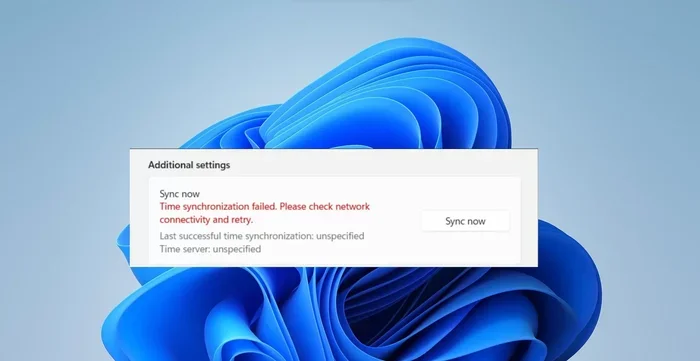
If your clock shows the wrong time, the time zone is likely incorrect. Go to Date and Time settings and set your location automatically. Windows can detect your time zone using your IP address. You can also manually select your city from the drop-down list.
Taskbar Not Responding
A frozen taskbar can be frustrating. Try restarting Windows Explorer. Press Ctrl + Shift + Esc to open Task Manager. Find Windows Explorer, right-click it, and select Restart. This often fixes minor glitches without restarting your whole computer.
Expert Tips For A Better Taskbar Experience
Here are some pro tips to get the most out of your Windows 11 taskbar:
- Use Taskbar Alignment: You can move the clock to the left or center. Right-click the taskbar, go to Taskbar settings, and choose your alignment.
- Hide Unnecessary Icons: Turn off icons you never use. This gives your clock more space and keeps things clean.
- Enable Flyouts: Flyouts show more details when you hover over the clock. They display the full calendar and upcoming events.
- Use Multiple Monitors: If you use more than one monitor, you can show the day on both or just one.
- Keep Windows Updated: Regular updates fix bugs and add new taskbar features over time.
Why Showing The Day On Your Taskbar Matters
You might wonder why this small detail matters so much. The answer is simple. Awareness. When you can see the day of the week at a glance, you stay connected to your schedule. You do not need to open a browser or check your phone. This tiny habit saves seconds throughout the day. Over time, those seconds add up.
For students, knowing the day helps with planning study sessions. For professionals, it prevents scheduling mix-ups. For parents, it keeps track of school days and weekends. Everyone benefits from this simple addition to their taskbar.
The display of the day also complements other date-related features in Windows 11. When you combine the day with a well-organized taskbar, your desktop becomes a productivity hub. It is one of those small changes that makes a big impact on your daily routine.
Comparison: Taskbar Clock With and Without Day Display
Here is a quick comparison to show the value of adding the day:
- Without Day Display: You only see hours and minutes. You must open a calendar to check the day.
- With Day Display: You see the full day name alongside the time. No extra clicks needed.
- Without Day Display: Easy to forget what day it is during busy work weeks.
- With Day Display: Stays visible and reminds you of the current date constantly.
The difference is clear. Adding the day of the week to your taskbar is a small effort with a big payoff. It takes less than five minutes to set up. Once it is done, you will wonder how you lived without it.
Final Thoughts
Displaying the day of the week on your Windows 11 taskbar is one of the simplest yet most useful tweaks you can make. It keeps you informed, organized, and productive. The steps are easy to follow, and the results are immediate. Whether you use the Settings app or the Control Panel, both methods work great.
Do not let your taskbar stay plain when it can be so much more. Take a few minutes today to customize your clock. You will thank yourself every time you glance at your screen. This is one Windows 11 feature that truly makes a difference in your daily life.
Remember, small adjustments like this add up to a much better computing experience. Your taskbar is your window to your digital world. Make it work for you. Display the day of the week, stay on top of your schedule, and enjoy a more organized desktop every single day.
Frequently Asked Questions
Can I show the full date and day on the Windows 11 taskbar?
Yes, you can. Go to Settings, then Time and Language, and then Date and Time. From there, you can customize the format to include the full date and day of the week. The steps are simple and take less than a minute.
Why is the day of the week not showing on my taskbar?
This usually happens when the clock format has not been changed. Follow the steps in Method 1 or Method 2 to adjust the format. Restarting your computer after making changes often fixes the issue.
Can I customize how the day name appears?
Absolutely. You can choose between short day names like Mon or full names like Monday. Go to the Date and Time settings and adjust the format string to match your preference.
Does displaying the day affect my taskbar performance?
No, it does not. Showing the day of the week uses minimal system resources. It is purely a visual change that makes your taskbar more informative without slowing anything down.
Can I remove the day of the week after adding it?
Yes, you can reverse the changes anytime. Go back to the same settings and toggle off the day display option. Your taskbar will return to showing only the time.
Is this feature available on all Windows 11 editions?
Yes, the day display feature is available on all Windows 11 editions including Home, Pro, and Enterprise. The steps are the same regardless of which edition you are using.