Ram for Hp Pavilion Laptop
Choosing the right ram for HP Pavilion laptop can transform your computing experience. This guide covers everything from compatible memory types to step-by-step installation tips. You will learn how much RAM your HP Pavilion needs, which modules work best, and how to boost speed without breaking the bank.
Are you tired of your HP Pavilion laptop running slow? Maybe apps take forever to open, or your system freezes when you have too many tabs open. The fix might be simpler than you think. Upgrading your ram for HP Pavilion laptop can breathe new life into an aging machine and make everything feel faster and smoother.
Random Access Memory, or RAM, is the short-term memory your laptop uses to handle tasks. When you open a browser, run a program, or play a game, your RAM handles the workload. If your RAM is too low, your laptop struggles. The good news is that upgrading your memory is one of the easiest and most affordable ways to improve performance.
In this guide, we will walk you through everything you need to know about ram for HP Pavilion laptop models. We will cover compatible types, how much RAM you need, and how to install it yourself. Whether you have an older Pavilion or a newer model, this article has you covered.
Key Takeaways
- Know Your Limits: HP Pavilion laptops support specific RAM types and maximum capacities depending on the model year.
- Upgrade Matters: Adding more RAM can significantly improve multitasking, speed, and overall system responsiveness.
- DDR4 Is Standard: Most modern HP Pavilion laptops use DDR4 RAM, while older models may need DDR3.
- Easy Installation: Upgrading RAM on an HP Pavilion is a straightforward process anyone can do at home.
- Right Size Counts: 8GB is the sweet spot for everyday use, while 16GB suits heavy workloads and gaming.
- Check Compatibility First: Always verify your laptop model and RAM specifications before purchasing new memory.
📑 Table of Contents
- Understanding RAM and Why It Matters
- How Much RAM Do You Need for an HP Pavilion Laptop?
- Compatibility: Finding the Right RAM for Your HP Pavilion
- How to Upgrade RAM in Your HP Pavilion Laptop
- Common Mistakes to Avoid When Upgrading RAM
- How Much Does RAM for an HP Pavilion Laptop Cost?
- Benefits of Upgrading Your HP Pavilion Laptop RAM
- When Should You Consider a RAM Upgrade?
- Final Thoughts
Understanding RAM and Why It Matters
RAM is like your laptop’s short-term workspace. When you open a program or file, it moves from your hard drive into RAM. This makes everything run faster because RAM is much quicker to access than a traditional hard drive or even an SSD. The more RAM you have, the more tasks your laptop can handle at once without slowing down.
How RAM Affects Performance
Think of RAM like a desk. A small desk can only hold so many papers at once. If you try to spread everything out, things get messy and you waste time shuffling papers around. A bigger desk lets you work on multiple things at the same time without any hassle.
Similarly, more RAM means your laptop can run more apps at the same time. If you like to browse the web while listening to music and working on a document, you need enough memory to handle all of that. A memory upgrade can make a noticeable difference in how smoothly everything runs.
Types of RAM Used in HP Pavilion Laptops
HP Pavilion laptops use different types of RAM depending on the model and year. Here are the most common types you will encounter:
- DDR3 RAM: Older HP Pavilion models from around 2010 to 2014 often use DDR3 memory. This type is slower but still works well for basic tasks.
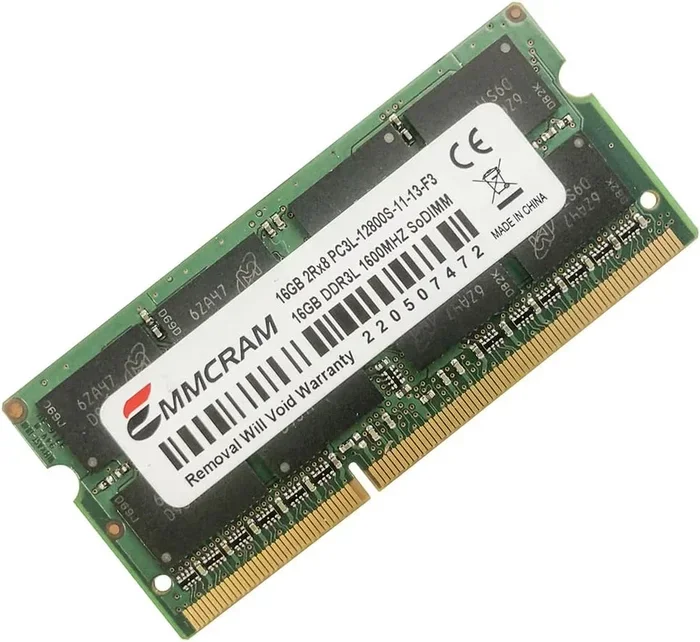
- DDR4 RAM: Most modern HP Pavilion laptops use DDR4 RAM. It is faster, more efficient, and offers better performance for multitasking and gaming.
- DDR5 RAM: Some of the newest HP Pavilion models may support DDR5. This is the latest standard and offers the best speeds available today.
Before buying any memory, check your laptop’s specifications. You can usually find this information on the bottom of the laptop or in the system settings. Knowing your memory type saves you from buying the wrong module.
How Much RAM Do You Need for an HP Pavilion Laptop?
The right amount of RAM depends on what you use your laptop for. Different tasks require different levels of memory. Here is a simple breakdown to help you decide.
Basic Use: 4GB to 8GB
If you mainly use your laptop for web browsing, email, and light document work, 4GB to 8GB of RAM should be enough. Many entry-level HP Pavilion laptops come with 4GB or 8GB of memory. For most everyday tasks, 8GB provides a comfortable experience.
However, 4GB is becoming less common for modern use. If you are still running 4GB ram memory, you might notice slowdowns when you have multiple browser tabs open. A 4gb ram memory for laptop upgrade to 8GB can make a big difference without costing much.
Medium Use: 8GB to 16GB
If you use your laptop for photo editing, streaming, light gaming, or running several apps at once, 8GB to 16GB is ideal. This range handles most workloads with ease. Many users find that 16GB is the sweet spot for a smooth experience.
For students who juggle multiple apps, or professionals who work with spreadsheets and presentations simultaneously, 16GB provides plenty of headroom. An 8 gb ram for laptop or 16 gb ram laptop upgrade can turn a sluggish machine into a responsive one.
Heavy Use: 16GB to 32GB
Video editing, 3D rendering, gaming, and programming require more memory. If you do any of these tasks on your HP Pavilion, consider 16GB or even 32GB of RAM. This amount ensures your laptop can handle demanding software without any lag.
Keep in mind that not all HP Pavilion models support 32GB. Check your specific model’s maximum RAM capacity before making a purchase. Some older models have a limit of 16GB, so always verify your laptop specs first.
Compatibility: Finding the Right RAM for Your HP Pavilion
Not all RAM modules are compatible with every HP Pavilion laptop. Using the wrong type can cause problems or even prevent your laptop from booting. Here is what you need to check before buying.
Check Your Model Number
Every HP Pavilion laptop has a model number printed on the bottom or inside the battery compartment. Write this number down and search for its RAM specifications online. HP’s official website also lists compatible memory for each model.
Knowing your exact model helps you find the right compatible ram for your system. This small step saves time, money, and frustration.
RAM Speed and Frequency
RAM speed is measured in megahertz (MHz). Higher MHz means faster data transfer. Most HP Pavilion laptops work well with RAM speeds between 2400MHz and 3200MHz. However, your laptop’s motherboard has a maximum supported speed.
Buying RAM that is faster than what your laptop supports will not cause harm. It will simply run at the maximum speed your laptop allows. Still, it is best to match the speed for optimal performance.
Single Channel vs. Dual Channel
Many HP Pavilion laptops support dual-channel memory. This means using two RAM sticks instead of one. Dual-channel mode can improve memory bandwidth and boost overall performance.
If your laptop has two RAM slots, consider buying a matched pair of modules. For example, two 8GB sticks will perform better than a single 16GB stick in dual-channel mode. This is a great performance boost that costs very little extra.
How to Upgrade RAM in Your HP Pavilion Laptop
Upgrading the RAM in your HP Pavilion laptop is one of the easiest DIY projects you can do. You do not need to be a tech expert. With a few simple tools and our step-by-step guide, you can complete the upgrade in under 30 minutes.
What You Will Need
Before you start, gather these items:
- A compatible RAM module (check the section above for guidance)
- A small Phillips-head screwdriver
- A clean, flat workspace
- An anti-static wrist strap (optional but recommended)
Step-by-Step Installation Process
Follow these steps to safely install new RAM in your HP Pavilion:
- Power Off and Unplug: Turn off your laptop and disconnect all cables and peripherals. Remove the battery if possible.
- Ground Yourself: Touch a metal surface to discharge any static electricity. This protects your components from damage.
- Open the Back Panel: Use your screwdriver to remove the screws on the bottom of the laptop. Carefully lift off the panel.
- Locate the RAM Slots: You will see one or two RAM slots. The existing module(s) will be held in place by small clips on each side.
- Remove Old RAM (if needed): Gently push the clips outward. The RAM stick will pop up at an angle. Pull it straight out.
- Insert New RAM: Align the notch on the new RAM module with the slot. Press it down firmly at an angle until it clicks into place.
- Reassemble and Test: Replace the back panel, screw it in, and reconnect the battery. Power on your laptop and check that the new RAM is recognized.
Not comfortable doing this yourself? You can also visit a local repair shop or follow a detailed guide on how to upgrade RAM on HP laptop for video walkthroughs and additional tips.
Common Mistakes to Avoid When Upgrading RAM
Even a simple upgrade can go wrong if you are not careful. Here are some common mistakes to watch out for:
- Buying the Wrong Type: DDR3 and DDR4 RAM are not interchangeable. Always double-check your laptop’s RAM type before purchasing.
- Ignoring Maximum Capacity: Some HP Pavilion models have a RAM limit. Exceeding it will not work, even if the module physically fits.
- Mixing RAM Brands and Speeds: While it can work, mixing different RAM sticks may cause instability. Using matched pairs is always better.
- Forgetting to Ground Yourself: Static electricity can damage sensitive components. Always ground yourself before touching internal parts.
- Not Seating the RAM Properly: If the RAM is not fully clicked in, your laptop may not boot. Listen for the click and make sure the clips lock into place.
Avoiding these mistakes ensures a smooth upgrade process. If you run into any issues, consult HP’s support page or a professional technician for help.
How Much Does RAM for an HP Pavilion Laptop Cost?
One of the best things about upgrading RAM is how affordable it is. You do not need to spend a fortune to get a noticeable performance boost.
An 8GB DDR4 RAM module typically costs between $25 and $45. A 16GB module ranges from $45 to $80, depending on the brand and speed. For most users, spending under $50 on a memory upgrade can make a world of difference.
Compared to buying a new laptop, a RAM upgrade is an incredible value. Your current HP Pavilion can feel like a new machine with just a simple memory boost. Check out options for buy ram memory for laptop from reputable retailers to find the best deals.
Benefits of Upgrading Your HP Pavilion Laptop RAM
Still not sure if a RAM upgrade is worth it? Here are some of the key benefits you can expect:
- Faster Multitasking: Switch between apps without any lag or freezing.
- Better Browser Performance: Keep dozens of tabs open without slowing down.
- Improved Gaming: Many games require at least 8GB of RAM to run smoothly.
- Quicker Boot Times: More RAM helps your laptop start up faster and load programs quicker.
- Longer Laptop Lifespan: A memory upgrade can extend the useful life of your laptop by several years.
- Cost Savings: A small investment in RAM can delay the need for a costly new laptop purchase.
These benefits apply to virtually every HP Pavilion model. Whether you use your laptop for school, work, or entertainment, more RAM will improve your experience.
When Should You Consider a RAM Upgrade?
Not everyone needs a RAM upgrade right away. Here are some signs that it might be time to upgrade your ram for HP Pavilion laptop:
- Your laptop takes more than a few seconds to open apps or files.
- You frequently see the hard drive working overtime (the light stays on constantly).
- Your system slows down when you have multiple programs open.
- You get “out of memory” warnings or your browser crashes with many tabs.
- You have 4GB of RAM or less and want a smoother experience.
- You have recently started using more demanding software or games.
If any of these sound familiar, a RAM upgrade is likely the solution. It is quick, affordable, and delivers immediate results.
Final Thoughts
Upgrading your ram for HP Pavilion laptop is one of the smartest investments you can make. It is affordable, easy to do, and delivers a real improvement in everyday performance. Whether you are a student, a professional, or a casual user, the right amount of RAM can transform how you use your laptop.
Start by checking your laptop’s current specifications. Determine how much RAM you need based on your usage habits. Then, choose a compatible module and follow our installation guide. Within an hour, you can enjoy a faster, more responsive laptop without spending a fortune.
Do not let a slow laptop hold you back. Take control of your computing experience and upgrade your HP Pavilion RAM today. Your future self will thank you every time you open your laptop and everything just works.
Frequently Asked Questions
Can I upgrade the RAM in my HP Pavilion laptop myself?
Yes, upgrading RAM in an HP Pavilion laptop is one of the easiest DIY projects. You only need a small screwdriver and about 20 to 30 minutes. Just make sure you buy the right type of RAM for your specific model, and follow the steps carefully. If you are unsure, search for a video guide on how to upgrade RAM on HP laptop for visual instructions.
What is the maximum RAM supported by HP Pavilion laptops?
The maximum RAM varies by model and year. Most HP Pavilion laptops support up to 16GB or 32GB of RAM. Older models may have a lower limit of 8GB. Check your laptop’s user manual or HP’s official website to find the exact maximum capacity for your specific Pavilion model before purchasing new memory.
Is 8GB of RAM enough for an HP Pavilion laptop?
For most everyday tasks like web browsing, streaming, and document editing, 8GB is the sweet spot. It provides a smooth and responsive experience for the majority of users. However, if you do heavy multitasking, video editing, or gaming, you may benefit from upgrading to 16GB of RAM for better performance.
Does adding more RAM speed up my HP Pavilion laptop?
Yes, adding more RAM can significantly speed up your laptop, especially if you currently have less than 8GB. More RAM allows your laptop to handle more tasks simultaneously without slowing down. If your laptop is already slow due to low memory, a RAM upgrade is one of the most effective and affordable ways to improve its speed.
What type of RAM do HP Pavilion laptops use?
Most modern HP Pavilion laptops use DDR4 RAM, while older models from before 2015 may use DDR3. The newest Pavilion models may support DDR5 RAM. Always check your specific model’s specifications to confirm the correct RAM type before making a purchase. Using the wrong type of RAM will not work and could cause compatibility issues.
How much does it cost to upgrade RAM for an HP Pavilion laptop?
A RAM upgrade is very affordable. An 8GB DDR4 module typically costs between $25 and $45, while a 16GB module ranges from $45 to $80. Compared to buying a new laptop, upgrading your RAM is a budget-friendly way to breathe new life into your HP Pavilion. You can find competitive prices for ram memory for laptop at most electronics retailers online.