How to Buy a Secondary Monitor
A secondary monitor can instantly transform your workflow by expanding screen real estate and boosting daily productivity. Before you buy, focus on essential factors like display size, resolution, connectivity options, and panel type to match your specific needs. This guide breaks down everything you need to know so you can confidently choose the right secondary monitor for your home or office setup.
Key Takeaways
- Match your monitor size to your desk space and primary screen for a balanced setup.
- Check your GPU ports before buying to ensure full compatibility with your current setup.
- Prioritize panel type based on your workflow — IPS for color, VA for contrast.
- Consider refresh rate if you game or edit video for smoother visual performance.
- Buy within your budget but never compromise on resolution for long-term productivity gains.
- Test connectivity options like HDMI, DisplayPort, or USB-C to avoid adapter headaches later.
📑 Table of Contents
- Why You Need a Secondary Monitor
- Key Features to Consider When Buying a Secondary Monitor
- Types of Secondary Monitors
- Best Practices for Setting Up Your Secondary Monitor
- Common Mistakes to Avoid When Buying a Secondary Monitor
- Quick Tips for a Smarter Purchase
- Final Thoughts on How to Buy a Secondary Monitor
Why You Need a Secondary Monitor
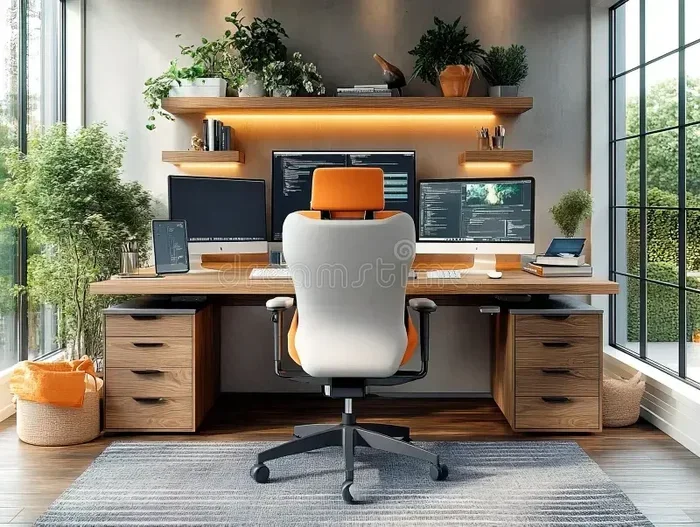
Adding a secondary monitor to your workspace is one of the simplest upgrades that makes the biggest difference. Whether you are working from home, studying, or gaming, an extra screen gives you more screen real estate to handle multiple tasks at once. Instead of constantly switching between tabs on a single display, you can spread things out and work more comfortably.
Research shows that a dual monitor setup can boost your productivity by up to 30%. That is a huge gain just from adding another display. People who use a secondary display report fewer headaches from squinting at tiny text and less time wasted toggling between windows. If you have never tried it before, you might wonder what the big deal is. Trust me, once you go dual screen, going back to a single monitor feels painfully limiting.
But here is the thing. Buying a secondary monitor is not as simple as walking into a store and grabbing the first one you see. There are many factors to consider. You need to think about size, resolution, panel type, and connectivity options. Getting it wrong means you could end up with a display that does not fit your needs or your budget. This guide will walk you through everything you need to know about how to buy a secondary monitor so you make a smart choice the first time around.
Key Features to Consider When Buying a Secondary Monitor
Before you spend a dime, you should understand what makes a good secondary monitor. Not all displays are created equal, and the features that matter most depend on how you plan to use it. Here is a breakdown of the most important things to look for.
Monitor Size and Resolution
The size of your monitor size matters more than you think. For a secondary display, most people do well with a screen between 24 and 27 inches. Anything smaller and you lose the benefit of extra space. Anything larger and you might need a bigger desk or a monitor arm to keep things tidy.
Resolution is just as important. A 1080p display works fine for basic tasks, but if you want sharp text and clear images, go for a 1440p or 4K resolution. The higher the resolution, the more detail you see. Just make sure your computer can handle it. Running a high-resolution extra screen on an older machine can slow things down.
Panel Type and Color Accuracy
The panel type determines how colors look and how fast the screen responds. The three main types are IPS, VA, and TN. Here is a quick comparison:
- IPS displays offer great color accuracy and wide viewing angles. They are perfect for design work and casual use.
- VA panels provide deep blacks and good contrast. They work well for movies and general productivity.
- TN panels are the fastest but have poorer color quality. They are best for budget setups or gaming.
If color accuracy matters to you, go with an IPS panel. For a productivity monitor, IPS gives you the best balance of quality and usability. If you are a gamer on a budget, TN panels still have their place, but most people will be happier with IPS.
Refresh Rate and Response Time
The refresh rate controls how many times per second the screen updates. A 60Hz monitor is standard and fine for work. But if you game or watch fast-moving content, look for 120Hz or higher. A low response time also helps reduce blur during quick motion. For a gaming monitor, aim for at least 144Hz with a 1ms response time.
Connectivity Ports
Make sure your secondary monitor has the right ports to connect to your system. The most common options include:
- HDMI — the most universal port. Almost every device supports it.
- DisplayPort — great for high-resolution and high-refresh setups.
- USB-C — increasingly common and can carry video, data, and power through one cable.
- VGA — older and lower quality. Avoid if possible.
Check what ports your computer has and match them. If your laptop only has USB-C, buying a monitor with USB-C input makes your setup much simpler. You can even connect a Bluetooth mouse to laptop wirelessly and keep your desk clean while using your new dual monitor setup.
Types of Secondary Monitors
Not all secondary monitors serve the same purpose. Different tasks call for different kinds of displays. Here are the main categories you will encounter when shopping for an extra screen.
Productivity Monitors
If your goal is to get more work done, look for a productivity monitor with a crisp display and good color reproduction. These typically feature IPS panels, slim bezels, and adjustable stands. A 27-inch 1440p IPS display is a sweet spot for most professionals. These monitors prioritize clarity and comfort over raw speed.
Gaming Monitors
A gaming monitor focuses on speed. High refresh rate, low response time, and adaptive sync technology are the key selling points. If you play competitive games, these features make a noticeable difference. Many gaming monitors also come with curved screens that pull you into the action.
Curved vs. Flat Monitors
Curved secondary monitors wrap around your field of vision and reduce edge distortion. They look cool and feel immersive. Flat panels are more traditional and tend to cost less. For a dual monitor setup, flat screens usually work better because they line up neatly side by side. Curved screens can be awkward when paired with another display. Choose based on your preference and desk layout.
Best Practices for Setting Up Your Secondary Monitor
Buying the right secondary monitor is only half the battle. Setting it up properly ensures you actually enjoy the benefits of a dual monitor setup. Here are some tips to get the most out of your new secondary display.
Positioning and Ergonomics
Place your extra screen at eye level or slightly below. The top of the screen should align with your natural eye line. This reduces neck strain and keeps you comfortable during long sessions. If your desk is too small, a monitor arm is a great investment. It frees up desk space and lets you adjust the angle easily.
Position the secondary display directly to your left or right. You want to be able to swivel your chair and glance at it without turning your whole body. Avoid placing it directly behind your main screen. That defeats the purpose of having more screen real estate.
Operating System Configuration
Both Windows and macOS let you customize how your dual monitor setup works. In Windows, go to Settings > Display to arrange your screens and choose which one is primary. You can also set different resolutions for each display. On a Mac, go to System Preferences > Displays. You get similar controls there. Take a few minutes to set it up right. It makes a real difference in your daily workflow.
Cable Management
Nothing ruins a nice setup faster than a mess of cables. Use cable ties or a cable tray to keep things organized. If you can, choose a monitor that supports USB-C with power delivery. One cable handles video and charges your laptop at the same time. This keeps your workspace clean and your ergonomic setup looking professional.
Common Mistakes to Avoid When Buying a Secondary Monitor
Even experienced users make mistakes when they shop for a secondary monitor. Here are the most common ones to watch out for.
Buying Based on Looks Alone
A sleek design is nice, but it does not replace solid specs. Some monitors look stunning in photos but have poor color accuracy or a low refresh rate. Always check the technical details before you buy. Do not let a pretty picture fool you.
Ignoring Compatibility
Before you purchase, make sure your computer can support the monitor you want. An older laptop might struggle with a 4K extra screen. A graphics card with only HDMI outputs cannot drive a DisplayPort-only monitor. Check your system requirements and match them to the monitor’s specifications. This simple step saves a lot of frustration.
Skipping the Return Policy
Every display looks different in person than on a screen. Colors, brightness, and size can all feel different once you set it up. Always buy from a retailer with a good return policy. This way, you can send it back if the secondary display does not meet your expectations. Many online stores offer 30-day returns, which gives you plenty of time to test it out.
Overpaying for Features You Do Not Need
If you are using the secondary monitor for document work, you do not need a 240Hz gaming monitor. Likewise, if you just want a second screen for email and browsing, a high-end 4K display is overkill. Match the features to your actual use case. This is one of the easiest ways to save money without sacrificing quality.
Quick Tips for a Smarter Purchase
- Set a budget first. Good secondary monitors are available at every price point. Know what you can spend before you start browsing.
- Read real reviews. Look for user reviews that mention long-term use. Professional reviews often focus on specs, but real users talk about daily experience.
- Check for warranty. A solid warranty protects you from defects. Most reputable brands offer at least a one-year warranty on their monitors.
- Consider future needs. If you think you might upgrade later, choose a monitor with slightly better specs than you need today. It is a small investment that pays off.
- Test before buying. If possible, see the monitor in person at a store. The monitor size and color accuracy can vary from what you expect.
Final Thoughts on How to Buy a Secondary Monitor
Buying a secondary monitor is a decision that impacts your daily productivity, comfort, and enjoyment. A well-chosen extra screen transforms the way you work, play, and create. The key is to match the right features to your specific needs. Focus on monitor size, resolution, panel type, and connectivity. Avoid the temptation to chase flashy specs you will never use.
Remember that a dual monitor setup is only as good as its setup. Take the time to position your secondary display correctly, manage your cables, and configure your operating system. These small touches make a big difference. Whether you are building a productivity monitor workstation or adding a gaming monitor to your rig, the right choices lead to a better experience every single day.
Now you know what to look for and what to avoid. Use this guide the next time you explore how to buy a secondary monitor, and you will walk away with a display that fits your life perfectly. Your new secondary display is waiting. Make it count.
Frequently Asked Questions
What Size Secondary Monitor Should I Buy?
A 24-inch or 27-inch secondary monitor works well for most people. A 24-inch screen is great if you want a compact setup, while 27 inches gives you more workspace. Choose based on your desk space and how you plan to use the extra screen.
How Do I Connect a Secondary Monitor to My Laptop?
You can connect a secondary monitor using HDMI, USB-C, or DisplayPort, depending on your laptop’s ports. Most modern laptops support at least one of these connections out of the box. If your laptop has limited ports, a simple docking station or adapter will do the trick.
Do I Need a Special Graphics Card for a Secondary Monitor?
Most modern graphics cards can handle two or more monitors without any issues. You only need a dedicated upgrade if you plan to run three or more high-resolution displays. Check your current GPU specs to confirm it supports multiple outputs before buying.
What Resolution Is Best for a Secondary Monitor?
A Full HD (1080p) resolution is the sweet spot for most secondary monitors and offers great value. If you pair it with a high-res primary monitor, 1080p keeps things balanced and cost-effective. Go for a 1440p or 4K secondary screen only if you need sharper text and images.
Can I Use a TV as a Secondary Monitor?
Yes, you can use a TV as a secondary monitor, and it works great for media and presentations. Just make sure it has an HDMI input and supports the right resolution for your needs. Keep in mind that larger TVs may have higher input lag, which can affect fast-paced tasks.
How Much Should I Spend on a Secondary Monitor?
A good-quality secondary monitor typically costs between $100 and $300. Budget options under $150 still deliver solid performance for everyday tasks like browsing and document editing. Spending more makes sense if you need better color accuracy, higher refresh rates, or a larger screen size.