How To Fix A Broken Mouse Wheel And Restore Smooth Scrolling

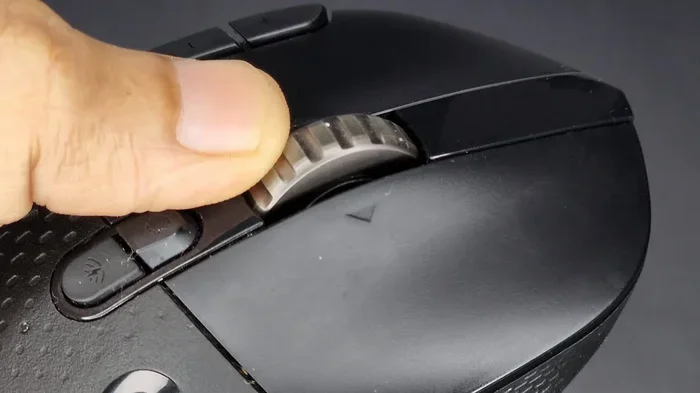
A broken mouse wheel can ruin your workflow, but you can fix it yourself without spending a dime. This guide walks you through cleaning, repairing, and replacing a stuck or non-scrolling mouse wheel. Whether your mouse wheel is stuck, scrolling too fast, or not responding at all, you will find the solution that works for you.
Nothing is more frustrating than a mouse wheel that refuses to scroll. You are reading an article, browsing a webpage, or working on a spreadsheet, and suddenly the scroll wheel just stops working. It gets stuck, scrolls too fast, or does nothing at all. A broken mouse wheel can slow you down and test your patience.
The good news is that you do not need to be a tech expert to fix it. Most mouse wheel problems have simple solutions. You can clean the wheel, adjust settings, or even replace the broken part. In this guide, we will walk you through every step. By the end, your mouse scroll wheel will work like new again.
Let us get started. No fancy tools needed. No expensive repairs. Just clear, practical steps that anyone can follow.
Key Takeaways
- Dirt and dust are the most common culprits behind a broken mouse wheel, and simple cleaning often fixes the problem.
- Adjusting mouse settings in Windows or macOS can resolve scrolling speed and direction issues.
- Replacing the mouse wheel module is affordable and straightforward for most standard mice.
- Regular maintenance keeps your mouse wheel working smoothly for years.
- Knowing when to replace your entire mouse saves time and money compared to costly repairs.
📑 Table of Contents
Why Does A Mouse Wheel Break?
Understanding why your mouse wheel broke helps you pick the right fix. Mouse wheels fail for several reasons. Some are simple to solve. Others need a bit more effort. Let us look at the most common causes.
Dust and Dirt Buildup
This is the number one cause of mouse wheel problems. Over time, dust, crumbs, and grime build up around the scroll wheel. The debris gets trapped between the wheel and the sensor. This makes the wheel sticky or unresponsive. If your wheel feels gritty when you turn it, dirt is probably the issue.
Worn Out Internal Parts
Mouse wheels have small mechanical parts inside. These parts wear down with regular use. The rubber rollers lose their grip. The tiny sensors get worn. After months or years of heavy use, the internal mechanism simply breaks down. This is common with budget mice that do not have durable components.
Physical Damage
Dropping your mouse or pressing the wheel too hard can cause damage. The wheel can crack or pop out of place. The internal sensor can shift. If you have ever knocked your mouse off a desk, this might be the reason your scroll wheel is not working.
Software or Driver Issues
Sometimes the problem is not physical at all. A driver update gone wrong or a software conflict can make your mouse wheel behave strangely. The wheel might scroll in the wrong direction or not scroll at all. Before you open up your mouse, check if a software fix solves the problem.
How To Clean A Sticky Mouse Wheel
Cleaning is the first step in fixing a broken mouse wheel. It costs nothing and takes just a few minutes. Start here before trying anything else. Most of the time, a good cleaning brings your wheel back to life.
What You Need
- A can of compressed air
- Cotton swabs (Q-tips)
- Isopropyl alcohol (70% or higher)
- A toothpick or small flat tool
- A soft cloth
Step-by-Step Cleaning Process
Follow these steps carefully. Do not rush. Take your time to get the best results.
- Unplug your mouse or turn off your wireless mouse. You do not want any accidental clicks while cleaning.
- Blow out loose dust with compressed air. Hold the can upright and spray around the wheel. This removes the loose particles.
- Dip a cotton swab in isopropyl alcohol. Gently rub around the base of the scroll wheel. Do not press too hard.
- Use a toothpick to scrape out any stubborn grime. Carefully work around the edges of the wheel. Be gentle to avoid breaking anything.
- Wipe the wheel with a clean, dry cloth. Make sure no alcohol is left behind.
- Let it dry completely before plugging your mouse back in. Wait at least five minutes.
After cleaning, test your mouse wheel scrolling. In most cases, this simple fix does the trick. If the wheel still sticks, move on to the next section.
Quick Tip: Clean your mouse wheel once a month. Regular cleaning prevents buildup and keeps scrolling smooth. This small habit saves you from bigger problems later.
How To Fix Mouse Wheel Scrolling Problems
Sometimes cleaning is not enough. The wheel might still not scroll properly. This section covers fixes for common scrolling issues. These steps work on both wired and wireless mice.
Check Your Mouse Settings
Your operating system controls how fast and in which direction your wheel scrolls. If the settings are off, your wheel might seem broken even when it is not.
On Windows, go to Settings > Bluetooth & Devices > Mouse. Adjust the scroll speed slider. Try different settings to see which one feels right. On macOS, go to System Settings > Mouse. Adjust the scroll speed there.
Update or Reinstall Mouse Drivers
Outdated drivers can cause mouse wheel not scrolling issues. Here is how to update them on Windows.
- Right-click the Start button and select Device Manager.
- Expand the “Mice and other pointing devices” section.
- Right-click your mouse and select Update driver.
- Choose “Search automatically for drivers.”
- Restart your computer after the update.
If updating does not work, try uninstalling the driver. Restart your PC, and Windows will reinstall a fresh driver automatically.
Fix Scroll Direction Issues
Some people prefer scrolling up to move down the page. Others prefer the opposite. If your wheel scrolls in the wrong direction, this setting is likely reversed. Go to your mouse settings and toggle the “Scroll direction” option. This simple change can make your mouse wheel feel brand new.
How To Repair A Broken Mouse Wheel Mechanically
If cleaning and settings do not fix the problem, the wheel mechanism itself might be damaged. You can repair it at home with basic tools. This section shows you how.
Open Your Mouse Carefully
Before you open your mouse, unplug it or turn it off. Most mice have screws hidden under the pads on the bottom. Use a small Phillips screwdriver to remove them. Keep the screws in a safe place.
Gently pry the top and bottom halves apart. Use a plastic prying tool if possible. Avoid metal tools that can scratch or damage the inside. Take your time and work slowly.
Inspect the Wheel Mechanism
Once inside, look at the scroll wheel closely. Check for these common issues:
- The wheel is loose and wiggles back and forth. It might have popped out of its slot.
- The rubber rollers are worn or cracked. These small rollers help the wheel turn smoothly.
- The sensor is dirty or damaged. The optical sensor reads the wheel movement.
- The spring is broken. The spring provides tension to the wheel.
If the wheel popped out, gently push it back into place. If the rollers are worn, you can replace them. Replacement parts are cheap and easy to find online. Search for your mouse model number and “scroll wheel replacement parts.”
Reassemble and Test
After making your repair, put the mouse back together carefully. Screw the halves back together. Plug the mouse in or turn it on. Test the scroll wheel by scrolling through a webpage or document. The broken mouse wheel should now work smoothly.
Expert Insight: If the internal sensor is damaged, replacing just the sensor is often cheaper than replacing the whole mouse. Search online for replacement sensors that match your mouse model. Many are under five dollars.
When To Replace Your Mouse Wheel Or The Entire Mouse
Not every mouse wheel problem can be fixed at home. Sometimes, replacing the part or the whole mouse is the smartest choice. Here is how to decide.
Signs You Need A Replacement
Consider replacing your mouse wheel or the entire mouse if you notice any of these signs:
- The wheel clicks but does not scroll at all
- The wheel scrolls erratically and unpredictably
- The mouse makes grinding or clicking noises when you scroll
- The wheel feels physically damaged or cracked
- Repairs have failed more than once
How To Choose A Replacement Wheel
If you are replacing just the wheel, make sure you get the right part. Check your mouse brand and model number. Search online for compatible replacement wheels. Universal scroll wheel replacements are available for popular brands like Logitech, Microsoft, and Dell.
If you are replacing the entire mouse, look for one with a smooth, responsive scroll wheel. Read reviews before you buy. A good mouse should last for years without mouse wheel problems.
Preventing Future Mouse Wheel Damage
Prevention is always better than repair. A few simple habits can keep your mouse scroll wheel working perfectly for a long time. Follow these tips to avoid future problems.
- Keep your mouse clean. Wipe it down weekly with a soft cloth. Clean around the wheel regularly.
- Avoid eating over your mouse. Crumbs and spills are the enemy of moving parts.
- Do not press the wheel too hard. Gentle pressure is all you need. Heavy pressing wears out the mechanism faster.
- Use a mouse pad. A good mouse pad reduces strain on all parts of your mouse, including the wheel.
- Store your mouse properly. When not in use, keep it in a protective case or drawer.
These small habits add up. They keep your mouse in great shape and save you from annoying scrolling problems down the road.
Final Thoughts On Fixing A Broken Mouse Wheel
A broken mouse wheel does not have to ruin your day. Most problems are easy to fix with simple cleaning or a quick settings adjustment. If the wheel is physically damaged, you can repair or replace the mechanism yourself. The key is to act quickly before the problem gets worse.
Start with the simplest fix. Clean the wheel. Check your settings. Update your drivers. If those do not work, move on to mechanical repairs or replacement. Whatever you do, do not ignore the problem. A stuck wheel can cause strain on your hand and slow down your work.
Take care of your mouse, and it will take care of you. Smooth scrolling is just a few steps away.
Frequently Asked Questions
Why is my mouse wheel not scrolling at all?
The most common reason is dust and dirt buildup around the wheel. Try cleaning it with compressed air and isopropyl alcohol first. If cleaning does not work, check your mouse settings or update your drivers. A software issue can sometimes make the wheel appear broken.
Can I fix a broken mouse wheel without opening the mouse?
Yes, in most cases. Start by cleaning the outside of the wheel and adjusting your scroll settings. If the problem persists, you may need to open the mouse for internal cleaning or repair. Only open the mouse if you feel comfortable doing so.
How much does it cost to replace a mouse wheel?
Replacement wheels cost between two and ten dollars online. If you replace the entire mouse, expect to pay between fifteen and sixty dollars depending on the brand and features. Mechanical repairs are always cheaper than buying a new mouse.
Is it better to repair or replace a broken mouse?
It depends on the damage and the age of your mouse. If your mouse is relatively new and the damage is minor, repair is the better choice. If the mouse is old or the damage is extensive, replacing it is more practical. A new mouse also comes with updated features.
How do I stop my mouse wheel from scrolling too fast?
Go to your mouse settings and reduce the scroll speed. On Windows, visit Settings > Bluetooth & Devices > Mouse and adjust the slider. On macOS, go to System Settings > Mouse. Lower the scroll speed until it feels comfortable for you.
What should I do if my mouse wheel scrolls in the wrong direction?
This is usually a settings issue. Go to your mouse settings and look for the scroll direction option. Toggle it to reverse the scrolling direction. On some mice, you can also use the manufacturer’s software to adjust this setting.
=== INTERNAL LINKS ===
If you are dealing with other mouse issues, check out our guides on how to fix your laptop mouse pad and how to use a mouse on a laptop. For wireless mouse setup help, visit our how to connect a wireless mouse to laptop guide.