Pool Studio System Requirements
Pool Studio is a powerful 3D pool design tool, but it needs the right hardware to run well. This guide breaks down every Pool Studio system requirement you need to know, from processor and RAM to graphics card and storage, so you can build or upgrade the perfect design workstation.
Key Takeaways
- Minimum specs matter: Pool Studio requires at least 8 GB of RAM, a dedicated GPU, and Windows 10/11 to run properly.
- Recommended specs boost performance: Upgrading to 16 GB RAM and a modern graphics card dramatically improves rendering speed and workflow.
- GPU and VRAM are critical: A dedicated graphics card with at least 2 GB of VRAM handles 3D rendering far better than integrated graphics.
- Storage and OS matter: An SSD with sufficient free space and a supported operating system prevent crashes and slow load times.
- Check before you buy: Always verify your current setup against the official requirements before purchasing or upgrading.
- Regular updates help: Keeping your graphics drivers and OS updated ensures the best compatibility with Pool Studio.
📑 Table of Contents
What Is Pool Studio and Why Does It Matter?
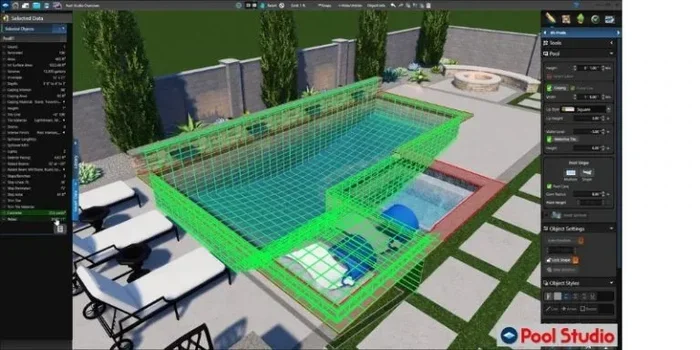
Pool Studio is a specialized 3D pool design software that lets you create stunning pool and spa layouts in a virtual environment. Landscape designers, pool builders, and homeowners use it to visualize projects before a single shovel hits the ground. It turns complex aquatic design into an interactive, visual experience.
Because the software handles 3D models, textures, water effects, and lighting, it demands solid hardware. Understanding the Pool Studio system requirements helps you avoid frustration, crashes, and slow performance. Whether you are a professional designer or a hobbyist, the right setup makes a huge difference.
Minimum Pool Studio System Requirements
Every software has a baseline. These are the absolute minimum specs Pool Studio needs just to launch and run. Meeting these minimums does not guarantee a smooth experience, but it does mean the software will function.
Operating System
Pool Studio runs on Windows 10 or Windows 11 (64-bit). It does not support macOS directly, so Mac users may need virtualization or Boot Camp. A 64-bit operating system is essential because the software needs access to more than 4 GB of RAM. Running an older OS like Windows 7 or 8 can cause compatibility issues and missing features.
Processor (CPU)
The minimum processor requirement is an Intel Core i5 or an AMD equivalent with at least 2.5 GHz base clock speed. This is the brain of your design workstation. A slower processor will make building and editing your pool models feel sluggish. For basic projects, an i5 gets the job done, but larger and more complex designs will push this limit fast.
RAM (Memory)
Pool Studio requires a minimum of 8 GB of RAM. This is enough for simple pool designs with standard textures. If you start adding detailed landscaping, high-resolution textures, and complex water features, 8 GB can quickly become a bottleneck. The system may slow down or even crash when working with large projects on minimum RAM.
Graphics Card (GPU)
A dedicated graphics card with at least 2 GB of VRAM is required. This is non-negotiable for 3D design work. Integrated graphics found in most budget processors simply cannot handle the rendering workload. Cards like the NVIDIA GeForce GTX 1050 or AMD Radeon RX 560 meet the minimum threshold. The GPU handles all the visual heavy lifting, from water reflections to shadow casting.
Storage and DirectX
You need at least 10 GB of free disk space, preferably on an SSD for faster load times. Pool Studio also requires DirectX 11 or higher, which is built into Windows 10 and 11. DirectX is the technology that allows the software to communicate with your graphics card efficiently.
Quick Reference: Minimum Specs
- OS: Windows 10/11 (64-bit)
- CPU: Intel Core i5 or AMD equivalent (2.5 GHz)
- RAM: 8 GB
- GPU: Dedicated card with 2 GB VRAM
- Storage: 10 GB free space (SSD recommended)
- DirectX: Version 11 or higher
Recommended Pool Studio System Requirements
If you want a truly enjoyable and productive experience, aim for the recommended specifications. These specs ensure fluid rendering, fast navigation, and the ability to handle complex designs without breaking a sweat.
Processor
Upgrade to an Intel Core i7 or AMD Ryzen 7 processor with a clock speed of 3.0 GHz or higher. This gives you plenty of power for multi-tasking, running Pool Studio alongside other design tools, and handling large project files. Professionals who manage multiple client projects simultaneously will really benefit from this upgrade.
RAM
16 GB of RAM is the sweet spot for most Pool Studio users. This allows you to work on large, detailed pool designs while keeping other applications open. For extremely complex projects involving entire backyard landscapes, consider pushing to 32 GB. The extra memory prevents slowdowns and keeps your workflow uninterrupted.
Graphics Card
The recommended GPU is an NVIDIA GeForce GTX 1660 or better, with at least 4 GB of VRAM. Higher VRAM means smoother handling of high-resolution textures and more complex 3D scenes. If you plan to do heavy rendering or export high-quality videos of your designs, consider stepping up to an RTX series card. These offer dedicated ray tracing cores that make water and lighting look incredibly realistic.
Storage
A 500 GB SSD is recommended for storing your operating system, Pool Studio, and project files. SSDs deliver significantly faster read and write speeds compared to traditional hard drives. This means quicker startup times, faster file loading, and snappier overall performance. A secondary HDD can store your finished project archives.
Comparison Table: Minimum vs. Recommended
| Component | Minimum | Recommended |
|---|---|---|
| OS | Windows 10 (64-bit) | Windows 11 (64-bit) |
| CPU | Intel Core i5 (2.5 GHz) | Intel Core i7 / AMD Ryzen 7 (3.0 GHz+) |
| RAM | 8 GB | 16-32 GB |
| GPU | 2 GB VRAM (GTX 1050) | 4 GB+ VRAM (GTX 1660 / RTX 3060) |
| Storage | 10 GB (HDD) | 500 GB SSD |
| DirectX | Version 11 | Version 12 |
Best Hardware Upgrades for Pool Studio
If your current PC is close to the minimum specs, a few targeted upgrades can dramatically improve your experience. Here is where to invest your money first.
Upgrade Your RAM First
RAM is often the biggest bottleneck in pool design software. Adding more memory is one of the most cost-effective upgrades you can make. If you currently have 8 GB, moving to 16 GB or 32 GB will make your designs feel much more responsive. Pool Studio loads larger models faster, and you will notice fewer pauses while rotating or editing your designs.
Invest in a Better Graphics Card
The GPU does the heavy lifting for all visual processing. If you are using integrated graphics, swapping in a dedicated graphics card is a game-changer. Look for cards that support CUDA (for NVIDIA) or OpenCL for parallel processing. These technologies speed up rendering tasks significantly. A card with 6 GB or more of VRAM future-proofs your setup for years.
Switch to an SSD
If your system still uses a traditional hard drive, upgrading to an SSD is transformative. Project files load in seconds instead of minutes. The software itself launches much faster. Even a basic SATA SSD provides a major boost over a spinning HDD. NVMe SSDs take this even further but cost more. For most Pool Studio users, a SATA SSD is more than enough.
Upgrade Your CPU (If Needed)
While the GPU handles visuals, the CPU manages the logic and calculations behind your designs. If you are still using an older i3 or dual-core processor, upgrading to a modern i5, i7, or Ryzen chip will improve overall responsiveness. Multi-core processors handle background tasks and parallel calculations better, which benefits rendering times.
Quick Tips for Budget Upgrades
- Prioritize RAM and GPU upgrades over a new CPU.
- An SSD upgrade often provides the most noticeable speed improvement for the least money.
- Check your motherboard compatibility before buying new components.
- Buy used or refurbished professional-grade GPUs to save money without sacrificing performance.
Pool Studio Performance Tips and Common Issues
Even with the right hardware, you may run into performance hiccups. Here are practical tips to keep Pool Studio running at its best.
Keep Your Graphics Drivers Updated
Outdated drivers are one of the most common causes of poor performance and visual glitches. Visit the NVIDIA or AMD website regularly to grab the latest graphics drivers. New drivers often include optimizations specifically for creative and design software. After updating, restart your computer to apply the changes properly.
Manage Your Project File Sizes
Large project files with ultra-high-resolution textures and detailed landscaping can bog down your system. Consider these strategies:
- Use lower-resolution textures during the design phase and swap to high-res only for final renders.
- Break large projects into smaller, manageable sections when possible.
- Archive older projects to external storage to free up disk space and memory.
- Simplify water effects and lighting when testing early concepts.
Close Unnecessary Background Applications
Running a browser with dozens of tabs, streaming music, and downloading files while using Pool Studio splits your system resources. Close anything you do not need before starting a design session. This frees up RAM and CPU cycles for the software you actually care about. The Task Manager in Windows is your best friend here.
Common Issues and How to Fix Them
- Slow rendering: Your GPU is likely underpowered or lacks enough VRAM. Consider upgrading your graphics card.
- Application crashes: Usually caused by insufficient RAM or outdated drivers. Add more memory and update your drivers.
- Stuttering navigation: The CPU is struggling. Close background apps or consider a processor upgrade.
- Long load times: You are likely using an HDD. Switching to an SSD will cut load times dramatically.
- Visual artifacts: Outdated graphics drivers or insufficient VRAM are usually to blame.
Expert Insight: Plan for Growth
Many professionals recommend buying hardware slightly above the recommended specs rather than just meeting the minimum. Technology evolves quickly, and 3D design software keeps getting more demanding. Spending a little extra today saves you from another upgrade cycle in just a year or two. Think of it as an investment in your productivity and creative workflow.
Does Your PC Meet Pool Studio System Requirements?
Before purchasing new hardware or making upgrades, take a moment to check your current system. Windows makes this easy.
How to Check Your Current Specs
Press Ctrl + Shift + Esc to open the Task Manager. Click on the Performance tab to see your CPU, RAM, and GPU details. For storage information, open File Explorer, right-click your main drive, and select Properties. You can also type “System Information” in the Windows search bar for a complete overview of your computer’s specifications.
What to Look For
- Is your operating system 64-bit Windows 10 or 11?
- Do you have at least 8 GB of RAM (16 GB recommended)?
- Is your graphics card a dedicated model with at least 2 GB VRAM?
- Do you have an SSD or at least enough free disk space?
- Is your processor an i5 or better?
When to Upgrade vs. When to Buy New
If your system is more than five years old and falls below the minimum specs across multiple components, it may be more cost-effective to build or buy a new workstation. However, if only one or two components are lacking, targeted upgrades deliver excellent value. For instance, adding RAM or swapping to an SSD on a relatively modern machine can bring it back to life for years at a fraction of the cost of a full system build.
Quick Tips for Checking Compatibility
- Always check Pool Studio’s official website for the latest system requirements, as they may change with software updates.
- Run a free benchmark tool like UserBenchmark to compare your specs against recommended hardware.
- Consider your future needs. If you plan bigger and more complex designs, aim higher than the minimum.
- Consult with a local PC technician if you are unsure about component compatibility.
Conclusion
Understanding the Pool Studio system requirements is the first step toward a smooth and enjoyable 3D pool design experience. Meeting the minimum specs lets you run the software, but going for the recommended specifications gives you the speed, stability, and visual quality that professionals need. Focus on upgrading your RAM, GPU, and storage first, as these deliver the biggest performance gains. Keep your drivers updated, manage your project files wisely, and always check your system before investing in new hardware.
Whether you are designing a simple backyard pool or a luxurious resort-style aquatic feature, the right computer setup lets you bring your vision to life without technical headaches. Take the time to match your machine to your creative ambitions, and Pool Studio will reward you with a seamless, inspiring design experience every single time.
Frequently Asked Questions
Can Pool Studio run on a laptop?
Yes, Pool Studio can run on a laptop as long as it meets the system requirements. The laptop needs a dedicated graphics card, at least 8 GB of RAM, and a supported 64-bit Windows operating system. Gaming laptops or mobile workstations with dedicated GPUs are typically the best choice for running Pool Studio portably.
Does Pool Studio support Mac computers?
Pool Studio officially supports Windows only. Mac users can run the software using virtualization software like Parallels or VMware, or by using Boot Camp to install Windows on an Intel-based Mac. However, performance may vary, and a dedicated GPU inside the virtual environment can be challenging to configure properly.
How much RAM do I need for Pool Studio?
The minimum requirement is 8 GB of RAM, but 16 GB is strongly recommended for a comfortable workflow. If you work on large, detailed pool designs with extensive landscaping and high-resolution textures, consider upgrading to 32 GB. More RAM allows you to handle bigger projects without slowdowns or crashes.
What graphics card works best with Pool Studio?
An NVIDIA GeForce GTX 1660 or better with at least 4 GB of VRAM is recommended. For professional rendering and high-quality video exports, an NVIDIA RTX 3060 or AMD Radeon RX 6600 provides excellent performance. Dedicated graphics cards are essential; integrated graphics are not suitable for 3D design work.
Is an SSD necessary for Pool Studio?
An SSD is not strictly required, but it is highly recommended. An SSD dramatically reduces load times for the software and your project files, making your entire design workflow faster. If you currently use a traditional hard drive, upgrading to an SSD is one of the best improvements you can make for your overall experience.
What happens if my PC does not meet the minimum requirements?
If your PC falls below the minimum requirements, Pool Studio may fail to launch, run extremely slowly, or crash frequently. You might experience visual glitches, long loading screens, and an unresponsive interface. In most cases, upgrading the weakest component, such as adding RAM or installing a dedicated graphics card, resolves these issues quickly and affordably.