Why Wont Windows 11 Install from Usb
Windows 11 may fail to install from a USB drive for several reasons, including incorrect USB format, outdated BIOS settings, or hardware incompatibility. This guide walks you through every common cause and the simple fixes that get your Windows 11 USB installation back on track. Whether you are using a bootable USB drive or facing a Windows 11 setup USB error, the solutions here will help you move forward quickly.
You have your USB drive ready. You have the Windows 11 ISO file downloaded. You sit down to install the operating system, and then it happens: nothing. The USB drive does not show up. The setup fails immediately. Or the system just boots straight past the USB and loads your old operating system instead. It is frustrating, and it happens to a lot of people.
The good news is that most reasons why Windows 11 will not install from USB have simple fixes. You do not need to be a tech expert. In this guide, we break down every common cause and walk you through the solution step by step. Whether you are dealing with a USB drive not detected problem, a boot order issue, or a compatibility error, you will find the answer here.
Let us get into it. By the end of this article, you will know exactly what to check and how to fix the problem so your Windows 11 USB installation goes smoothly.
Key Takeaways
- USB Format Matters: Your USB drive must be formatted as NTFS or FAT32 and use the correct partition style for Windows 11 to recognize it.
- BIOS Settings Are Critical: Incorrect boot order or disabled USB legacy support is one of the top reasons Windows 11 will not install from USB.
- Hardware Compatibility Counts: Your laptop or PC must meet the minimum Windows 11 system requirements, including RAM and storage.
- Common Errors Have Simple Fixes: Most USB installation failures come from a handful of known issues that are easy to resolve.
- Using the Right Tools Helps: Tools like the Media Creation Tool or Rufus can prevent many USB setup problems before they start.
- USB Port Choice Matters: Always use a USB 3.0 port when possible to avoid slow or failed installations.
📑 Table of Contents
Common Reasons Windows 11 Won’t Install From USB
When your Windows 11 setup USB fails, the cause usually falls into one of a few categories. Understanding what went wrong is the first step toward fixing it. Here are the most common reasons your installation might be stuck.
Incorrect USB Format or Partition Style
Windows 11 needs your USB drive to be set up in a specific way. If the drive is formatted with the wrong file system or uses the wrong partition style, the installer will not recognize it. For most modern PCs, the USB drive should use the GPT (GUID Partition Table) format and be formatted as NTFS or FAT32.
If you created your bootable USB using a tool that did not configure it correctly, the system simply will not boot from it. This is the single most common reason people run into trouble.
Wrong Boot Order in BIOS
Your computer has a basic input/output system, or BIOS, that controls what it boots from first. If the USB drive is not set as the primary boot device, your PC will ignore it completely and load your existing operating system instead.
You need to enter your BIOS settings, usually by pressing a key like F2, F12, DEL, or ESC during startup, and change the boot priority so the USB drive comes first. This sounds simple, but many people miss it because the timing is tricky.
USB Port or Cable Issues
Not all USB ports are the same. A USB 2.0 port might not provide enough speed or power for a Windows 11 installation. The USB drive itself could also be faulty or connected loosely. Sometimes the simplest explanation is the right one: a bad port or a worn-out cable stops the installation before it even starts.
Incompatible Hardware
Windows 11 has specific hardware requirements. If your laptop or PC does not meet them, the installer may refuse to proceed. For example, Windows 11 requires a minimum of 4 GB of RAM and 64 GB of storage. Older processors and certain TPM (Trusted Platform Module) versions can also block installation.
If you are working with a Windows 11 8GB RAM laptop or a Windows 11 laptop 16GB RAM setup, you are likely in good shape. But if your hardware is older, you might run into blocks that prevent the USB installer from working at all.
Check Your USB Drive and Format
The first thing you should do when your Windows 11 install from USB fails is check the USB drive itself. A properly prepared drive makes all the difference.
Use the Right File System
Your USB drive should be formatted as either FAT32 or NTFS. If you are using a drive larger than 32 GB, FAT32 might not work, and you will need NTFS instead. Here is a quick look at the two formats:
- FAT32: Works with almost all systems but has a 4 GB file size limit. Good for smaller ISO files.
- NTFS: Supports larger files and is the better choice for most Windows 11 installations.
Use a Reliable Bootable USB Tool
Do not try to copy the ISO file directly to the USB drive. That will not work. You need a tool that makes the drive bootable. The official Media Creation Tool from Microsoft is the safest choice. Rufus is another popular option that works well for creating a bootable USB drive quickly.
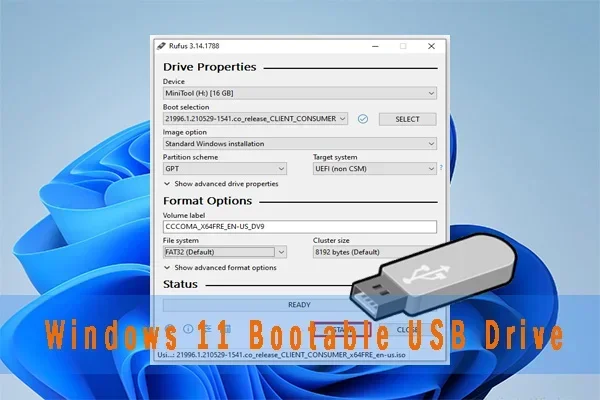
When using Rufus, make sure you select GPT for the partition scheme and UEFI for the target system type. These settings match what Windows 11 expects and will prevent many common errors.
Try a Different USB Drive
Some USB drives simply do not work well with Windows installation. Cheap or very old drives can cause problems. If you have another USB drive available, try using that one instead. A USB 3.0 flash drive with at least 8 GB of storage is ideal for Windows 11.
Fix Your BIOS and Boot Order Settings
Getting your BIOS settings right is one of the most important steps in any USB-based Windows installation. If your PC does not boot from the USB drive, the BIOS is usually the culprit.
How to Enter BIOS
Restart your computer and watch the screen as it turns on. You will see a message telling you which key to press to enter BIOS or setup. Common keys include F2, F12, DEL, and ESC. Press that key repeatedly as soon as the screen lights up.
Once inside the BIOS, look for a section called Boot, Boot Order, or Boot Priority. Here you can move the USB drive to the top of the list so your PC tries to boot from it first.
Enable USB Legacy Support
Some BIOS settings include an option for USB Legacy Support or USB Legacy Boot. If this is disabled, your system might not recognize the USB drive during boot. Try enabling it and saving your settings. Then restart and try the installation again.
Check Secure Boot Settings
Secure Boot is a security feature in modern PCs. While it is required for Windows 11 in most cases, sometimes it can interfere with USB booting. If you have tried everything else, temporarily disabling Secure Boot can help. Just remember to turn it back on after the installation is complete.
Many users who have trouble with their USB camera B4 09 24 1 driver Windows 11 or other USB devices also find that BIOS settings are the root cause. Checking these settings early can save you a lot of time.
Meet Windows 11 System Requirements
Windows 11 has stricter requirements than Windows 10. If your PC does not meet them, the installer will not work properly. Even if you created a perfect bootable USB, the system might reject the installation if the hardware is not compatible.
Minimum Hardware Requirements
Here is what Microsoft requires for Windows 11:
- Processor: 1 GHz or faster with at least 2 cores on a compatible 64-bit processor.
- RAM: 4 GB minimum (8 GB or more recommended).
- Storage: 64 GB or larger.
- TPM: Trusted Platform Module version 2.0.
- Graphics: Compatible with DirectX 12 or later.
Why RAM Matters for USB Installation
If your system has very low RAM, the installation process might stall or fail entirely. A system with 8 GB of RAM, such as a Windows 11 8GB RAM laptop, handles the installation process much better than one with only 2 GB. If you are upgrading RAM, check out guides on how to install a RAM in laptop before attempting the USB installation.
For users with more powerful setups, a laptop Windows 11 16GB RAM configuration provides plenty of headroom for a smooth installation from USB.
TPM and Secure Boot Checks
You can check your TPM status by pressing Windows + R, typing tpm.msc, and pressing Enter. If your TPM version is below 2.0, you may need to update your firmware or use a workaround. The same goes for Secure Boot, which you can check in your BIOS settings under the Security tab.
Fixing Common USB Installation Errors
Even with the right drive and correct BIOS settings, you might still run into errors during the Windows 11 USB installation. Here are some of the most common error messages and what they mean.
Windows Cannot Be Installed to This Disk
This error usually means the disk (or USB drive) is not formatted with the right partition style. If your PC uses UEFI mode, the drive needs to be GPT. If it uses Legacy BIOS mode, it needs MBR. You can change this in your disk management tool or in Rufus when creating the bootable drive.
The USB Drive Is Not Showing Up in Setup
If the Windows Setup screen does not list your USB drive, try plugging it into a different USB port. Avoid USB hubs and use a port directly on the motherboard or laptop. Also make sure the USB drive is not damaged. Try it on another computer to confirm it works.
Installation Stalls or Freezes
Sometimes the installation process starts but then freezes. This can happen if the USB drive has a slow read speed or if there is a problem with the ISO file. Try downloading the ISO again and recreating the bootable drive from scratch. Using a USB 3.0 port instead of USB 2.0 can also speed things up and prevent freezes.
Driver Issues During Setup
In some cases, especially with certain hardware brands, the Windows 11 installer does not include the right drivers for your USB controller. This can cause the setup to fail or not recognize the drive. If this happens, you may need to load the driver manually during the setup process by clicking the “Load Driver” option.
For users dealing with peripheral issues during setup, problems like a wireless mouse for HP laptop Windows 11 not working can also be related to missing drivers. Make sure your essential peripherals work before starting the full installation.
Expert Tips for a Smooth Windows 11 USB Install
After helping many people fix their USB installation problems, a few best practices stand out. These tips can save you time and prevent headaches before they happen.
Always Use a Fresh USB Drive
Do not reuse a USB drive that has been used for other installations or contains important files. Format it completely before creating the bootable drive. This ensures there are no leftover partitions or corrupted data that could interfere with the installation.
Verify Your ISO File
A corrupted ISO file is a hidden cause of many installation failures. After downloading the Windows 11 ISO, check its hash value against the one provided by Microsoft. If they do not match, download the file again.
Use a USB 3.0 Drive and Port
USB 3.0 is significantly faster than USB 2.0 for installation purposes. The extra speed reduces the chance of timeouts or freezes during the setup process. Look for blue-colored USB ports on your PC or laptop, which indicate USB 3.0.
Disable Antivirus Temporarily
Some antivirus programs interfere with the creation of bootable USB drives or the installation process itself. Temporarily disable your antivirus, create the bootable drive, and re-enable it once the installation is complete.
Keep Your Installation Media Simple
Do not store other files on the USB drive that you are using for installation. Keep it clean and dedicated to the Windows 11 setup. This reduces the risk of conflicts or errors during the process.
Key Takeaways
- USB Format Matters: Your USB drive must be formatted as NTFS or FAT32 and use the correct partition style for Windows 11 to recognize it.
- BIOS Settings Are Critical: Incorrect boot order or disabled USB legacy support is one of the top reasons Windows 11 will not install from USB.
- Hardware Compatibility Counts: Your laptop or PC must meet the minimum Windows 11 system requirements, including RAM and storage.
- Common Errors Have Simple Fixes: Most USB installation failures come from a handful of known issues that are easy to resolve.
- Using the Right Tools Helps: Tools like the Media Creation Tool or Rufus can prevent many USB setup problems before they start.
- USB Port Choice Matters: Always use a USB 3.0 port when possible to avoid slow or failed installations.
Getting Windows 11 to install from a USB drive does not have to be a headache. Most problems come down to a handful of fixable issues: the wrong format, incorrect BIOS settings, or hardware incompatibility. Once you check each of these areas, the installation usually goes smoothly.
Take your time with the process. Do not rush through the BIOS settings or skip the step of verifying your USB drive format. A little preparation goes a long way. If you have followed all the steps in this guide and your installation still fails, consider trying a different USB drive or testing your ISO file on another computer.
The bottom line is that Windows 11 USB installation problems are almost always solvable. You just need to know what to look for. With the right drive, the correct BIOS settings, and a compatible system, you will have Windows 11 up and running in no time.
Frequently Asked Questions
Why is my USB drive not showing up in Windows 11 setup?
Your USB drive might not be showing up because it is not formatted correctly or because the BIOS boot order does not prioritize the USB drive. Try using a different USB port, reformatting the drive as NTFS with GPT partition style, and checking your boot order in BIOS. These steps solve the problem in most cases.
Can I use a USB 2.0 drive to install Windows 11?
You can use a USB 2.0 drive, but it is not recommended. USB 2.0 is much slower and can cause the installation to stall or fail. A USB 3.0 drive connected to a USB 3.0 port is the best choice for a smooth and reliable Windows 11 USB installation.
Do I need TPM 2.0 to install Windows 11 from USB?
Yes, Windows 11 requires TPM version 2.0 in most cases. If your system does not have TPM 2.0, the installer may block the installation. You can check your TPM status in the system settings or BIOS. Some users can enable TPM in the BIOS firmware settings if it is disabled.
What is the best tool to create a bootable Windows 11 USB?
The official Microsoft Media Creation Tool is the best and safest option. It automatically formats the drive and copies the correct files. Rufus is another excellent choice that gives you more control over partition style and file system settings. Both tools work well for creating a bootable USB drive for Windows 11.
Why does my Windows 11 installation keep failing from USB?
Repeated failures usually point to a corrupted ISO file, an incorrectly formatted USB drive, or BIOS settings that are not configured properly. Try downloading the ISO again, recreating the bootable drive, and double-checking your boot order and Secure Boot settings in BIOS.
Can I install Windows 11 from USB on an older laptop that does not meet the requirements?
You can attempt it, but the installer may block the process if your hardware does not meet the minimum requirements. Some users bypass these checks using registry edits or modified ISO files, but this is not officially supported by Microsoft. Always check your system’s Windows 11 system requirements before attempting the installation.
=== CONCLUSION ===
Windows 11 not installing from USB is a common problem, but it is almost always fixable. The most frequent causes are incorrect USB format, wrong BIOS boot order, hardware incompatibility, and corrupted installation media. By working through each of these areas methodically, you can identify the problem and apply the right fix.
Remember to use a USB 3.0 flash drive, verify your boot order in BIOS, and make sure your system meets the Windows 11 system requirements. These simple checks prevent the vast majority of installation issues. With a little patience and the right preparation, your Windows 11 USB installation will go smoothly, and you will be up and running in no time.