Does Apple Tv Require a Special Hdmi Cable
Apple TV does not require a special or proprietary HDMI cable. A standard high-speed HDMI cable works perfectly for most setups. However, if you want 4K resolution, HDR, or eARC audio, you need an HDMI 2.1 or premium high-speed cable to unlock those features.
You just unboxed your new Apple TV and you are ready to start streaming. But then you look at the cable box and wonder, do you need something special? The short answer is no. Apple TV does not require a proprietary or special HDMI cable. You can use a standard cable you probably already have at home. But here is the catch. If you want to enjoy 4K resolution, HDR visuals, or immersive audio, the right cable makes a big difference.
In this guide, we will walk you through everything you need to know about HDMI cables and Apple TV. We will cover which cables work, which ones do not, and how to choose the right one for your setup. Whether you are a casual streamer or a home theater enthusiast, this article has you covered.
Key Takeaways
- No special cable needed: Apple TV works with standard HDMI cables you already own.
- HDMI 2.1 matters for 4K: To get the full 4K HDR experience, an HDMI 2.1 cable is essential.
- Check the bandwidth: Higher bandwidth cables support better video and audio quality.
- Cable length affects signal: Longer cables may reduce quality, so keep runs under 15 feet.
- eARC needs HDMI 2.1: If you use a soundbar or AV receiver, the right cable enables advanced audio.
- Price does not always equal quality: Expensive cables are not always better. Look for certified cables instead.
📑 Table of Contents
- What Kind of HDMI Cable Does Apple TV Use?
- Do You Need an Expensive HDMI Cable?
- Apple TV 4K vs. Older Models: Cable Requirements
- Common HDMI Problems with Apple TV and How to Fix Them
- How to Set Up Your Apple TV for the Best Experience
- Does Power Consumption Matter for Your HDMI Setup?
- Can You Use Any HDMI Cable with Apple TV?
- Final Thoughts
What Kind of HDMI Cable Does Apple TV Use?
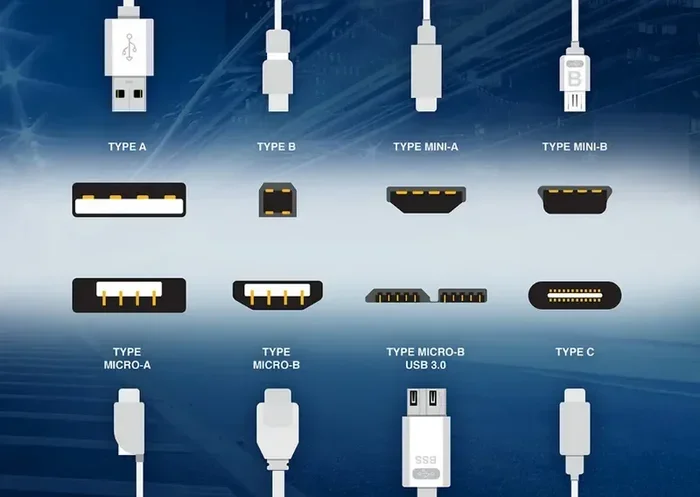
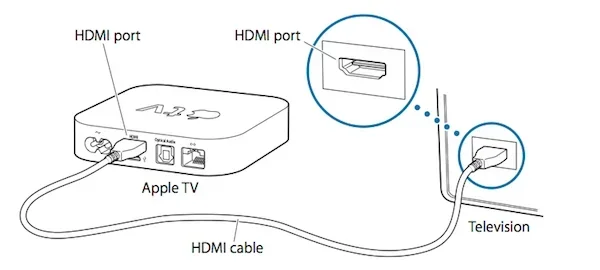
Apple TV is compatible with most HDMI cables on the market. The device uses a standard HDMI Type A connector, which is the same port found on almost every TV and monitor. You do not need a fancy or expensive cable to get basic streaming working. A standard HDMI cable will handle 1080p Full HD content with ease.
However, the cable you choose directly impacts the quality of your streaming experience. If your TV supports 4K or HDR, you need a cable that can handle that bandwidth. Not all HDMI cables are created equal, and using the wrong one means you might miss out on stunning picture quality.
HDMI Versions Explained
There are several versions of HDMI cables, and they each support different features. Here is a quick breakdown of what you need to know:
- Standard HDMI: Supports up to 1080p. Fine for older TVs but not ideal for Apple TV 4K.
- High-Speed HDMI: Supports 4K at 30Hz. Good for basic 4K streaming.
- Premium High-Speed HDMI: Supports 4K at 60Hz and HDR. This is the sweet spot for most Apple TV users.
- Ultra High Speed HDMI (HDMI 2.1): Supports 4K at 120Hz, 8K, and advanced features like eARC and VRR.
For most people, a Premium High-Speed HDMI cable is all you need. It delivers excellent picture quality and supports all the features Apple TV offers. If you want future-proofing or have a high-refresh-rate TV, go with an Ultra High Speed HDMI cable.
Do You Need an Expensive HDMI Cable?
This is one of the most common questions people ask. The truth is, you do not need to spend a fortune on an HDMI cable for Apple TV. A moderate-priced certified cable works just as well as a premium-branded one. The key is to look for certification, not the price tag.
Think about it this way. When you buy a secondary monitor for your setup, you do not necessarily need the most expensive cable to connect it. You need the right cable that matches your devices’ capabilities. The same logic applies to Apple TV.
What to Look for When Buying
- HDMI Certification: Look for cables certified by the HDMI Licensing Administrator. These meet specific standards for bandwidth and performance.
- Bandwidth Rating: Aim for at least 18 Gbps for 4K HDR. Ultra High Speed cables offer 48 Gbps.
- Gold-Plated Connectors: These reduce signal loss and improve durability.
- Cable Length: Keep cables under 15 feet for the best signal quality. Longer runs may need active cables or signal boosters.
- Firmware Support: Some cables support HDMI Forum certification, which ensures they work with the latest features.
You can find reliable HDMI cables for under $15. Spending more than that usually gets you better build quality, not better performance. Save your money and invest in a good streaming subscription instead.
Apple TV 4K vs. Older Models: Cable Requirements
Not all Apple TV models are the same, and their cable requirements differ slightly. Understanding the differences helps you make the right choice.
| Model | Max Resolution | Recommended Cable | Minimum Cable |
|---|---|---|---|
| Apple TV HD (3rd Gen) | 1080p | Standard HDMI | Standard HDMI |
| Apple TV 4K (1st Gen) | 4K at 60Hz | Premium High-Speed HDMI | High-Speed HDMI |
| Apple TV 4K (2nd Gen) | 4K at 60Hz, HDR | Premium High-Speed HDMI | High-Speed HDMI |
| Apple TV 4K (3rd Gen, 2022+) | 4K at 60Hz, HDR, Dolby Vision | Ultra High Speed HDMI 2.1 | Premium High-Speed HDMI |
As you can see, newer models benefit from better cables. If you own an older Apple TV, a basic high-speed cable is fine. But if you have the latest model, an Ultra High Speed HDMI cable ensures you get every bit of quality the device offers.
Common HDMI Problems with Apple TV and How to Fix Them
Even with the right cable, you might run into issues. Here are some common problems and their solutions.
No Picture or Flickering Screen
This usually happens when the cable is loose or damaged. Try unplugging the HDMI cable from both the Apple TV and the TV, then plug them back in firmly. If the problem persists, try a different cable. Sometimes cables that look fine on the outside have internal damage.
No Sound
If your picture looks great but there is no sound, check your TV audio settings. Make sure the TV is set to output audio through HDMI. Also, ensure your cable supports audio return channel (ARC) if you are using a soundbar or home theater system.
4K or HDR Not Working
If your Apple TV is not outputting 4K or HDR, your cable might not support those features. Go to Settings > Video and Audio on your Apple TV and check the resolution. If it is stuck at 1080p, your cable may be the bottleneck. Switching to a certified high-speed or premium high-speed cable usually fixes this.
Signal Interference
Sometimes HDMI cables near power cords or other electronics pick up interference. This causes visual artifacts or audio dropouts. Keep your HDMI cable away from power cables and magnetic sources. Using a shielded cable also helps reduce interference.
How to Set Up Your Apple TV for the Best Experience
Getting the most out of your Apple TV involves more than just plugging in a cable. Here are some tips to optimize your setup.
Step-by-Step Setup
- Connect the HDMI cable from your Apple TV to an HDMI port on your TV. Use port HDMI 1 or HDMI 2 for the best results.
- Plug the power adapter into your Apple TV and connect it to a power outlet.
- Turn on your TV and switch to the correct HDMI input.
- Follow the on-screen setup instructions on your Apple TV.
- Go to Settings > Video and Audio to confirm your resolution and HDR settings.
- If you have a sound system, enable eARC in your TV settings for the best audio quality.
Pro Tips for Better Performance
- Use a wired internet connection: Ethernet gives you a more stable stream than Wi-Fi.
- Keep your Apple TV updated: Software updates often improve performance and fix bugs.
- Enable HDR and Dolby Vision: These settings dramatically improve picture quality on compatible TVs.
- Use a cable management solution: Keep cables neat and organized to prevent accidental disconnections.
Setting up your Apple TV correctly ensures you get the best possible streaming experience. A good cable is just the starting point.
Does Power Consumption Matter for Your HDMI Setup?
While HDMI cables do not consume significant power, it is worth noting that your entire streaming setup has a power footprint. Your Apple TV, TV, soundbar, and other devices all draw electricity. If you are curious about how much power your devices use, understanding your setup helps you make informed energy decisions.
For example, did you know that some devices draw more power when plugged in than when running on battery? This is similar to how much power a laptop uses when plugged in. Streaming devices like Apple TV are designed to be energy-efficient, so they do not add much to your electricity bill. A typical Apple TV uses around 6 to 10 watts during active streaming. That is very little compared to your TV, which uses significantly more power.
The HDMI cable itself carries both video and audio signals along with a small amount of power for the handshake between devices. You do not need to worry about power surges or excessive energy use from your HDMI setup. Just make sure your cable is certified and your connections are secure.
Can You Use Any HDMI Cable with Apple TV?
The simple answer is yes, with a caveat. You can physically plug any HDMI cable into your Apple TV. But the experience depends on the cable’s capabilities. A standard HDMI cable will work for 1080p content. But if you try to push 4K HDR through an old cable, you might get a blank screen, low resolution, or no audio.
Apple recommends using a cable that supports the features of your specific Apple TV model. For the Apple TV 4K, they suggest a high-speed HDMI cable or better. For the latest models with Dolby Vision and HDR10+, an Ultra High Speed HDMI cable ensures full compatibility.
Think of it like hardware compatibility. Just as you need the right components for your devices to work together, you need the right cable to unlock the full potential of your Apple TV. It is not about buying the most expensive option. It is about buying the right one for your setup.
Final Thoughts
Apple TV does not require a special HDMI cable, but choosing the right one makes a noticeable difference. For most users, a certified Premium High-Speed HDMI cable delivers excellent 4K HDR quality at an affordable price. If you have the latest Apple TV model or a high-end TV, consider an Ultra High Speed HDMI 2.1 cable for future-proofing.
Do not fall for marketing hype that tells you to spend $50 or more on a cable. Look for certification, check the bandwidth rating, and match the cable to your devices’ capabilities. With the right cable, your Apple TV will deliver stunning picture and sound quality for years to come.
Take a few minutes to check your current setup. If your cable is old or does not support 4K, replacing it is an easy and affordable upgrade. You will notice the difference immediately in your streaming quality. Happy watching.
Frequently Asked Questions
Do I need a special HDMI cable for Apple TV 4K?
No, you do not need a special cable. A certified Premium High-Speed HDMI cable works great for 4K streaming. However, if you want the full HDR and Dolby Vision experience, an Ultra High Speed HDMI 2.1 cable is recommended.
Can I use an old HDMI cable with my new Apple TV?
You can, but it may not support 4K or HDR features. Older standard HDMI cables are limited to 1080p. If your Apple TV 4K is not displaying in 4K, your old cable might be the reason. Upgrading to a high-speed cable usually fixes this.
What is the difference between HDMI 2.0 and HDMI 2.1 cables?
HDMI 2.0 cables support 4K at 60Hz with HDR. HDMI 2.1 cables support 4K at 120Hz, 8K, and advanced features like eARC and VRR. For most Apple TV users, HDMI 2.0 is sufficient. But if you have a 120Hz TV or want future-proofing, HDMI 2.1 is the better choice.
Does cable length affect Apple TV performance?
Yes, longer cables can weaken the signal, especially with higher resolutions. Keep your HDMI cable under 15 feet for the best results. If you need a longer run, use an active HDMI cable or a signal booster to maintain quality.
Are gold-plated HDMI cables better?
Gold-plated connectors reduce signal loss and resist corrosion better than standard connectors. They do not dramatically improve picture quality, but they do improve durability and connection reliability over time.
Can I connect Apple TV to a monitor using HDMI?
Yes, you can connect Apple TV to a monitor with an HDMI cable. Just make sure the monitor supports the resolution and features you want. If you are using a secondary display, ensure it has an HDMI input and supports the output from your Apple TV model.
=== CONCLUSION ===
You do not need a special HDMI cable to use Apple TV. A standard high-speed cable handles basic streaming, while a Premium High-Speed or Ultra High Speed cable unlocks 4K HDR and advanced audio features. The key is matching your cable to your devices and your viewing needs. With the right cable in hand, your Apple TV will deliver a fantastic streaming experience every time.