How to Play Call of Duty Mobile on Pc
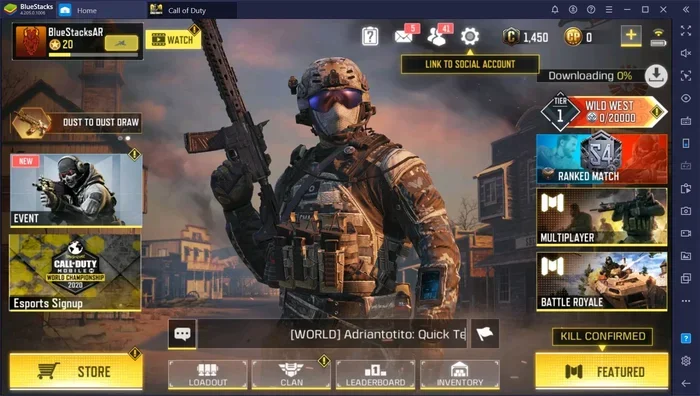
Playing Call of Duty Mobile on PC is simple and fun. You can use an Android emulator like BlueStacks to run the game on your computer with keyboard and mouse controls. This guide covers everything from installation to optimization so you can enjoy CoD Mobile on a bigger screen with better performance.
Call of Duty Mobile has taken the gaming world by storm. Millions of players enjoy this fast-paced battle royale and multiplayer game on their phones every day. But what if you could play it on a bigger screen with better controls? That is exactly what we are going to cover today.
Playing Call of Duty Mobile on PC opens up a whole new world of possibilities. You get a larger display, smoother tracking with a mouse, and the comfort of a full keyboard setup. Whether you are a casual player or a competitive gamer, running CoD Mobile on your computer can seriously level up your gameplay.
In this guide, we will walk you through every step. From choosing the right emulator to tweaking your graphics settings, we have you covered. You will also learn how to optimize your PC for the best performance. Let us get started!
Key Takeaways
- Easy Setup: You can install Call of Duty Mobile on your PC using a free Android emulator like BlueStacks or LDPlayer.
- Better Controls: Playing on PC lets you use a keyboard and mouse for sharper aim and faster reactions.
- Performance Boost: Optimizing your PC settings and emulator graphics can greatly improve your gaming experience.
- Bigger Screen Advantage: A larger display helps you spot enemies faster and enjoy the game more.
- Free to Play: The PC version of CoD Mobile is free, just like the mobile version.
- Multiplayer Ready: You can join the same lobbies and play with friends on mobile or PC.
📑 Table of Contents
- Why Play Call of Duty Mobile on PC?
- System Requirements for Running CoD Mobile on PC
- How to Install Call of Duty Mobile on PC
- Optimizing Your Settings for the Best Experience
- Improving Performance and Reducing Lag
- Comparing Call of Duty Mobile on PC vs Mobile
- Tips for Dominating in CoD Mobile on PC
- Conclusion
Why Play Call of Duty Mobile on PC?
There are many reasons to try Call of Duty Mobile on PC. The mobile version is great, but the PC experience brings some real advantages that can change how you play.
Bigger Screen, Better Visibility
When you play on a phone, the screen is small. You might miss enemies sneaking up on you. On a PC monitor, everything is clearer and easier to see. This gives you a real edge in multiplayer matches.
Keyboard and Mouse Controls
A mouse and keyboard are much more precise than touchscreen controls. You can aim faster, track targets smoother, and react quicker. These are huge advantages in a shooting game like Call of Duty.
Better Performance
Most PCs have stronger processors and more RAM than phones. This means smoother frame rates and fewer lag spikes. Your game will run more reliably, especially during intense firefights.
Comfort and Convenience
Playing on a PC is just more comfortable for long sessions. You can sit in a proper chair, use a bigger desk, and not worry about battery life. It is a much better setup for grinding ranked matches.
System Requirements for Running CoD Mobile on PC
Before you start, make sure your computer can handle it. You do not need a super expensive gaming rig, but there are some basic requirements to check.
Minimum Requirements
- Operating System: Windows 7 or later (64-bit recommended)
- Processor: Intel Core i3 or equivalent AMD processor
- RAM: At least 4 GB of system memory
- Storage: 5 GB of free disk space
- Graphics: Intel HD Graphics 4000 or better
- Internet: A stable broadband connection
Recommended Requirements
- Operating System: Windows 10 or 11 (64-bit)
- Processor: Intel Core i5 or better
- RAM: 8 GB or more
- Storage: SSD with at least 10 GB free space
- Graphics: NVIDIA GTX 700 series or AMD equivalent
If your PC meets the recommended specs, you will have a smooth experience. If you are on the lower end, do not worry. We will share tips to optimize performance later in this guide.
How to Install Call of Duty Mobile on PC
Setting up Call of Duty Mobile on PC is straightforward. You need an Android emulator, which is a program that lets you run mobile apps on your computer. Here is the step-by-step process.
Step 1: Choose an Android Emulator
Several emulators work well for CoD Mobile. The most popular options include:
- BlueStacks: The most widely used emulator. It is easy to set up and has great performance.
- LDPlayer: Known for low resource usage and smooth gameplay.
- NoxPlayer: A solid alternative with good customization options.
- MEmu Play: Another reliable choice for running mobile games on PC.
For most users, BlueStacks is the best starting point. It is free, well-supported, and works with CoD Mobile out of the box.
Step 2: Download and Install the Emulator
Go to the official website of your chosen emulator. Download the installer for Windows. Run the setup file and follow the on-screen prompts. The installation usually takes just a few minutes.
Once installed, launch the emulator. It will take some time on its first run to set up the Android environment. Be patient and let it finish loading.
Step 3: Sign In to Google Play Store
Inside the emulator, you will see a Google Play Store icon. Open it and sign in with your Google account. This gives you access to all Android apps, including Call of Duty Mobile.
Step 4: Download Call of Duty Mobile
Search for “Call of Duty Mobile” in the Play Store. Click install and wait for the download to finish. The game file is around 2 to 3 GB, so this may take some time depending on your internet speed.
After installation, you can launch the game right from the emulator’s home screen. You will need to log in with your Activision or Google account to save your progress.
Optimizing Your Settings for the Best Experience
Once you have CoD Mobile running on your PC, the next step is optimization. Getting the right settings makes a huge difference in how the game feels and performs.
Emulator Performance Settings
Open your emulator’s settings and adjust the following:
- CPU Cores: Allocate at least 4 cores to the emulator for smooth performance.
- RAM Allocation: Give the emulator 4 GB of RAM or more.
- Graphics Mode: Set it to “Hardware” acceleration for the best results.
These settings ensure the emulator runs efficiently without slowing down your whole system.
In-Game Graphics Settings
Inside Call of Duty Mobile, go to the settings menu. Adjust the graphics to match your PC’s capabilities:
- Frame Rate: Set to High or Unlimited for the smoothest animation.
- Graphics Quality: Choose High if your GPU can handle it, or Medium for better performance.
- Shadows and Effects: Turn these down if you experience any lag.
Control Settings
One of the best parts of playing CoD Mobile on PC is customizing your controls. Use the emulator’s key mapping feature to assign actions to your keyboard and mouse. Here are some popular setups:
- WASD: For movement
- Left Click: To shoot
- Right Click: To aim down sights
- Spacebar: To jump
- C: To crouch
- Shift: To sprint
You can save multiple control profiles and switch between them depending on the game mode. This is especially useful for different weapons and playstyles.
Improving Performance and Reducing Lag
Even with good hardware, you might experience some lag or stuttering. Here are proven tips to keep your game running smoothly.
Close Background Applications
Before launching the game, close any unnecessary programs. Browsers, streaming apps, and other games eat up your system resources. Free up as much RAM and CPU power as possible for the best performance.
Keep Your PC Clean
Over time, your computer accumulates junk files that slow it down. Regularly remove junk files from your PC to keep things running fast. This simple maintenance step can boost your game performance noticeably.
Update Your Graphics Drivers
Make sure your GPU drivers are always up to date. New driver updates often include optimizations for games and emulators. Visit your GPU manufacturer’s website to download the latest version.
Use an SSD for Storage
If you have a traditional hard drive, consider upgrading to a solid-state drive. Games load much faster on an SSD, and the overall system feels more responsive. You can install an NVMe SSD in your PC for a significant speed upgrade.
Adjust Emulator Resolution
If you are struggling with frame rates, try lowering the emulator’s display resolution. A lower resolution puts less strain on your GPU while still keeping the game playable. You can always increase it if your hardware handles it well.
Comparing Call of Duty Mobile on PC vs Mobile
It helps to understand the differences between playing on a phone and a PC. Here is a quick comparison.
| Feature | Mobile | PC |
|---|---|---|
| Screen Size | Small (5-7 inches) | Large (15+ inches) |
| Controls | Touchscreen | Keyboard and Mouse |
| Performance | Good | Better |
| Battery Life | Limited | Unlimited (plugged in) |
| Portability | High | Low |
| Multiplayer Access | Same | Same |
As you can see, PC gaming offers clear advantages for Call of Duty Mobile. The bigger screen and better controls make a real difference, especially in competitive matches. However, mobile is still great for quick sessions on the go.
Tips for Dominating in CoD Mobile on PC
Now that you are set up, here are some tips to help you perform at your best.
Master Your Key Bindings
Spend time customizing your controls until they feel natural. The more comfortable you are with your setup, the faster your reactions will be in-game.
Use the Mini Map Wisely
On a PC screen, the mini map is easier to read. Use it to track enemy movements and plan your rotations. This is a huge advantage in battle royale mode.
Practice in Training Mode
Before jumping into ranked matches, spend some time in training mode. Get comfortable with your aim and movement on the new setup.
Keep Your PC Cool
Gaming puts stress on your hardware. Make sure your PC has good ventilation and that fans are working properly. Overheating can cause performance drops and even crashes.
Stay Updated
Keep both the game and your emulator updated. Developers regularly release patches that fix bugs and improve performance. Staying current ensures the best experience.
Check out the best Call of Duty settings for PC to further fine-tune your setup for competitive play.
Conclusion
Playing Call of Duty Mobile on PC is a fantastic experience. It combines the fun of mobile gaming with the power and comfort of a computer setup. With the right emulator, optimized settings, and a little practice, you can enjoy CoD Mobile like never before.
Follow the steps in this guide and you will be up and running in no time. Remember to keep your system clean, update your drivers, and customize your controls to match your playstyle. The bigger screen alone will change how you see and play the game.
Now it is your turn. Set up your emulator, jump into a match, and see the difference for yourself. Happy gaming!
Frequently Asked Questions
Can I play Call of Duty Mobile on PC for free?
Yes, Call of Duty Mobile is completely free to play on PC. You just need to download an Android emulator and install the game from the Google Play Store inside it. There are no hidden fees or subscriptions required.
Is playing Call of Duty Mobile on PC considered cheating?
No, playing CoD Mobile on PC using an emulator is not cheating. It is a supported way to play the game. However, using unauthorized mods or hacks can get your account banned. Always play fair and follow the game’s terms of service.
Which Android emulator is the best for Call of Duty Mobile?
BlueStacks is the most popular and reliable choice for most users. It is easy to set up, has great performance, and works well with CoD Mobile. LDPlayer and NoxPlayer are also solid alternatives if you have lower-end hardware.
Can I use my phone’s account to play on PC?
Yes, you can link your mobile account to the PC version. Simply log in with the same Activision or Google account you use on your phone. This ensures your progress, unlocks, and purchases carry over between platforms.
Do I need a powerful PC to run Call of Duty Mobile?
No, you do not need a high-end PC. The game runs well on mid-range computers. As long as your PC meets the minimum system requirements, you should have a smooth experience. Optimizing settings can help even more on lower-end hardware.
Can I play with my friends who are on mobile?
Absolutely. Players on PC and mobile can play together in the same lobbies. The cross-platform support means you can team up with friends regardless of what device they are using. Just make sure everyone is in the same game mode.