How to Connect Xbox Controller to Pc Why Wont My Xbox Controller Connect to My Pc
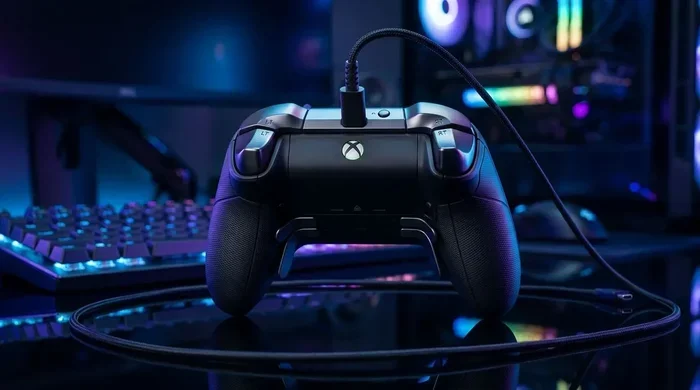
Connecting your Xbox controller to your PC is simple once you know the right steps. Whether you use a wireless adapter, Bluetooth, or a USB cable, this guide covers every method. You will also learn why your Xbox controller might not connect and how to fix it fast. Follow these tips to get gaming on your PC in minutes.
Key Takeaways
- Multiple Connection Methods: You can connect your Xbox controller to PC using a USB cable, Xbox Wireless Adapter, or Bluetooth.
- Driver Updates Fix Most Issues: Outdated drivers are the top reason your Xbox controller won’t connect to PC.
- Bluetooth Works on Windows 10 and 11: No extra hardware is needed if your PC supports Bluetooth.
- The Sync Button Is Key: Pressing the sync button correctly solves most pairing problems.
- Firmware Updates Matter: Keeping your controller firmware current prevents connection drops.
- USB Ports Can Cause Issues: Try different USB ports if your wired connection fails.
📑 Table of Contents
How to Connect Xbox Controller to PC
Getting your Xbox controller connected to your PC is easier than you think. Whether you are a casual gamer or a hardcore enthusiast, using a controller makes PC gaming feel more natural. But sometimes, things do not go as planned. Your controller not connecting to PC can ruin your mood fast.
This guide walks you through every method. You will learn how to connect Xbox controller to PC using a cable, wirelessly, and through Bluetooth. We also cover the most common reasons your Xbox controller won’t connect to PC and how to fix them. By the end, you will be ready to game without any hassle.
Let us start with the basics. There are three main ways to connect your Xbox controller to a PC. You can use a USB cable, an Xbox Wireless Adapter, or Bluetooth. Each method has its own benefits. The right choice depends on your setup and what you need.
Method 1: Using a USB Cable
The USB cable method is the simplest way to connect Xbox controller to PC. You just need a micro-USB or USB-C cable, depending on your controller model. Plug one end into your controller and the other into your PC. Windows should recognize the device within seconds.
Here is what to do step by step:
- Grab a compatible USB cable for your controller.
- Plug the cable into your Xbox controller.
- Connect the other end to an available USB port on your PC.
- Wait for Windows to detect the device.
- Open your game and start playing.
This method works great for PC gaming because it gives you a stable, lag-free connection. It also charges your controller at the same time. If you are dealing with a controller not working on PC, try a different USB port first. Sometimes the port you are using may not supply enough power.
Method 2: Using the Xbox Wireless Adapter
The Xbox Wireless Adapter is a small USB dongle made by Microsoft. It lets you connect your controller wirelessly to your PC without Bluetooth. This is the best option if you want a reliable, low-latency wireless controller connection.
Follow these steps to set it up:
- Plug the Xbox Wireless Adapter into a USB port on your PC.
- Download and install the Xbox Accessories app from the Microsoft Store.
- Press the Xbox button on your controller to turn it on.
- Press the sync button on the adapter.
- Press the sync button on your controller within 20 seconds.
- Wait for the lights to stop blinking. Your controller is now connected.
This method is excellent if you have multiple controllers. The adapter can handle up to eight controllers at once. It also works well with PC gaming setups where Bluetooth is not available.
Method 3: Using Bluetooth
Many newer Xbox controllers support Bluetooth. This means you can connect them to your PC without any extra hardware. If your PC has Bluetooth built in, this is a great option.
Here is how to do it:
- Make sure your PC has Bluetooth capability.
- Press and hold the Xbox button on your controller to turn it on.
- Press and hold the sync button on top of the controller for three seconds.
- The Xbox button will start flashing rapidly.
- On your PC, go to Settings, then Devices, then Bluetooth and other devices.
- Click Add Bluetooth or other device and select Bluetooth.
- Select your Xbox controller from the list.
- Wait for the connection to complete.
Bluetooth is convenient because you do not need any extra cables or adapters. However, the signal can sometimes be weaker than a USB connection. If you experience lag, consider moving closer to your PC or switching to a wired connection.
Why Won’t My Xbox Controller Connect to My PC
If you are staring at a controller not connecting to PC screen, you are not alone. This is one of the most common issues PC gamers face. The good news is that it is usually easy to fix. Let us look at the most common reasons this happens.
Sometimes the problem is simple. Other times, it is a deeper software issue. Either way, understanding the cause helps you find the right fix fast.
Outdated or Missing Drivers
The number one reason your Xbox controller won’t connect to PC is outdated drivers. Windows relies on drivers to communicate with hardware. If your controller driver is old or missing, your PC simply will not recognize the device.
Here is how to update your drivers:
- Right-click the Start button and select Device Manager.
- Expand the “Xbox Peripherals” or “Human Interface Devices” section.
- Right-click your Xbox controller and select “Update driver.”
- Choose “Search automatically for drivers.”
- Follow the on-screen prompts to complete the update.
You can also visit the Microsoft website to download the latest drivers manually. Keeping your driver update current is a great habit for all your gaming peripherals.
Bluetooth Is Not Enabled or Supported
If you are trying to use Bluetooth and your controller will not pair, check a few things first. Make sure Bluetooth is turned on in your PC settings. Also, confirm that your PC actually has Bluetooth hardware. Some older laptops and desktops do not include it.
You can check by going to Settings, then Devices, then Bluetooth and other devices. If you do not see any Bluetooth options, your PC may need a Bluetooth adapter. These are inexpensive and easy to install.
The Controller Battery Is Dead
This sounds obvious, but a dead battery is a very common reason your controller not working on PC. If your controller has a rechargeable battery and it is not charged, it will not connect. Make sure your controller has enough charge before you try pairing it.
Plug your controller in using a USB cable and let it charge for at least 30 minutes. Then try connecting it again. This simple step solves the problem more often than you might think.
Windows Is Not Recognizing the Device
Sometimes Windows just does not see your controller at all. This can happen after a major update or if the device was connected improperly before. In these cases, you may need to remove the old device entry and pair it fresh.
Go to Settings, then Devices, then Bluetooth and other devices. Find your Xbox controller in the list, click on it, and select Remove device. Then try pairing it again from scratch.
How to Fix Common Xbox Controller Connection Issues
Once you know the common causes, fixing them becomes much easier. Most Xbox controller connection issues fall into a few categories. Let us walk through the best fixes for each one.
Quick Fixes You Can Try Right Now
Before you dive into advanced troubleshooting, try these quick fixes. They solve the problem more often than not:
- Restart your PC: A simple reboot clears many temporary glitches that prevent PC connection issues.
- Try a different USB cable: A faulty cable is a sneaky cause of connection failure.
- Use a different USB port: Some ports may not provide enough power or proper communication.
- Move closer to your PC: If using Bluetooth, distance and walls can weaken the wireless signal.
- Turn Bluetooth off and on: Toggling Bluetooth refreshes the connection and often fixes pairing problems.
Updating the Xbox Accessories App
The Xbox Accessories app helps you manage your controller settings. If it is out of date, it may cause pairing issues. Open the Microsoft Store, search for Xbox Accessories, and update it if a newer version is available. After updating, restart your PC and try connecting again.
Checking for Windows Updates
Windows updates often include fixes for hardware compatibility. If your system is out of date, it may not support your controller properly. Go to Settings, then Update and Security, then Windows Update. Click Check for updates and install any pending updates. Restart your PC after the update is complete.
Xbox Controller Connection Methods Compared
Not sure which method is best for your setup? Here is a quick comparison of the three ways to connect your Xbox controller to your PC.
| Method | Speed | Reliability | Extra Hardware Needed |
|---|---|---|---|
| USB Cable | Fastest | Very High | USB cable |
| Xbox Wireless Adapter | Fast | High | Xbox Wireless Adapter |
| Bluetooth | Good | Moderate | None (if PC has Bluetooth) |
For the best PC gaming experience, the USB cable or Xbox Wireless Adapter is recommended. Bluetooth is great for convenience but may have slight latency. Choose the method that fits your needs.
Tips for a Smooth Xbox Controller Setup
A few simple tips can make your setup go much smoother. These small steps save you time and frustration in the long run.
- Always use the original Xbox cable or a high-quality replacement.
- Keep your controller firmware updated through the Xbox Accessories app.
- Store your controller in a cool, dry place to protect the battery.
- If you use Bluetooth, keep your PC and controller within 10 feet of each other.
- Restart your controller before every gaming session if you notice lag.
Following these tips keeps your wireless controller working at its best. A little maintenance goes a long way in preventing connection problems.
Conclusion
Connecting your Xbox controller to your PC does not have to be stressful. Whether you choose a USB cable, the Xbox Wireless Adapter, or Bluetooth, the process is straightforward. If you run into trouble, the fixes in this guide will help you get back to gaming quickly.
Remember to keep your drivers updated, check your battery level, and try the quick fixes before moving to advanced steps. With the right approach, you will be playing your favorite games with your Xbox controller in no time. Happy gaming!
Frequently Asked Questions
Why won’t my Xbox controller connect to my PC even with a USB cable?
Try a different USB cable or a different USB port. A faulty cable or a port that does not supply enough power are the most common causes. Also, check if your controller needs a firmware update through the Xbox Accessories app.
Can I connect my Xbox controller to PC without Bluetooth or a wireless adapter?
Yes. The simplest way is to use a USB cable. Just plug your controller into your PC with a micro-USB or USB-C cable, and Windows will recognize it immediately. No extra hardware is needed.
How do I know if my Xbox controller supports Bluetooth?
Look at the top of your controller. If it has a sync button and the model number starts with “1708” or later, it supports Bluetooth. Older models without the sync button use only the Xbox Wireless Adapter or USB cable.
What should I do if my controller connects but keeps disconnecting?
This is usually caused by a low battery or a weak wireless signal. Charge your controller fully and move it closer to your PC. If you are using Bluetooth, try switching to a USB cable or the Xbox Wireless Adapter for a more stable connection.
Do I need to install any software to use my Xbox controller on PC?
Windows 10 and 11 recognize Xbox controllers automatically. However, downloading the Xbox Accessories app from the Microsoft Store gives you access to extra features like button mapping and firmware updates. It is optional but recommended.
Can I connect more than one Xbox controller to my PC at the same time?
Yes. If you use the Xbox Wireless Adapter, it can support up to eight controllers at once. For Bluetooth, you can usually connect two or three controllers depending on your PC’s Bluetooth capabilities. Each controller will appear as a separate device in your Windows settings.