What Is Microsoft Bluetooth Enumerator
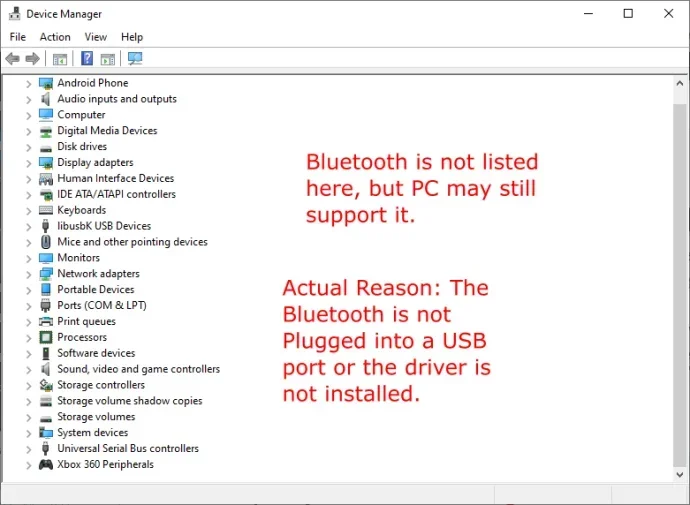
The Microsoft Bluetooth Enumerator is a built-in Windows driver that helps your PC detect and manage Bluetooth devices. It works behind the scenes in Device Manager to enumerate, or list, every Bluetooth peripheral you connect. Understanding this tool makes Bluetooth troubleshooting much easier and faster.
If you have ever opened Device Manager on your Windows PC and spotted a listing called Microsoft Bluetooth Enumerator, you might have wondered what it actually does. It sounds technical, and honestly, it kind of is. But the good news is that understanding it does not require a computer science degree. This little driver plays a big role in how your PC connects to wireless accessories like headphones, keyboards, and speakers.
In this guide, we will break down everything you need to know about the Microsoft Bluetooth Enumerator. We will cover what it is, how it works, common problems you might run into, and simple fixes to get your Bluetooth connectivity back on track. Whether you are a casual user or someone who relies on multiple Bluetooth peripherals every day, this article has you covered.
Key Takeaways
- What It Does: The Microsoft Bluetooth Enumerator identifies and lists all Bluetooth devices connected to your Windows PC.
- Where to Find It: You can locate it inside Device Manager under the Bluetooth category.
- Common Issues: Users often encounter driver errors, missing devices, or pairing failures tied to this component.
- Easy Fixes: Updating, reinstalling, or rolling back the driver usually resolves most problems.
- Prevention: Keeping Windows updated and managing Bluetooth settings wisely helps avoid future issues.
- Relevance: This driver is essential for any Bluetooth accessory, from headphones to wireless mice.
📑 Table of Contents
- What Is Microsoft Bluetooth Enumerator?
- How Does the Bluetooth Enumerator Work in Windows?
- Common Problems with the Microsoft Bluetooth Enumerator
- How to Fix Bluetooth Enumerator Errors
- When Should You Update the Bluetooth Enumerator Driver?
- Tips for Keeping Your Bluetooth Running Smoothly
- Final Thoughts
What Is Microsoft Bluetooth Enumerator?
The Microsoft Bluetooth Enumerator is a software driver built into Windows. Its main job is to detect and identify Bluetooth devices that connect to your computer. Think of it as a receptionist at a front desk. When a new Bluetooth device walks in, the enumerator checks it, assigns it a system address, and adds it to the list of recognized hardware.
Without this driver, your Windows PC would not know that a Bluetooth headset or wireless mouse was plugged in. It sits quietly in the background inside Device Manager, doing its work without needing much attention. Most of the time, you will never even notice it is there until something goes wrong.
You can find the enumerator by right-clicking the Start button, selecting Device Manager, and expanding the Bluetooth category. There it will appear as a standard device driver entry. It works with both Windows 10 and Windows 11, and it supports all major Bluetooth versions including Bluetooth 4.0, 5.0, and 5.3.
How Device Enumeration Works
Device enumeration is the process of detecting and cataloging hardware on your system. When you turn on a Bluetooth peripheral, the enumerator scans for the device signal, reads its identity information, and loads the proper Bluetooth stack so communication can begin. This entire process happens in seconds, usually without you even realizing it.
The Bluetooth protocol is the set of rules that governs how devices talk to each other wirelessly. The enumerator makes sure your PC follows these rules correctly. It also manages the Bluetooth settings on your system, ensuring that each connected device gets the right resources and does not conflict with others.
How Does the Bluetooth Enumerator Work in Windows?
Understanding how the Microsoft Bluetooth Enumerator functions can help you appreciate why it matters. The driver operates at a low level in the Windows operating system. It communicates directly with your Bluetooth adapter, which is the physical hardware chip in your computer that sends and receives wireless connections.
Here is a simple breakdown of the process:
- Step 1: Your Bluetooth adapter scans for nearby devices broadcasting signals.
- Step 2: The enumerator picks up these signals and reads the device information.
- Step 3: Windows loads the appropriate driver for that specific device.
- Step 4: The device is added to your system and becomes ready for use.
- Step 5: The enumerator continues to monitor the device for any changes or disconnections.
This entire Bluetooth pairing process relies on the enumerator working correctly. If the driver encounters a problem, devices may not show up, or they might disconnect unexpectedly. This is why keeping the driver updated is so important for maintaining a stable wireless connection.
Bluetooth Enumerator vs. Bluetooth Driver
People often confuse the Bluetooth enumerator with the Bluetooth driver, but they are not exactly the same thing. The enumerator is responsible for detecting and listing devices. The driver, on the other hand, is the software that allows Windows to actually communicate with each specific device. Both work together, but they serve different purposes in the Bluetooth stack.
Think of the enumerator as the person who writes down the names of guests at a party. The driver is the person who actually talks to each guest and makes sure they can interact with everyone else. You need both for the party, or in this case, your Bluetooth connectivity, to work smoothly.
Common Problems with the Microsoft Bluetooth Enumerator
Even though the Microsoft Bluetooth Enumerator is designed to work reliably, problems do come up from time to time. These issues can be frustrating, especially when you are trying to connect a Bluetooth headset or use a wireless Bluetooth mouse for work.
Here are the most common problems users report:
- Device Not Showing Up: A Bluetooth accessory connects but does not appear in your list of paired devices.
- Enumeration Error: Device Manager displays a yellow triangle with an exclamation mark next to the Bluetooth entry.
- Intermittent Disconnections: Devices connect fine at first but randomly drop off the network.
- Pairing Failures: New devices refuse to pair, even when they are in discovery mode.
- Driver Conflicts: Windows updates sometimes overwrite the enumerator driver, causing instability.
Most of these issues stem from outdated drivers, corrupted system files, or conflicts with other Bluetooth hardware. The good news is that nearly all of them can be fixed without hiring a technician.
Why Bluetooth Errors Happen
Bluetooth errors can happen for several reasons. Sometimes a Windows update changes the driver settings without warning. Other times, a Bluetooth dongle or adapter gets physically damaged or becomes too far from the connected device. Interference from other wireless devices like Wi-Fi routers can also cause problems with Bluetooth audio or data transfer.
Another common cause is having too many devices competing for the same Bluetooth channel. The Bluetooth protocol has a limited number of channels, and when too many devices are active at once, the enumerator can struggle to keep track of them all. This is especially true on older computers with Bluetooth 4.0 or earlier.
How to Fix Bluetooth Enumerator Errors
Fixing issues with the Microsoft Bluetooth Enumerator is usually straightforward. You do not need to be a tech expert to follow these steps. Most fixes take only a few minutes and do not require any special tools.
Method 1: Restart Your Bluetooth Services
The first thing you should try is restarting the Bluetooth support service on your PC. This refreshes the connection between the enumerator and your Bluetooth adapter. To do this, open the Run dialog by pressing Windows Key + R, type services.msc, and press Enter. Scroll down to find Bluetooth Support Service, right-click it, and select Restart. This simple step resolves the issue for many users.
Method 2: Update the Bluetooth Driver
Outdated drivers are one of the top causes of enumeration problems. To update your driver, open Device Manager, expand the Bluetooth section, right-click on the Microsoft Bluetooth Enumerator, and select Update Driver. Choose “Search automatically for drivers,” and Windows will look for the latest version. You can also visit your PC manufacturer’s website to download the newest Bluetooth driver directly.
Method 3: Uninstall and Reinstall the Driver
If updating does not work, try removing the driver entirely and letting Windows reinstall it from scratch. In Device Manager, right-click the enumerator entry and select Uninstall Device. Restart your computer, and Windows will automatically reinstall the device driver during boot. This method clears out any corrupted files that might be causing problems.
Method 4: Run the Bluetooth Troubleshooter
Windows includes a built-in Bluetooth troubleshooting tool that can automatically detect and fix common issues. Go to Settings, then System, then Troubleshoot, and select Bluetooth. Follow the on-screen prompts, and the tool will scan for problems with your Bluetooth connectivity and attempt to resolve them.
Quick Tip: If you are using a Bluetooth laptop mouse and it keeps disconnecting, try moving it closer to your computer first. Range issues are often mistaken for driver problems. For more on Bluetooth peripherals, check out what a laptop mouse is called to make sure you are using the right terminology when troubleshooting.
When Should You Update the Bluetooth Enumerator Driver?
Knowing when to update your Microsoft Bluetooth Enumerator driver can save you a lot of headaches. You do not need to update it every week, but there are specific situations where an update is a smart move.
You should consider updating the driver if:
- You just installed a major Windows update and Bluetooth devices stopped working.
- New Bluetooth hardware is not being recognized by your PC.
- You are experiencing frequent disconnections or audio dropouts with Bluetooth audio devices.
- Device Manager shows a driver error code related to enumeration.
- You purchased a new Bluetooth peripheral that requires a newer Bluetooth version for full functionality.
Regular driver updates improve Bluetooth connectivity and often include bug fixes for known issues. They also ensure compatibility with the latest Bluetooth peripherals hitting the market. If you are unsure whether your driver is up to date, you can check the driver version in Device Manager and compare it to the latest release on your manufacturer’s website.
How to Check Your Current Driver Version
To check your current driver version, open Device Manager, find the Microsoft Bluetooth Enumerator, right-click it, and select Properties. Go to the Driver tab, and you will see the driver version, date, and publisher information. If the version is more than a year old, or if there is a newer version available, updating is a good idea.
Keeping your drivers current is part of good PC maintenance. For advice on the best investments to extend your computer’s life, read about what is the best investment for the lifespan of your PC to make informed decisions about upgrades and upkeep.
Tips for Keeping Your Bluetooth Running Smoothly
Prevention is always better than cure when it comes to Bluetooth connectivity. A few simple habits can keep your Microsoft Bluetooth Enumerator working without issues for months or even years.
Keep Windows Updated
Windows updates often include driver improvements and security patches that directly affect Bluetooth performance. Set your system to download updates automatically so you always have the latest Bluetooth stack and driver versions installed.
Manage Connected Devices
Every Bluetooth peripheral you connect uses system resources. If you have more than 10 devices paired, consider removing the ones you no longer use. Fewer paired devices means less work for the enumerator and a more stable wireless connection.
Avoid Physical Interference
Bluetooth signals operate on the 2.4 GHz frequency band, which is shared by Wi-Fi, microwaves, and other wireless devices. Placing your Bluetooth adapter away from potential sources of interference can significantly improve Bluetooth audio quality and connection stability.
Use Quality Hardware
Not all Bluetooth hardware is created equal. Cheap Bluetooth dongles or adapters may have weak antennas or outdated chipsets that cause enumeration problems. Investing in quality Bluetooth accessories from reputable brands can prevent many common issues before they start.
Restart Your PC Regularly
It sounds simple, but restarting your computer clears temporary files, refreshes drivers, and resets the Bluetooth settings. If you notice intermittent Bluetooth errors, a quick restart often does the trick. For more on how your laptop’s components work together, you might want to learn what the mouse on a laptop is called and how it connects wirelessly.
Final Thoughts
The Microsoft Bluetooth Enumerator might not be the most glamorous part of your Windows system, but it is absolutely essential for everyday Bluetooth connectivity. Without it, your wireless headphones, keyboard, mouse, and other Bluetooth peripherals simply would not work. Now that you understand what it does and how to troubleshoot it, you are much better equipped to handle any Bluetooth issues that come your way.
Keep your drivers updated, manage your paired devices wisely, and do not ignore error messages. These small habits go a long way toward keeping your wireless connection strong and reliable. The next time you see that Bluetooth enumerator entry in Device Manager, you will know exactly what it is and why it matters.
Remember, most Bluetooth problems are easy to fix once you know where to look. The Microsoft Bluetooth Enumerator is your first line of defense for managing all of your wireless devices. Treat it well, and it will keep your Bluetooth experience running smoothly for years to come.
Frequently Asked Questions
Is the Microsoft Bluetooth Enumerator a virus or malware?
No, it is not. The Microsoft Bluetooth Enumerator is a legitimate Windows driver created by Microsoft. It is a safe and essential part of the operating system that helps manage Bluetooth devices. If you see it in Device Manager, that is completely normal and expected.
Can I disable the Microsoft Bluetooth Enumerator?
You can disable it in Device Manager, but doing so will stop all Bluetooth connectivity on your PC. Your wireless headphones, keyboards, and other Bluetooth peripherals will no longer work. It is not recommended to disable this driver unless you are troubleshooting a specific issue.
Why does my Bluetooth device keep disconnecting?
Frequent disconnections can be caused by outdated drivers, interference from other wireless devices, or problems with the Bluetooth enumerator itself. Try updating your Bluetooth driver, moving closer to your Bluetooth adapter, or running the Windows Bluetooth troubleshooter to resolve the issue.
Do I need to update the Bluetooth Enumerator driver regularly?
You do not need to update it manually every week. Windows Update usually handles driver updates automatically. However, if you start experiencing Bluetooth errors or new hardware is not recognized, checking for a driver update is a smart first step.
What is the difference between the Bluetooth Enumerator and the Bluetooth Driver?
The enumerator detects and lists Bluetooth devices on your system, while the driver enables communication between Windows and each specific device. Both are necessary for Bluetooth connectivity. The enumerator handles the discovery process, and the driver handles the ongoing data transfer.
Will resetting Windows affect the Bluetooth Enumerator?
If you perform a full factory reset, the Microsoft Bluetooth Enumerator will be reinstalled as part of the Windows setup. However, you may need to reinstall any custom Bluetooth drivers from your PC manufacturer. Always back up your important files before resetting your computer.