What Is Port 445 Used for in Windows 7
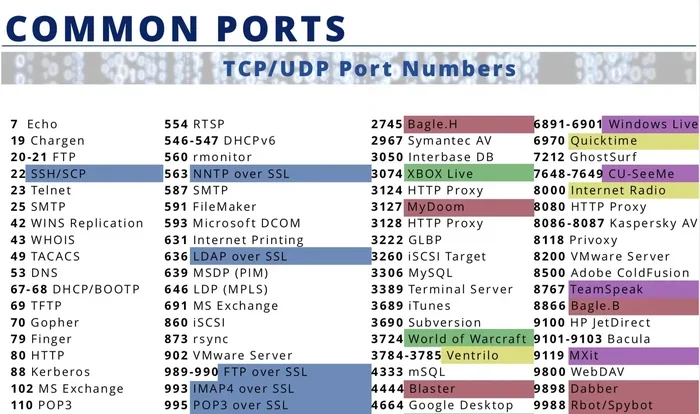
Port 445 is a critical network port in Windows 7 that handles file sharing, printer sharing, and other network services through the SMB protocol. It plays a central role in how computers communicate over a local network, making it essential for basic networking functionality. Understanding what port 445 does helps you troubleshoot connectivity issues and protect your system from security threats.
When you set up a Windows 7 computer on a home or office network, one of the behind-the-scenes processes that makes everything work is port 445. This network port might not be something you think about every day, but it plays a huge role in how your computer shares files, printers, and other resources with other devices on the same network. If you have ever wondered why your shared folders show up on another computer or why a printer is accessible from multiple machines, port 445 is the answer.
In this guide, we will walk through everything you need to know about port 445 in Windows 7. We will cover what it does, how it works, the security risks involved, and how to manage it properly. Whether you are a casual user or someone managing a small office network, this article will give you practical knowledge you can use right away.
Key Takeaways
- Port 445 enables SMB file and printer sharing on Windows 7 networks
- It uses both TCP and UDP protocols for network communication
- Leaving port 445 open creates security risks like unauthorized access and malware
- You can check and manage port 445 using Windows Firewall and command-line tools
- Disabling port 445 is an investment for the lifespan of your PC if you do not need network sharing
- Proper port configuration improves network performance and protects shared resources
📑 Table of Contents
What Is Port 445 and Why Does It Matter?
Port 445 is a network communication endpoint used by Windows operating systems, including Windows 7. It is part of the TCP/IP protocol suite, which is the foundation of how computers talk to each other over a network. Every port on your computer has a specific job, and port 445 is dedicated to handling file sharing, printer sharing, and other network services.
Before Windows Vista, older versions of Windows used something called NetBIOS over TCP/IP for network sharing. Port 445 replaced that older system and became the modern way for Windows machines to communicate on a local area network. When you share a folder or a printer on Windows 7, port 445 is the channel through which that sharing happens.
How Port 445 Works in Windows 7
When two computers on the same network need to exchange files or access a shared printer, they use port 445 to establish a connection. The computer requesting access sends a message through this port, and the computer sharing the resource listens for those messages and responds accordingly.
This process relies on the Server Message Block (SMB) protocol, which is the language computers use to talk to each other over a network. Port 445 uses the TCP protocol for reliable, ordered delivery of data. It can also use UDP in some cases for faster, connectionless communication. The combination of SMB over TCP port 445 is what makes network file sharing and printer sharing work smoothly in Windows 7.
Think of port 445 like a door on your computer. When the door is open and the service is running, other computers on the network can come in and access shared resources. When the door is closed, no one can get through. This simple analogy helps explain why managing port 445 is so important for both functionality and security.
What Is Port 445 Used For in Windows 7?
Now that you understand the basics, let us look at the specific things port 445 is used for in Windows 7. These functions are essential for any network environment where computers need to share resources.
File and Printer Sharing
The most common use of port 445 in Windows 7 is enabling file and printer sharing. When you right-click a folder and choose Share, Windows 7 opens port 445 to allow other computers on the network to access that folder. The same goes for printers connected to a Windows 7 machine. Other users on the network can send print jobs through port 445, and the printer receives and processes them.
Without port 445 active, shared folders would not appear on other computers, and network printers would be unreachable. This is why port 445 is considered one of the most important ports for basic network functionality in a Windows 7 environment.
Network Discovery
Network Discovery is a Windows 7 feature that lets your computer find other devices on the same network. When Network Discovery is turned on, Windows 7 uses port 445 to broadcast its presence and to listen for other devices doing the same. This is how you see other computers and printers appear in your network folder.
Disabling Network Discovery will close port 445 to incoming connections, which improves security but also stops your computer from being visible to others on the network. This is a trade-off that many users and IT administrators consider carefully.
Remote Administration and Services
Port 445 also supports remote administration tasks in Windows 7. System administrators can use it to remotely manage computers, deploy software, and run commands across the network. This is done through tools like Windows Management Instrumentation and remote PowerShell sessions that rely on SMB communication over port 445.
Additionally, some Windows services use port 445 in the background. For example, the Distributed File System and Cluster Service in enterprise environments depend on port 445 to coordinate file access across multiple servers. While these are more advanced use cases, they show how central port 445 is to Windows networking.
How to Check Port 445 Status in Windows 7
If you are troubleshooting network sharing issues or want to verify that port 445 is working correctly, Windows 7 gives you several ways to check its status. You do not need to be a network expert to do this.
One simple method is to open the Command Prompt and type netstat -an. This command shows all active network connections and the ports they are using. Look for entries that show port 445 in a LISTENING state. If you see it, then the SMB service is active and ready to handle sharing requests.
You can also check through the Windows Firewall settings. Go to Control Panel, then Windows Firewall, and click Allow a program or feature through Windows Firewall. Look for File and Printer Sharing in the list. If it is checked, then port 445 is allowed through the firewall. If not, you may need to enable it to get sharing working again.
While you are checking your network settings, it is also worth understanding what your system resources are being used for. For instance, you might want to know what your laptop’s RAM is good for when running multiple network services alongside sharing tasks. Having enough memory helps Windows 7 handle port 445 traffic without slowing down.
Security Risks of Port 445 in Windows 7
While port 445 is essential for network sharing, it also comes with significant security risks. Because port 445 is a well-known port used for file sharing, it is a common target for attackers and malicious software. Understanding these risks is the first step toward protecting your system.
Common Threats Targeting Port 445
One of the most famous threats that exploited port 445 is the WannaCry ransomware attack from 2017. This malware spread across networks by taking advantage of a vulnerability in the SMB protocol running on port 445. It encrypted files on infected computers and demanded ransom payments. While this attack primarily affected Windows systems that were not patched, it highlighted how dangerous an open port 445 can be.
Other common threats include:
- Unauthorized file access – attackers can browse your shared folders and steal sensitive documents
- Malware propagation – viruses can spread from one computer to another through port 445
- Denial of Service attacks – attackers can flood port 445 with traffic, making your network services unavailable
- Man-in-the-middle attacks – data transmitted over port 445 can be intercepted if not properly encrypted
How to Protect Your System
Protecting your Windows 7 system from threats targeting port 445 involves several practical steps. The most important one is keeping your system updated. Windows 7 received security patches for many years, and applying these updates closes known vulnerabilities in the SMB protocol.
Another critical step is configuring your firewall properly. You should only allow port 445 traffic on trusted networks, such as your home or office LAN. If your computer connects to public Wi-Fi networks, make sure port 445 is blocked in those environments. Using a firewall to control port 445 traffic is one of the simplest and most effective security measures you can take.
For users who do not need network sharing at all, the best approach is to simply close port 445. This is a smart investment for the lifespan of your PC because it removes a major attack surface from your system. If you never share files or printers over the network, there is no reason to keep port 445 open.
You should also consider using strong passwords and enabling network-level authentication. These measures add extra layers of protection that make it much harder for attackers to abuse port 445 even if they try to exploit it.
How to Enable or Disable Port 445 in Windows 7
Sometimes you need to turn port 445 on or off depending on your needs. Windows 7 gives you several ways to manage this port, whether you want to enable sharing or lock it down for security.
To enable port 445 for file sharing, go to Control Panel and open Network and Sharing Center. Click on Change advanced sharing settings and expand the network profile you are using. Make sure Turn on file and printer sharing is selected. This action tells Windows 7 to keep port 445 open and listening for sharing requests.
To disable port 445, you have a few options. The simplest is to turn off file and printer sharing in the same advanced sharing settings menu. You can also block port 445 through Windows Firewall by creating an inbound rule that blocks TCP and UDP traffic on port 445. For a more thorough approach, you can stop the Server service in Windows, which will close port 445 completely.
Remember that disabling port 445 will break network sharing. Make sure you understand the consequences before making changes. If you are unsure, understanding what the RAM in a laptop does can also help you appreciate how system resources interact with network services like port 445. A well-resourced system handles network traffic more efficiently.
Best Practices for Managing Port 445
Managing port 445 effectively comes down to balancing convenience with security. Here are some best practices that will help you get the most out of this port while keeping your Windows 7 system safe.
- Keep Windows 7 updated with the latest security patches to fix SMB vulnerabilities
- Use a firewall to control which networks can access port 445
- Disable port 445 if you do not use network sharing
- Use strong passwords on all user accounts that have access to shared resources
- Monitor port 445 activity regularly using tools like netstat or network monitoring software
- Limit sharing to specific folders rather than sharing entire drives
- Consider upgrading from Windows 7 if you are still using it, since Microsoft ended support in January 2020
Following these practices will help you maintain a secure and functional network environment. Even though Windows 7 is no longer receiving official support, these steps can still protect your system if you continue using it.
Conclusion
Port 445 is a fundamental part of how Windows 7 handles network sharing. It enables file sharing, printer sharing, and network discovery, making it easier for computers to work together on a local network. However, this same functionality also creates security risks that you must manage carefully.
The key to using port 445 safely is understanding what it does, how to check its status, and how to control it through your firewall and sharing settings. By following the best practices outlined in this guide, you can enjoy the benefits of network sharing while keeping your Windows 7 system protected from threats.
Whether you are a home user sharing a printer or an IT professional managing a small office network, knowing how to work with port 445 in Windows 7 is an essential skill. Take the time to review your current settings, apply the security measures discussed here, and you will be well on your way to a safer and more efficient network setup.
Frequently Asked Questions
Is port 445 safe to keep open in Windows 7?
Keeping port 445 open is safe if you are on a trusted network and have proper firewall rules in place. However, Windows 7 is no longer supported by Microsoft, which means new vulnerabilities may not be patched. If you must keep port 445 open, make sure you use strong passwords and a reliable firewall.
Can I close port 445 and still use my printer?
If your printer is connected directly to a computer and shared over the network, closing port 445 will stop other computers from accessing it. You would need to keep port 445 open for network printer sharing to work. Alternatively, you can connect the printer directly to each computer that needs it.
What is the difference between port 139 and port 445?
Port 139 was used by older Windows versions for NetBIOS-based file sharing, while port 445 is the modern SMB protocol port used by Windows Vista and later, including Windows 7. Port 445 replaced port 139 and offers better performance and security features for network communication.
How do I know if port 445 is being attacked?
Signs of an attack on port 445 include unusual network traffic, slow file sharing performance, and unexpected firewall alerts. You can use the netstat command in Command Prompt to monitor active connections on port 445. If you see unfamiliar IP addresses connecting to this port, it may indicate an attempted attack.
Should I upgrade from Windows 7 because of port 445 risks?
Yes, upgrading from Windows 7 is strongly recommended, especially because Microsoft ended support in January 2020. Newer Windows versions have improved security features for port 445 and continue to receive patches that protect against emerging threats targeting the SMB protocol.
Can I use port 445 for file sharing over the internet?
It is not recommended to expose port 445 to the internet. Doing so makes your system vulnerable to attacks from anywhere in the world. File sharing should only be done over trusted local networks, and port 445 should always be blocked at the router level for internet-facing connections.