What Is the Difference Between Cpu Usage Ram
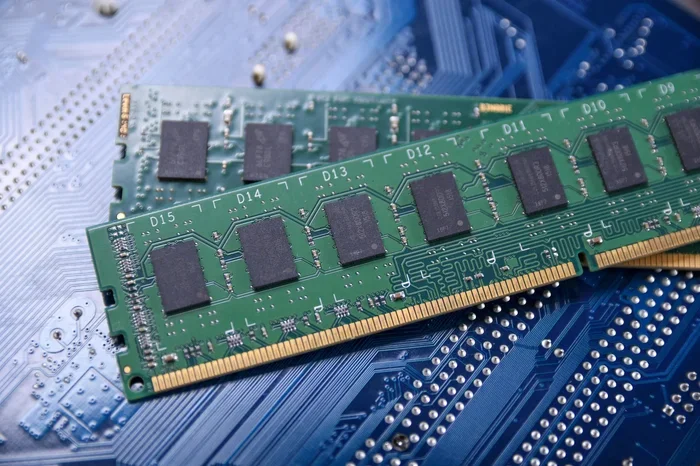
CPU usage measures how hard your processor is working, while RAM usage tracks how much memory your computer is using. Think of the CPU as the brain and RAM as the workspace — both are essential but serve very different roles. Understanding this difference helps you troubleshoot slowdowns and build a better system.
When your computer starts to slow down, you might blame the processor or the memory. But here is the thing — CPU usage and RAM usage are two very different things. They do different jobs inside your machine. Understanding this difference is the first step to fixing performance problems.
Many people confuse the two because both show up in your task manager when things get slow. But knowing what each one does can save you time, money, and a lot of frustration. This guide breaks it all down in simple terms.
By the end of this article, you will know exactly what CPU usage means, what RAM does, how they differ, and what you can do to keep your system running fast. Let us dive in.
Key Takeaways
- CPU and RAM are different: The CPU processes tasks while RAM stores temporary data for quick access.
- High CPU usage means your processor is working hard, often causing slow performance.
- High RAM usage means your system is running low on memory, which can freeze apps.
- Both matter for multitasking: A balanced system needs enough CPU power and RAM to run smoothly.
- You can check usage easily: Task Manager on Windows and Activity Monitor on Mac show real-time stats.
- Upgrading RAM is often cheaper and easier than upgrading your CPU for better performance.
📑 Table of Contents
What Is CPU Usage?
CPU usage refers to how much of your processor’s power is being used at any given moment. The CPU, or central processing unit, is the brain of your computer. It calculates, processes, and executes every command you give your system.
When you open a browser, play a game, or run a video edit, the CPU handles the heavy lifting. CPU usage is shown as a percentage. If it is at 100%, your processor is working at full capacity. If it is at 10%, it is barely doing anything.
What Causes High CPU Usage?
Several things can push your CPU to work harder than it should:
- Running too many programs at the same time
- Heavy applications like video editing software or games
- Background processes that run without you knowing
- Malware or viruses that secretly use your processor
- Outdated software that is not optimized well
When CPU usage stays high for a long time, your computer will feel sluggish. Programs may freeze, fans may spin louder, and your system may overheat. This is why monitoring processor usage is so important.
What Is Normal CPU Usage?
Idle CPU usage — when you are not doing much — should be around 2% to 5%. When you are working, it can climb to 30% or 50% depending on the task. Gaming or rendering can push it to 90% or higher temporarily. The key is whether it stays at 100% when you are not doing anything demanding.
What Is RAM and How Does It Work?
RAM stands for Random Access Memory. It is the short-term memory of your computer. When you open an app or a file, the data is loaded into RAM so the CPU can access it quickly. Without RAM, your processor would have to fetch data from your hard drive every single time, which would be painfully slow.
Think of RAM as your desk. The bigger the desk, the more papers (or apps) you can spread out and work on at once. RAM usage tells you how much of that workspace is currently in use.
What Causes High RAM Usage?
Just like CPU usage, RAM usage can spike for many reasons:
- Opening too many browser tabs — each tab uses memory
- Running memory-heavy apps like Photoshop or virtual machines
- Not enough RAM installed in your system
- Memory leaks in software that do not release unused memory
- Startup programs that run in the background
When RAM usage gets too high, your computer starts using your hard drive as temporary memory. This is called a page file or virtual memory. It is much slower than real RAM, which is why your system starts to lag.
If you are wondering what RAM is good for in a laptop, the answer depends on your needs. For basic browsing and office work, 8GB is usually enough. For creative work or gaming, 16GB or more is better. You can learn more about how to upgrade the RAM of a laptop if you need more memory.
How Much RAM Do You Actually Need?
Here is a quick guide:
- 4GB: Basic tasks like web browsing and word processing
- 8GB: Most everyday users and light gaming
- 16GB: Content creation, multitasking, and heavier workloads
- 32GB or more: Professional video editing, 3D rendering, and machine learning
Knowing what RAM does in a laptop helps you understand why having enough matters. If your system constantly runs low on memory, upgrading is one of the best improvements you can make.
CPU Usage vs RAM Usage: The Core Differences
Now that you know what each one does, let us compare them side by side. The difference between CPU usage and RAM usage comes down to their roles in your system.
| Feature | CPU Usage | RAM Usage |
|---|---|---|
| What it is | Processor activity level | Memory in use |
| What it does | Processes and calculates tasks | Stores temporary data for quick access |
| Bottleneck symptom | Slow response, stuttering | Apps crashing, freezing |
| How to reduce it | Close heavy apps, upgrade CPU | Close tabs, add more RAM |
| Ideal range (idle) | 2% to 5% | 10% to 30% |
The CPU handles computation — it does the thinking. RAM handles storage — it holds the information the CPU needs right now. They work together but are completely different components.
For example, imagine you are editing a video. The CPU renders the video and applies effects. The RAM holds the video file, the effects data, and the timeline so the CPU can reach them instantly. If the CPU is slow, the rendering takes longer. If the RAM is full, the software crashes or slows down.
Both system performance and multitasking depend on having a balance between CPU power and memory capacity. One without the other creates a bottleneck.
How CPU and RAM Work Together
Your computer is a team. The CPU and RAM depend on each other to deliver a smooth experience. Here is how the process works:
- You click on an app or file.
- The CPU sends a request to load the data.
- RAM stores the data temporarily so the CPU can access it fast.
- The CPU processes the data and shows you the result.
- When you close the app, RAM frees up that space.
This cycle happens millions of times per second. If any part of the chain is weak, you will feel it. A fast CPU with low RAM will still struggle because the memory cannot keep up. Plenty of RAM with a slow CPU will also feel sluggish because the processor cannot keep up with the data.
Understanding computer hardware basics like this helps you make smarter decisions. Whether you are building a new PC or upgrading an existing one, balancing your CPU and memory is key to solid system performance.
How to Check Your CPU and RAM Usage
Checking your usage stats is simple and takes just a few seconds. Here is how to do it on both Windows and Mac.
On Windows
Press Ctrl + Shift + Esc to open Task Manager. Click on the Performance tab. You will see CPU usage and Memory usage displayed in real time. You can also see how many cores your processor has and how much RAM is installed.
On Mac
Open Activity Monitor from the Applications folder under Utilities. Click on the CPU tab to see processor usage and the Memory tab to see memory usage. It works the same way as Windows Task Manager.
Make a habit of checking these tools when your computer feels slow. Often, you will find that one component is working much harder than it should.
Common Problems and How to Fix Them
Problem 1: Your CPU Is Always at 100%
If your CPU usage stays at 100% even when you are not doing much, something is wrong. Try these steps:
- Restart your computer to clear background processes
- Check Task Manager for apps using too much CPU
- Update your drivers and software
- Scan for malware or viruses
- Consider upgrading your processor if it is outdated
Problem 2: Your RAM Keeps Filling Up
If your memory usage is always near 100%, you may need more RAM. Here is what you can do:
- Close apps and browser tabs you are not using
- Disable startup programs you do not need
- Check for memory leaks in your software
- Upgrade your RAM — find out whether 8GB RAM is enough for a laptop before buying
- Use lighter alternatives to heavy applications
Many users ask what is a good RAM size for a laptop. The answer depends on your use case, but 8GB is the minimum for most people today. If you do creative work or gaming, go for 16GB or more.
Problem 3: Both CPU and RAM Are High
Sometimes both components are working hard at the same time. This usually happens during heavy tasks like gaming or video editing. The fix is to either reduce the workload or upgrade both components. A balanced system with enough memory allocation and a strong processor will handle demanding tasks much better.
Expert Tips to Optimize CPU and RAM
Want to get the most out of your system? Here are some expert-backed tips:
- Keep your OS updated: Updates often include performance improvements for both memory and processor management.
- Use SSD storage: Switching from a hard drive to an SSD reduces the load on RAM because data is accessed faster.
- Limit browser extensions: Each extension uses memory and can slow down your browser significantly.
- Restart regularly: This clears temporary data and frees up memory for new tasks.
- Monitor temperatures: Overheating causes the CPU to throttle, which increases usage time for every task.
- Upgrade smart: If your system is old, adding RAM is often cheaper and easier than replacing the processor.
These small changes can make a big difference in how your computer feels every day. You do not need to be a tech expert to apply them.
When Should You Upgrade?
Knowing when to upgrade is just as important as knowing the difference between CPU and RAM usage. Here are some signs:
- Your computer takes more than a few seconds to open apps
- You get memory warnings or out-of-memory errors
- Your CPU temperature runs high even during light tasks
- You cannot run your favorite apps smoothly anymore
- You are regularly hitting 80% or more usage on both CPU and RAM
If you are dealing with constant slowdowns, it might be time to look at your options. Check out resources on laptops with the most RAM or explore what CPU cooler options can help keep your processor running at peak performance without overheating.
Remember, upgrading RAM is usually the easier and more affordable path for most users. But if your processor is several generations old, a full system upgrade might be the better investment.
Conclusion
The difference between CPU usage and RAM usage comes down to what each component does. The CPU processes and calculates. The RAM stores and delivers data quickly. Both are essential, and both need to be balanced for the best performance.
Now that you understand how they work — and how they differ — you can troubleshoot slowdowns with confidence. Check your usage stats, identify the bottleneck, and take action. Whether that means closing apps, upgrading memory, or improving your cooling setup, you have the knowledge to make it right.
Keep your system balanced, keep it updated, and it will serve you well for years to come.
Frequently Asked Questions
Is high CPU usage bad for my computer?
Occasional high CPU usage during demanding tasks is normal and not harmful. However, constant 100% usage when idle can cause overheating and reduce your computer’s lifespan. It is best to identify what is causing the high usage and address it.
Can too much RAM usage slow down my computer?
Yes, when RAM usage is near 100%, your system starts using your hard drive as temporary memory, which is much slower. This causes lag, freezing, and app crashes. Adding more RAM is the best fix for this problem.
What is the difference between CPU and RAM in simple terms?
The CPU is the brain that processes information, while RAM is the short-term workspace that holds data the CPU needs quickly. One thinks, the other remembers what it was just working on.
How can I lower my CPU usage?
You can lower CPU usage by closing unnecessary programs, disabling startup apps, updating your software, scanning for malware, and restarting your computer regularly. These simple steps free up processor resources.
Is 8GB RAM enough for everyday use?
For most everyday tasks like browsing, email, and office work, 8GB of RAM is sufficient. However, if you multitask heavily or use creative apps, 16GB will provide a much smoother experience.
Does upgrading RAM improve CPU performance?
Upgrading RAM does not directly make your CPU faster, but it reduces bottlenecks. When your system has enough memory, the CPU can access data faster and work more efficiently, which improves overall performance.