The Best Tools For Cleaning A Computer And Accessories

Keeping your computer clean boosts performance and extends its lifespan. The right tools for cleaning a computer make the job quick, safe, and effective. From microfiber cloths to compressed air, we cover every essential supply you need.
Key Takeaways
- Microfiber cloths and compressed air are the two most essential cleaning tools for any computer setup.
- Regular cleaning prevents dust buildup, overheating, and hardware failure.
- Using the wrong cleaning products can damage screens and sensitive components.
- A dedicated PC cleaning kit saves time and ensures you have everything on hand.
- Both internal and external components need regular maintenance for optimal performance.
- Soft brushes and cotton swabs help clean tight spaces like keyboard keys and ports.
- Cleaning your accessories, including your Best Computer Mouse For Laptop and keyboard, improves hygiene and longevity.
📑 Table of Contents
- Why Cleaning Your Computer Matters More Than You Think
- Essential Tools For Cleaning A Computer
- Cleaning Solutions and Liquids
- How to Clean Different Computer Parts
- Building Your PC Cleaning Kit
- How Often Should You Clean Your Computer?
- Common Cleaning Mistakes to Avoid
- Expert Tips for Keeping Your Computer Spotless
- Final Thoughts
Why Cleaning Your Computer Matters More Than You Think
Dust, crumbs, and grime build up on your computer faster than you might think. Over time, this buildup causes real problems. Fans work harder. Temperatures rise. Performance drops. Your machine simply cannot breathe when it is clogged with debris.
Regular computer cleaning is not just about looks. It is about keeping your hardware healthy. A clean laptop or desktop runs cooler, lasts longer, and performs better. Think of it like changing the oil in your car. A small effort now saves you big headaches later.
Whether you use your machine for work, gaming, or casual browsing, dirt affects everything. Keys stick. Screens look dull. Ports get clogged. The good news? A few simple cleaning tools solve all of these problems. Let us walk through exactly what you need.
Essential Tools For Cleaning A Computer
You do not need a huge collection of supplies. A few high-quality tools handle most cleaning jobs. Here are the essentials every computer owner should own.
Microfiber Cloths
These are the backbone of any cleaning routine. Microfiber cloths lift dust and fingerprints without scratching surfaces. Use them on screens, casings, and keyboards. Never use paper towels or regular rags. They leave behind tiny fibers and can scratch delicate coatings.
Keep at least two cloths on hand. One for screens. One for external surfaces. Wash them regularly so you always have a clean one ready.
Compressed Air Duster
A compressed air duster is a must-have for internal cleaning. It blows dust out of vents, fans, and hard-to-reach spots. Hold the can upright and use short bursts. Never tilt it upside down. The liquid propellant can damage components.
This tool is especially important for desktop towers where dust collects heavily. For laptops, use it around the keyboard and exhaust vents. A few bursts every couple of weeks make a huge difference.
Soft-Bristle Brushes
A small, soft brush helps dislodge stubborn dust from tight spaces. Use it around keyboard keys, fan blades, and vent grills. Anti-static brushes are ideal because they prevent static discharge. This protects sensitive electronics while you clean.
Look for brushes with bristles labeled as soft or anti-static. Avoid hard-bristle brushes. They can scratch plastic housings and damage components.
Cotton Swabs and Cleaning Pads
Cotton swabs reach places cloths and brushes cannot. Use them to clean around ports, between keys, and along edges. Dampen them lightly with isopropyl alcohol for sticky grime. Make sure the swab is not dripping wet. Excess moisture damages electronics.
Pre-moistened cleaning pads work well for quick wipe-downs. They are convenient for on-the-go cleaning. Keep a pack in your laptop bag for emergencies.
Cleaning Solutions and Liquids
Water alone does not cut it for most computer cleaning jobs. You need the right solutions. But not just any cleaner will do. Many household cleaners contain chemicals that damage coatings and plastics.
Isopropyl Alcohol
Isopropyl alcohol (90% or higher) is the gold standard for electronics cleaning. It evaporates quickly, leaves no residue, and dissolves grime effectively. Use it to clean sticky keys, remove thermal paste, and wipe down circuit boards.
Always apply it to a cloth or swab first. Never pour it directly onto any component. Let the surface dry completely before powering on your device.
Screen Cleaning Solutions
Computer screens need special care. Standard glass cleaners contain ammonia and other chemicals that strip anti-glare and anti-reflective coatings. Use a dedicated screen cleaning solution instead. These are formulated to be safe for delicate displays.
Spray the solution onto a microfiber cloth, not directly on the screen. Wipe gently in circular motions. This prevents streaking and keeps your display crystal clear.
Thermal Paste
When you clean internal components, you may need to reapply thermal paste. This paste transfers heat from your processor to the heatsink. Over time, it dries out and loses effectiveness. Replacing it during a deep clean keeps temperatures in check.
If you are not comfortable doing this yourself, consider professional help. Applying thermal paste incorrectly can cause overheating issues. But for those who like a DIY approach, it is a rewarding part of computer maintenance.
How to Clean Different Computer Parts
Every part of your computer needs a slightly different approach. Here is a practical guide for each component.
Cleaning Your Screen
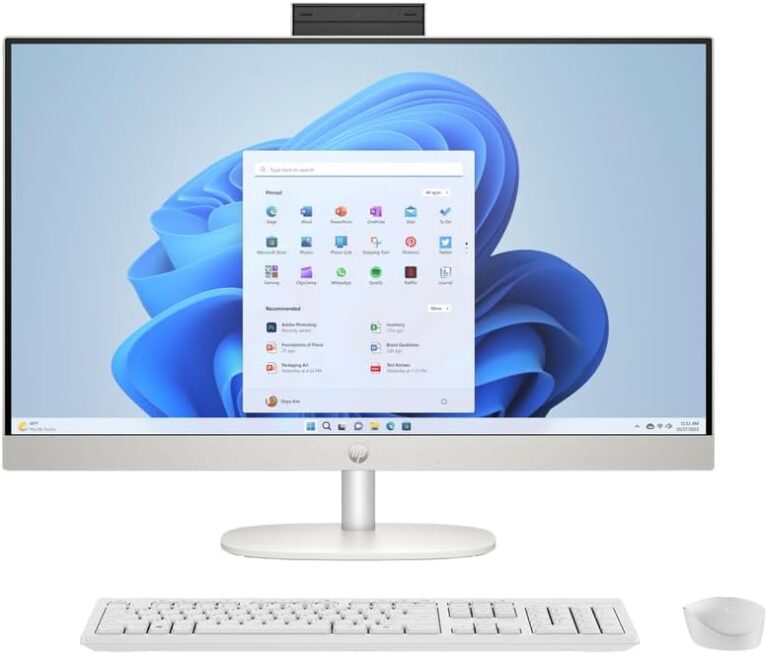
Start with a dry microfiber cloth. Gently wipe the screen in one direction. Then dampen the cloth slightly with a screen cleaning solution. Avoid pressing too hard. LCD and LED screens are sensitive to pressure and moisture.
For laptop cleaning, pay extra attention to the edges where the lid meets the base. Dust collects in the hinges. Use a soft brush to loosen it before wiping.
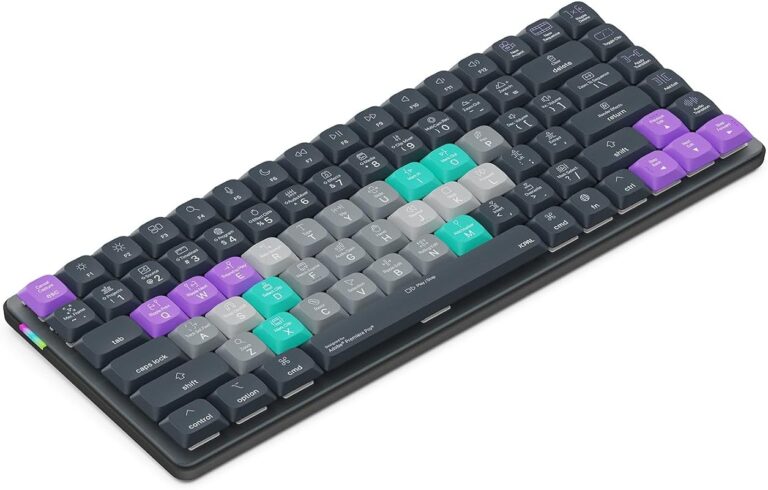
Cleaning Your Keyboard
Turn your laptop or keyboard upside down first. Shake gently to dislodge crumbs and loose debris. Then use compressed air to blow out the remaining particles. Follow up with a soft brush for stubborn grime.
For sticky keys, dip a cotton swab in isopropyl alcohol and clean around each keycap. If a key is truly stuck, you may need to remove it. Check your device manual for key removal instructions before attempting this.
Cleaning Your Mouse and Trackpad
Your mouse gets touched constantly. It collects oils, dirt, and bacteria. Wipe it down with a cloth dampened with isopropyl alcohol. For optical mice, clean the sensor lens gently with a dry swab.
If you use an external mouse, check the tracking ball or sensor area. Dust there causes erratic cursor movement. A quick cleaning session fixes most tracking issues. For more on choosing the right peripheral, check out our guide on Wireless Keyboard And Mouse For Laptop Computer.
Cleaning Internal Components
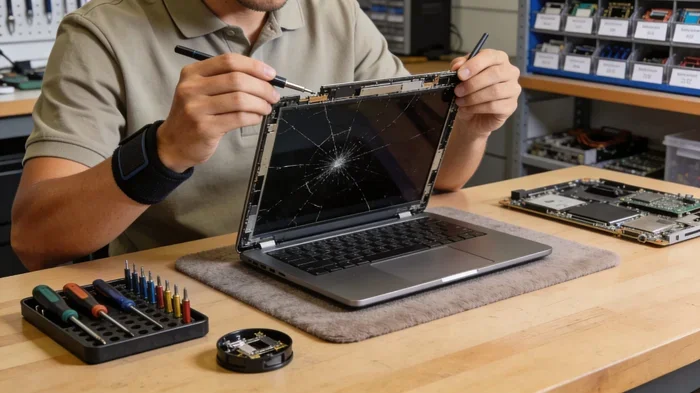
Open your computer case and use compressed air to blow out dust from the motherboard, GPU, and power supply. Pay special attention to fans. Dusty fans spin louder and cool less effectively.
Remove the CPU cooler if you are comfortable doing so. Clean off the old thermal paste with isopropyl alcohol. Apply fresh paste before reattaching the cooler. This simple step can lower temperatures by several degrees.
Also clean your computer ports. Dust in USB ports and HDMI connectors causes connection issues. A can of compressed air or a soft brush handles this easily. Keeping ports clean ensures stable connections for all your peripherals.
Building Your PC Cleaning Kit
Buying individual tools adds up fast. A well-organized cleaning kit saves money and time. Here is what to include.
- Microfiber cloths (at least 3-4 pieces)
- Compressed air duster (1-2 cans)
- Soft-bristle anti-static brush
- Cotton swabs (pack of 100+)
- Isopropyl alcohol (90% or higher, small bottle)
- Screen cleaning solution
- Thermal paste (small tube)
- Soft-bristle detailing brush (for tight spaces)
- Lint-free cleaning pads
Store everything in a small toolbox or zippered bag. Label each item clearly. This makes the kit easy to grab whenever cleaning day arrives. A dedicated kit also means you never have to hunt for supplies when you spot a smudge or dust bunny.
How Often Should You Clean Your Computer?
Frequency depends on your environment. If you live in a dusty area or have pets, you need to clean more often. Here is a general schedule to follow.
| Task | Frequency |
|---|---|
| Wipe down exterior surfaces | Weekly |
| Clean keyboard and mouse | Weekly |
| Blow out dust with compressed air | Monthly |
| Deep clean internal components | Every 3-6 months |
| Replace thermal paste | Every 6-12 months |
| Clean screen thoroughly | Bi-weekly |
Sticking to this schedule keeps your machine running at peak condition. It also gives you a chance to spot potential problems early. A loose cable, a worn fan, or a crack in the casing. Catching these early prevents costly repairs.
Common Cleaning Mistakes to Avoid
Even with the best intentions, people make mistakes when cleaning their computers. Here are the most common ones and how to avoid them.
Using household cleaners. Windex, bleach, and all-purpose cleaners are too harsh for electronics. They strip protective coatings and can corrode metal parts. Stick to products designed for electronics.
Spraying liquid directly on components. Always apply cleaning solutions to a cloth or swab first. Liquid can seep into openings and short-circuit boards. This is the number one cause of cleaning-related damage.
Using too much force. Computer parts are not built to withstand heavy pressure. Scrubbing a screen aggressively creates micro-scratches that degrade display quality over time. Gentle, consistent wiping works best.
Ignoring ventilation areas. People often clean the outside but forget the vents and fans. Dust buildup in ventilation is the leading cause of overheating. Prioritize these areas during every cleaning session.
Not unplugging before cleaning. Always power off and unplug your computer before any internal cleaning. Working on a powered machine risks electric shock and component damage. Safety comes first.
Expert Tips for Keeping Your Computer Spotless
Professional technicians share a few tricks that make maintenance easier. Try these out.
Use a keyboard cover. A silicone keyboard cover prevents crumbs and dust from getting inside. It is especially useful if you eat near your computer. Remove the cover regularly and clean it too.
Elevate your laptop. Using a stand improves airflow underneath. Better airflow means less dust settles on internal components. It also keeps your laptop cooler during heavy use.
Clean in a well-lit area. You miss a lot of dust when cleaning in dim light. A bright lamp or desk lamp reveals hidden grime. Check vents, ports, and crevices closely.
Wash your hands before use. Clean hands mean less oil and dirt transfer to your keyboard and mouse. This simple habit reduces how often you need to deep clean your accessories.
Consider your environment. Keep your computer away from windows and open areas where dust enters easily. A clean room means a cleaner computer. For more on setting up a productive workspace, check out our article on Best Laptop Computer For Students which covers workspace optimization.
Final Thoughts
Cleaning your computer does not have to be complicated. With the right tools for cleaning a computer, the process is quick and satisfying. A few basic supplies, a regular schedule, and gentle technique keep your machine in top shape for years.
Start small. Grab a microfiber cloth and a can of compressed air. Wipe down your screen and blow out the dust. You will be amazed at how much better your computer looks and feels. From there, build up your kit and tackle deeper cleaning tasks over time.
Remember, computer maintenance is an investment. Every few minutes spent cleaning saves you from expensive repairs and premature replacements. Your computer works hard for you. A little care goes a long way in return.
Now that you know exactly what to use and how to use it, there is no excuse to wait. Grab your supplies today and give your machine the care it deserves. Your computer will thank you with better performance, cooler temperatures, and a longer lifespan.
Frequently Asked Questions
What are the basic tools for cleaning a computer?
The basic tools include microfiber cloths, compressed air, isopropyl alcohol, soft brushes, and cotton swabs. These five items handle most cleaning jobs from screens to keyboards. You can buy them individually or as part of a dedicated PC cleaning kit.
Can I use regular household cleaners on my computer?
No, household cleaners contain harsh chemicals that damage screens and plastic casings. Always use electronics-safe cleaning solutions. Isopropyl alcohol and dedicated screen cleaners are the safest options for computer components.
How often should I clean the inside of my computer?
Internal cleaning should happen every 3 to 6 months depending on your environment. If you have pets or live in a dusty area, aim for every 3 months. A simple compressed air session each month keeps dust from building up dangerously.
Is it safe to use water to clean computer parts?
Water is not recommended for internal components. It conducts electricity and can cause short circuits. Use isopropyl alcohol instead. It evaporates quickly and is safe for electronics when used properly.
What is the best way to clean a laptop screen?
Use a dry microfiber cloth first, then lightly dampen it with a screen cleaning solution. Wipe gently in circular motions. Never spray liquid directly on the screen. Avoid paper towels and rough fabrics that can scratch the display.
Can cleaning my computer improve its performance?
Yes, cleaning removes dust that blocks airflow and causes overheating. When components run cooler, they perform better and last longer. Regular cleaning also prevents ports from getting clogged, ensuring stable connections with accessories like your Best Computer Processor For Laptop cooling system.