How To Fix Scrolling Wheel On Mouse With These Tips
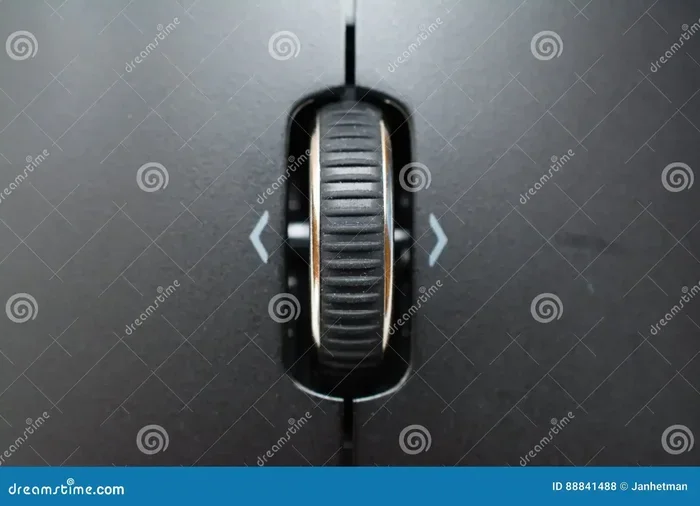
A broken scroll wheel on your mouse can be incredibly frustrating, but the good news is that most scroll wheel problems are easy to fix at home. Whether your wheel is stuck, jumping, or not scrolling at all, this guide walks you through every solution step by step. You will learn how to clean, adjust settings, update drivers, and replace parts to get your mouse scrolling smoothly again.
There is nothing worse than trying to scroll through a long webpage or document and your mouse wheel just refuses to cooperate. The scrolling wheel on mouse is one of the most used parts of any pointing device, and when it breaks, your entire workflow comes to a halt. Whether you are working on a laptop, a desktop setup, or a wireless mouse, scroll wheel problems are more common than you might think.
The good news is that you do not need to be a tech expert to fix this. Most scroll wheel issues have simple solutions that you can do right at your desk. In this article, we will walk you through every possible fix, from quick cleaning tricks to driver updates and hardware replacements. By the end, you will know exactly how to get your mouse wheel scrolling smoothly again.
Key Takeaways
- Dirt and dust are the most common cause of scroll wheel problems and can usually be fixed with simple cleaning.
- Updating or reinstalling mouse drivers often resolves scrolling issues caused by software glitches.
- Adjusting scroll settings in Windows or Mac can fix speed and behavior problems with your scroll wheel.
- A stuck scroll wheel may need physical repair or replacement of the mouse wheel assembly.
- Regular maintenance keeps your mouse working well and prevents future scroll wheel issues.
📑 Table of Contents
Why Your Mouse Scroll Wheel Stops Working
Before jumping into fixes, it helps to understand what might be causing the problem. The scroll wheel on your mouse can stop working for many reasons, and identifying the cause makes finding the right solution much easier.
Dust and Debris Buildup
The most common reason for a mouse wheel not scrolling is simple dirt buildup. Over time, dust, crumbs, and tiny particles get trapped around the scroll wheel. This gunk can physically block the wheel from rotating freely, making it feel stiff or unresponsive. Even a small amount of debris can cause big problems with your scrolling.
Driver or Software Issues
Sometimes the problem is not physical at all. Your mouse relies on drivers to communicate with your computer. If these drivers become outdated, corrupted, or conflict with other software, your scroll wheel may stop working properly. This is especially common after a Windows update or when you connect a new mouse to your system.
Worn Out Internal Components
Like any mechanical part, the scroll wheel inside your mouse wears down over time. The tiny sensors that detect wheel movement can degrade, or the spring mechanism that returns the wheel to center can weaken. When internal parts wear out, you may notice jumping, inconsistent scrolling, or a wheel that feels loose and wobbly.
Incorrect Mouse Settings
It might sound surprising, but your computer settings can also affect how your scroll wheel behaves. If the scroll lines per notch are set too low, scrolling feels slow and unresponsive. On the other hand, if settings are misconfigured, the wheel might scroll too fast or jump multiple lines at once. Checking these settings is always a good first step.
How To Clean Your Mouse Scroll Wheel
Cleaning is the first thing you should try when your scrolling wheel on mouse starts acting up. A thorough cleaning removes the grime and debris that often cause the wheel to stick or stop scrolling entirely.
What You Will Need
- A can of compressed air
- A cotton swab or small brush
- Isopropyl alcohol (70% or higher)
- A soft, lint-free cloth
- A toothpick or thin plastic tool
Step-by-Step Cleaning Process
- Unplug or turn off your mouse. If it is a wireless mouse, remove the batteries first. You do not want any accidental clicks while cleaning.
- Use compressed air to blow dust out from around the scroll wheel. Hold the can upright and use short bursts. This removes loose particles from the crevices.
- Dip a cotton swab in isopropyl alcohol and gently rub it around the base of the scroll wheel. The alcohol dissolves sticky grime without damaging the plastic.
- Use a toothpick to carefully pick out any stubborn debris caught around the wheel. Be gentle so you do not damage the internal mechanism.
- Wipe the wheel with a soft cloth dampened slightly with alcohol. Let it dry completely before reconnecting the mouse.
- Test the scroll wheel. Plug the mouse back in and scroll up and down to see if the problem is resolved.
This simple cleaning process fixes the majority of scroll wheel issues. Many people are surprised how much gunk builds up around the wheel, especially if you eat at your desk regularly. Make this a habit and your mouse scroll issues will be far less frequent.
Adjust Mouse Scroll Settings on Your Computer
If cleaning does not help, the next step is to check your scroll settings. Sometimes the problem is simply that your computer is not configured correctly for your mouse. Adjusting these settings is quick and can make a noticeable difference in how your scroll wheel feels.
Windows Scroll Settings
On Windows, you can adjust how many lines the mouse scrolls at a time. Here is how to do it:
- Open the Control Panel and go to Mouse.
- Click on the Wheel tab.
- Adjust the Vertical scrolling slider to increase or decrease the number of lines scrolled per notch.
- Click Apply and then OK to save your changes.
Try scrolling after each adjustment to find the setting that feels right for you. Most people find that setting the scroll to 3 or 4 lines per notch provides the best balance of speed and control.
Mac Scroll Settings
On macOS, scroll settings work a bit differently:
- Go to System Settings and click on Mouse.
- Adjust the Scroll speed slider to your preference.
- If you have a Magic Mouse or third-party mouse, check the Scroll direction setting to match your preference.
Sometimes simply switching the natural scroll direction off and back on can resolve weird scrolling behavior. It is a small change, but it can make a big difference.
Update or Reinstall Mouse Drivers
Outdated or corrupted drivers are a common cause of mouse wheel not scrolling problems. Drivers act as the bridge between your mouse hardware and your operating system. When that bridge breaks, your scroll wheel may stop responding entirely.
How To Update Mouse Drivers on Windows
- Right-click the Start button and select Device Manager.
- Expand the Mice and other pointing devices section.
- Right-click your mouse device and select Update driver.
- Choose Search automatically for drivers and follow the on-screen prompts.
- Restart your computer after the update is complete.
How To Uninstall and Reinstall Drivers
If updating does not work, try removing the driver entirely and letting Windows reinstall it fresh:
- Go back to Device Manager and right-click your mouse.
- Select Uninstall device and confirm the action.
- Disconnect your mouse, restart your computer, and then reconnect the mouse.
- Windows will automatically install the correct driver for your device.
For users who prefer a dedicated mouse from brands like Logitech or Razer, you should also check their official websites for the latest driver software. These manufacturers often release custom drivers that unlock extra features and fix known scrolling bugs.
Fix Hardware Problems With Your Scroll Wheel
When software fixes do not solve the problem, it is time to look at the hardware. Several physical issues can cause your scroll wheel to malfunction, and some of these are fixable at home.
The Scroll Wheel Is Physically Stuck
If your wheel feels physically stuck and will not move, do not force it. Forcing a stuck wheel can break the internal mechanism and cause permanent damage. Instead, try these gentle approaches:
- Hold the mouse upside down and gently shake it to loosen any trapped debris.
- Use compressed air to blow into the gap around the wheel from multiple angles.
- Apply a small drop of isopropyl alcohol around the base of the wheel and let it sit for a few minutes before trying to move the wheel.
The Scroll Wheel Sensor Is Damaged
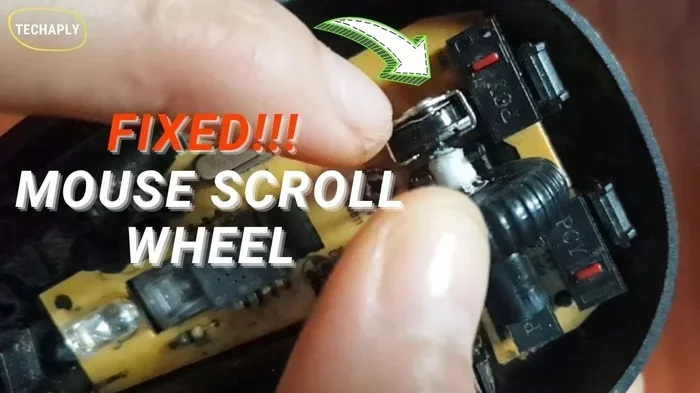
Inside every modern mouse is a tiny optical sensor that detects wheel rotation. If this sensor gets damaged or dirty, the wheel may scroll erratically or not at all. Unfortunately, cleaning the sensor requires opening the mouse, which can void your warranty. If your mouse is still under warranty, it is best to contact the manufacturer for a replacement.
Replacing the Scroll Wheel Assembly
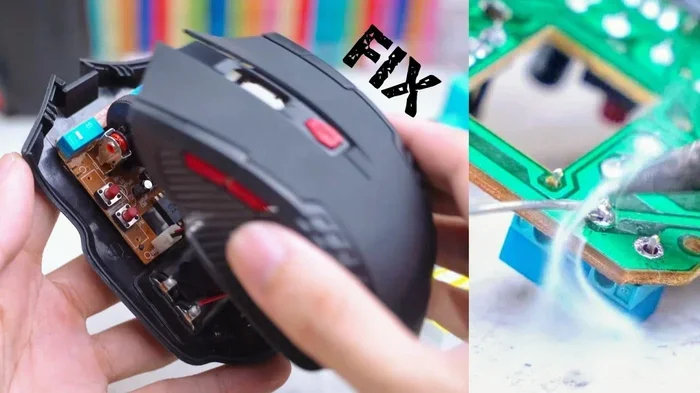
For older mice or out-of-warranty devices, replacing the scroll wheel assembly is a viable option. Replacement parts are often available online for just a few dollars. You will need a small screwdriver and some patience, but many people successfully replace the wheel themselves. Search for a replacement part specific to your mouse model for the best results.
Prevent Future Scroll Wheel Problems
Once you have fixed your scroll wheel, you want to keep it working smoothly. Prevention is always better than repair, and a few simple habits can extend the life of your mouse significantly.
Keep Your Workspace Clean
Dust and crumbs are the biggest enemies of your scroll wheel. Try to keep your desk clean and avoid eating directly over your mouse and keyboard. A clean workspace means fewer particles getting into your mouse mechanisms.
Clean Your Mouse Regularly
Make it a habit to clean your mouse every two to four weeks. A quick wipe down with a cloth and a blast of compressed air takes just a minute and prevents buildup from becoming a serious problem. This is especially important if you notice the wheel starting to feel slightly stiff.
Handle Your Mouse With Care
Rough handling can damage the internal components of your mouse over time. Avoid dropping your mouse, pressing the scroll wheel too hard, or yanking the cable. Treating your mouse gently will keep all its parts working properly for much longer.
Use a Mouse Pad
A good mouse pad provides a smooth surface and protects your mouse from direct contact with desk dust and debris. It also reduces wear on the mouse feet and internal sensors. A quality mouse pad is one of the simplest investments you can make for your setup.
When To Replace Your Mouse
Sometimes, despite your best efforts, the scroll wheel simply cannot be fixed. If the internal mechanism is completely broken or the sensor has failed, you may need to consider replacing your mouse. Here are some signs that replacement is the better option:
- The scroll wheel feels loose and wobbly with no resistance.
- The wheel scrolls in only one direction or jumps randomly.
- You have tried all software and cleaning fixes with no improvement.
- The mouse is several years old and other parts are also failing.
- The cost of repair exceeds the cost of a new mouse.
When the time comes to replace your mouse, look for one with a quality scroll wheel mechanism. Many modern mice use mechanical or optical encoders that are more durable than older designs. Reading reviews and checking for scroll wheel quality before purchasing can save you from the same frustration in the future.
Final Thoughts
Fixing a scrolling wheel on mouse does not have to be complicated or expensive. Most of the time, a simple cleaning session or a driver update is all it takes to get your scroll wheel working perfectly again. Start with the easiest fixes and work your way up to more involved solutions. Remember, keeping your mouse clean and your drivers updated goes a long way in preventing future problems.
If you have tried everything in this guide and your scroll wheel still is not working, do not hesitate to reach out to the mouse manufacturer for support. Many companies offer excellent warranty service and can help you get a replacement if the problem is a manufacturing defect. With the right approach, you will be back to smooth scrolling in no time.
For general mouse troubleshooting beyond just scrolling, you might also want to check out how to fix mouse on laptop for broader solutions. Similarly, if you are dealing with a frozen or unresponsive mouse, learning how to reset your mouse on your laptop can often resolve the issue quickly. And if your scroll problems are related to your touchpad, you can explore how to unlock your mouse pad on laptop for additional help. For specific touch mouse scroll issues, check out this guide on how to fix touch mouse on laptop for targeted solutions.
Frequently Asked Questions
Why does my mouse scroll wheel keep jumping?
A jumping scroll wheel is usually caused by dust or debris trapped around the wheel. Try cleaning the wheel with compressed air and isopropyl alcohol first. If cleaning does not help, the issue may be a driver problem or a worn-out internal sensor that needs replacement.
Can I fix a stuck scroll wheel without opening the mouse?
Yes, in most cases you can fix a stuck scroll wheel without opening the mouse. Start by using compressed air to blow out any loose debris, then apply a small amount of isopropyl alcohol around the base of the wheel. Gently work the wheel back and forth to help loosen any stuck particles.
How do I know if my scroll wheel problem is hardware or software?
Try connecting your mouse to a different computer. If the scroll wheel still does not work on another system, the problem is likely hardware-related. If it works fine on another computer, the issue is probably with your original computer’s drivers or settings.
Is it safe to use WD-40 on a stuck mouse scroll wheel?
No, it is not recommended to use WD-40 on a mouse scroll wheel. WD-40 is too thick and can attract more dust, making the problem worse. Use isopropyl alcohol instead, which evaporates quickly and leaves no residue behind.
How often should I clean my mouse scroll wheel?
You should clean your mouse scroll wheel every two to four weeks if you use your mouse daily. If you work in a dusty environment or eat near your computer, you may need to clean it more frequently. Regular cleaning prevents buildup and keeps your scroll wheel feeling smooth.
What should I do if my wireless mouse scroll wheel stops working?
Start by checking the batteries, as low power can sometimes cause erratic behavior. Then try the same cleaning and driver update steps you would use for a wired mouse. If none of those solutions work, the wireless receiver or internal hardware may be failing, and you may need a replacement.