How To Fix Scroll Wheel On Mouse With These Easy Steps
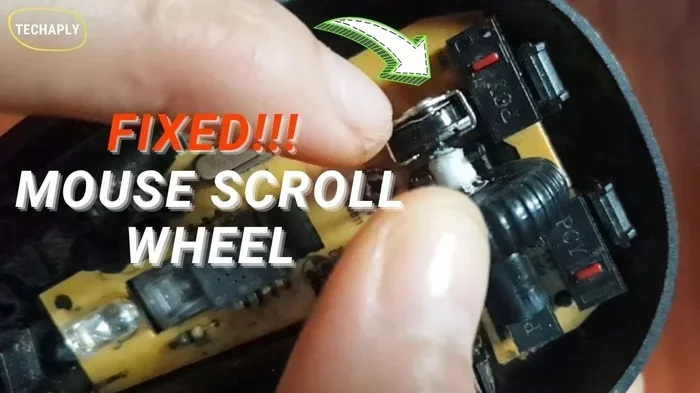
A stuck or broken scroll wheel on your mouse can be super frustrating, but the good news is you can often fix it yourself at home. This guide walks you through easy steps to clean, adjust, and repair your mouse scroll wheel without needing tech skills. Whether your mouse wheel is jumping, not scrolling, or stuck, you will find the right solution here.
Your mouse scroll wheel is one of those things you barely notice until it stops working. Suddenly, every webpage, spreadsheet, or document becomes a pain to navigate. The good news? Most scroll wheel problems are easy to fix with simple steps you can do right at home.
In this guide, we will walk you through how to fix scroll wheel on mouse using easy, practical methods. Whether your wheel is stuck, jumping, not scrolling at all, or scrolling too fast, we have got you covered. You do not need to be a tech expert to get your mouse working smoothly again.
Before you spend money on a new mouse, try these fixes first. Many people throw away a perfectly good mouse just because the scroll wheel acts up. A little patience and the right approach can save you time and money.
Key Takeaways
- Dirt and dust are the most common cause of scroll wheel problems, and cleaning the wheel often fixes the issue quickly.
- Adjusting scroll settings in Windows or Mac can solve many scrolling speed and behavior problems.
- Updating or reinstalling mouse drivers is a simple fix for many scroll wheel glitches.
- Physical damage to the scroll wheel may need replacement parts or a new mouse.
- Regular maintenance keeps your mouse working smoothly and prevents future scroll wheel issues.
📑 Table of Contents
Why Your Mouse Scroll Wheel Stops Working
Understanding why your scroll wheel fails helps you pick the right fix. Several common issues cause scroll wheel problems, and most are easy to address.
Dirt and Dust Buildup
The number one cause of scroll wheel issues is dirt. Over time, dust, crumbs, and grime build up around the scroll wheel. This gunk gets inside the mechanism and prevents the wheel from moving freely. If your mouse has been on your desk for months without cleaning, this is likely the culprit.
Worn-Out Internal Parts
Mouse wheels have small plastic parts that wear down over time. The notches that detect scrolling can become smooth, causing the wheel to slip or stop registering scrolls. This happens more often with budget mice that use cheaper materials.
Software or Driver Issues
Sometimes the problem is not physical at all. Outdated mouse drivers, incorrect scroll settings, or software conflicts can make your scroll wheel behave strangely. If your mouse works fine for clicking but the wheel does not scroll, check your software settings first.
Physical Damage
Dropping your mouse or pressing the scroll wheel too hard can cause internal damage. The micro-switch inside the wheel can break or become misaligned. This type of damage usually requires replacement parts or a new mouse.
How To Clean Your Mouse Scroll Wheel
Cleaning is the first thing you should try when your scroll wheel stops working. It takes just a few minutes and solves the problem more often than you might think.
Step-by-Step Cleaning Process
Follow these steps to clean your scroll wheel properly:
- Turn off your mouse or unplug it from the computer. If it is a wireless mouse, remove the batteries.
- Flip the mouse over and look at the scroll wheel from the side.
- Use compressed air to blow dust out from around the wheel. Hold the can upright and use short bursts.
- Dip a cotton swab in rubbing alcohol and gently rub it around the scroll wheel. Move the wheel back and forth as you clean.
- Use a toothpick to carefully remove any stubborn debris stuck near the wheel base.
- Let the mouse dry completely before plugging it back in or turning it on.
Quick Tips for Cleaning
- Do not use water to clean your mouse. Alcohol evaporates quickly and does not leave moisture inside.
- Clean your mouse regularly, about once a month, to prevent buildup.
- Avoid eating over your keyboard and mouse. Crumbs are a major cause of scroll wheel jams.
After cleaning, test your scroll wheel right away. In many cases, this simple step brings your mouse back to life. If the wheel still feels sticky or does not scroll, move on to the next fix.
Adjusting Scroll Settings on Your Computer
Sometimes the scroll wheel works fine physically, but your computer settings make it seem broken. Adjusting your scroll settings can fix jumping, slow scrolling, or inconsistent behavior.
Fix Scroll Settings on Windows
Here is how to adjust your scroll settings on Windows:
- Right-click on your desktop and select Display Settings.
- Scroll down and click on Advanced Display Settings.
- Look for the Change the size of text, apps, and other items option.
- Go back to the main Settings menu and click on Mouse or Mouse Settings.
- Adjust the lines to scroll at a time slider to your preference.
Fix Scroll Settings on Mac
For Mac users, follow these steps:
- Open System Preferences from the Apple menu.
- Click on Mouse or Trackpad.
- Adjust the scroll speed slider to your liking.
- Check the box for Scroll direction if you want natural scrolling.
After changing these settings, test your scroll wheel immediately. Many users report that their scroll wheel problem disappears just by tweaking these settings. If you also have issues with your mouse not working at all, you can check our guide on how to fix your mouse on your laptop for additional troubleshooting steps.
Updating and Reinstalling Mouse Drivers
Outdated or corrupted mouse drivers are a sneaky cause of scroll wheel problems. Your computer relies on drivers to communicate with your mouse, and when those drivers get messed up, your scroll wheel may stop working properly.
How To Update Mouse Drivers on Windows
- Right-click on the Start button and select Device Manager.
- Expand the Mice and other pointing devices section.
- Right-click on your mouse and select Update Driver.
- Choose Search automatically for drivers.
- Follow the on-screen instructions to complete the update.
How To Reinstall Mouse Drivers
If updating does not work, try reinstalling the driver:
- Go to Device Manager again.
- Right-click on your mouse and select Uninstall Device.
- Restart your computer.
- Windows will automatically reinstall the driver when it boots back up.
For more help with mouse connection issues, you might also want to read our article on how to make mouse on laptop work, which covers driver and connection problems in detail.
Checking for Manufacturer Software
Some mouse brands like Logitech, Razer, and Microsoft have their own software with custom driver updates. Visit the manufacturer’s website and download the latest software for your specific mouse model. This often includes scroll wheel fixes and performance improvements.
Fixing Physical Scroll Wheel Damage
When cleaning and software fixes do not work, the problem is likely physical damage. Here is how to diagnose and address common hardware issues.
Loose or Wobbly Scroll Wheel
If your scroll wheel wiggles side to side or feels loose, the internal spring may be broken. You can try opening the mouse and repositioning the spring, but this requires some care. Use a small screwdriver to unscrew the mouse casing gently.
Scroll Wheel Not Clicking
The scroll wheel usually acts as a third button when you press it down. If this button stops working, the micro-switch underneath may be damaged. You can try cleaning the switch with alcohol, but replacement is often the best long-term fix.
Replacing the Scroll Wheel
Some mice have replaceable scroll wheels. Check your mouse model online to see if replacement parts are available. You can order replacement scroll wheels for under $10 on most electronics sites. If your mouse is old or cheap, it might be better to buy a new one entirely.
If you are dealing with broader mouse issues beyond just the scroll wheel, our article on how to fix mouse on laptop covers comprehensive troubleshooting for all types of mouse problems.
Preventing Future Scroll Wheel Problems
Once you fix your scroll wheel, you want to keep it working. Prevention is always easier than repair, and a few simple habits go a long way.
Keep Your Mouse Clean
Wipe down your mouse once a week with a microfiber cloth. Pay special attention to the scroll wheel area. Keeping dust and debris away from the mechanism prevents most scroll wheel problems before they start.
Handle Your Mouse With Care
Avoid pressing the scroll wheel too hard. Do not drop your mouse or knock it off your desk. These habits cause internal damage that leads to scroll wheel failure over time.
Use a Mouse Pad
A good mouse pad protects your mouse from dust and debris on your desk surface. It also reduces wear on the mouse feet and internal components. A clean, smooth surface helps your scroll wheel move more freely too.
Store Your Mouse Properly
When you are not using your mouse for a long time, store it in a protective case or bag. This keeps dust out and prevents accidental damage. For wireless mice, remove the batteries before storing to prevent corrosion.
When To Replace Your Mouse Instead of Fixing It
Sometimes the smart move is to replace rather than repair. Here are signs that it is time for a new mouse:
- The scroll wheel is physically broken and replacement parts are not available.
- Multiple parts of the mouse are failing at the same time.
- Your mouse is more than 3-4 years old and the scroll issues keep coming back.
- The repair cost is close to the price of a new mouse.
- You need features that your current mouse does not support.
If you are shopping for a new mouse, look for one with a good scroll wheel mechanism. Optical scroll wheels tend to last longer than mechanical ones. Reading reviews before you buy can save you from the same scroll wheel headaches again.
For users working without a mouse at all, check out our guide on how to drag and drop on laptop without mouse for useful tips on navigating your laptop without a physical mouse.
Conclusion
Fixing your scroll wheel does not have to be complicated or expensive. Start with the simplest fix, which is cleaning the wheel, and work your way up through the settings and driver checks. Most scroll wheel issues are resolved with just a cleaning or a driver update. If the problem is physical damage, you have options ranging from replacing small parts to getting a new mouse entirely.
The key is to act quickly when you notice scroll wheel problems. The longer you wait, the worse the issue can get. With the steps in this guide, you have everything you need to fix your mouse scroll wheel and get back to smooth, effortless scrolling. Try these fixes today and save yourself the hassle of buying a new mouse.
Frequently Asked Questions
Why is my mouse scroll wheel not working at all?
The most common reason is dirt and dust buildup inside the scroll wheel mechanism. Try cleaning the wheel with rubbing alcohol and compressed air first. If cleaning does not work, check your mouse drivers and scroll settings in your computer’s control panel.
Can I fix a broken scroll wheel without opening the mouse?
Yes, in many cases. Start by cleaning around the wheel, adjusting your scroll settings, and updating your mouse drivers. These steps fix most scroll wheel problems without needing to open the mouse. Only open the mouse if these steps do not work and you are comfortable with basic electronics handling.
How do I stop my scroll wheel from scrolling too fast or too slow?
Go to your mouse settings in Windows or Mac and adjust the scroll speed slider. In Windows, you can also set how many lines to scroll at a time. On Mac, adjust the scroll speed in System Preferences under the Mouse settings. These simple changes can fix most speed-related scroll issues.
Is it worth repairing a mouse with a broken scroll wheel?
It depends on the mouse. If you have an expensive gaming mouse or a high-quality office mouse, replacement parts may be worth it. For cheap or older mice, buying a new one is usually more practical. Check online for replacement scroll wheels for your specific mouse model first.
What causes a mouse scroll wheel to feel sticky or hard to move?
Sticky scroll wheels are usually caused by dirt, grime, or spilled liquids getting inside the mechanism. Cleaning with rubbing alcohol and a cotton swab typically fixes this. If the wheel still feels hard after cleaning, the internal spring may be damaged and need replacement.
How often should I clean my mouse scroll wheel to prevent problems?
Aim to clean your mouse scroll wheel at least once a month. If you eat near your computer or use your mouse in a dusty environment, clean it more often. Regular cleaning prevents buildup and keeps your scroll wheel working smoothly for years.