How To Get Out Mouse From Virtualbox And Reclaim Control
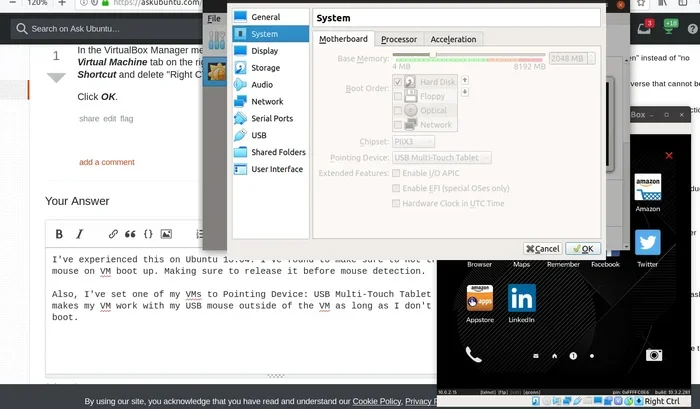
Getting your mouse stuck inside VirtualBox is a common frustration, but the fix is simpler than you think. This guide walks you through every method to release your cursor and take back control of your laptop. You will learn keyboard shortcuts, settings adjustments, and troubleshooting tips that actually work.
Have you ever been working inside VirtualBox and suddenly realized your mouse is trapped? You move the cursor, but it stays locked inside the virtual machine window. This happens to almost everyone who uses VirtualBox at some point. The good news is that you can fix this problem quickly once you know what to do.
In this guide, we will show you exactly how to get out mouse from VirtualBox and regain full control of your cursor. Whether you are a beginner or a regular VirtualBox user, these methods will save you time and frustration. Let us dive right in.
Key Takeaways
- Host Key Shortcut: Pressing the right Ctrl key is the fastest way to free your mouse from VirtualBox.
- Settings Matter: Adjusting pointer integration and capture settings prevents the mouse from getting stuck in the first place.
- Guest Additions Help: Installing VirtualBox Guest Additions enables smooth mouse movement between host and guest systems.
- Multiple Fixes Exist: If one method fails, there are several other reliable solutions to try.
- Prevention Is Easy: A few simple configuration changes keep your mouse free and responsive.
📑 Table of Contents
- Why Does Your Mouse Get Stuck in VirtualBox?
- The Fastest Way to Release Your Mouse From VirtualBox
- How to Prevent Your Mouse From Getting Stuck
- Advanced Fixes for Stubborn Mouse Capture Issues
- Common Mistakes That Cause Mouse Capture Problems
- Quick Tips for Better Mouse Performance in VirtualBox
- When to Seek Additional Help
- Final Thoughts
Why Does Your Mouse Get Stuck in VirtualBox?
VirtualBox captures your mouse cursor when you click inside the virtual machine. This is by design. It lets the guest operating system receive mouse input just like a physical computer would. However, sometimes the cursor does not release when you click outside the window. This creates a frustrating situation where your mouse seems frozen.
Several things can cause this behavior. The most common reason is that the VirtualBox host key is not working properly. Another cause is missing Guest Additions, which handle mouse integration between the host and guest systems. Sometimes, your VirtualBox settings are simply configured to keep the cursor captured at all times. Understanding why this happens helps you pick the right fix.
Before we go further, let us clarify one important thing. When we say “getting the mouse out,” we mean releasing the cursor from the virtual machine so it moves freely on your host desktop. This is different from getting your mouse back on a laptop, which deals with a disconnected or unresponsive physical mouse. Both issues are annoying, but they need different solutions.
The Fastest Way to Release Your Mouse From VirtualBox
Use the Host Key Shortcut
The single fastest method to release your mouse is the host key shortcut. By default, the right Ctrl key acts as the host key in VirtualBox. When your cursor is trapped inside the virtual machine, simply press the right Ctrl key on your keyboard. Your mouse cursor will immediately jump back to your host desktop.
Here is how it works step by step:
- Move your mouse inside the VirtualBox window.
- Press the right Ctrl key once.
- The cursor releases and appears on your host screen.
This method works every time in most cases. It is the first thing you should try. If the right Ctrl key does not work, your host key may have been changed. You can check this by going to File, then Preferences, then Input in the VirtualBox menu. The host key setting is listed there.
What If the Host Key Does Not Work?
Sometimes the host key shortcut fails. This usually happens when you have customized your keyboard settings or when a software conflict is occurring. In that case, try pressing the Left Ctrl key instead. Some VirtualBox versions use the left Ctrl as an alternative host key. You can also try pressing both Ctrl keys at the same time.
Another option is to use the VirtualBox menu bar. Click on the “Machine” menu and select “Switch Cursor Integration.” This toggles the mouse capture behavior and often frees a stuck cursor. If none of these work, do not worry. There are more solutions below.
How to Prevent Your Mouse From Getting Stuck
Enable VirtualBox Guest Additions
One of the best ways to stop your mouse from getting trapped is to install VirtualBox Guest Additions. This free add-on improves the connection between your host and guest operating systems. It enables smooth mouse movement, shared clipboard, and better display scaling.
Here is how to install Guest Additions:
- Start your virtual machine.
- Click on the “Devices” menu in the VirtualBox window.
- Select “Insert Guest Additions CD Image.”
- Follow the on-screen prompts to install the software.
- Restart the virtual machine when prompted.
Once Guest Additions is installed, your mouse will move seamlessly between the host and guest screens. You will no longer need to release the cursor manually. This is a huge quality-of-life improvement. If you have been struggling with how to make mouse work on laptop inside VirtualBox, Guest Additions is the answer.
Adjust Pointer Integration Settings
VirtualBox has a feature called “Pointer Integration” that controls how the mouse behaves inside the virtual machine. When this is enabled, the guest OS uses the host mouse driver directly. This creates a smoother experience and reduces cursor capture issues.
To adjust these settings, follow these steps:
- Open VirtualBox and select your virtual machine.
- Click on “Settings.”
- Go to the “Display” section.
- Find the “Pointer Integration” option and make sure it is checked.
- Save your settings and restart the virtual machine.
You can also adjust the “Capture Key” setting under Settings, then Input. This lets you choose which key releases the mouse. Some people prefer using the Right Alt key instead of the default Right Ctrl. Pick whichever feels more natural to you.
Advanced Fixes for Stubborn Mouse Capture Issues
Change the VirtualBox Capture Mode
VirtualBox has different capture modes that control how the mouse interacts with the virtual machine. The default mode captures the mouse when you click inside the window. You can switch to a mode that does not capture the mouse at all, or one that only captures when you press a specific key.
To change the capture mode, go to Settings, then Input, and look for “Keyboard” and “Mouse” options. You will see options for capturing the mouse on key press or on click. Switching to “Capture on Key Press” gives you more control. You decide exactly when the mouse enters the virtual machine.
This setting is especially useful if you run multiple virtual machines at the same time. It prevents accidental mouse capture when you click on one window and then another. For users who also deal with getting mouse to work on laptop issues in general, changing the capture mode is a great first step.
Use Seamless Mode for Better Mouse Control
VirtualBox Seamless Mode is a powerful feature that lets guest application windows appear directly on your host desktop. When you use Seamless Mode, the mouse moves freely between the host and guest without any capture behavior. This is one of the best ways to avoid the mouse getting stuck altogether.
To enable Seamless Mode, follow these steps:
- Start your virtual machine.
- Make sure Guest Additions is installed.
- Click on the “Machine” menu.
- Select “Seamless Mode.”
Your guest applications will now appear as normal windows on your host desktop. The mouse behaves exactly as it would on a physical machine. This mode is perfect for people who need to use both the host and guest systems simultaneously. It also solves many of the mouse-related frustrations that come with full-screen or windowed VirtualBox mode.
Reset VirtualBox Mouse Settings
If you have tried everything and the mouse is still stuck, resetting your VirtualBox mouse settings can help. This restores all default mouse and input configurations. It clears any custom settings that may be causing the problem.
To reset the settings, go to File, then Preferences, then Input. Click on “Reset Defaults.” This will restore the host key to Right Ctrl and reset all mouse capture behaviors. After resetting, restart VirtualBox and test your virtual machine again.
Common Mistakes That Cause Mouse Capture Problems
Many VirtualBox users make mistakes that make mouse capture issues worse. Here are the most common ones to avoid:
- Ignoring Guest Additions: Running VirtualBox without Guest Additions is the number one cause of mouse problems. Always install it first.
- Using the Wrong Host Key: If you have changed the host key and forgotten, the release shortcut will not work. Check your settings regularly.
- Running Outdated VirtualBox: Older versions of VirtualBox have known bugs with mouse capture. Always keep your software updated.
- Not Checking Display Settings: Some display settings in the guest OS can interfere with mouse integration. Make sure your guest display drivers are up to date.
- Forcing Full Screen Without Integration: Switching to full screen mode without Guest Additions often causes the mouse to lock up.
Avoiding these mistakes will save you a lot of headaches. It also helps you get the mouse back on a laptop faster when problems do occur. Prevention is always better than troubleshooting.
Quick Tips for Better Mouse Performance in VirtualBox
Here are some quick tips that improve your overall VirtualBox mouse experience:
- Keep VirtualBox and Guest Additions updated to the latest version.
- Use a wired mouse if possible. Wireless mice sometimes have slight input lag that makes capture issues more noticeable.
- Adjust your mouse speed in both the host and guest operating systems for a consistent feel.
- Use the Host Key combo (Right Ctrl) as muscle memory. You will use it constantly.
- If your mouse is not responding at all, try making mouse work on laptop by checking your physical device drivers first.
- Restart the virtual machine if the cursor behaves erratically. A fresh start clears most temporary glitches.
When to Seek Additional Help
Most mouse capture issues in VirtualBox are easy to fix with the methods above. However, some situations require deeper troubleshooting. If your mouse works fine on the host but completely fails inside the guest OS, the problem may be with guest device drivers. Check the Device Manager inside the virtual machine and look for any hardware conflicts.
You should also check the VirtualBox logs for errors. The logs are found in the VirtualBox Manager under the “Show Log” button for each virtual machine. Search for any entries related to “mouse,” “input,” or “capture.” These log entries can point you toward the root cause of the problem.
If you have tried everything and still cannot free your mouse, consider reinstalling VirtualBox. A fresh install clears any corrupted settings files. Make sure to export your virtual machines before doing this. Also, check the official VirtualBox forums. Other users may have encountered the same issue and found a solution.
Final Thoughts
Learning how to get out mouse from VirtualBox is an essential skill for anyone who uses virtual machines regularly. The host key shortcut, Guest Additions, and Pointer Integration settings cover 95 percent of mouse capture issues. With the advanced fixes and prevention tips in this guide, you will rarely deal with a stuck cursor again.
Remember to keep your software updated and always install Guest Additions when setting up a new virtual machine. These small habits make a big difference. Your mouse should feel like a natural extension of your workflow, not a source of frustration. Take a few minutes today to check your VirtualBox settings and make sure everything is configured correctly. You will thank yourself the next time your cursor gets stuck.
Now that you know all the methods, you can confidently work inside VirtualBox without worrying about losing control of your mouse. Share this guide with anyone who struggles with the same issue. A little knowledge goes a long way in making virtual machine usage smooth and enjoyable.
Frequently Asked Questions
How do I release my mouse from VirtualBox?
Press the right Ctrl key on your keyboard. This is the default host key that releases the mouse cursor from the virtual machine and returns it to your host desktop. If this does not work, check your VirtualBox input settings to confirm your host key is set correctly.
Why is my mouse stuck inside VirtualBox?
Your mouse gets stuck because VirtualBox captures the cursor when you click inside the virtual machine window. This is normal behavior, but it can become a problem if the release shortcut does not work. Missing Guest Additions or incorrect capture settings are the most common causes.
Do I need Guest Additions to fix mouse issues in VirtualBox?
Yes, Guest Additions is highly recommended. It enables smooth pointer integration between your host and guest systems. Without it, you may experience cursor capture problems, poor resolution, and limited mouse functionality inside the virtual machine.
Can I change the host key that releases the mouse?
Yes, you can. Go to File, then Preferences, then Input in VirtualBox. You will find the “Capture Key” setting there. You can change it to any key on your keyboard, such as the Right Alt key, if Right Ctrl does not feel comfortable.
What is Seamless Mode in VirtualBox?
Seamless Mode lets guest application windows appear directly on your host desktop. The mouse moves freely between the host and guest without any capture behavior. It requires Guest Additions to be installed and works best for users who need to use both systems simultaneously.
How do I prevent my mouse from getting stuck in VirtualBox in the future?
Install Guest Additions, enable Pointer Integration, and set your capture mode to “Capture on Key Press.” These three steps dramatically reduce mouse capture issues. Also, keep VirtualBox updated and avoid switching to full screen mode without proper drivers installed.
=== CONCLUSION ===
Getting your mouse out of VirtualBox is quick and easy once you know the right steps. Start with the host key shortcut, install Guest Additions, and adjust your Pointer Integration settings. These methods solve the vast majority of mouse capture problems. Keep this guide handy for reference, and you will never lose control of your cursor inside a virtual machine again.