Should You Upgrade Your RAM or SSD First Right Now
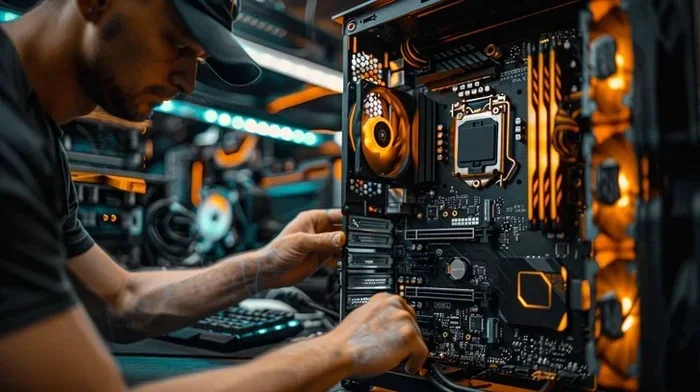
Upgrading your RAM or SSD can transform a slow computer into a fast machine. Most experts recommend installing an SSD first because it delivers the biggest speed boost for everyday tasks. If your system still feels sluggish after the SSD upgrade, adding more RAM is the next logical step to improve multitasking and overall responsiveness.
Is your computer running slower than it used to? You are not alone. Almost every PC user faces this problem at some point. The good news is that a simple hardware upgrade can bring your machine back to life. But here is the big question: should you upgrade RAM or SSD first?
The answer depends on what you use your computer for and what is causing the slowdown. Both components play different roles in system performance. An SSD handles storage speed, while RAM handles active memory for running apps. Understanding the difference helps you make the right choice.
In this guide, we will walk you through everything you need to know. We will compare the benefits of each upgrade, explain when to choose one over the other, and help you decide the best upgrade path for your PC. Whether you have a gaming laptop or a basic office machine, this guide has you covered.
Key Takeaways
- SSD first: An SSD upgrade gives the most noticeable speed improvement for boot times and app loading.
- RAM second: Adding RAM helps with multitasking and running heavy applications smoothly.
- Check compatibility: Always verify your laptop or PC supports the RAM or SSD you plan to buy.
- Budget matters: An SSD is often more cost-effective as a first upgrade than adding RAM.
- Both upgrades help: Combining an SSD and more RAM delivers the best overall performance boost.
- Identify bottlenecks: Use task manager to check whether your slowdown comes from low memory or slow storage.
- Upgrade order matters: Prioritize based on your current system specs and daily usage needs.
📑 Table of Contents
- What Does RAM Do in Your Computer?
- What Does an SSD Do in Your Computer?
- SSD Upgrade vs RAM Upgrade: Which One Wins?
- When to Upgrade Your SSD First
- When to Upgrade Your RAM First
- Can You Do Both Upgrades at the Same Time?
- Common Upgrade Mistakes to Avoid
- Final Verdict: Upgrade Order That Makes Sense
What Does RAM Do in Your Computer?
RAM stands for Random Access Memory. Think of it as your computer’s short-term memory. When you open apps, browse tabs, or play games, they all load into RAM. The more RAM you have, the more tasks your computer can handle at once.
How RAM Affects Performance
RAM directly impacts how smoothly your system runs multiple programs. If you have only 4GB of RAM, opening a web browser with several tabs might slow things down. Your computer starts using the SSD or hard drive as temporary storage, which is much slower.
Here are common signs that you need more RAM:
- Your system freezes when you switch between apps.
- Web browsers crash with too many tabs open.
- Video editing or photo editing software runs very slowly.
- Your PC uses high memory even when idle.
If you notice these issues, upgrading your RAM can make a huge difference. But before you rush to buy new sticks, consider whether your SSD is also holding you back.
What Does an SSD Do in Your Computer?
An SSD, or Solid State Drive, is your computer’s long-term storage. It stores your operating system, programs, files, and games. Unlike old hard disk drives (HDDs), an SSD has no moving parts. This makes it much faster at reading and writing data.
How an SSD Boosts Speed
The biggest benefit of an SSD is speed. A PC with an SSD boots up in seconds instead of minutes. Apps open almost instantly. File transfers happen at lightning speed. Even opening heavy programs like Photoshop or video editors feels much snappier.
Here are signs that your storage drive is slowing you down:
- Your PC takes several minutes to start up.
- Apps take a long time to open or load.
- You hear clicking sounds from an old hard drive.
- Large files take forever to copy or save.
Replacing an old HDD with a modern SSD is one of the most impactful upgrades you can make. It transforms the entire feel of your computer. If you are still using a mechanical hard drive, an SSD should be your top priority.
SSD Upgrade vs RAM Upgrade: Which One Wins?
Now let us compare both upgrades side by side. This helps you understand which one delivers more value for your money and effort.
Performance Comparison
An SSD improves the speed of everything stored on your drive. This includes your operating system, all your apps, and every file you access. The improvement is immediate and noticeable every single time you use your PC.
RAM improvements are more subtle but equally important. More RAM lets you run more programs simultaneously without slowdowns. It helps with heavy workloads like gaming, video editing, and running virtual machines.
Here is a quick comparison of what each upgrade affects:
- SSD upgrade: Faster boot times, quicker app launches, snappier file access, smoother overall system feel.
- RAM upgrade: Better multitasking, fewer crashes with heavy apps, smoother gaming, faster data processing.
Which Upgrade Gives You the Most Bang for Your Buck?
For most users, an SSD upgrade delivers the biggest improvement. If your current PC still uses a mechanical hard drive, switching to an SSD will feel like getting a brand new computer. The cost of a basic SSD is quite low these days, making it an easy first step.
RAM upgrades are more valuable if you already have an SSD but still experience slowdowns when multitasking. If you regularly work with large files, run many apps at once, or play modern games, adding RAM is a smart next move.
When to Upgrade Your SSD First
There are clear situations where an SSD should be your first upgrade. If any of these sound like your setup, start with storage.
You Are Still Using an Old Hard Drive
If your PC still has a traditional HDD, an SSD is the single best upgrade you can make. The speed difference is dramatic. Your entire system will feel faster, from booting up to opening apps to copying files.
Even a budget SSD will outperform a high-end hard drive in every speed test. The improvement in daily use is hard to match with any other component.
Your PC Takes Forever to Start
Long boot times are one of the most common complaints among PC users. If your computer takes 3 to 5 minutes to start, an SSD can cut that down to 15 to 30 seconds. This alone is a game changer for your daily workflow.
You Want a Quick and Affordable Boost
SSDs are affordable now, especially basic SATA SSDs or NVMe drives. You do not need to spend a fortune to get a massive speed boost. For under $50, you can upgrade from an old HDD to a fast SSD and instantly improve your system.
Once you have installed your SSD, you might want to learn more about how to upgrade the RAM of a laptop so you are ready for the next step if needed.
When to Upgrade Your RAM First
While an SSD is the go-to upgrade for most users, there are situations where RAM should come first. Let us look at when more memory makes more sense.
You Already Have an SSD
If your PC already uses an SSD and you are still experiencing slowdowns, the bottleneck is likely your RAM. An SSD handles storage speed perfectly, but if your memory is full, your system will still crawl when running multiple apps.
You Run Heavy Applications
Do you use video editing software, 3D modeling tools, or run multiple virtual machines? These applications eat up RAM fast. If you find your system slowing down during heavy workloads, adding more memory will help a lot.
For gaming, having enough RAM is also important. Modern games recommend at least 16GB of RAM for smooth performance. If you are running 8GB or less, an upgrade can improve frame rates and reduce stuttering.
You Frequently Multitask
If your daily routine involves having dozens of browser tabs open, running background apps, and switching between programs constantly, more RAM will keep everything running smoothly. Memory-hungry tasks like video calls, streaming, and browsing with many tabs benefit greatly from an upgrade.
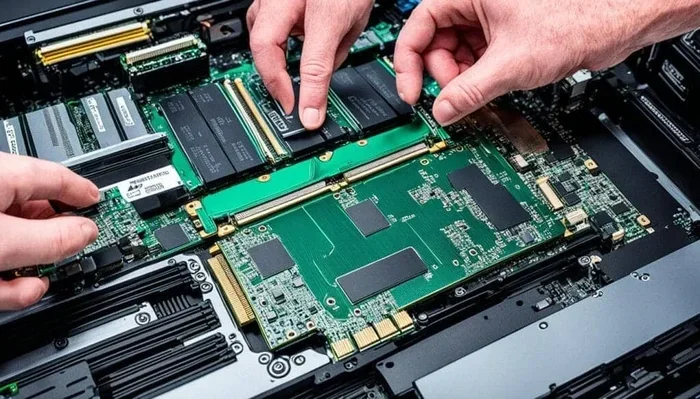
If you need help with the process, check out this guide on how to upgrade RAM on a laptop for step-by-step instructions.
Can You Do Both Upgrades at the Same Time?
Absolutely. In fact, upgrading both your SSD and RAM at the same time can give you the best results. Your system will be faster in every way. Boot times will drop to seconds, apps will launch instantly, and multitasking will feel effortless.
Many pre-built laptops come with both an HDD and low RAM to keep costs down. If you are buying a budget laptop or working with an older machine, doing both upgrades together makes the most sense. The combined effect is far greater than either upgrade alone.
Some great laptops already come with a good balance of RAM and SSD storage. For example, machines with 16GB RAM and an SSD offer solid performance for most users right out of the box. If you are shopping for a new system, these configurations are worth considering.
Planning Your Upgrade Budget
Here is a simple way to plan your upgrade spending:
- First, replace your HDD with an SSD if you still have one. Budget around $40 to $80.
- Next, check your current RAM. If you have less than 16GB, consider adding more. Budget around $30 to $60.
- Finally, enjoy your much faster PC and experience the difference every day.
Upgrading both components does not need to happen at the same time. You can start with the SSD and add RAM later when you have the budget. The key is to tackle the biggest bottleneck first.
Common Upgrade Mistakes to Avoid
Before you rush out and buy new hardware, keep these common mistakes in mind. Avoiding them saves you time, money, and frustration.
- Buying the wrong type of RAM: Not all RAM is the same. Check whether your system uses DDR4 or DDR5, and confirm the speed and form factor before buying.
- Ignoring storage capacity: A small SSD might be fast, but it will fill up quickly. Consider at least a 500GB SSD for a comfortable experience.
- Skipping compatibility checks: Not every laptop allows RAM or SSD upgrades. Check your device specifications before purchasing any components.
- Upgrading without backing up data: Always back up your important files before opening your PC and swapping hardware components.
- Overupgrading: If you only use your PC for browsing and light tasks, 32GB of RAM is overkill. Match your upgrade to your actual needs.
How to Check Your Current Specs
Before buying anything, check what you already have. On Windows, open Task Manager and go to the Performance tab. You can see your current RAM amount and your storage drive type. On a Mac, click the Apple menu and select About This Mac.
This simple step prevents you from buying something you do not need. It also tells you exactly what to buy for the best performance boost.
Final Verdict: Upgrade Order That Makes Sense
So, what is the final answer to the question should you upgrade RAM or SSD first? For the vast majority of users, the answer is clear: upgrade your SSD first. It provides the most dramatic and noticeable improvement in everyday computer use. Your system will feel faster, more responsive, and much more enjoyable to use.
Once your SSD is in place and your system is running smoothly, you can evaluate whether you need more RAM. If you find yourself hitting memory limits during heavy tasks or multitasking, adding RAM is the perfect follow-up upgrade. This order gives you the best results for your money and effort.
Remember that every system is different. If you already have a fast SSD but only 8GB of RAM, then memory should be your priority. The key is to identify your current bottleneck and address it first. Use the tips in this guide to make the smartest decision for your setup.
Upgrading your PC does not need to be complicated or expensive. Start with the component that gives you the biggest improvement, and enjoy a faster, more responsive computer. Whether you choose an SSD, RAM, or both, you are making a smart investment in your productivity and entertainment.
For more guidance on choosing the right specs, explore options like laptops with 16GB RAM and SSD configurations that offer a great balance of speed and memory for everyday use.