Onenote Freezing After A Windows Update 5 Fixes To Try

OneNote freezing after a Windows update is a common and frustrating problem that can disrupt your workflow and cause data loss. This guide covers 5 practical fixes including clearing the cache, updating OneNote, running troubleshooters, checking for update conflicts, and performing a system restore. Each solution is easy to follow and designed to get your note-taking app back to normal quickly.
Nothing ruins your workflow faster than OneNote freezing after a Windows update. You sit down to jot down ideas, take meeting notes, or organize your thoughts, and suddenly the app stops responding. Your cursor spins, clicks do nothing, and you wonder if your notes are lost forever.
This is a problem thousands of Windows users face every month. After a major update rolls out, OneNote not responding becomes one of the top complaints on Microsoft forums. The good news is that you do not need to be a tech expert to fix it. Most of the time, a few simple steps bring everything back to normal.
In this article, we walk through 5 proven fixes that actually work. We start with the easiest solutions and move toward more advanced options. Whether your OneNote crashing after update happens on Windows 10 or Windows 11, you will find something here that helps. Let us get your note-taking app back on track.
Key Takeaways
- Clear OneNote Cache: Deleting temporary files often resolves freezing caused by corrupted data after an update.
- Update or Reinstall OneNote: Ensuring you have the latest version fixes compatibility issues with new Windows builds.
- Use Windows Troubleshooter: The built-in tools can automatically detect and repair common app errors.
- Check for Update Conflicts: Some Windows updates interfere with OneNote and may need manual intervention.
- System Restore Works: Rolling back to a previous state is a reliable last resort if other fixes fail.
📑 Table of Contents
Why Does OneNote Freeze After a Windows Update?
Understanding the root cause makes fixing the problem much easier. When Microsoft releases a Windows update, it changes system files, drivers, and security settings. Sometimes these changes clash with how OneNote operates.
Here are the most common reasons your app starts freezing:
- Corrupted cache files: OneNote stores temporary data to speed up performance. After an update, these files can become incompatible and cause the app to hang.
- Outdated OneNote version: If your app version does not match the new Windows build, conflicts arise.
- Driver conflicts: Updated system drivers sometimes interfere with how apps communicate with the operating system.
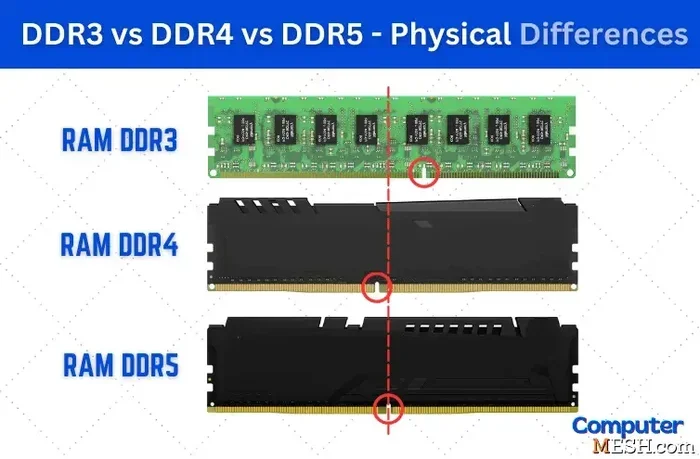
- Insufficient RAM: A new Windows build may use more memory, leaving less for OneNote to run smoothly. If your laptop has limited RAM, this becomes a bigger problem.
- Permission changes: Updates can reset file permissions, blocking OneNote from accessing its own data folders.
If your computer also runs slow and freezes in general after an update, the issue might be broader than just OneNote. Checking overall system health is always a smart first step. Overheating can also contribute to app freezes, especially on older laptops that struggle with the demands of new software updates.
The fixes below address each of these causes directly. You do not need to try all of them. Start with Fix 1 and work your way down until the problem goes away.
Fix 1: Restart OneNote and Clear the Cache
This is the simplest fix and it resolves the issue more often than you would think. Clearing the cache removes corrupted temporary files that might be causing OneNote to freeze after an update.
Step-by-Step Instructions
- Close OneNote completely. Right-click the OneNote icon in your system tray and select Close. Make sure no background processes remain.
- Open File Explorer. Press Windows Key + E to launch it.
- Navigate to the cache folder. Type the following path into the address bar and press Enter:
%LOCALAPPDATA%\Microsoft\OneNote\16.0\cache - Delete all files in the cache folder. Select everything and press Delete. Do not worry, OneNote will rebuild these files automatically.
- Restart your computer. This ensures all changes take effect.
- Open OneNote and check if it works.
Quick Tip: If you cannot find the cache folder, use the search bar in File Explorer and type “OneNote cache.” This often locates the folder faster than browsing manually.
Many users report that this single fix solved their OneNote not responding after Windows update problem. It takes less than two minutes and requires no technical skills. Always try this one first before moving on to more complex solutions.
Fix 2: Update or Reinstall OneNote
After a Windows update, your version of OneNote might be out of date. Microsoft frequently releases patches to maintain compatibility with new Windows builds. Running an update or doing a clean reinstall often fixes freezing issues.
Option A: Update OneNote Through the Microsoft Store
- Open the Microsoft Store app on your PC.
- Click the Library icon at the bottom left.
- Look for OneNote in your installed apps list.
- If an update is available, click the Update button.
- Wait for the installation to complete and restart OneNote.
Option B: Reinstall OneNote Completely
If updating does not help, a fresh installation often does the trick.
- Go to Settings > Apps > Installed Apps.
- Find Microsoft OneNote in the list.
- Click the three dots and select Uninstall.
- Restart your computer.
- Visit the Microsoft Store and download OneNote again.
- Sign in with your Microsoft account and let it sync.
Expert Insight: Before reinstalling, make sure your notes are backed up. Open OneNote (if it still partially works), go to File > Export, and save a backup file to your desktop. This prevents any potential data loss during the reinstall process.
Reinstalling OneNote removes all corrupted app data and gives you a clean slate. This fix has a very high success rate for users dealing with OneNote lag after update or constant crashing.
Fix 3: Run the Windows App Troubleshooter
Windows includes built-in tools designed to detect and fix common app problems. The Windows Troubleshooter is one of the most underused features, yet it solves many freezing issues automatically.
How to Access the Troubleshooter
- Open Settings by pressing Windows Key + I.
- Navigate to System > Troubleshoot > Other troubleshooters.
- Find Windows Store Apps and click Run.
- Follow the on-screen prompts and let the tool scan for issues.
- Apply any fixes it recommends.
- Restart your PC and open OneNote.
Quick Tip: You can also run the Windows Update Troubleshooter from the same menu. Sometimes the freezing is caused by a partially failed update, and this tool repairs the installation automatically.
The troubleshooter checks for common problems like missing files, incorrect permissions, and registry errors. It is a safe, non-destructive way to diagnose issues. Many people skip this step, but it often catches problems that manual fixes miss.
If your entire system feels sluggish after an update, you might also want to check whether your laptop has enough memory to handle the new Windows build. Insufficient RAM can cause apps like OneNote to freeze even when there is no direct app conflict.
Fix 4: Check for Windows Update Conflicts
Not all Windows updates play nicely with every app. Occasionally, a specific update introduces a bug that affects OneNote performance. Identifying and addressing these conflicts can eliminate freezing for good.
Step 1: Check Your Update History
- Go to Settings > Windows Update > Update History.
- Look at the most recent updates installed.
- Note the date and update name.
- Search online for that specific update combined with “OneNote issues.”
Step 2: Pause Updates Temporarily
If you recently installed a new update and OneNote started freezing right after, pausing updates gives you time to wait for a patch:
- Go to Settings > Windows Update.
- Click Pause updates and select a timeframe (up to 5 weeks).
- Check if OneNote works normally during the pause.
Step 3: Uninstall a Problematic Update
If a specific update is causing the problem, you can remove it:
- Go to Settings > Windows Update > Update History > Uninstall Updates.
- Find the most recent update.
- Right-click and select Uninstall.
- Restart your PC.
Common Mistake: Many users uninstall updates without checking if a newer patch has already fixed the issue. Always search for your specific update number before removing it. Microsoft often releases follow-up fixes within days of discovering a problem.
Update conflicts are one of the most common reasons for OneNote freezing after Windows update. While Microsoft works hard to test updates, occasional bugs slip through. Staying informed about known issues helps you act faster.
Fix 5: Perform a System Restore
If none of the previous fixes work, a System Restore rolls your PC back to a point before the update or the OneNote problems began. This is the nuclear option, but it is highly effective.
How to Use System Restore
- Type Create a restore point in the Windows search bar and open it.
- Click the System Restore button.
- Choose a restore point from before the update or when OneNote was working fine.
- Follow the prompts and let Windows complete the restore.
- Restart your computer.
Important: System Restore does not delete your personal files, photos, or documents. It only removes apps, drivers, and system updates installed after the chosen restore point. Your OneNote notes stored in the cloud remain safe.
Quick Tip: If you do not have a restore point set up, you can create one now as a safety measure. Go to System Protection settings and click Configure to enable it for your C: drive.
This fix is especially helpful when your OneNote not opening after Windows 11 update or similar scenarios occur. It gives you a clean system state without the need to wipe everything and start over.
After performing a System Restore, make sure to check for any new Windows patches that might address the original issue. You can then safely install those updates knowing they may have fixed the underlying bug.
Preventing OneNote Freezing in the Future
Once you get OneNote working again, taking preventive steps saves you from dealing with the same frustration repeatedly. Here are some habits that keep things running smoothly:
- Keep OneNote updated: Enable automatic updates through the Microsoft Store so you always have the latest version.
- Clear cache regularly: Make it a monthly habit to delete OneNote cache files. This prevents data buildup that can slow the app down.
- Monitor your RAM usage: If your laptop has 8GB of RAM or less, close unnecessary apps while using OneNote. Heavy multitasking can cause freezes, especially after a Windows update increases memory demands.
- Stay informed about known issues: Check Microsoft’s support pages before installing major updates. If a known OneNote conflict exists, you can prepare or delay the update.
- Keep your laptop cool: Overheating causes apps to freeze and crash. Make sure your vents are clear and consider using a cooling pad if you work on your laptop for long periods.
Taking these small steps goes a long way in keeping your note-taking experience smooth and frustration-free. Prevention is always easier than fixing a problem after it happens.
Conclusion
OneNote freezing after a Windows update is annoying, but it is rarely a permanent problem. The 5 fixes we covered give you everything you need to get back to taking notes without interruption. Start with clearing the cache, then move through the other solutions one by one. Most users find relief within the first two or three fixes.
Remember that keeping your apps and system updated is the best long-term strategy. Microsoft continuously improves compatibility with each new release. If you ever feel stuck, the Windows Troubleshooter and System Restore are reliable safety nets that rarely let you down.
Try these fixes today and take back control of your OneNote experience. Your notes are too important to lose to a simple software glitch.
Frequently Asked Questions
Why does OneNote keep freezing after I update Windows?
Windows updates can change system files and settings that OneNote relies on. Corrupted cache files, outdated app versions, and driver conflicts are the most common culprits. The fixes in this article address each of these causes directly.
Is it safe to delete the OneNote cache folder?
Yes, it is completely safe. The cache stores temporary data that OneNote rebuilds automatically. Deleting these files does not affect your saved notes or any personal data stored in your account.
Will System Restore delete my OneNote notes?
No. System Restore only affects system files, apps, and drivers. Your personal files and cloud-synced OneNote notes remain untouched. However, it is always a good idea to back up your notes before making major system changes.
How do I know which Windows update caused the OneNote freeze?
Check your Update History in Settings and note the date of the most recent update. Search online for that specific update combined with “OneNote issues.” Microsoft and user forums often document known conflicts with specific update numbers.
Can a lack of RAM cause OneNote to freeze after an update?
Yes. New Windows updates often use more system resources, including memory. If your laptop has limited RAM, OneNote may struggle to run smoothly. Closing other apps and freeing up memory can help reduce freezing.
What should I do if none of these fixes work?
Try reaching out to Microsoft Support directly through the OneNote app or their website. You can also check community forums where other users may have found solutions for specific Windows and OneNote version combinations. Sometimes a clean Windows reinstall is the final solution for persistent issues.
=== END OF ARTICLE ===