Windows Terminal In Windows 11 Everything You Need To Know
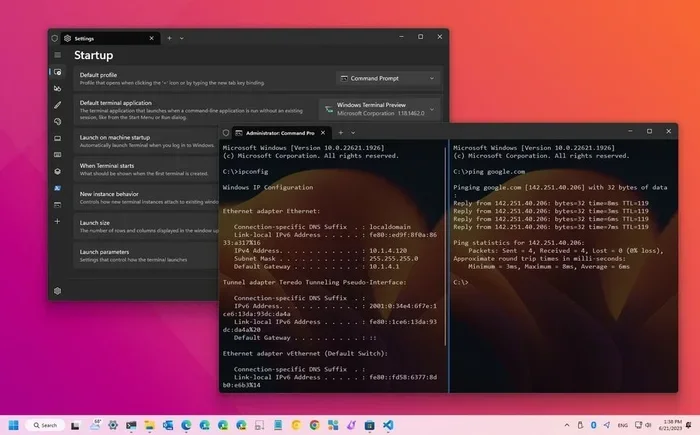
Windows Terminal in Windows 11 is a modern, powerful command-line app that replaces the old Command Prompt and PowerShell windows. It offers tabs, themes, multiple panes, and deep customization that makes working in the terminal faster and easier. This guide covers setup, features, customization, and pro tips for Windows 11 users.
Windows Terminal in Windows 11 has completely changed how people interact with the command line. If you have ever felt stuck with the old, plain Command Prompt window, this tool is a breath of fresh air. It combines PowerShell, Command Prompt, and Azure Cloud Shell into one sleek, modern app. In this guide, we will walk you through everything you need to know about Windows Terminal in Windows 11, from basic setup to advanced customization.
Whether you are a developer, a system administrator, or just someone who likes to tinker with your PC, Windows Terminal in Windows 11 offers something useful. It is free, open-source, and packed with features that make working in the terminal a much better experience. Let us dive in and explore what makes this tool so special.
Key Takeaways
- Windows Terminal in Windows 11 brings a modern, tabbed interface to command-line tools like PowerShell and CMD.
- You can customize themes, colors, fonts, and backgrounds to make the terminal look and feel exactly how you want.
- The split-pane feature lets you run multiple commands side by side for better multitasking.
- Windows Terminal supports GPU-accelerated text rendering, which makes text display smoother and faster.
- It is free, open-source, and available through the Microsoft Store for easy installation.
- Keyboard shortcuts and command-line integration make it a must-have tool for developers and power users.
📑 Table of Contents
- What Is Windows Terminal in Windows 11?
- How to Install Windows Terminal on Windows 11
- Key Features of Windows Terminal in Windows 11
- Customizing Windows Terminal for Your Workflow
- Tips and Tricks for Windows Terminal Users
- Common Mistakes to Avoid
- Windows Terminal vs. Command Prompt and PowerShell
- Final Thoughts on Windows Terminal in Windows 11
What Is Windows Terminal in Windows 11?
Windows Terminal in Windows 11 is a modern terminal application built by Microsoft. It serves as a single place where you can access multiple command-line shells. Instead of opening separate windows for Command Prompt, PowerShell, or other tools, you can manage them all in one app. The terminal supports tabs, so you can switch between different shells without cluttering your screen.
This tool is part of the Windows 11 ecosystem, which means it integrates smoothly with the operating system. You can launch it from the Start menu, use it as your default terminal, or even set it to open when you right-click the Start button. The design is clean and minimalist, but the capabilities are anything but basic.
One of the standout aspects of Windows Terminal in Windows 11 is its support for GPU-accelerated text rendering. This means text appears sharper and scrolls more smoothly compared to the legacy console host. For users who spend a lot of time in the terminal, this small improvement makes a big difference in daily workflow.
Who Should Use Windows Terminal?
Windows Terminal in Windows 11 is useful for a wide range of people. Developers use it to run Git commands, build projects, and manage servers. System administrators rely on it for managing networks and services. Even casual users can benefit from it for simple tasks like file management or running scripts. If you use the command line at all, this tool is worth exploring.
How to Install Windows Terminal on Windows 11
Installing Windows Terminal in Windows 11 is straightforward. The app comes pre-installed on many Windows 11 systems, but if it is not on yours, you can grab it easily. Open the Microsoft Store, search for “Windows Terminal,” and click Install. The process takes just a few seconds, and the app is ready to use immediately after.
You can also download the app from GitHub if you prefer the latest preview builds. The Microsoft Store version is stable and receives regular updates. Either way, the installation process is simple and does not require any technical expertise.
Setting Windows Terminal as Your Default Terminal
Once installed, you may want to set Windows Terminal in Windows 11 as your default terminal application. To do this, open the app and go to Settings. Look for the “Startup” section, where you can choose Windows Terminal as the default terminal handler. This ensures that whenever a command-line app launches, it opens inside the terminal instead of the old console window.
Setting this as default is a small step that makes a huge impact. You will notice the difference immediately when you run commands or scripts. Everything feels faster, smoother, and more organized.
Key Features of Windows Terminal in Windows 11
Windows Terminal in Windows 11 is packed with features that set it apart from the traditional command-line experience. Let us look at the most important ones.
Tabbed Interface
The tabbed interface is one of the first things you will notice. You can open multiple tabs, each running a different shell. For example, you might have PowerShell on one tab, Command Prompt on another, and Azure Cloud Shell on a third. Switching between them is as simple as clicking the tabs at the top. This keeps your workspace clean and organized.
You can also rename tabs, color-code them, and even set specific profiles to open on startup. These small details add up to a much better user experience.
Split Panes
Another powerful feature is split panes. With Windows Terminal in Windows 11, you can divide your terminal window into multiple sections. Each section runs its own shell independently. This is incredibly useful when you need to monitor logs in one pane while running commands in another.
You can split the window horizontally or vertically. The layout adjusts easily, and you can resize each pane by dragging the borders. It is a simple feature that dramatically improves multitasking.
Customizable Themes and Appearance
Windows Terminal in Windows 11 lets you completely change how the terminal looks. You can choose from built-in themes or create your own. Want a dark background with neon green text? You can set that up in seconds. Prefer a light theme that is easier on the eyes during the day? That works too.
The settings file is in JSON format, which gives you fine-grained control over every visual aspect. You can adjust font size, font family, background opacity, and color schemes. The level of customization is remarkable for a built-in Windows tool.
Multiple Shell Support
The terminal supports several shells out of the box. PowerShell is the default shell and offers powerful scripting capabilities. Command Prompt is still available for legacy commands and batch files. You can also add support for third-party shells like WSL (Windows Subsystem for Linux) or Git Bash. This flexibility makes Windows Terminal in Windows 11 a one-stop solution for all your command-line needs.
Customizing Windows Terminal for Your Workflow
Customization is where Windows Terminal in Windows 11 truly shines. The app gives you control over almost every aspect of the experience. Let us explore some of the best ways to tailor it to your needs.
Creating Custom Profiles
Each shell you use can have its own profile. You can assign a unique name, color, icon, and starting directory to each profile. For instance, you might create a profile that opens PowerShell in your project folder and another that opens Command Prompt in the system directory. When you launch the terminal, you can choose which profile to start with.
To manage profiles, open Settings and select the “Profiles” section. From there, you can add, edit, or remove profiles. The process is intuitive and does not require any coding knowledge.
Adjusting Font and Rendering Settings
The font settings in Windows Terminal in Windows 11 are easy to access and modify. You can choose from a wide range of monospaced fonts that are designed for code readability. Font size, weight, and line height are all adjustable. The GPU-accelerated rendering ensures that text looks crisp even at larger sizes.
If you work long hours in the terminal, choosing the right font can reduce eye strain significantly. Popular choices include Cascadia Code, Fira Code, and Consolas. Each has its own style and readability benefits.
Configuring Keyboard Shortcuts
Keyboard shortcuts make working in Windows Terminal in Windows 11 much faster. You can use Ctrl+Tab to switch between tabs, Ctrl+Shift+T to reopen a closed tab, and Ctrl+Shift+D to split the pane. The app comes with a full set of default shortcuts, and you can add your own custom bindings in the settings file.
Learning these shortcuts takes only a few minutes, but the time savings add up quickly. Power users often find that keyboard shortcuts become second nature after a short adjustment period.
Tips and Tricks for Windows Terminal Users
Even if you are new to the command line, Windows Terminal in Windows 11 is easy to pick up. Here are some tips to help you get the most out of it.
Use the Search Function
The terminal includes a search feature that lets you find specific text in your command history. Press Ctrl+Shift+F to open the search bar. This is especially helpful when you need to locate a command you ran earlier or find an error message in a long output.
Pin Your Favorite Tabs
If you always work with the same set of shells, consider pinning them. Right-click a tab and select “Pin Tab” to keep it at the start of the tab bar. This saves you from scrolling through a long list of tabs every time you open the terminal.
Leverage the Command Palette
The command palette is a hidden gem in Windows Terminal in Windows 11. Press Ctrl+Shift+P to open it. From there, you can access almost every function in the app, including settings, profile switching, and tab management. It is a quick way to navigate without using the mouse.
Experiment with Background Images
You can set a background image or acrylic transparency effect in the terminal settings. This adds a personal touch to your workspace and can make the terminal feel more integrated with your desktop theme. Just keep in mind that busy backgrounds can make text harder to read, so choose subtle images.
Common Mistakes to Avoid
While Windows Terminal in Windows 11 is user-friendly, there are a few common mistakes that can cause frustration. Being aware of them helps you avoid unnecessary headaches.
- Not setting it as the default terminal: If you skip this step, some applications may still open in the legacy console, which lacks many features.
- Over-customizing the settings file: It is tempting to tweak every setting, but too many changes can make the terminal unstable. Make small adjustments and test as you go.
- Ignoring updates: Microsoft regularly releases updates that add features and fix bugs. Keeping the terminal up to date ensures you get the best experience.
- Not using keyboard shortcuts: Relying only on the mouse slows you down. Learning a few essential shortcuts can boost your productivity significantly.
- Forgetting to back up settings: Your settings file contains all your customizations. Backing it up ensures you do not lose your configuration if something goes wrong.
Windows Terminal vs. Command Prompt and PowerShell
Many users wonder how Windows Terminal in Windows 11 compares to the traditional Command Prompt and PowerShell windows. The answer is simple: the terminal is a wrapper that hosts these shells with a much better interface.
The Command Prompt is the oldest of the three. It is simple and reliable but lacks modern features. PowerShell is more powerful and scriptable but uses the same basic window. Windows Terminal in Windows 11 gives both of these shells a modern home with tabs, themes, and customization. It does not replace them; it enhances them.
If you have been using the old console windows, switching to the terminal is one of the easiest upgrades you can make. The learning curve is minimal, and the benefits are immediate. You get a better-looking, more functional, and more organized command-line experience without changing how you write commands.
Final Thoughts on Windows Terminal in Windows 11
Windows Terminal in Windows 11 is a fantastic tool that deserves a spot on every Windows 11 PC. It takes the command line from a utilitarian necessity to a pleasant, productive workspace. Whether you are a developer, a system admin, or a curious user, the terminal offers features that make working in the command line faster and more enjoyable.
The best part is that it is free and already built into Windows 11. There is no reason not to give it a try. Spend a few minutes exploring the settings, creating custom profiles, and learning keyboard shortcuts. Once you make Windows Terminal in Windows 11 a part of your daily routine, you will wonder how you ever managed without it.
Take some time today to open the terminal and experiment. You might be surprised at how much a better tool can change your workflow. The command line has never looked or felt this good.
Frequently Asked Questions
What is Windows Terminal in Windows 11 used for?
Windows Terminal in Windows 11 is a modern command-line application that lets you run PowerShell, Command Prompt, Azure Cloud Shell, and other shells in one place. It replaces the old console windows with a feature-rich interface that supports tabs, themes, and split panes.
Is Windows Terminal free to use?
Yes, Windows Terminal in Windows 11 is completely free. It comes pre-installed on many Windows 11 systems and is also available for download from the Microsoft Store and GitHub. It is open-source and regularly updated by Microsoft.
Can I customize the appearance of Windows Terminal?
Absolutely. You can change themes, colors, fonts, background images, and transparency settings in Windows Terminal in Windows 11. The settings are stored in a JSON file that gives you precise control over every visual element of the terminal.
How do I set Windows Terminal as my default terminal?
Open Windows Terminal, go to Settings, and look for the “Startup” section. There you can select Windows Terminal as the default terminal handler. This ensures that command-line apps open inside the terminal instead of the legacy console window.
Does Windows Terminal support Linux shells?
Yes. Windows Terminal in Windows 11 supports WSL (Windows Subsystem for Linux), which lets you run Linux command-line tools alongside Windows shells. You just need to install a Linux distribution from the Microsoft Store, and it will appear as a profile in the terminal.
What are the best keyboard shortcuts in Windows Terminal?
Some essential shortcuts include Ctrl+Tab to switch tabs, Ctrl+Shift+T to reopen a closed tab, Ctrl+Shift+D to split the pane, and Ctrl+Shift+P to open the command palette. Learning these shortcuts makes working with Windows Terminal in Windows 11 much faster and more efficient.