Slow Booting Issue In Windows 11 What You Need to Know
A slow booting issue in Windows 11 can frustrate anyone waiting minutes just to get started. This guide covers the real reasons behind slow startup times and gives you simple, actionable fixes you can try right away. From disabling startup programs to checking your hard drive health, we walk you through every step clearly and honestly.
Waiting for your PC to start can feel like forever. You click the power button, and then… nothing happens for what seems like an eternity. A slow booting issue in Windows 11 is more common than you might think, and it affects laptops and desktops alike. Whether you just got a new machine or have been using the same one for years, slow startup times can really slow down your day.
The good news is that you do not need to be a tech expert to fix this. Most causes of a slow computer startup are simple to address. In this guide, we break down every reason your PC might be taking forever to boot and show you exactly how to fix it. By the end, you will know what to change and why it works.
Key Takeaways
- Startup Programs: Too many apps launching at boot is the #1 cause of a slow booting issue in Windows 11.
- Fast Startup Feature: Sometimes this Windows 11 shortcut actually causes more harm than good.
- Hardware Matters: An old HDD or low RAM can make your laptop boot painfully slow.
- Driver Updates: Outdated drivers frequently lead to long boot times and system hangs.
- BIOS Settings: A simple boot order change can shave seconds off your startup.
- SSD Upgrade: Switching from a hard drive to an SSD is the single biggest speed boost.
- System Tools: Built-in Windows tools like Disk Cleanup and SFC can fix hidden boot problems.
📑 Table of Contents
- What Causes a Slow Booting Issue In Windows 11?
- How to Fix a Slow Booting Issue In Windows 11
- How RAM Affects Your Boot Speed
- When Should You Consider an SSD Upgrade?
- Quick Tips to Keep Your Boot Time Fast
- Common Mistakes People Make When Fixing Slow Boot
- Expert Insight: What Professionals Do First
- Final Thoughts
What Causes a Slow Booting Issue In Windows 11?
Before you jump into fixes, it helps to understand what is actually happening when you press that power button. Your PC goes through a series of steps before you see the desktop. Each step can become a bottleneck if something is not right.
Here are the most common reasons behind a Windows 11 boot time that feels way too long:
Too Many Startup Programs
When you install software on your PC, many of those apps set themselves to open automatically when Windows starts. Over time, this list grows and grows. Your processor has to load all of these programs at once, which slows down your laptop boot significantly. Things like Spotify, Microsoft Teams, and Adobe updaters love to sneak into your startup list.
Old or Failing Hard Drive
If your laptop still uses a traditional mechanical hard drive (HDD), this could be the biggest bottleneck. HDDs have moving parts, and they simply cannot read data as fast as modern SSDs (solid-state drives). A slow hard drive is often the hidden reason behind a laptop boot slow problem that nobody thinks to check.
Not Enough RAM
Random Access Memory (RAM) plays a huge role in how fast your system starts. If you have 4 GB of RAM or less, your PC struggles to handle the boot process smoothly. How much RAM you need in a laptop depends on what you do, but for Windows 11, 8 GB is really the minimum for comfortable use. If you want to know more about this, check out our guide on how much RAM you need in a laptop.
Outdated Drivers
Drivers are the software that lets Windows talk to your hardware. When drivers get outdated, they can cause conflicts during the boot process. This leads to delays, freezes, and sometimes even a boot loop Windows 11 situation where your PC keeps restarting.
Fast Startup Causing Problems
Windows 11 has a feature called Fast Startup that is supposed to make booting faster. It works by saving a snapshot of your system when you shut down. However, this feature can sometimes backfire and cause longer boot times or strange startup errors. It is one of those settings that seems helpful but can actually hurt performance.
How to Fix a Slow Booting Issue In Windows 11
Now that you know the common causes, let us get into the fixes. These steps are listed in order of easiest to most involved, so you can start with the first one and work your way down.
Disable Unnecessary Startup Programs
This is the single most effective fix for most people. Here is how to do it:
- Press Ctrl + Shift + Esc to open the Task Manager.
- Click on the Startup tab at the top.
- Right-click on any program you do not need right away and select Disable.
- Restart your PC and see if the boot time improves.
You do not need to disable everything. Keep essentials like your antivirus and audio drivers. But anything you rarely use, such as chat apps or cloud storage sync tools, should be turned off at startup.
Turn Off Fast Startup
Fast Startup sounds like a great idea, but it can actually cause boot problems. Here is how to turn it off:
- Open the Control Panel and go to Power Options.
- Click on Choose what the power buttons do on the left side.
- Click Change settings that are currently unavailable.
- Uncheck the box for Turn on fast startup.
- Save your changes and restart your PC.
After turning this off, you might notice the first boot takes a bit longer, but subsequent boots should be more stable and predictable.
Run Disk Cleanup
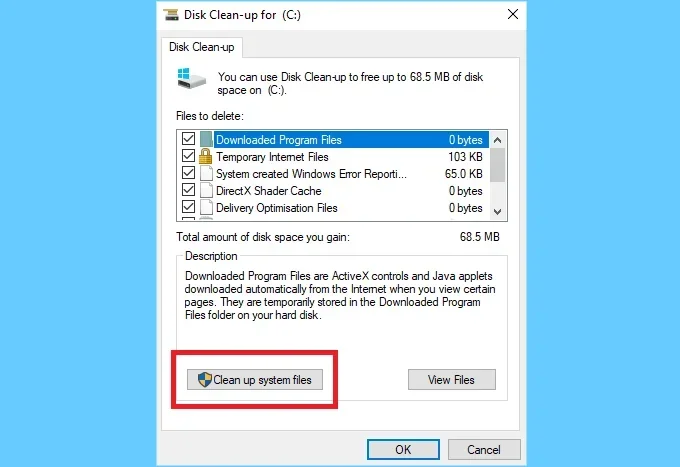
Over time, your system accumulates tons of temporary files, old logs, and cache data. All of this can slow down your boot process. Disk Cleanup is a built-in Windows tool that removes this junk safely.
To use it, simply type “Disk Cleanup” in the Windows search bar, select your main drive, and check all the boxes. Hit OK, and let Windows do the work. For a deeper clean, you can also use the Storage Sense feature in Windows 11 settings to automatically clear temporary files.
Update Your Drivers
Outdated drivers can create all sorts of problems during startup. Here is a quick way to update them:
- Right-click the Start button and select Device Manager.
- Expand each category and right-click on devices with a yellow warning icon.
- Select Update driver and choose to search automatically.
- Also check for BIOS updates from your laptop or motherboard manufacturer’s website.
Keeping your drivers up to date is one of the simplest ways to maintain a healthy Windows 11 boot time. If you want to learn more about keeping your system running smoothly, you might also enjoy our article on how to fix a computer running slow and freezing.
Check Your Hard Drive Health
A failing hard drive can cause extremely slow boot times and even prevent your PC from starting at all. Windows has a built-in tool to check for disk errors:
- Open Command Prompt as Administrator.
- Type sfc /scannow and press Enter to scan for system file issues.
- Next, type chkdsk C: /f /r and press Enter to check your disk for errors.
If these tools find problems, you should seriously consider replacing your old HDD with an SSD. We have a detailed guide on M.2 NVMe SSDs in USB enclosures if you want to explore external storage upgrades.
Adjust BIOS Boot Order
Sometimes the problem is not Windows at all, but your BIOS trying to boot from the wrong drive. Here is what to do:
- Restart your PC and press the BIOS key (usually F2, F12, Del, or Esc) during startup.
- Look for the Boot or Boot Order section.
- Make sure your main Windows drive is listed first.
- Save changes and exit.
This simple adjustment can eliminate several seconds from your boot time, especially if you have multiple drives connected.
How RAM Affects Your Boot Speed
RAM is one of the most important factors in how fast your PC boots. When Windows starts, it loads essential files and services into memory. If you do not have enough RAM, your system has to constantly swap data to your hard drive, which dramatically slows everything down.
For Windows 11, the recommended amount of RAM is 8 GB or more. If your laptop came with only 4 GB, you are likely dealing with a slow booting issue in Windows 11 that RAM alone can fix. Upgrading your RAM is one of the most cost-effective ways to improve overall system performance.
If you are wondering whether you can add more RAM to your machine, check out our guide on can you upgrade RAM in a laptop. It covers compatibility, installation steps, and what to expect after the upgrade.
Here is a quick look at how RAM affects boot performance:
| RAM Amount | Boot Experience | Windows 11 Ready? |
|---|---|---|
| 4 GB | Very slow, frequent stuttering | Minimum requirement, not ideal |
| 8 GB | Acceptable boot time | Yes, comfortable for most users |
| 16 GB | Fast and smooth | Yes, excellent for multitasking |
| 32 GB | Very fast | Overkill for most, great for professionals |
If you are running a Windows 11 8GB RAM laptop, you are in a decent spot, but upgrading to 16 GB can make a noticeable difference in boot speed and everyday performance.
When Should You Consider an SSD Upgrade?
If your laptop still boots from a traditional mechanical hard drive, upgrading to an SSD is the single biggest improvement you can make. The difference is night and day. A system that takes 3 to 5 minutes to boot on an HDD can start in 20 to 30 seconds on an SSD.
Here are some signs that your hard drive is dragging your boot time down:
- Your PC takes more than 2 minutes to reach the desktop.
- You hear clicking or grinding sounds from your laptop.
- File Explorer opens very slowly, even after Windows loads.
- Your system randomly freezes during the boot process.
If any of these sound familiar, it is time to consider an upgrade. Whether you go with an M.2 NVMe SSD or a standard SATA SSD, the improvement will be dramatic. You can even use an external enclosure to repurpose your old drive for extra storage.
Quick Tips to Keep Your Boot Time Fast
Prevention is always better than cure. Here are some simple habits that keep your Windows 11 startup running smoothly:
- Restart your PC regularly. Many people leave their laptops in sleep mode for weeks. A full restart clears temporary files and refreshes system processes.
- Keep Windows updated. Microsoft regularly releases patches that improve boot performance and fix known startup bugs.
- Avoid installing unnecessary software. Every program you install adds potential startup entries and background services.
- Scan for malware regularly. Malicious software can run secretly during boot and eat up your system resources.
- Clean up your desktop. A cluttered desktop with thousands of files can slightly slow down the boot process as Windows loads desktop icons.
These small habits add up over time and can save you from ever having to deal with a slow booting issue in Windows 11 again.
Common Mistakes People Make When Fixing Slow Boot
While trying to fix a laptop boot slow problem, many people make mistakes that actually make things worse. Here are a few to avoid:
- Disabling too many startup items. Turning off critical system services can break functionality. Only disable apps you recognize and do not need at startup.
- Skipping driver updates. Some people ignore driver updates for months. Outdated drivers are a leading cause of boot delays and system instability.
- Ignoring hard drive warnings. If your disk check tool reports errors, do not ignore them. A failing drive can lead to data loss if not addressed quickly.
- Thinking more RAM always helps. If you already have 16 GB and your boot is still slow, adding more RAM will not help. The bottleneck is likely elsewhere.
Avoiding these mistakes ensures that your troubleshooting efforts actually produce results instead of creating new problems.
Expert Insight: What Professionals Do First
When a technician sits down to fix a Windows 11 performance issue related to slow booting, they follow a systematic approach. First, they check the startup program list and disable anything unnecessary. Second, they run a disk health check and system file scan. Third, they verify that drivers are current and the BIOS is up to date.
Most of the time, the problem is resolved within these first three steps. Only in rare cases do they need to dig deeper into registry edits or perform a clean Windows reinstall. If your boot time is still not improving after trying the fixes above, it might be worth consulting a professional or performing a fresh installation of Windows 11.
Final Thoughts
A slow booting issue in Windows 11 is annoying, but it is almost always fixable. The causes range from simple startup clutter to aging hardware, and the solutions are accessible to users of all skill levels. Start with the easiest fixes like disabling startup programs and turning off Fast Startup. If those do not work, move on to driver updates, disk cleanup, and BIOS adjustments.
Remember, your hardware plays a huge role too. If your laptop still uses an old hard drive or has less than 8 GB of RAM, an upgrade can transform your experience entirely. A fast computer startup not only saves you time but also makes your PC feel like new again.
Take action today. Try the fixes in this guide one by one, and you will likely notice a difference after the very first change. A quicker boot means a better start to every single day.
Frequently Asked Questions
Why is my Windows 11 PC taking so long to start up?
The most common reason is too many startup programs launching at once. Other causes include an old hard drive, low RAM, outdated drivers, or the Fast Startup feature causing conflicts. Disabling unnecessary startup apps is the fastest way to improve your boot time.
How long should a Windows 11 boot take?
A healthy Windows 11 boot should take between 15 and 30 seconds from pressing the power button to reaching the desktop. If it takes longer than a minute, something is likely slowing down the process, and the fixes in this guide can help.
Does adding more RAM speed up boot time?
Yes, especially if your laptop currently has 4 GB of RAM or less. Windows 11 needs at least 8 GB for smooth operation. Adding RAM reduces the need for your system to swap data to the hard drive during boot, which significantly speeds things up.
Is it safe to disable Fast Startup in Windows 11?
Yes, it is completely safe. Fast Startup can sometimes cause boot problems or conflicts with certain hardware. Turning it off may make the first boot slightly slower, but it often improves overall stability and resolves startup errors.
Can a virus or malware cause slow booting?
Absolutely. Malicious software often runs automatically during startup and consumes system resources in the background. Running a full antivirus scan regularly helps ensure that malware is not secretly slowing down your boot process.
Should I upgrade from an HDD to an SSD for faster booting?
If you are still using a mechanical hard drive, upgrading to an SSD is the single best thing you can do for boot speed. The difference is dramatic, with boot times dropping from several minutes to under 30 seconds in most cases.